
Google Street View has transformed the way we explore the world—from scouting vacation destinations to previewing a new neighborhood before moving in. With high-resolution 360-degree imagery available across millions of locations, it's an indispensable tool for travelers, real estate buyers, urban planners, and curious minds alike. Whether you're using a desktop computer, smartphone, or tablet, accessing and navigating Street View is simple once you know the right steps. This comprehensive guide walks you through every method, device-specific navigation techniques, and practical tips to get the most out of your virtual exploration.
Accessing Street View on Desktop (Windows & macOS)
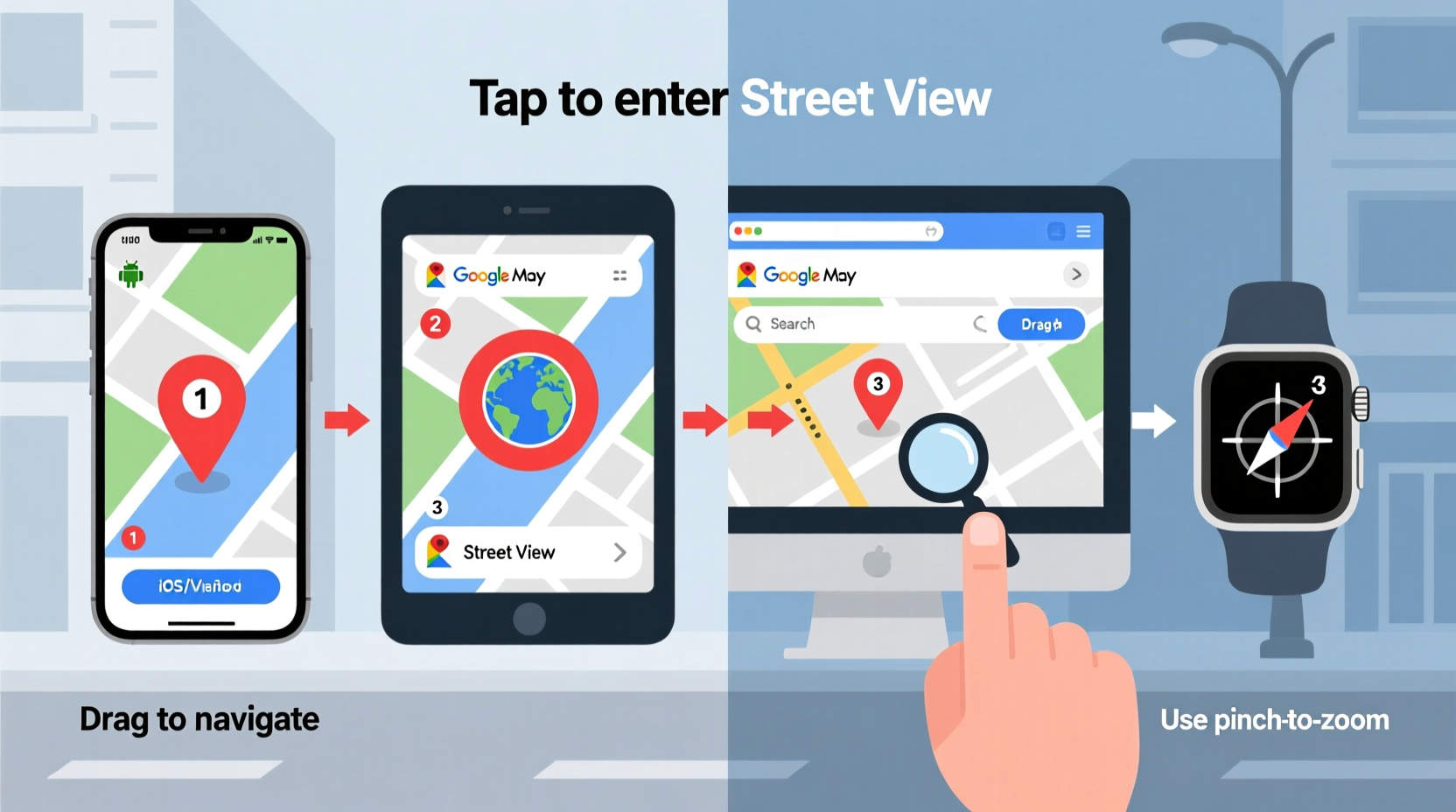
Navigating Street View on a desktop browser offers the most control thanks to mouse precision and keyboard shortcuts. The process begins with Google Maps, the primary gateway to Street View.
- Open your preferred web browser (Chrome, Firefox, Safari, etc.).
- Go to maps.google.com.
- Search for a location using the search bar or manually zoom into the map.
- Locate the yellow \"Pegman\" icon in the bottom-right corner of the screen.
- Click and drag Pegman onto the map. Blue-highlighted areas indicate where Street View is available.
- Drop Pegman at your desired starting point. The view will switch to ground-level 360 imagery.
Once inside Street View, use the mouse to click and drag the scene in any direction. Zoom in with the scroll wheel or the + button; zoom out with - . Click on arrows overlaid on the image to move forward along streets or pathways.
Navigating Street View on Mobile Devices (iOS & Android)
Smartphones offer a dynamic way to experience Street View, especially when using motion sensors to look around by tilting the device. The Google Maps app makes this seamless.
- Download and open the Google Maps app from the App Store (iOS) or Google Play Store (Android).
- Search for a destination or tap a place directly on the map.
- Tap the location’s info card at the bottom of the screen.
- Scroll through photos until you see a Street View thumbnail—tap it.
- Alternatively, zoom the map deeply until blue lines appear—tap one and select “Street View” from the pop-up.
In the Street View mode, swipe your finger left, right, up, or down to change your viewing angle. Tap directional arrows to advance along roads. On compatible devices, holding the phone and turning your body can shift the view in real time—ideal for immersive exploration.
Using Augmented Reality Mode (Live View)
For real-time orientation, Google Maps includes Live View, which overlays directional cues on your camera feed. While not Street View per se, it complements navigation by aligning digital data with physical surroundings.
- Open Google Maps and start walking with walking directions active.
- If available, tap “Live View” in the lower-left corner.
- Hold your phone outward—the AR interface uses visual positioning to guide you.
Tablet Navigation: Best of Both Worlds
Tablets combine the larger screen of desktops with the touch-based interface of smartphones, making them excellent for detailed exploration. The steps mirror those of mobile devices but benefit from enhanced visibility.
| Device Type | Primary Access Method | Motion Controls? | Best For |
|---|---|---|---|
| Desktop | Drag Pegman onto map | No | Precise navigation, research, planning |
| Smartphone | Tapping Street View thumbnails | Yes (gyroscope) | On-the-go exploration, AR features |
| Tablet | Touch gestures + Pegman drag | Limited | Detailed virtual tours, education |
On tablets, consider using landscape mode for a wider field of view. Multitasking features (like split-screen on iPads) allow you to keep Street View open while referencing notes or websites side-by-side.
Advanced Tips for Efficient Exploration
Beyond basic navigation, several techniques enhance your Street View experience, helping you travel further, faster, and with greater context.
- Use Time Travel: Some locations include historical imagery. Look for the clock icon in the top-left of Street View to slide through past years.
- Explore Indoors: Major landmarks like museums and airports offer indoor Street View. Navigate via blue interior path lines.
- Combine with Satellite View: Switch between Street View and satellite mode to understand spatial relationships between buildings and terrain.
- Save Locations: Pin spots viewed in Street View as favorites in Google Maps for future reference.
Real-World Example: Planning a Walking Tour in Lisbon
Sophia, a travel blogger based in Berlin, was preparing for a solo trip to Lisbon. She wanted to walk from Baixa to Alfama without getting lost. Using her laptop, she opened Google Maps and dragged Pegman down Rua Augusta. As she virtually walked uphill, she noted steep inclines, narrow alleys, and scenic viewpoints. She discovered a hidden miradouro (viewpoint) not listed in guidebooks. By revisiting the route in Street View multiple times, she memorized key turns and confirmed accessibility for her rolling suitcase. On arrival, the city felt familiar—she navigated confidently and even shared her custom route online.
“Street View isn’t just a map—it’s a rehearsal space for real-world experiences.” — David Kim, Urban Geographer and Digital Cartography Researcher
Frequently Asked Questions
Why can't I see Street View for some areas?
Street View coverage depends on data collection, privacy regulations, and road accessibility. Rural regions, private properties, and countries with strict data laws may lack imagery. Google continuously updates coverage—check back periodically or contribute via Street View Studio.
Can I use Street View offline?
Direct offline access to Street View isn’t supported. However, you can download specific map areas in the Google Maps app for offline use. While Street View images won’t load without internet, saved maps help orient you to where Street View points are located.
How often is Street View updated?
Update frequency varies by region. Major cities may be refreshed every 1–3 years, while remote areas could go a decade without updates. Historical imagery helps track changes over time. You can check the photo date displayed in the top-right corner of the Street View window.
Checklist: Mastering Street View Across Devices
- ✅ Confirm internet connection is stable
- ✅ Open Google Maps on your device
- ✅ Locate and use Pegman (desktop/tablet) or Street View thumbnails (mobile)
- ✅ Use drag/swipe gestures to look around
- ✅ Follow blue arrows to navigate forward
- ✅ Explore historical imagery with the clock icon
- ✅ Save useful views to your Google Maps list
- ✅ Test motion controls on mobile for immersive viewing
Conclusion: Start Exploring the World from Your Screen
Street View is more than a digital novelty—it’s a powerful tool for preparation, education, and curiosity. Whether you’re checking out a job commute, scouting a wedding venue, or exploring Tokyo from your living room, the ability to navigate seamlessly across devices puts the world at your fingertips. With consistent updates and expanding coverage, Google continues to refine this feature for broader accessibility and realism. Now that you know how to access and move through Street View on any device, there’s no limit to where you can go—without leaving your seat.




 浙公网安备
33010002000092号
浙公网安备
33010002000092号 浙B2-20120091-4
Comments
No comments yet. Why don't you start the discussion?