
Google is the world’s most widely used search engine, serving as the gateway to information, communication, and productivity for millions every day. Whether you're using a smartphone, tablet, laptop, or desktop computer, knowing how to access and navigate Google effectively can save time, improve decision-making, and open doors to learning and opportunity. This guide walks through everything a beginner needs to know—from launching your first search to mastering voice queries—on any device.
Understanding What \"Google\" Really Means
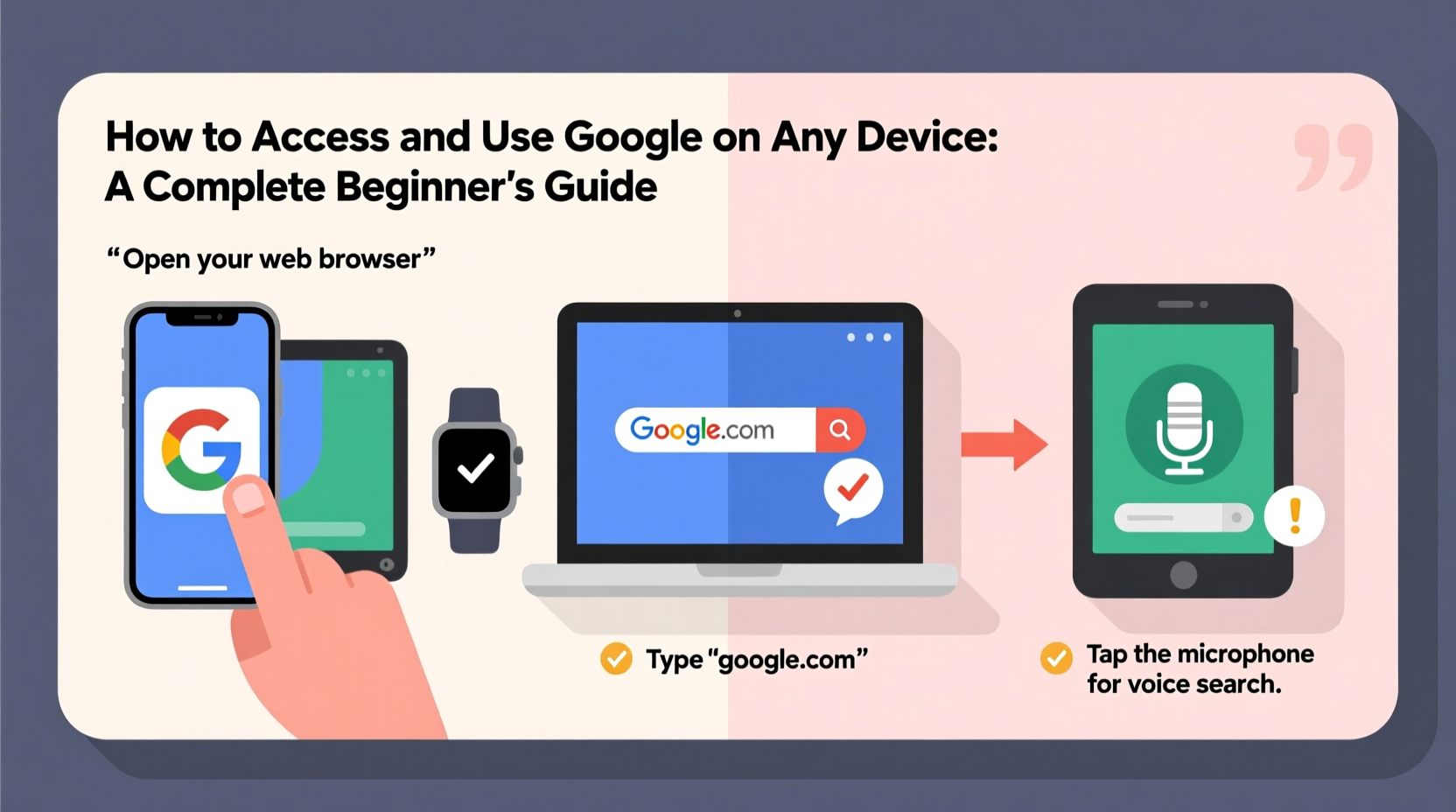
When people say “use Google,” they often mean different things. At its core, Google refers to the search engine at google.com, but it also includes a suite of tools like Gmail, Google Maps, YouTube, Google Drive, and Google Assistant. Accessing Google typically starts with a web browser, but the experience varies slightly depending on your device and operating system.
Regardless of platform, the foundation remains consistent: connect to the internet, open a browser or app, go to google.com (or use a Google-powered interface), and begin searching. The key is understanding how each device handles these steps.
Step-by-Step: How to Access Google on Different Devices
Accessing Google follows a similar logic across devices, but the path differs based on hardware and software. Below is a clear sequence for the most common platforms.
On a Smartphone (Android or iPhone)
- Unlock your phone and ensure Wi-Fi or mobile data is active.
- Open the **Chrome browser** (or Safari on iPhone).
- In the address bar at the top, type google.com and press Go or Enter.
- Alternatively, tap the **Google app** icon if installed—it opens directly to the search page.
- Begin typing your query in the search box.
On a Tablet
The process mirrors that of a smartphone. Open your preferred browser, navigate to google.com, or use the Google app. Tablets offer a larger screen, making reading search results easier, especially when researching topics like recipes, travel plans, or news.
On a Laptop or Desktop Computer
- Turn on your computer and connect to the internet.
- Launch a web browser such as Chrome, Firefox, Edge, or Safari.
- Type google.com into the address bar and press Enter.
- The Google homepage will load, ready for your search.
If Chrome is your default browser, it may already have Google set as the homepage or default search engine, streamlining access even further.
Mastering Basic Google Search Techniques
Once you’ve accessed Google, the next step is using it effectively. A well-structured search saves time and delivers better results.
Entering Your First Query
Type natural-language questions or keywords into the search bar. For example:
- “How do I bake banana bread?”
- “Weather in Miami today”
- “Nearest pharmacy open now”
Google interprets intent and returns relevant websites, images, videos, maps, and sometimes direct answers at the top of the page.
Using Advanced Search Tips
You don’t need technical skills to refine searches. Simple tricks improve accuracy:
- Use quotation marks for exact phrases: \"best Italian restaurant\"
- Add a site filter: site:nytimes.com climate change
- Exclude words with a minus sign: apple -fruit (to avoid fruit-related results)
- Search within a range: laptops $300..$600
| Search Trick | What It Does | Example |
|---|---|---|
| “exact phrase” | Finds pages with the full phrase | “how to tie a tie” |
| site:.gov | Limits results to government sites | tax forms site:.gov |
| filetype:pdf | Finds PDF documents | user manual filetype:pdf |
| weather [city] | Shows current forecast | weather Seattle |
Using Google Beyond Web Search
Google isn’t just for finding websites. It integrates deeply into daily life through specialized tools accessible from any device.
Google Maps
Type an address or business name into Google, and a map result often appears immediately. Tap directions to get walking, driving, or public transit options. On mobile, location services allow turn-by-turn navigation.
Gmail
Visit mail.google.com to access your inbox. You’ll need a Google Account, which is free to create. Once logged in, you can send emails, organize messages, and integrate with Calendar and Contacts.
YouTube
Owned by Google, YouTube is the second-largest search engine. Searching “how to fix a leaky faucet” on Google often surfaces video tutorials from YouTube directly in results.
Google Assistant and Voice Search
Say “Hey Google” on Android or “OK Google” on many devices to activate voice search. Ask questions hands-free: “Set a timer for 10 minutes,” “Call Mom,” or “What’s the capital of Portugal?”
“Voice search is transforming how users interact with information—especially among older adults and new tech adopters.” — Dr. Lena Patel, Human-Computer Interaction Researcher, MIT
Checklist: Getting Started with Google on Any Device
- ✅ Ensure your device is connected to the internet (Wi-Fi or data)
- ✅ Open a web browser or the Google app
- ✅ Navigate to google.com
- ✅ Type a clear, specific question or keyword
- ✅ Review results and click the most relevant link
- ✅ Use voice search for faster input (say “Hey Google”)
- ✅ Sign in to your Google Account to save preferences and access Gmail, Drive, and more
A Real Example: Maria Learns to Use Google
Maria, a 65-year-old retiree, recently got her first smartphone. She wanted to find out when her local library hosts book clubs. At first, she opened random apps and felt overwhelmed. Then, her grandson showed her how to open the Chrome app, type “library events near me” into Google, and tap the top result. Within seconds, she found the schedule, called the library using the number listed, and signed up. Now, she uses Google weekly to check weather, find recipes, and watch exercise videos on YouTube.
Maria’s story reflects how intuitive Google can be—even for those new to technology—when given simple, practical guidance.
Frequently Asked Questions
Do I need a Google Account to use Google Search?
No. You can search freely without signing in. However, creating a free Google Account lets you save search history, use Gmail, store files in Drive, and sync preferences across devices.
Is Google safe to use on public Wi-Fi?
Searching on Google over public Wi-Fi is generally safe, but avoid logging into accounts unless the website uses HTTPS (look for the padlock icon). For added security, consider using a trusted network or enabling a privacy-focused browser extension.
Why are some results labeled “Ad”?
These are paid advertisements. They appear at the top or bottom of search results and are clearly marked. Organic (non-paid) results follow below. Always evaluate sources critically, whether ad or not.
Final Thoughts and Next Steps
Learning how to access and use Google is one of the most empowering digital skills you can develop. It works the same way across phones, tablets, and computers—making it reliable no matter what device you have. With practice, searching becomes second nature, unlocking everything from emergency contacts to lifelong learning.
Start small: perform one search today about something you’re curious about. Save a useful page. Try speaking your next query aloud. Each step builds confidence. Technology should serve you—not intimidate you—and Google, when used wisely, is a tool for independence.




 浙公网安备
33010002000092号
浙公网安备
33010002000092号 浙B2-20120091-4
Comments
No comments yet. Why don't you start the discussion?