
WhatsApp has become an essential communication tool for personal and professional use. There are times when you may need to access your WhatsApp account from a different mobile device—whether due to a lost phone, upgrading devices, or simply wanting to respond quickly from a backup phone. However, doing so without compromising your data security is critical. This guide walks you through the secure methods of accessing your WhatsApp on another phone while protecting your messages, media, and identity.
Understanding WhatsApp’s Security Model
WhatsApp uses end-to-end encryption, meaning only you and the person you're communicating with can read what's sent. No third party—including WhatsApp itself—can access your messages. Each device is tied to your phone number and authenticated using a unique cryptographic key. When you attempt to use WhatsApp on a new device, the system verifies your identity via SMS or voice call and links the new installation to your account.
It's important to understand that WhatsApp does not allow multiple active installations under the same number simultaneously on standard smartphones. However, WhatsApp offers a companion mode for linked devices such as WhatsApp Web, WhatsApp Desktop, and WhatsApp on secondary phones via “Multi-device beta.” Misconceptions about cloning apps or using third-party tools often lead users to insecure practices.
“Security isn’t just about encryption—it’s also about user behavior. Accessing WhatsApp on untrusted devices increases risk even if the protocol is secure.” — Dr. Lena Patel, Cybersecurity Researcher at SecureCom Labs
Step-by-Step: How to Access WhatsApp Securely on Another Phone
If you need to temporarily or permanently switch devices, follow this secure process to ensure your conversations remain private and your account stays protected.
- Back Up Your Chats (Before Switching Devices)
Open WhatsApp on your current phone → Settings → Chats → Chat Backup → Tap \"Back Up Now.\" Ensure your backup is encrypted if using Google Drive (Android) or iCloud (iPhone). This ensures only you can restore the data. - Log Out of WhatsApp on the Old Device (If Possible)
If you still have access to your old phone, go to Settings → Log out of WhatsApp. This deactivates the session and prevents unauthorized access. - Install WhatsApp on the New Phone
Download the official WhatsApp app from the Google Play Store or Apple App Store. Do not use third-party APKs or modified versions. - Verify Your Phone Number
Open the app and enter your registered phone number. WhatsApp will send a 6-digit verification code via SMS or automated call. Enter it correctly to proceed. - Restore Your Chat History
After verification, WhatsApp will detect your cloud backup. Choose \"Restore\" to retrieve your messages, photos, and videos. The process may take several minutes depending on backup size. - Enable Two-Step Verification (Recommended)
Go to Settings → Account → Two-step verification → Enable. Set a PIN that you’ll remember. This adds an extra layer of protection in case someone tries to register your number elsewhere.
Using WhatsApp Multi-Device Feature Safely
WhatsApp now supports linking up to four non-phone devices (like tablets or secondary phones) without keeping your primary phone connected. This feature, called \"Multi-device,\" allows limited but functional access across devices.
To link a secondary phone securely:
- Ensure both devices run the latest version of WhatsApp.
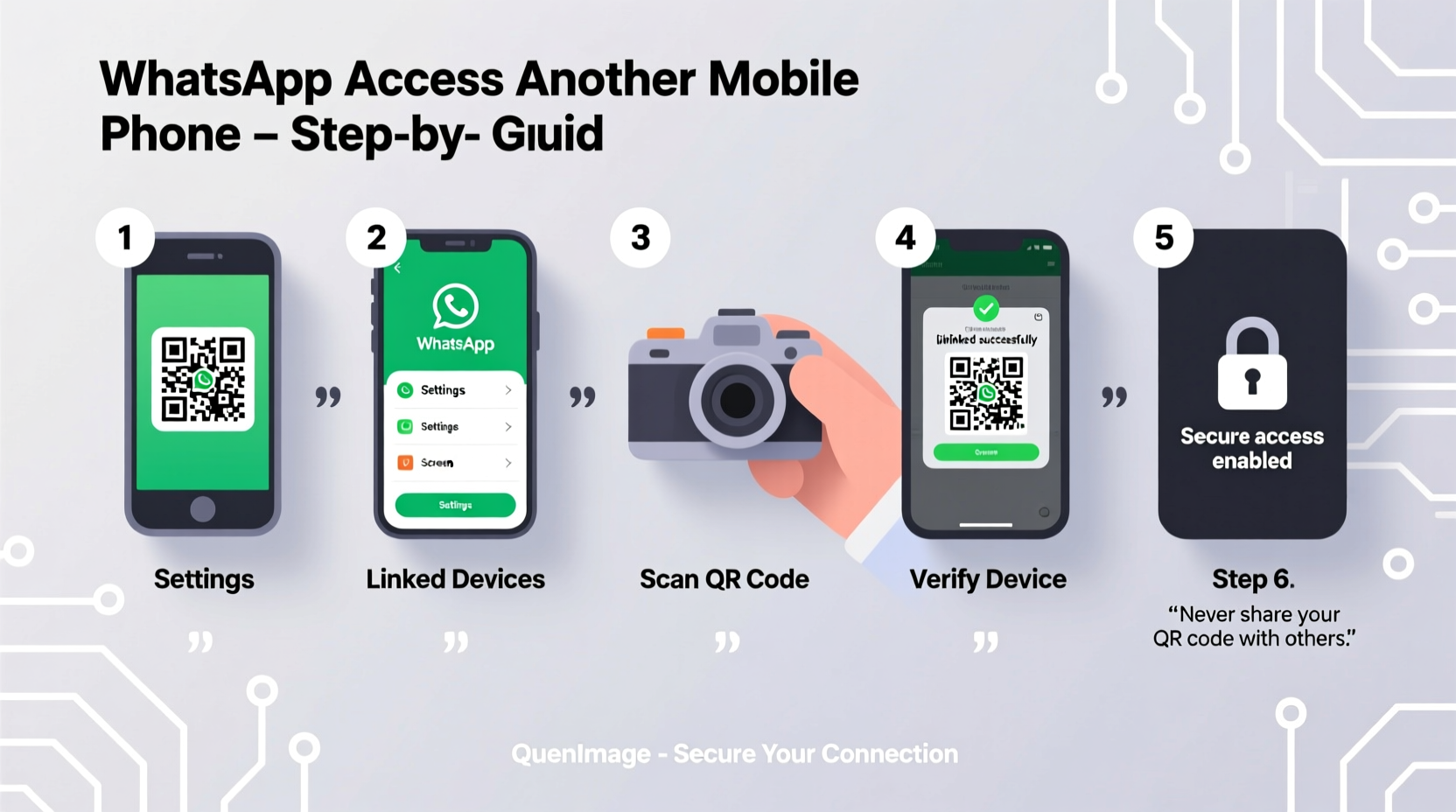
- On your primary phone, go to Settings → Linked Devices → Link a Device.
- Scan the QR code shown on the secondary phone’s WhatsApp screen.
- Once linked, the secondary device can send and receive messages independently—even if the main phone is off.
Note: End-to-end encryption remains active, but all linked devices share the same security status. If one device is compromised, your entire chat history becomes vulnerable.
Do’s and Don’ts When Linking Devices
| Action | Do | Don't |
|---|---|---|
| Linking Devices | Use only trusted, personal devices | Link public or shared phones |
| Data Backup | Enable end-to-end encrypted backup | Rely solely on unencrypted cloud backups |
| Verification | Confirm linked devices monthly | Ignore notifications about new logins |
| Security | Set two-step verification PIN | Use simple or repeated PINs |
Real-World Example: Maria’s Phone Upgrade
Maria lost her Android phone during a business trip. She needed immediate access to client messages stored on WhatsApp. Instead of downloading a fake “clone” app, she followed protocol:
- She contacted her carrier to temporarily suspend her SIM to prevent misuse.
- She bought a replacement phone and installed WhatsApp.
- After verifying her number, she restored her end-to-end encrypted Google Drive backup.
- She reviewed linked devices and found no unauthorized access.
- She enabled two-step verification with a strong PIN.
Within 30 minutes, Maria regained full access to her chats—securely and without data loss. Her proactive approach prevented potential breaches.
Frequently Asked Questions
Can I use WhatsApp on two phones at the same time?
Yes, but only one smartphone can be the primary device. You can link up to four additional devices (including secondary phones) via WhatsApp’s multi-device feature. These function as companions, not standalone accounts.
Is it safe to restore WhatsApp from a backup?
Yes, provided you use end-to-end encrypted backups. Standard cloud backups (Google Drive/iCloud) are accessible to service providers unless encrypted. Always enable encrypted backup in WhatsApp settings.
What should I do if my number is used on another phone without permission?
Contact WhatsApp support immediately via WhatsApp Help Center. Report the issue, request account deactivation, and file a report with your telecom provider. Change your associated email and enable two-step verification once recovered.
Essential Security Checklist
Before accessing WhatsApp on a new phone, complete this checklist to minimize risks:
- ✅ Back up chats with end-to-end encryption enabled
- ✅ Log out of WhatsApp on old device if accessible
- ✅ Install WhatsApp only from official app stores
- ✅ Verify your number using SMS or call
- ✅ Restore from encrypted backup
- ✅ Enable two-step verification with a unique 6-digit PIN
- ✅ Review and manage linked devices monthly
- ✅ Avoid public Wi-Fi during setup; use cellular data or secured networks
Conclusion: Stay Connected Without Compromising Safety
Accessing WhatsApp on another mobile phone doesn’t have to mean sacrificing security. By relying on official features like encrypted backups, two-step verification, and the multi-device system, you maintain control over your digital footprint. Avoid shortcuts involving third-party apps or unverified tutorials—they often lead to data theft or permanent account loss.
Your WhatsApp account holds sensitive information. Treat its migration with the same care as you would your bank details. Follow the steps outlined here, stay vigilant about linked devices, and empower yourself with knowledge. Secure access isn’t just possible—it’s necessary.




 浙公网安备
33010002000092号
浙公网安备
33010002000092号 浙B2-20120091-4
Comments
No comments yet. Why don't you start the discussion?