
Determining the age of your computer isn’t always as simple as recalling when you bought it. Over time, memory fades, receipts get lost, and secondhand devices come with incomplete histories. Yet knowing your computer’s age is essential for evaluating performance, assessing upgrade needs, determining warranty eligibility, and making informed decisions about repairs or replacements. Fortunately, modern operating systems and hardware manufacturers embed multiple methods—ranging from system utilities to serial number decoding—that allow users to pinpoint a device’s manufacture date or purchase timeline with high accuracy.
Check System Information Using Built-In Tools
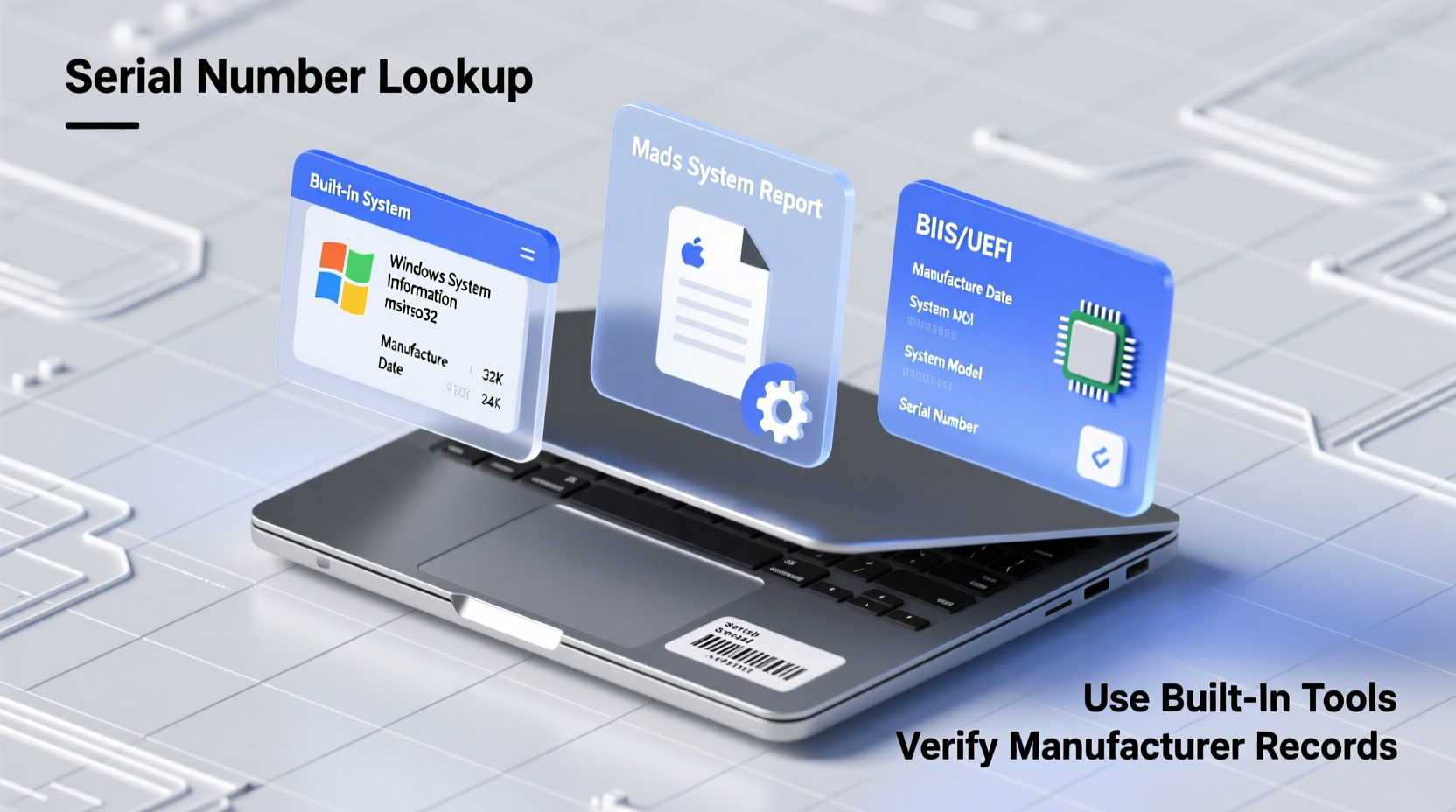
Both Windows and macOS offer native tools that reveal critical details about your computer, including BIOS or firmware dates that often serve as reliable proxies for manufacturing timelines.
On Windows:
Press Win + R, type msinfo32, and press Enter. The System Information window will display key data such as:
- BIOS Version/Date: This is typically the closest approximation of your PC’s build date. Most manufacturers flash the BIOS during final assembly.
- System Manufacturer: Identifies OEMs like Dell, HP, Lenovo, etc.
- System Model: Useful when cross-referencing with support databases.
On macOS:
Click the Apple logo in the top-left corner and select “About This Mac.” For deeper insights, click “System Report” (or “More Info” on older versions). Focus on:
- Model Identifier: e.g., MacBookPro14,1
- Boot ROM Version: Indicates firmware update history.
- SMBIOS Version: Can help trace original shipping configurations.
Decode the Serial Number by Manufacturer
Serial numbers are goldmines of historical data—if you know how to read them. While formats vary significantly between brands, most encode production dates within their strings.
| Manufacturer | Format Clue | How to Decode |
|---|---|---|
| Dell | 10-digit alphanumeric | Use Dell’s Support Site; enter serial to see ship date. |
| HP | Often starts with 2 letters followed by 8 digits | The third digit frequently represents the year (e.g., \"3\" = 2013). |
| Lenovo | SN includes MTM (Machine Type Model) + serial | Input full SN at Lenovo Support for exact manufacture date. |
| Apple | 12-character alphanumeric (older models had 11) | Third character often indicates year; fourth may represent week. Use online decoders like checkcoverage.apple.com. |
“Serial numbers are engineered not just for tracking but for lifecycle management. A single string can reveal when a unit left the factory, where it was shipped, and even its initial configuration.” — James Lin, Senior Hardware Analyst at TechLifecycle Group
Step-by-Step Guide to Finding Your Computer’s Age
Follow this systematic approach to ensure accuracy across platforms:
- Locate the serial number: Found on a sticker at the bottom (laptops), back panel (desktops), or in BIOS/UEFI settings.
- Access system information: Use
msinfo32(Windows) or “About This Mac” (macOS). - Note BIOS/firmware date: Especially useful if the device has never had a BIOS update.
- Visit the manufacturer’s support portal: Input your serial number to retrieve official ship or manufacture dates.
- Cross-reference model release dates: Search your model number online to find when it first launched.
- Compare findings: If BIOS date, serial decode, and model launch align, you’ve confirmed the age.
Real-World Example: Diagnosing an Old Office Laptop
A small business owner received a batch of donated laptops labeled “2018 models.” One unit, a Lenovo ThinkPad T470, appeared sluggish despite a fresh OS install. Using msinfo32, the BIOS date showed June 2016. Confused, the technician checked the serial number via the command line (wmic bios get serialnumber) and entered it into Lenovo’s support site. The result? Manufactured March 2016, shipped to a corporate client in May 2016—two years earlier than claimed. The discrepancy explained the degraded battery health and limited upgrade headroom. Armed with accurate data, the owner decided to retire the unit instead of deploying it.
Common Pitfalls and How to Avoid Them
Several misconceptions can lead to inaccurate conclusions about a computer’s age:
- Mistaking OS installation date for hardware age: Reinstalling Windows resets this timestamp. Always verify with hardware-level data.
- Assuming all serial numbers follow the same pattern: Formats change over time. An Apple serial from 2010 doesn’t decode like one from 2020.
- Ignoring regional variations: Some units ship later due to logistics, so manufacture date ≠ purchase date.
- Relying solely on third-party software: Tools like CPU-Z or Belarc Advisor are helpful but should supplement—not replace—manufacturer verification.
Frequently Asked Questions
Can I find my computer’s age without turning it on?
Yes. Most devices have a service label on the underside or back panel listing the model, serial number, and sometimes a manufactured date. With the serial, you can use the manufacturer’s lookup tool while using another device.
What if the serial number is missing or scratched off?
If the physical label is unreadable, boot the system and retrieve the serial via command line: On Windows, open Command Prompt and type wmic bios get serialnumber. On macOS, run system_profiler SPHardwareDataType | grep \"Serial Number\" in Terminal.
Does SSD or RAM affect perceived age?
No, but upgrades can mask aging hardware. A 2014 laptop with an NVMe SSD and 16GB RAM may feel fast, but thermal throttling, battery wear, and outdated chipset limitations still reflect its true age.
Action Checklist: Verify Your Computer’s Age
- Open system information (Windows: msinfo32 / Mac: About This Mac)
- Record BIOS/firmware version and date
- Find the serial number (physical label or system report)
- Visit the manufacturer’s support page and enter the serial
- Search your model number online to confirm release timeline
- Compare all dates for consistency
- Document findings for future reference (e.g., IT inventory or resale prep)
Conclusion: Take Control of Your Device Lifecycle
Knowing your computer’s true age empowers smarter decisions—whether you’re troubleshooting performance issues, planning upgrades, or evaluating replacement costs. By combining built-in system tools with manufacturer-specific serial decoding, you gain precise insight that goes beyond guesswork. Don’t rely on memory or appearance; leverage the data embedded in your machine. Whether you manage one device or dozens, accurate age verification is a foundational step toward better tech stewardship.




 浙公网安备
33010002000092号
浙公网安备
33010002000092号 浙B2-20120091-4
Comments
No comments yet. Why don't you start the discussion?