
Over time, even the most powerful computers begin to slow down. Whether it’s longer boot times, sluggish application responses, or frequent system freezes, degraded performance affects productivity and user experience. The good news is that most slowdowns are not permanent. With accurate measurement and targeted optimization, you can restore — and even enhance — your PC's speed. This guide walks through practical, data-driven methods to assess your system’s health and implement lasting improvements.
Understanding What “PC Speed” Really Means
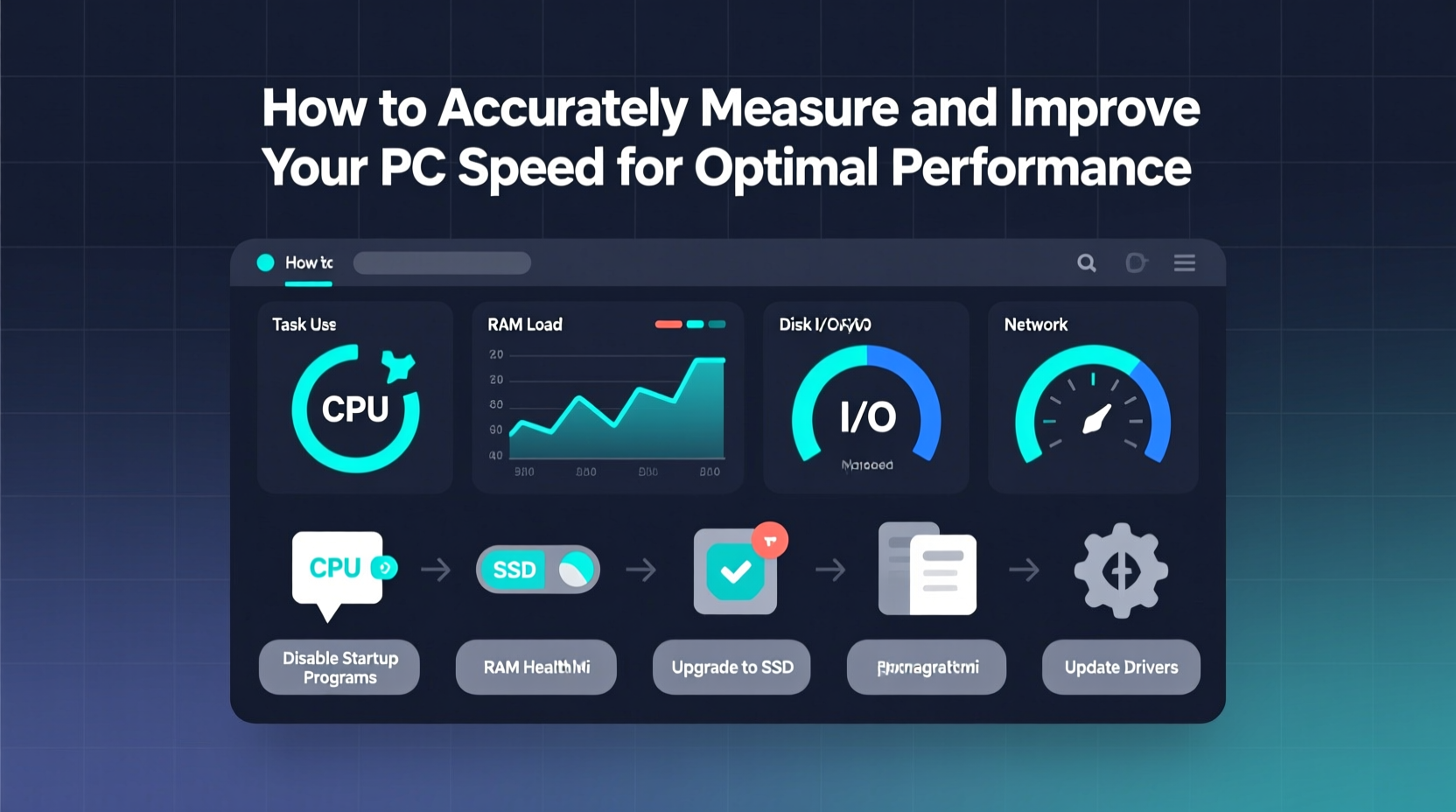
“Speed” isn’t a single metric. It’s a combination of several interrelated components: boot time, application launch speed, file transfer rates, multitasking efficiency, and responsiveness under load. Each depends on different hardware and software elements:
- CPU (Processor): Handles instructions and calculations; critical for multitasking and demanding applications.
- RAM (Memory): Stores active data; insufficient RAM leads to lag when switching between programs.
- Storage (HDD vs. SSD): SSDs dramatically improve boot and load times compared to traditional hard drives.
- GPU (Graphics): Affects visual rendering, gaming, and video editing performance.
- Background Processes: Unnecessary startup apps and system services consume resources silently.
Before making changes, you need to measure where bottlenecks exist. Guessing leads to wasted effort.
Step-by-Step Guide to Measuring Your PC’s Current Performance
Accurate diagnostics are the foundation of effective optimization. Follow this sequence to gather reliable data:
- Baseline Boot Time: Use a stopwatch from power-on to login screen appearance. Repeat three times and average the results.
- Monitor Resource Usage: Open Task Manager (Ctrl+Shift+Esc). Observe CPU, Memory, Disk, and GPU usage at idle and during typical workloads.
- Run Built-in Benchmarks: Windows includes Performance Monitor. Press Win+R, type
perfmon /report, and generate a System Diagnostics Report. This compiles hardware details, driver status, and performance warnings. - Use Third-Party Tools: Applications like CrystalDiskMark test storage speed, Geekbench evaluates overall system performance, and HWMonitor tracks real-time temperatures and voltages.
- Assess Application Load Times: Record how long it takes common apps (e.g., Chrome, Word) to open. Compare before and after optimizations.
Keep a log of all measurements. This allows you to track progress objectively and identify which interventions yield the best results.
Key Optimization Strategies for Real Performance Gains
Once you’ve identified weak points, apply targeted fixes. Avoid blanket \"PC booster\" software — many are ineffective or even harmful.
Upgrade Storage to an SSD (If Still Using HDD)
If your system uses a mechanical hard drive, upgrading to a solid-state drive (SSD) is the single most impactful improvement. Boot times often drop from over a minute to under 15 seconds.
Manage Startup Programs
Too many apps launching at startup cripples boot performance. In Task Manager, go to the Startup tab and disable non-essential entries like cloud sync tools, updaters, or peripheral software.
Increase RAM (When Needed)
If your RAM usage consistently exceeds 80% during regular use, adding more memory helps. For most users, 16GB is sufficient for modern tasks. Gamers or creative professionals may benefit from 32GB.
Optimize Power Settings
Many PCs default to “Balanced” or “Power Saver” modes, which throttle CPU performance. Switch to “High Performance” in Control Panel > Power Options to ensure full processing capability is available.
Do’s and Don’ts of PC Performance Tuning
| Do | Don't |
|---|---|
| Regularly update drivers and OS for stability and security | Install third-party registry cleaners — they rarely help and can break your system |
| Uninstall unused software to free space and reduce background activity | Disable critical Windows services like Superfetch or Update without understanding their role |
| Use lightweight antivirus (e.g., Windows Defender) instead of resource-heavy suites | Download “system optimizers” from untrusted websites — many contain malware |
| Clean dust from fans and vents every 3–6 months to prevent thermal throttling | Ignore high temperatures — sustained heat damages components and reduces performance |
Real Example: Reviving a 5-Year-Old Work Laptop
A marketing professional was struggling with a 2019 laptop running Windows 10. Boot time exceeded 3 minutes, Excel files took over 30 seconds to open, and Zoom calls frequently froze.
Diagnostic steps revealed:
- 1TB HDD operating at 85 MB/s read speed
- 8GB RAM, with 7.2GB used at idle
- 27 startup programs enabled
- Dust-clogged cooling fan causing CPU throttling
Solutions applied:
- Replaced HDD with a 500GB NVMe SSD
- Upgraded RAM to 16GB
- Disabled 20 unnecessary startup items
- Cleaned internal components and repasted CPU cooler
- Fresh Windows 11 installation (clean slate)
Results after one week:
- Boot time reduced to 11 seconds
- Excel files now open in under 3 seconds
- No more freezing during video calls
The entire upgrade cost under $150 — far less than replacing the machine — and extended its usable life by several years.
“Performance tuning isn’t about chasing specs — it’s about aligning your system’s capabilities with your actual workload.” — Dr. Alan Zhou, Senior Systems Engineer at TechInsight Labs
Essential Checklist for Ongoing PC Speed Maintenance
Follow this monthly checklist to keep your PC running smoothly:
- ✅ Check Task Manager for unusually high CPU or disk usage
- ✅ Review and clean startup programs
- ✅ Run disk cleanup (cleanmgr) to remove temporary files
- ✅ Ensure SSD firmware and drivers are up to date
- ✅ Physically clean dust from vents and fans
- ✅ Verify backups are functioning (performance means nothing if data is lost)
- ✅ Re-run benchmark tests quarterly to track trends
FAQ
Will defragmenting my drive make my PC faster?
Only if you’re using a traditional HDD. Defragmentation organizes scattered data for faster access. However, do not defragment SSDs — they don’t benefit from it and unnecessary writes reduce lifespan. Windows automatically disables defrag on SSDs, but verify this in Defragment and Optimize Drives.
Is it safe to overclock my CPU or RAM for better performance?
Overclocking can boost speed, but it increases heat output and power consumption. Without proper cooling and voltage control, it risks system instability or hardware damage. For most users, the gains aren’t worth the risk. If you proceed, do so incrementally and monitor temperatures closely.
Why does my PC slow down over time even without installing new software?
Several factors contribute: accumulation of temporary files, fragmented storage (on HDDs), background updates, telemetry services, and gradual wear on aging components like batteries (in laptops) or thermal paste degradation. Regular maintenance prevents this natural decline.
Conclusion: Take Control of Your PC’s Performance Today
Improving your PC’s speed doesn’t require expensive upgrades or technical wizardry. It starts with accurate measurement, followed by deliberate, informed actions. Whether you’re a student, remote worker, or casual user, a responsive computer enhances every digital task. By applying these strategies — from eliminating startup bloat to upgrading key components — you reclaim both time and efficiency.




 浙公网安备
33010002000092号
浙公网安备
33010002000092号 浙B2-20120091-4
Comments
No comments yet. Why don't you start the discussion?