
Unlocked phones offer freedom—freedom to switch carriers, travel internationally, and avoid long-term contracts. But that flexibility comes with a responsibility: setting up your device correctly, especially when it comes to mobile data. Whether you’re switching from one U.S. carrier to another or bringing your own phone to a new plan, activating mobile data isn’t always plug-and-play. Misconfigured settings can leave you stranded without internet access, even with a working SIM card.
This guide walks through every stage of activating mobile data on an unlocked American smartphone, regardless of carrier. From selecting the right SIM to configuring APN settings and troubleshooting common issues, you’ll gain the knowledge to get connected reliably and quickly.
Step 1: Confirm Your Phone Is Truly Unlocked and Compatible
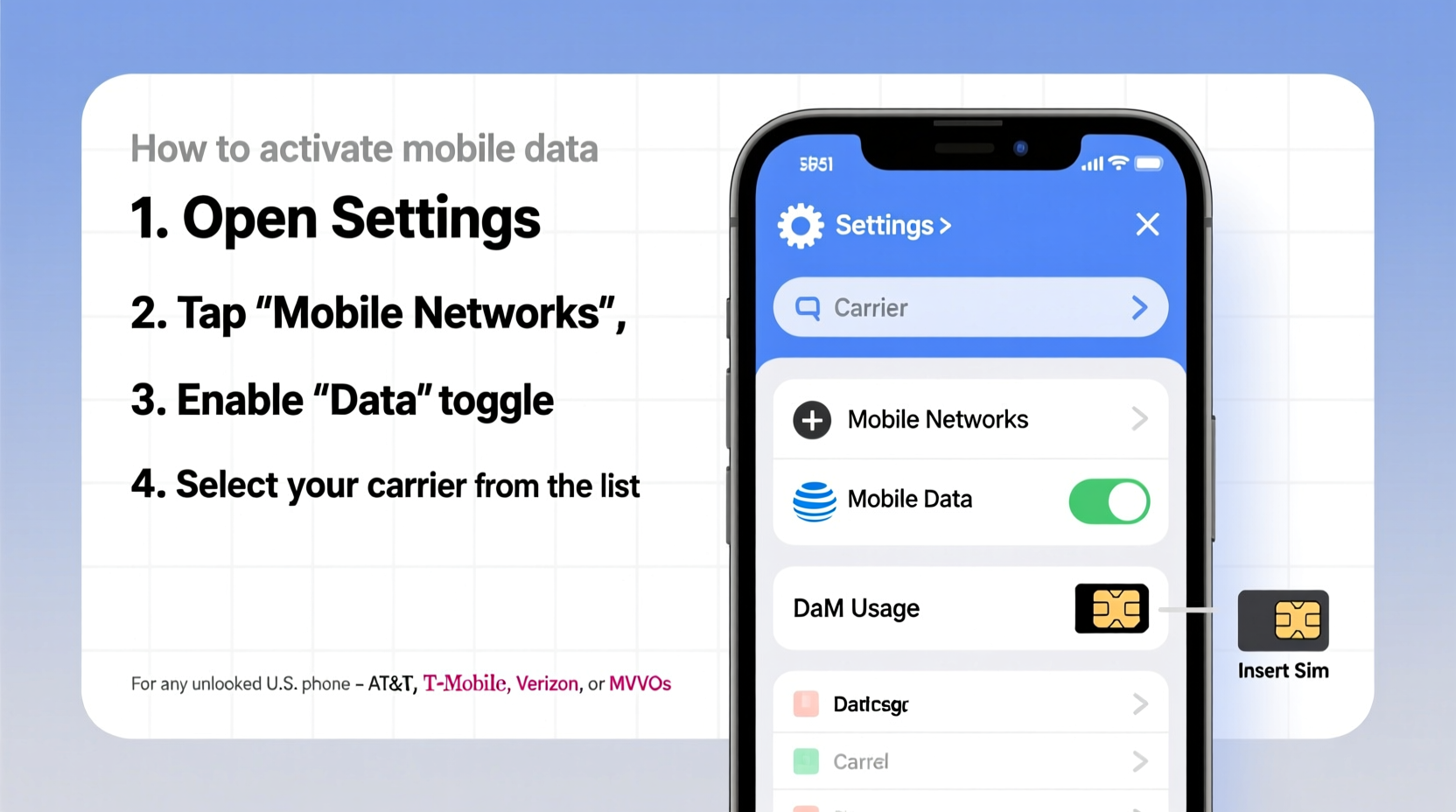
Before inserting any SIM card, verify that your phone is not only unlocked but also compatible with the network bands used by your chosen carrier. Not all unlocked phones support every carrier’s technology.
- Check unlock status: Insert a SIM card from a different carrier than your original one. If the phone accepts it and shows service, it’s likely unlocked.
- Verify compatibility: Use tools like frequencycheck.com to confirm your phone supports the LTE/5G bands used by AT&T, T-Mobile, or Verizon.
- Model-specific notes: iPhones sold in the U.S. are typically carrier-agnostic if purchased directly from Apple. Android devices vary widely; for example, some Samsung Galaxy models are region-locked or lack CDMA support needed for older Verizon activation.
Step 2: Choose and Install the Right SIM Card
Once you’ve confirmed compatibility, select a carrier and obtain a SIM card. Most major carriers (Verizon, AT&T, T-Mobile) and MVNOs (Mint Mobile, Visible, Consumer Cellular) provide free SIM kits online.
- Power off your phone.
- Insert the new SIM card using the eject tool or paperclip.
- Power the phone back on.
- Wait for the signal bars to appear. If no service appears after two minutes, restart the device.
If the phone displays “No Service” or “Emergency Calls Only,” double-check the SIM placement and ensure the carrier hasn’t blocked the IMEI. You can check your IMEI status via your carrier or services like Swappa’s IMEI checker.
Step 3: Activate Service Through the Carrier App or Website
Activation is where many users encounter roadblocks. Unlike locked phones tied to automatic provisioning, unlocked devices often require manual setup.
Follow these steps based on your carrier:
- For T-Mobile/Metro: Download the MyT-Mobile app, log in or create an account, and follow prompts to activate your line using the SIM number.
- For AT&T: Visit att.com/mydevice, enter your phone number and ZIP code, then complete activation.
- For Verizon: Use the My Verizon app or visit verizon.com/activate. Select “Activate a Device,” enter your phone’s ESN/IMEI, and follow instructions.
During activation, the carrier will push carrier-specific settings (like MMS and data profiles) over-the-air (OTA). This process can take up to 15 minutes. Do not restart the phone during this time.
Step 4: Configure APN Settings Manually if Needed
If mobile data still doesn’t work after activation, the issue is likely incorrect Access Point Name (APN) settings. These tell your phone how to connect to the carrier’s data network.
Access APN settings:
- Go to Settings > Network & Internet > Mobile Network > Advanced > Access Point Names (Android).
- On iPhone: Settings > Cellular > Cellular Data Network.
- Delete any existing APNs.
- Add a new APN using the correct values for your carrier.
| Carrier | APN | Username | Password | MCC/MNC |
|---|---|---|---|---|
| T-Mobile | fast.tmobile.com | none | none | 310/260 |
| AT&T | CMMobile | blank | blank | 310/410 |
| Verizon | VZWINTERNET | vzwapp | vzwapp | 311/480 |
| Visible (T-Mobile) | smartradio.vzwentp.vzwrls.com | vzwapp | vzwapp | 311/480 |
After saving, reboot the phone. Mobile data should now function. If not, toggle Airplane mode on and off to force a network reconnection.
“Proper APN configuration is the most overlooked step in unlocking success. Even with a valid SIM and signal, wrong APN means no data.” — Raj Patel, Wireless Network Engineer at FCC-Certified Testing Lab
Step 5: Troubleshoot Persistent Connectivity Issues
Sometimes, despite correct setup, mobile data fails due to software glitches or carrier limitations.
Common Fixes:
- Update carrier settings: On iPhone, go to Settings > General > About. If an update is available, a prompt will appear. On Android, check for system updates under Settings > System.
- Reset network settings: This clears Wi-Fi passwords and Bluetooth pairings but often resolves deep-seated connection problems. Found under Settings > System > Reset Options.
- Contact customer support: Provide your IMEI and request a network refresh. Carriers can remotely reset provisioning flags that block data.
Mini Case Study: Sarah’s Cross-Country Move
Sarah bought an unlocked Google Pixel 6a from eBay and moved from New York (T-Mobile) to Denver. She switched to Verizon for better rural coverage but found she had voice service—but no data. After hours of frustration, she discovered that while her phone was unlocked, it lacked the proper firmware for Verizon’s LTE bands. She downgraded to a T-Mobile MVNO and manually configured the APN. Within minutes, her mobile data worked flawlessly. Her mistake? Assuming “unlocked” meant “compatible with all carriers.”
Essential Checklist for Activating Mobile Data
Use this checklist before contacting support:
- ✅ Confirm phone is unlocked (test with foreign SIM)
- ✅ Verify network band compatibility with intended carrier
- ✅ Insert correct SIM card and power cycle device
- ✅ Complete activation via carrier website or app
- ✅ Wait for OTA profile download (up to 15 minutes)
- ✅ Manually configure APN if data doesn’t work
- ✅ Reboot and test with Safari or Chrome
- ✅ Reset network settings if all else fails
Frequently Asked Questions
Can I use an international unlocked phone in the U.S.?
Yes, but only if it supports U.S. frequency bands. Many phones sold outside North America lack Band 12, 13, or 66, which are critical for T-Mobile and Verizon LTE coverage. Always verify band support before purchase.
Why does my phone show LTE but no internet?
This usually indicates a missing or misconfigured APN. The phone connects to the tower but cannot route data traffic. Double-check APN settings against your carrier’s official recommendations.
Do all MVNOs work with unlocked phones?
Most do, as long as they operate on T-Mobile, AT&T, or Verizon networks. However, some MVNOs require activation through their app first. Examples include Ting and Mint Mobile, which won’t allow service until registered in their system—even with the correct SIM.
Final Steps: Test and Optimize
After activation, run a speed test using a tool like speedtest.net. Compare results to advertised speeds for your plan. If performance is poor, try moving to a different location or restarting the phone. Also, disable Wi-Fi to ensure you're testing cellular data exclusively.
Enable features like Wi-Fi calling and VoLTE (Voice over LTE) under Settings > Cellular or Network to improve call quality and reliability.
Conclusion: Take Control of Your Connectivity
Activating mobile data on an unlocked American phone doesn’t have to be complicated. With the right preparation—knowing your device’s capabilities, choosing a compatible carrier, and understanding how to configure APN settings—you can enjoy full functionality across networks. Millions of Americans now rely on unlocked phones for flexibility, cost savings, and control. Don’t let a small configuration hurdle stand in your way.




 浙公网安备
33010002000092号
浙公网安备
33010002000092号 浙B2-20120091-4
Comments
No comments yet. Why don't you start the discussion?