
Adding a gift card to iTunes is a straightforward process that unlocks access to music, apps, movies, books, and subscriptions on Apple devices. Whether you’ve received an Apple Gift Card as a present or purchased one for personal use, knowing how to redeem it correctly ensures you can start using your balance right away. This guide walks you through every method—on iPhone, iPad, Mac, PC, and even via the web—so you can choose the most convenient option for your setup.
Understanding iTunes Gift Cards
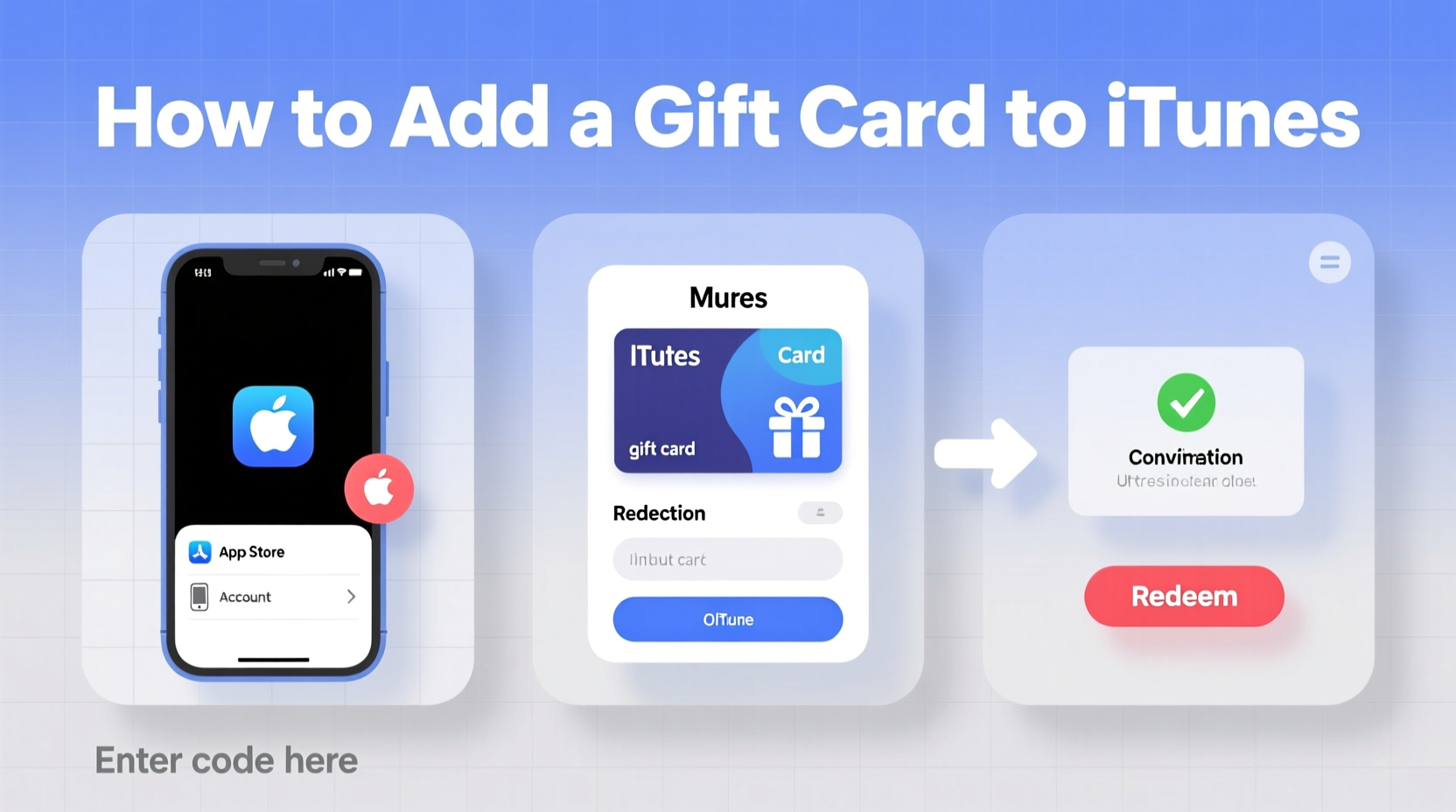
An iTunes Gift Card, also known as an Apple Gift Card, provides prepaid credit for the Apple ID associated with your device. This balance can be used across multiple Apple services, including the App Store, iTunes Store, Apple Books, Apple Music, iCloud+, and more. Unlike region-specific store cards, Apple Gift Cards are tied to a country or region, so ensure your Apple ID’s country matches the card’s origin to avoid redemption issues.
These cards come in physical and digital formats. Physical cards are sold at retail stores and feature a 16-digit code under a scratch-off panel. Digital versions are delivered by email and contain the same type of code. Once redeemed, the balance appears in your account and is applied automatically at checkout unless you choose otherwise.
Step-by-Step: How to Add a Gift Card to iTunes on iPhone or iPad
The easiest way to redeem an iTunes gift card is directly from your iOS device. Follow these steps to add your balance:
- Open the App Store app (not the iTunes app, which was replaced by Apple Music and Apple TV).
- Tap your profile picture or initials in the top-right corner.
- Select Redeem Gift Card or Code.
- You’ll be prompted to sign in with Face ID, Touch ID, or your passcode.
- Use your camera to scan the 16-digit code on the back of the card, or enter it manually.
- Tap Redeem.
Once processed, your Apple ID balance will update instantly. You’ll see a confirmation screen and receive an email receipt from Apple. The balance is now available for any purchase across Apple’s ecosystem.
Alternative Method: Using the Settings App
If the App Store option doesn’t appear, try redeeming through Settings:
- Go to Settings > [Your Name] > Media & Purchases.
- Tap Redeem Gift Card or Code.
- Enter the 16-digit code manually or scan it.
- Confirm redemption.
This method is especially useful if you're not actively browsing the App Store but want to add funds ahead of a planned purchase.
How to Redeem on Mac or Windows PC
If you’re using a computer, the process differs slightly depending on your operating system.
On Mac (with macOS Catalina or later)
Apple replaced the iTunes app with dedicated apps like Music, TV, and Podcasts. To redeem a gift card:
- Open the App Store from your Dock or Applications folder.
- Click your avatar in the bottom-left corner of the sidebar.
- Select Redeem Gift Card or Code.
- Sign in with your Apple ID password if prompted.
- Enter the 16-digit code or use the camera to scan it.
- Click Redeem.
On Windows PC (with iTunes installed)
For users still relying on iTunes for Windows:
- Launch iTunes.
- Click Account in the top menu, then select Redeem.
- Sign in with your Apple ID when prompted.
- Enter the 16-digit code from your gift card.
- Click Redeem.
Note: Apple no longer updates iTunes for Windows regularly, but redemption functionality remains active for existing users.
| Device | Where to Redeem | Authentication Required? |
|---|---|---|
| iPhone/iPad | App Store app or Settings | Yes (Face ID/Touch ID or passcode) |
| Mac | App Store app | Yes (Apple ID password) |
| Windows PC | iTunes application | Yes (Apple ID password) |
| Web (account.apple.com) | Manual balance addition only | No direct redemption |
Common Issues and Troubleshooting
While most redemptions go smoothly, some users encounter errors. Here are common problems and solutions:
- \"Invalid Code\": Double-check the 16-digit number. Avoid confusing 0 with O or 1 with I. Re-enter carefully.
- \"Already Redeemed\": The code has already been used, possibly on another Apple ID. Contact the sender or retailer.
- \"Region Mismatch\": Your Apple ID’s country doesn’t match the card’s region. You cannot change countries without spending your balance first.
- No Balance Update: Wait a few minutes. If the balance doesn’t appear, sign out and back into your Apple ID.
“Always verify the country of issue before purchasing or accepting a gift card. A U.S. card won’t work on a UK-based Apple ID.” — David Lin, Apple Support Consultant
Mini Case Study: Recovering a Stuck Redemption
Sarah received a $50 iTunes gift card for her birthday. She tried scanning it on her iPhone, but the app kept showing “Invalid Code.” Frustrated, she almost gave up—until she noticed smudging on the card. After cleaning the surface and manually typing each digit, the redemption succeeded. The key lesson? Physical damage or ink smears can interfere with scanning. When in doubt, enter the code by hand.
Frequently Asked Questions
Can I combine multiple gift cards?
Yes. Each time you redeem a card, the balance is added to your existing Apple ID balance. There’s no limit to how many cards you can redeem, as long as they’re valid and match your account’s region.
Does my iTunes balance expire?
No. Apple ID balances do not expire. However, promotional credits (such as those from trials or carrier deals) may have expiration dates. Gift card balances remain active indefinitely.
Can I transfer my balance to another person?
No. Apple ID balances are non-transferable. The only way to share value is by purchasing and gifting specific items (like apps or movies) to another Apple ID.
Best Practices Checklist
To ensure smooth redemption and secure management of your iTunes balance, follow this checklist:
- ✅ Verify the card’s country matches your Apple ID’s region.
- ✅ Scratch or open the card carefully to avoid damaging the code.
- ✅ Redeem immediately after purchase or receipt to prevent loss.
- ✅ Use the camera scan feature when possible to reduce input errors.
- ✅ Save the receipt until the balance appears in your account.
- ✅ Monitor your balance via Settings > [Your Name] > Media & Purchases > See All.
- ✅ Report lost or stolen cards to Apple Support with proof of purchase.
Final Thoughts and Next Steps
Adding a gift card to iTunes is a quick, reliable way to fund your digital lifestyle on Apple devices. Whether you're stocking up on music, upgrading to iCloud+ storage, or downloading the latest productivity apps, having a preloaded balance streamlines your purchases and avoids the need to enter payment details repeatedly.
Now that you know how to redeem your card on any device, take a moment to check your current balance and organize any unused codes. Consider setting up automatic balance usage in your Apple ID settings to make every transaction seamless.




 浙公网安备
33010002000092号
浙公网安备
33010002000092号 浙B2-20120091-4
Comments
No comments yet. Why don't you start the discussion?