
Adding text to digital files—whether it’s a photo, PDF, scanned document, or screenshot—is a common need in both personal and professional settings. From labeling images for social media to filling out forms or annotating reports, the ability to insert text precisely and cleanly is essential. The good news: you don’t need advanced design skills or expensive software. With tools already on your device or freely available online, you can add text anywhere with confidence and precision.
Why Adding Text Matters Across File Types
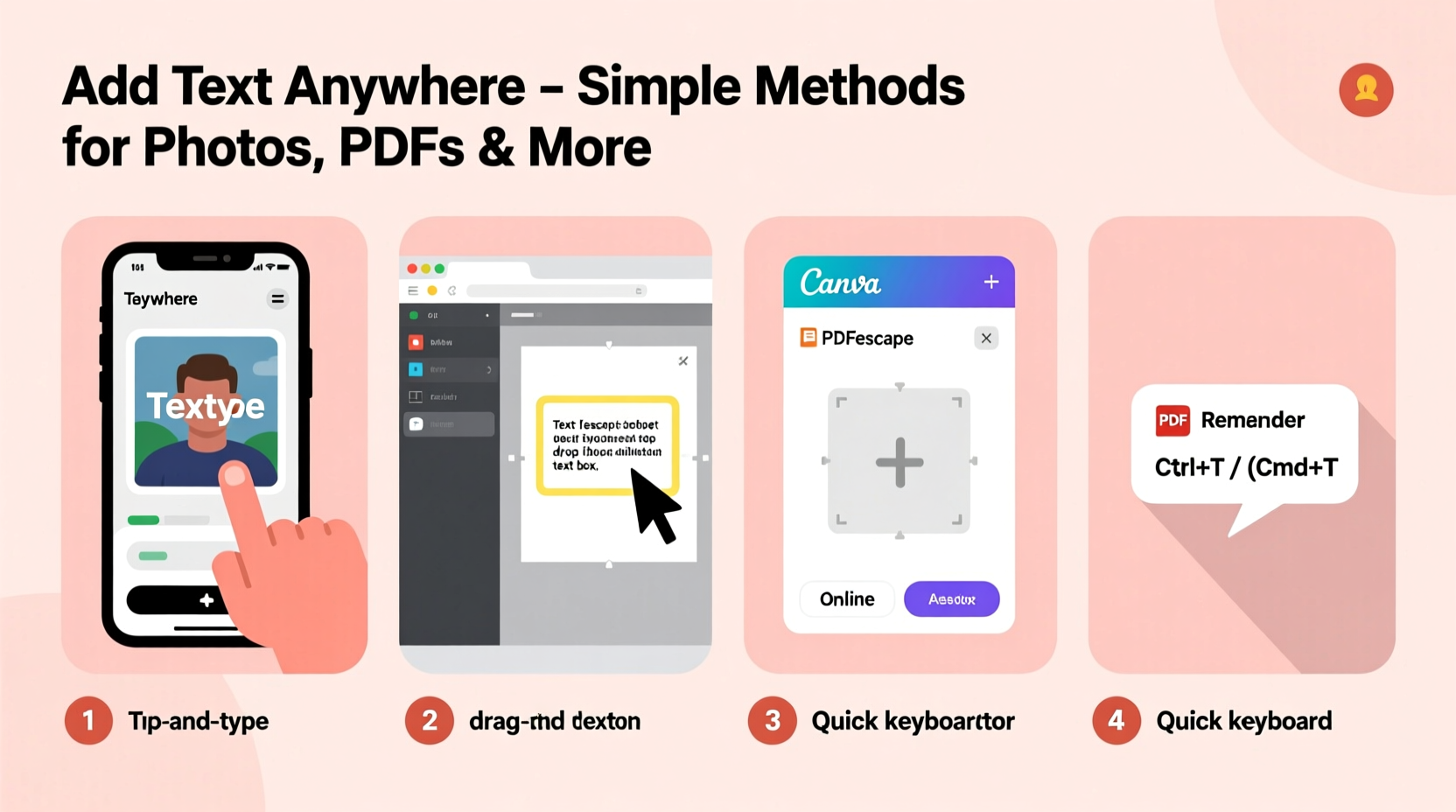
Digital communication relies heavily on visual clarity. A well-placed caption on a photo explains context. A filled-out PDF form completes an application. Annotating a contract ensures all parties understand revisions. Each of these tasks requires the ability to overlay text directly onto existing content.
The challenge isn’t just inserting text—it’s doing so in a way that looks professional, remains editable when needed, and doesn’t distort the original file. Whether you're a student marking up research papers, a marketer preparing visuals, or someone filling out a rental agreement, mastering this skill saves time and improves accuracy.
“Being able to annotate documents and images efficiently is one of the most underrated productivity skills in the digital workspace.” — David Lin, Digital Workflow Consultant
How to Add Text to Photos (Windows, Mac, Mobile)
Photos often need captions, labels, or watermarks. Fortunately, every major operating system includes basic tools for this task.
On Windows: Use Paint or Photos App
The built-in Paint app allows you to add text with minimal effort:
- Open your image in Paint (right-click > Edit).
- Select the “Text” tool (A icon) from the toolbar.
- Click where you want the text and type.
- Adjust font, size, and color using the text formatting options.
- Save as PNG or JPEG to preserve quality.
On Mac: Use Preview or Markup Tools
Preview is surprisingly powerful for quick edits:
- Open the image in Preview.
- Click the “Show Markup Toolbar” button (pen tip icon).
- Select the \"T\" (text) tool and click to place text.
- Edit font and color via the formatting bar.
- Save directly or export if converting formats.
On iPhone or Android: Use Built-in Editors
iOS users can long-press a photo in the Photos app and select “Markup” to add text, arrows, or shapes. Android users can use Google Photos: open the image, tap “Edit,” then “Markup,” and choose the text tool.
Editing PDFs: Fill Forms, Add Notes, or Insert Custom Text
PDFs are designed to be universal, but that doesn’t mean they’re uneditable. You can add text to any PDF—whether it’s a form, contract, or brochure.
Using Adobe Acrobat Reader (Free)
Despite its reputation, Adobe offers a free version that supports basic text insertion:
- Open the PDF in Adobe Acrobat Reader.
- Click “Fill & Sign” in the right-hand toolbar.
- Select the “Add Text” option (looks like an “Aa” icon).
- Click anywhere on the page and start typing.
- Move or resize the text box by dragging its edges.
Using Preview (Mac) or Microsoft Edge (Windows)
Both Preview and Edge have built-in PDF annotation features:
- In Edge, open the PDF, click “Add notes,” then use the “Typewriter” tool to insert text.
- In Preview, go to the markup toolbar, select the text tool, and click to add editable text boxes.
Best Free Online Tools for Adding Text Anywhere
If you're on a Chromebook or prefer browser-based solutions, several reliable web apps let you edit images and PDFs without installation.
| Tool | Best For | Key Features |
|---|---|---|
| Canva | Photos & social graphics | Drag-and-drop text, fonts, templates, brand kits |
| PDFescape | PDF editing | Add text, links, checkboxes; no sign-up required |
| IloveIMG | Batch processing | Add text watermark to multiple images at once |
| Photopea | Advanced edits (like Photoshop) | Layered text, blending modes, PSD support |
These tools require only uploading your file, adding text, and downloading the result. Most respect privacy by automatically deleting files after a few hours.
Step-by-Step Guide: Add Text to a Scanned Document
Scanned documents often appear as image-based PDFs, making text insertion tricky. Here’s how to do it correctly:
- Verify the file type: Open the PDF—if you can’t highlight text, it’s likely a scanned image.
- Use OCR (Optical Character Recognition): Tools like Google Drive or Adobe Scan can convert the scan into searchable, editable text.
- Upload to Google Drive: Right-click the file > Open with > Google Docs. It will convert the scan and preserve layout.
- Edit as needed: Once converted, click anywhere and type to add new content.
- Download as PDF: Go to File > Download > PDF to save the updated version.
This method keeps alignment intact while enabling full text editing—ideal for updating old forms or adding notes to contracts.
Common Mistakes to Avoid
- Using low-resolution text: Tiny or pixelated fonts ruin professionalism. Always use at least 10–12pt for readability.
- Overwriting sensitive info poorly: Blurring or covering text with shapes is safer than trying to delete it digitally.
- Forgetting to check permissions: Some PDFs are password-protected or restricted from editing. Try opening properties to see if changes are allowed.
- Saving over originals: Always work on a duplicate to preserve the source file.
Mini Case Study: Updating a Rental Agreement
Sarah needed to adjust the move-in date on a PDF lease her landlord emailed. She opened it in Adobe Acrobat Reader, clicked “Fill & Sign,” and added a new date next to the original. She used the strike-through tool to cross out the old date, ensuring transparency. Within two minutes, she saved the file and replied. Her landlord approved the change instantly—no printing, scanning, or back-and-forth emails required.
This real-world example shows how simple text insertion can streamline communication and reduce friction in everyday tasks.
Checklist: How to Successfully Add Text to Any File
- ✅ Determine the file type (image, PDF, scanned, etc.)
- ✅ Choose the right tool (built-in app, online editor, or desktop software)
- ✅ Make a backup copy before editing
- ✅ Use legible fonts and appropriate sizes
- ✅ Position text clearly without overlapping critical content
- ✅ Save in the correct format (PDF for documents, PNG/JPG for images)
- ✅ Verify readability on different devices before sharing
Frequently Asked Questions
Can I add editable text to a JPEG?
JPEGs don’t support native text layers like PDFs or design files. However, you can overlay text using image editors. The text becomes part of the image and cannot be edited later unless you keep the project file (e.g., in Canva or Photoshop).
Is it safe to use online tools for sensitive documents?
Most reputable online editors delete files within hours and use encryption. However, avoid uploading highly sensitive data (e.g., passports, tax returns) unless the service explicitly guarantees privacy and compliance (like HIPAA or GDPR).
How do I move text after placing it?
In most tools (Adobe, Preview, Canva), click the text box once to select it, then drag it to a new location. If the text won’t move, ensure you’re in edit mode and not viewing mode.
Final Thoughts: Mastering Text Insertion Builds Digital Confidence
The ability to add text anywhere on digital files is a small skill with massive practical impact. It eliminates dependency on others for minor edits, speeds up workflows, and enhances communication. Whether you're labeling a diagram for a presentation, completing a job application, or customizing a gift image, knowing the right method—and the right tool—makes all the difference.
You don’t need to be a designer. You just need to know where to click.




 浙公网安备
33010002000092号
浙公网安备
33010002000092号 浙B2-20120091-4
Comments
No comments yet. Why don't you start the discussion?