
Streaming live TV has become a staple in modern households, and YouTube TV stands out as one of the most comprehensive options. With access to over 85 live channels—including sports, news, and entertainment—it’s no wonder millions are cutting the cord. But getting started requires knowing how to install and set up YouTube TV on your preferred device. Whether you're using a Roku, Amazon Fire Stick, Apple TV, or smart TV, this guide walks you through every step to ensure a seamless setup.
What Is YouTube TV and Why Use It?
YouTube TV is a subscription-based live TV streaming service that replaces traditional cable. For a monthly fee, users gain access to networks like ESPN, CNN, HBO, FOX, and local broadcast stations. The platform supports unlimited cloud DVR storage, simultaneous streams on up to three devices, and personalized profiles for family members.
Unlike ad-supported platforms such as Pluto TV or Tubi, YouTube TV offers premium content with minimal interruptions. Its integration with Google services also makes it ideal for users already in the Android or Google ecosystem. Adding YouTube TV to your streaming device unlocks full control over live programming, on-demand shows, and recordings—all from your living room screen.
Supported Devices and Compatibility
Before installing YouTube TV, confirm your device is compatible. The app is widely supported across major platforms but may vary slightly in interface and functionality.
| Device Type | Supports YouTube TV App? | Notes |
|---|---|---|
| Roku (all models) | Yes | Available in Roku Channel Store |
| Amazon Fire TV/Fire Stick | Yes | Download from Amazon Appstore |
| Apple TV (4th gen or later) | Yes | Requires tvOS 12 or higher |
| Android TV / Google TV | Yes | Built-in support; pre-installed on many models |
| Samsung Smart TVs (2017+) | Yes | Check model year compatibility |
| LG WebOS TVs (2018+) | Yes | Available via LG Content Store |
| iOS & Android Phones/Tablets | Yes | For mobile viewing and casting |
| Web Browser (Chrome, Safari, etc.) | Yes | Watch directly at tv.youtube.com |
If your device isn’t listed, consider using a casting method (like Chromecast) or connecting a supported streaming stick to an older TV via HDMI.
Step-by-Step Guide to Install YouTube TV
Follow these universal steps tailored to each major platform. While interfaces differ slightly, the core process remains consistent: download the app, sign in, and activate your account.
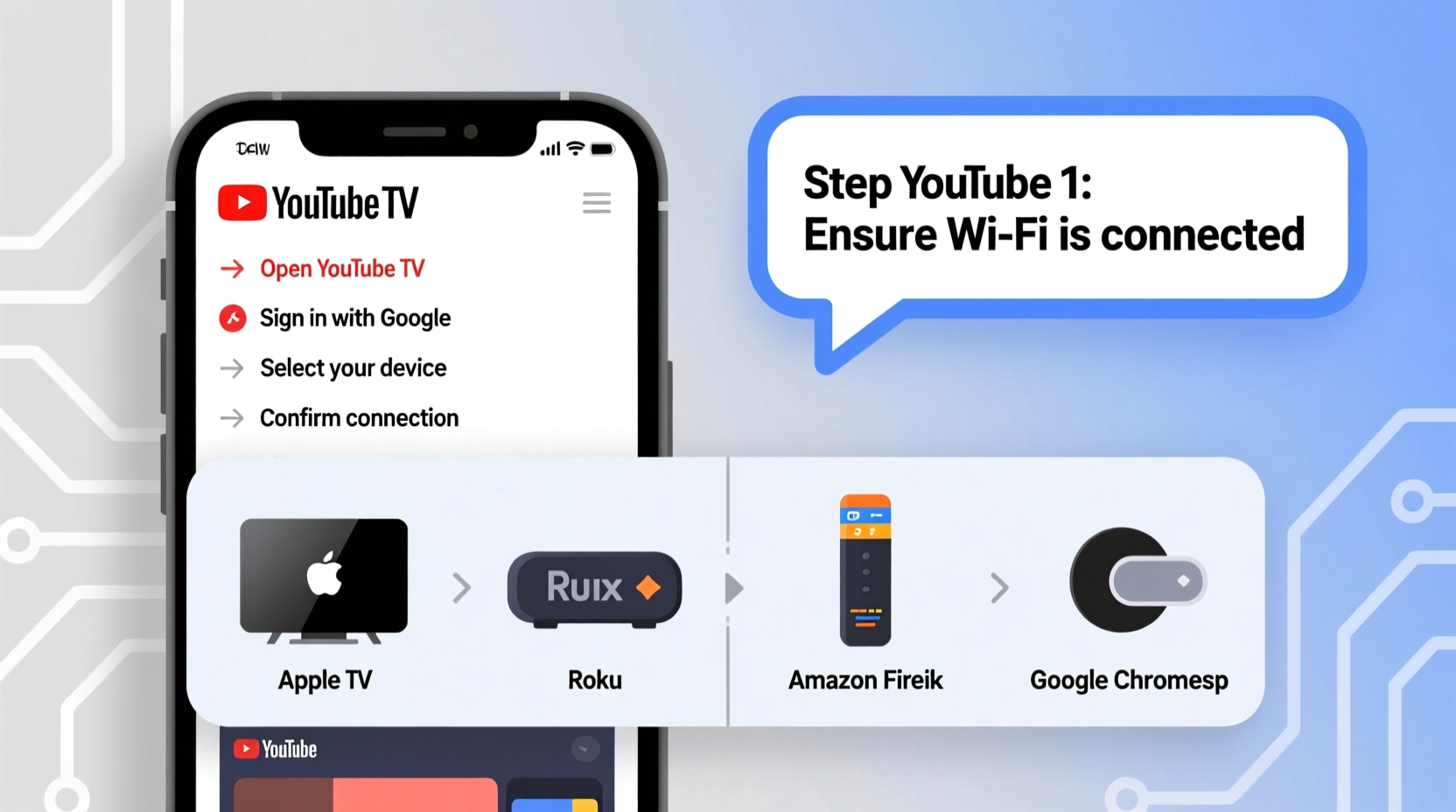
- Connect Your Device to Wi-Fi
Ensure your streaming device is connected to a stable internet connection. Go to Settings > Network to verify connectivity. - Navigate to the App Store
Open the home screen and locate the app store:- Roku: “Streaming Channels” or search icon
- Fire Stick: “Find” or “Search” tab
- Apple TV: App Store app
- Android TV: Google Play Store
- Search for “YouTube TV”
Type \"YouTube TV\" into the search bar. Select the official app developed by Google LLC. Avoid third-party lookalikes. - Install the App
Click “Add Channel,” “Get,” or “Install.” Wait for the download to complete—usually under a minute. - Launch the YouTube TV App
Return to your home screen and open the newly installed YouTube TV app. - Sign In or Create an Account
You’ll be prompted to log in with your Google account. If you don’t have YouTube TV, select “Start Free Trial” (typically 7 days). - Enter Activation Code
A code will appear on-screen. On another device (phone, laptop), go to youtube.com/tv/activate, sign in with the same Google account, and enter the code. - Complete Setup
Once activated, customize your profile, choose favorite channels, and explore the library. You’re now ready to stream.
Real Example: Setting Up YouTube TV on a Roku Ultra
Sarah recently upgraded her home entertainment system with a Roku Ultra and wanted to replace her cable package with YouTube TV. She followed these exact steps:
- Connected the Roku to her 4K TV and completed initial Wi-Fi setup.
- Pressed the Home button, scrolled to “Streaming Channels,” and searched “YouTube TV.”
- Clicked “Add Channel,” waited 30 seconds for installation, then launched the app.
- Selected “Sign In” and noted the 6-digit activation code displayed.
- Used her iPhone to visit youtube.com/tv/activate, signed in with her Gmail, and entered the code.
- Chose her regional sports network and added CBS, NBC, and AMC to her favorites.
Within ten minutes, Sarah was watching live NFL Sunday Ticket and recording her favorite crime drama. Her only regret? Not switching sooner.
Expert Insight: Optimizing Your YouTube TV Experience
According to Mark Delgado, a digital media analyst at StreamInsight Group, “YouTube TV excels not just in content breadth but in user experience when properly configured.”
“Users who take time to set up parental controls, manage DVR settings, and organize profiles see the highest satisfaction rates. It's not just about installation—it's about personalization.” — Mark Delgado, Digital Media Analyst
To enhance performance:
- Enable HDR and 4K where supported
- Set default playback quality to “Auto” or “High”
- Use voice remotes (on compatible devices) to search by show, actor, or sport
Troubleshooting Common Issues
Even straightforward setups can encounter hiccups. Here’s how to resolve frequent problems:
- App won’t install: Check available storage. Restart the device and retry.
- Activation code expired: Codes last 30 minutes. Close and reopen the app to generate a new one.
- Buffering or low quality: Run a speed test. Close background apps consuming bandwidth.
- No sound or black screen: Update firmware and restart both the device and router.
- Subscription not recognized: Confirm billing details in your Google Account settings.
FAQ
Can I watch YouTube TV on multiple devices at once?
Yes. YouTube TV allows up to three simultaneous streams per household account. Additional viewers can pause and resume on other devices without conflict.
Do I need a Google account to use YouTube TV?
Yes. A Google account is required for login, payment processing, and syncing preferences across devices.
Is there a way to reduce buffering during peak hours?
Yes. Schedule recordings during off-peak times, lower playback resolution temporarily, or upgrade your internet plan to 50+ Mbps for multi-device homes.
Final Checklist Before You Start Streaming
📋 YouTube TV Setup Checklist- ✅ Verify device compatibility
- ✅ Connect to reliable Wi-Fi
- ✅ Download YouTube TV app from official store
- ✅ Sign in with Google account
- ✅ Activate using youtube.com/tv/activate
- ✅ Customize profile and channel lineup
- ✅ Test live stream and DVR function
Conclusion
Adding YouTube TV to your streaming devices transforms how you consume television. From sports marathons to nightly news, the platform delivers flexibility, depth, and convenience—all without long-term contracts. By following this guide, you’ve taken the essential steps to cut the cord confidently and enjoy a smarter, more personalized viewing experience.




 浙公网安备
33010002000092号
浙公网安备
33010002000092号 浙B2-20120091-4
Comments
No comments yet. Why don't you start the discussion?