
Every day, millions of Windows users perform the same actions: opening applications, renaming files, copying folders, cleaning downloads, or launching browser tabs. These small, routine activities add up, stealing hours from your week. The good news? You don’t need expensive software or coding expertise to stop doing them manually. With built-in utilities and trusted free tools, you can automate nearly any repetitive task—without spending a dime.
Automation isn’t just for developers or IT professionals. Whether you're managing personal files, running daily reports, or streamlining your startup routine, automation reduces errors, saves time, and frees mental space. This guide walks through practical methods, real-world examples, and reliable tools that work seamlessly on any modern Windows system—Windows 10 or 11 included.
Why Automate on Windows?
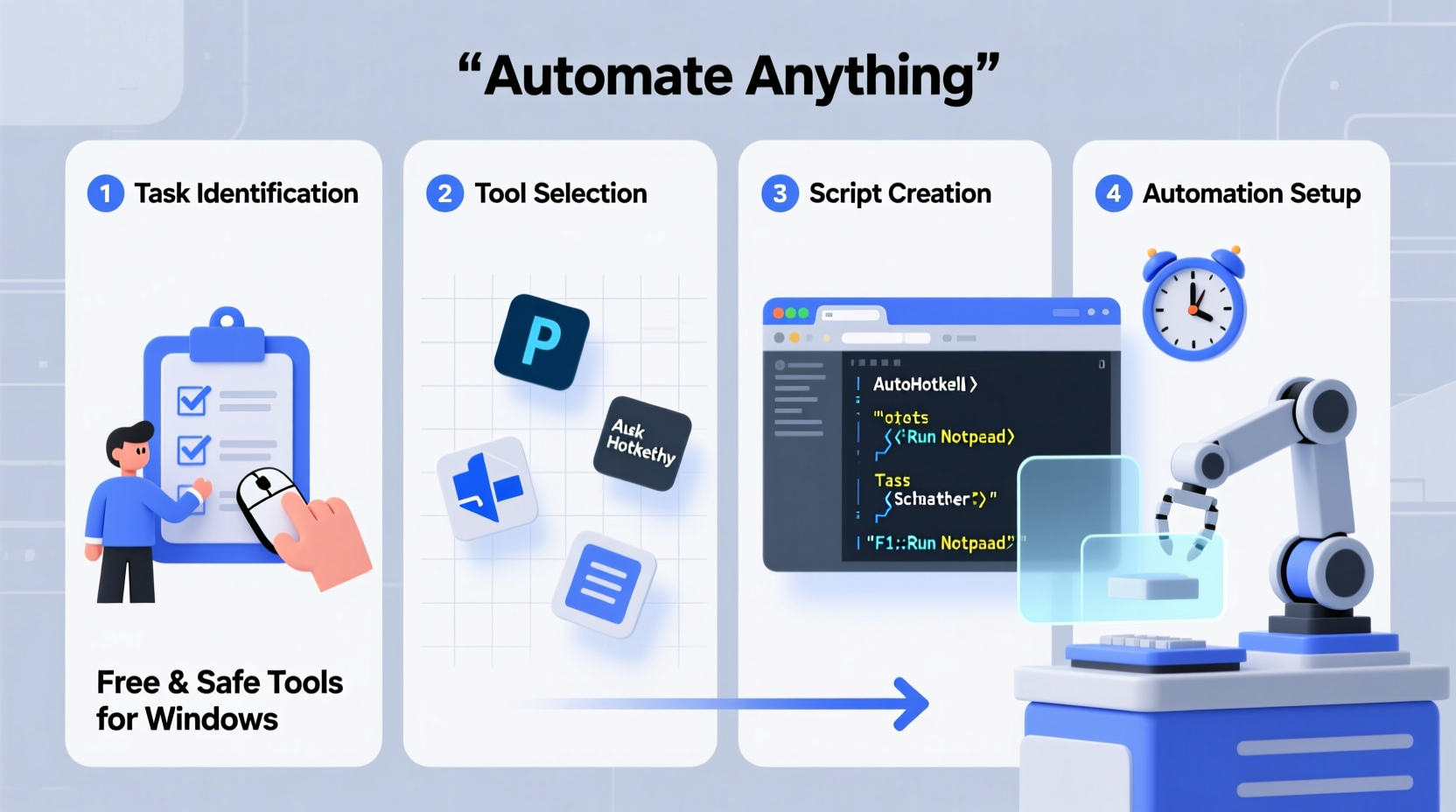
Repetition breeds inefficiency. Clicking through the same menus, waiting for programs to load, or manually organizing files may seem minor, but over time, they create fatigue and opportunity cost. Automation transforms these micro-tasks into silent, scheduled processes that run in the background while you focus on higher-value work.
Microsoft has long equipped Windows with powerful automation capabilities. From the underrated Task Scheduler to the scripting strength of PowerShell, the OS offers robust features out of the box. When combined with lightweight third-party tools like AutoHotkey or TinyTask, the possibilities expand dramatically—without risking system stability or violating licensing terms.
“Automation is not about replacing human effort—it’s about redirecting it toward what matters.” — Dr. Lena Patel, Productivity Researcher at TechFlow Institute
Free Tools That Power Windows Automation
The key to effective automation lies in choosing the right tool for the job. Below is a comparison of the most accessible free tools available to Windows users, each suited to different types of tasks.
| Tool | Type | Best For | Learning Curve |
|---|---|---|---|
| Task Scheduler | Built-in Windows utility | Scheduling scripts, backups, app launches | Low to medium |
| PowerShell | Command-line scripting | File operations, system management, batch processing | Medium |
| AutoHotkey | Third-party scripting | Keyboard/mouse macros, hotkeys, UI automation | Low (basic), Medium (advanced) |
| TinyTask | Macro recorder | Simple click-and-type automation | Very low |
| Batch Files (.bat) | Legacy script type | Quick file/folder operations, command chaining | Low |
Each of these tools fills a niche. Use them individually or combine them for deeper automation workflows. For example, schedule a PowerShell script via Task Scheduler to clean temporary files every Sunday, or use AutoHotkey to insert frequently typed text with a single keystroke.
Automating File Management with PowerShell and Batch Scripts
One of the most common pain points is disorganized files. Downloads pile up, screenshots clutter the desktop, and documents get lost across folders. Instead of manual sorting, write a simple script to handle it automatically.
Here’s an example PowerShell script that moves all .jpg and .png files from your Desktop to a Screenshots folder:
$source = \"$env:USERPROFILE\\Desktop\"
$target = \"$env:USERPROFILE\\Pictures\\Screenshots\"

if (-not (Test-Path $target)) {
    New-Item -ItemType Directory -Path $target
}

Get-ChildItem $source -Include *.jpg, *.png -Recurse | Move-Item -Destination $target
To run this script:
- Open Notepad and paste the code.
- Save it as
SortScreenshots.ps1on your desktop. - Right-click the file and choose “Run with PowerShell” (ensure execution policy allows it—run
Set-ExecutionPolicy RemoteSignedin PowerShell as admin if needed).
You can expand this logic to archive old logs, rename batches of photos, or delete temporary files older than 30 days. Combine it with Task Scheduler to run weekly.
Copy-Item instead of
Move-Item during testing to avoid accidental data loss.
Creating Keyboard Shortcuts and Macros with AutoHotkey
If you find yourself typing the same email responses, filling forms, or pressing the same sequence of buttons, AutoHotkey can cut those steps down to one keystroke.
After installing AutoHotkey (free from autohotkey.com), create a new script (.ahk file) and add this line to type your full email with \"Ctrl+Alt+E\":
^!e::Send, john.doe@example.com{Enter}
The ^ stands for Ctrl, ! for Alt. Pressing Ctrl+Alt+E will now insert the email and press Enter.
For a more advanced use case, consider automating a login process:
; Launch browser and log into dashboard
#d::
Run, https://yourdashboard.com
WinWaitActive, Dashboard Login
Send, YourUsername{TAB}
Send, YourPassword{ENTER}
return
This script triggers when you press Win+D, opens the site, waits for the login window, and fills credentials. While storing passwords in plain text isn't secure for sensitive accounts, this method works well for internal tools or development environments.
“AutoHotkey reduced my daily data entry time by 70%. It’s the most underused productivity tool on Windows.” — Mark Tran, Operations Analyst
Scheduling Tasks Automatically Using Windows Task Scheduler
Task Scheduler is one of Windows’ most powerful—and overlooked—features. It lets you run scripts, open apps, or execute commands at specific times or in response to system events.
Step-by-step: Schedule a Weekly Cleanup Script
- Press Win + R, type
taskschd.msc, and press Enter. - In the right panel, click “Create Basic Task.”
- Name it “Weekly Cleanup” and add a description.
- Choose “Weekly” as the trigger and set it for Sunday at 2:00 AM.
- Select “Start a Program” as the action.
- Browse to your PowerShell executable:
C:\\Windows\\System32\\WindowsPowerShell\\v1.0\\powershell.exe. - In “Add arguments,” enter:
-File \"C:\\Scripts\\Cleanup.ps1\"(adjust path as needed). - Finish the wizard and ensure “Run whether user is logged on or not” is checked for reliability.
This ensures your cleanup script runs even if you’re away from the computer. You can also trigger tasks based on events like system startup, user login, or idle time.
Recording Simple Actions with TinyTask
Not everyone wants to write scripts. For point-and-click automation, TinyTask is ideal. It records your mouse movements and keystrokes, then replays them exactly.
Use cases include:
- Filling out the same form daily
- Navigating multi-step software wizards
- Clicking through a recurring report generation process
To use TinyTask:
- Download and run TinyTask (portable, no install needed).
- Click “Record” and perform your task sequence.
- Stop recording and save the macro.
- Press F9 (default) to replay anytime.
While less flexible than scripting, TinyTask excels at replicating visual workflows where underlying controls aren’t script-accessible.
Mini Case Study: Automating a Small Business Daily Report
A local accounting firm was spending 45 minutes each morning generating client reports. The process involved:
- Opening Excel
- Navigating to a shared drive
- Copying data from four files
- Pasting into a master sheet
- Saving and emailing the summary
They automated it using a combination of tools:
- A PowerShell script aggregated the latest CSV files from the network folder.
- An AutoHotkey script opened Excel, ran a macro to format the data, and saved the report.
- Task Scheduler launched the entire workflow at 7:00 AM daily.
Result: The report was ready by 7:15 AM with zero manual input. Employees gained back over 30 hours per month, and accuracy improved due to consistent formatting.
Essential Automation Checklist
Before deploying any automation, follow this checklist to ensure reliability and safety:
- ✅ Identify the exact steps of the task to automate
- ✅ Test the solution on non-critical files or in a sandbox environment
- ✅ Document what the automation does and how to disable it
- ✅ Set up error handling where possible (e.g., check if files exist before moving)
- ✅ Store scripts in a dedicated folder (e.g., C:\\Scripts) for easy access
- ✅ Back up important scripts and configurations
- ✅ Avoid hardcoding sensitive data like passwords; use prompts or secure vaults instead
Frequently Asked Questions
Is it safe to use automation tools on my work computer?
Yes, as long as you use reputable tools and follow company policies. Built-in tools like Task Scheduler and PowerShell are enterprise-safe. For third-party tools like AutoHotkey, check with your IT department before installation.
Can I undo an automated action if something goes wrong?
Always design with reversibility in mind. Keep backups, use logging, and start with copy operations instead of deletes. Many scripts can include “undo” functions—for example, maintaining a log of moved files so they can be restored if needed.
Do I need programming experience to automate tasks?
No. Tools like TinyTask and Task Scheduler require no coding. Even PowerShell and AutoHotkey have beginner-friendly syntax and vast online communities sharing reusable scripts.
Conclusion: Start Small, Scale Smart
Automation doesn’t require a complete overhaul. Begin with one repetitive task—organizing downloads, launching your work apps, or backing up documents—and build from there. The tools are already within reach, free, and fully capable of transforming how you interact with your computer.
Every minute saved compounds. Over a year, automating just 10 minutes a day reclaims nearly 61 hours—more than a full workweek. That time can go toward learning, creating, or simply resting.




 浙公网安备
33010002000092号
浙公网安备
33010002000092号 浙B2-20120091-4
Comments
No comments yet. Why don't you start the discussion?