
In an age where memories are increasingly digital, losing photos can feel like losing a piece of your life. Whether it’s a child’s first steps, a sunset from a dream vacation, or a spontaneous moment with friends, these images are irreplaceable. Yet most people still rely on a single device—often a smartphone—to store them. When that phone is lost, stolen, or damaged, so are the photos. The solution isn’t just backing up—it’s setting up a secure, automatic system that spans multiple devices and platforms without demanding constant attention.
Automatic cross-device photo backup ensures your images are always protected, accessible, and synchronized—without you having to think about it. But convenience should never come at the cost of security. This guide walks through practical, real-world methods to automate photo backups across smartphones, tablets, laptops, and desktops while keeping your data private and encrypted.
Why Automatic Backup Matters
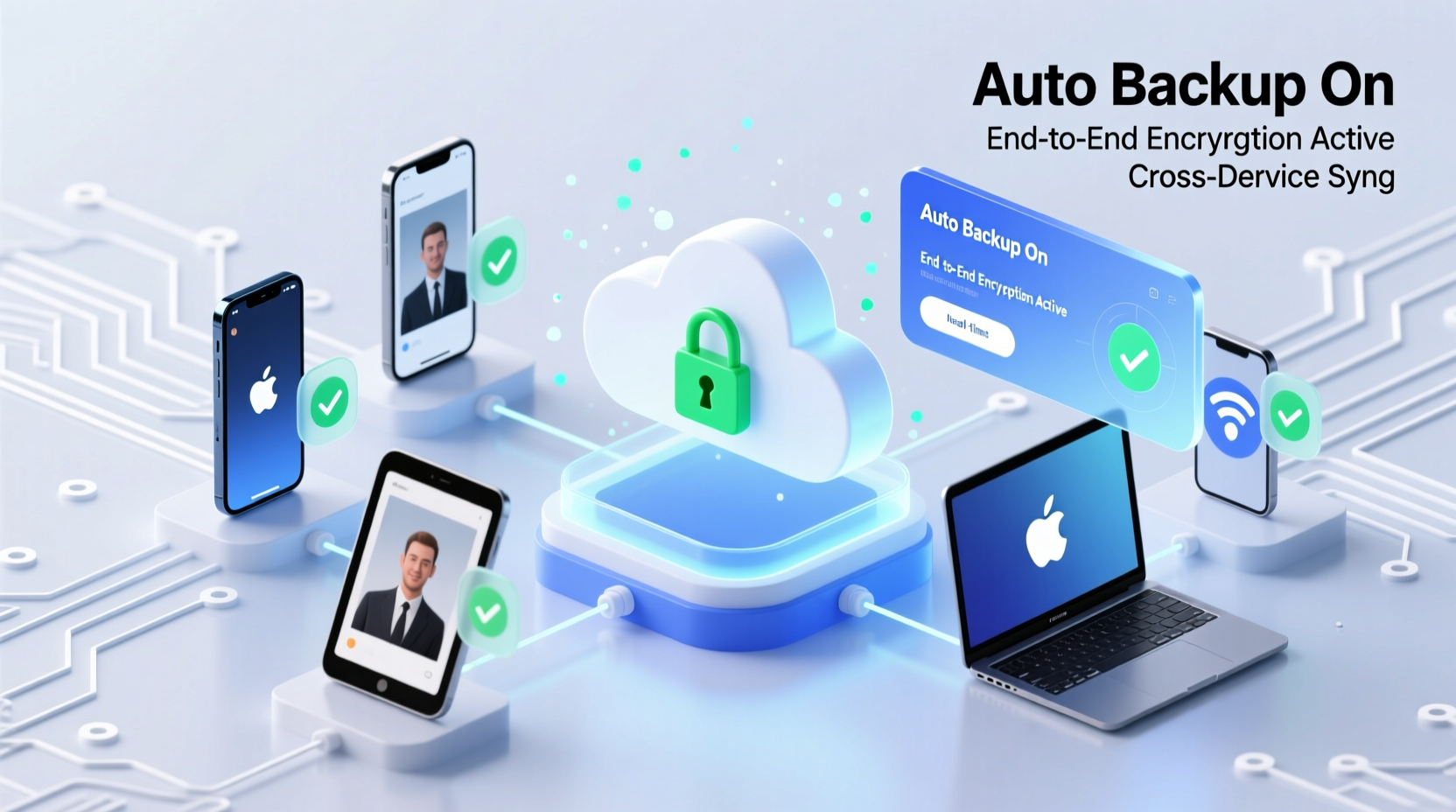
Manual backups fail because they depend on human behavior. You might intend to transfer photos every weekend, but life gets busy. By the time you remember, your phone could already be in the bottom of a lake. Automation removes this risk by ensuring photos are backed up as soon as they’re taken.
Automatic backup systems work in the background, syncing new media files across devices and cloud storage. This means:
- New photos from your iPhone appear on your Windows laptop within minutes.
- A video shot on your Android tablet is safely stored in encrypted cloud storage before you even leave the park.
- If one device fails, your entire visual history remains intact elsewhere.
The key is choosing tools and configurations that balance automation with strong security. Not all cloud services treat your privacy equally. Some scan your photos for advertising or lack end-to-end encryption. The best solutions protect your data while requiring minimal setup.
Choosing the Right Tools: Secure Cloud Services Compared
Not all cloud storage is created equal. For secure, automatic photo backup, prioritize providers that offer end-to-end encryption (E2EE), cross-platform support, and reliable syncing. Below is a comparison of leading options based on security, automation, platform compatibility, and pricing.
| Service | End-to-End Encryption | Auto Backup | Cross-Device Sync | Free Tier |
|---|---|---|---|---|
| Google Photos | No (server-side only) | Yes | Excellent (Android, iOS, Web) | 15 GB shared |
| Apple iCloud | Yes (Advanced Data Protection) | Yes | Best on Apple devices | 5 GB |
| Proton Drive | Yes | Limited (manual upload via app) | iOS, Android, Web | 1 GB |
| Tresorit | Yes | Yes (via folder sync) | Windows, macOS, iOS, Android | 3 GB |
| Syncthing (Self-hosted) | Yes (local encryption) | Yes | All major platforms | Unlimited (self-hosted) |
For most users, Apple iCloud with Advanced Data Protection enabled offers the best blend of automation and security—if you're in the Apple ecosystem. Google Photos leads in ease of use and AI features but lacks default E2EE. Proton Drive and Tresorit are ideal for privacy-first users willing to pay for stronger protection. Syncthing is powerful for technical users who want full control over their data without relying on third-party servers.
Step-by-Step: Set Up Automatic, Secure Photo Backup
Follow this sequence to create a seamless, secure backup system across your devices. This example uses a mixed-device setup (iPhone, Android tablet, MacBook, Windows PC) but principles apply universally.
- Choose your primary backup destination. If privacy is critical, pick an E2EE service like Tresorit or enable Apple’s Advanced Data Protection. Otherwise, Google Photos with high-quality compression is acceptable for casual use.
- Install apps on all devices. Download the cloud provider’s app on each device—iPhone, Android, Mac, and PC—and log in with the same account.
- Enable auto-upload. In the app settings, turn on “Backup & Sync” or equivalent. Ensure it uploads over Wi-Fi only to avoid data charges.
- Set original quality or lossless sync. Avoid compressed backups if preserving detail matters. Note: this consumes more storage.
- Configure device folders. On computers, set specific photo folders (e.g., “Photos Archive”) to sync with the cloud. Use selective sync to avoid uploading unnecessary files.
- Verify cross-device access. Take a test photo on your phone. Within minutes, check if it appears on your laptop and tablet.
- Encrypt locally before upload (optional). For maximum security, use tools like Cryptomator to encrypt photo folders before syncing to non-E2EE clouds like Google Drive.
This process takes under 30 minutes and runs silently afterward. Once configured, every new photo is backed up automatically, regardless of which device captured it.
Real Example: How Sarah Protects Her Family Memories
Sarah is a freelance photographer and mother of two. She takes hundreds of photos weekly—both personal and professional. After losing a year’s worth of images when her old Android phone broke, she redesigned her backup strategy.
She now uses Apple iCloud with Advanced Data Protection enabled. All her family devices—her iPhone, her husband’s iPad, and their children’s school tablets—are linked to a shared family iCloud+ plan. Photos are automatically uploaded in full resolution. Because she enabled E2EE, even Apple cannot access her data.
On her MacBook, she uses Photos.app, which syncs seamlessly. For extra redundancy, she exports edited projects to a local NAS (Network Attached Storage) device encrypted with BitLocker. She also keeps a quarterly external hard drive backup stored offsite.
“I don’t worry anymore,” she says. “If a device gets stolen or crashes, I know everything is safe. And my kids’ milestones aren’t tied to one gadget.”
Expert Insight: Security vs. Convenience Trade-offs
“The biggest mistake people make is assuming ‘backup’ means ‘secure.’ Just because your photos are in the cloud doesn’t mean they’re private. True security requires encryption you control—not just a login password.” — Dr. Lena Patel, Cybersecurity Researcher at MITRE
Dr. Patel emphasizes that many popular services perform server-side encryption, which allows the provider to decrypt your data if compelled by law enforcement or breached by hackers. End-to-end encryption shifts control to the user. While slightly less convenient—especially during account recovery—it’s the only way to guarantee true privacy.
She also warns against relying solely on free tiers. “Free plans often limit storage or disable advanced security features. If your photos matter, invest in a paid plan with E2EE and audit logs.”
Essential Checklist for Secure Cross-Device Photo Backup
- ☑ Choose a cloud provider with end-to-end encryption (e.g., iCloud Advanced Data Protection, Tresorit)
- ☑ Enable auto-upload on all devices (smartphones, tablets, laptops)
- ☑ Use Wi-Fi-only syncing to prevent data overages
- ☑ Turn on two-factor authentication (2FA) for your cloud account
- ☑ Test the system: take a photo, verify it appears on another device
- ☑ Encrypt sensitive albums locally using tools like Cryptomator or VeraCrypt
- ☑ Maintain a secondary offline backup (external drive or NAS)
- ☑ Review account activity monthly for unauthorized access
Frequently Asked Questions
Can I back up photos automatically without using the cloud?
Yes. Using peer-to-peer syncing tools like Syncthing, you can automatically transfer photos between devices over your home network or via remote connections—without uploading to any third-party server. This method keeps your data entirely under your control but requires consistent device uptime and some technical setup.
Are encrypted backups slower?
Encryption adds minimal overhead on modern devices. The delay is usually imperceptible during upload. However, initial syncs of large libraries may take longer due to encryption processing. Once complete, ongoing backups remain fast and automatic.
What happens if I lose my password to an encrypted backup?
With true end-to-end encryption, there is no recovery option—you must have the password or recovery key. Providers like Apple and Tresorit cannot reset access. Always store your recovery key in a secure location, such as a physical safe or password manager with emergency contacts.
Final Thoughts: Make Security Effortless
Backing up photos shouldn’t be a chore, and security shouldn’t require expertise. The most effective systems run invisibly, protecting your memories without interrupting your life. Automation ensures consistency; encryption ensures trust.
You don’t need the most expensive tool—just the right configuration. Whether you choose iCloud, Tresorit, or a self-hosted solution, the goal is the same: peace of mind. Every photo you take deserves to be preserved, not just stored.
Start today. Spend 20 minutes setting up auto-sync on your main devices. Verify it works. Then forget about it—knowing your memories are safe, secure, and always within reach.




 浙公网安备
33010002000092号
浙公网安备
33010002000092号 浙B2-20120091-4
Comments
No comments yet. Why don't you start the discussion?