
Text messages are more than just casual conversations—they often contain vital information: confirmation codes, travel itineraries, business agreements, personal memories, and sensitive details. Unlike photos or contacts, Apple doesn’t natively allow direct export of iMessages to Google Drive. However, with the right tools and precautions, you can securely transfer and store your iPhone messages in Google’s cloud infrastructure.
The challenge lies not just in moving data across ecosystems—iOS to Android-friendly Google services—but doing so without compromising privacy or integrity. This guide walks through secure, reliable, and tested approaches to ensure your messages are preserved, encrypted, and accessible when needed.
Why Back Up iPhone Messages to Google Drive?
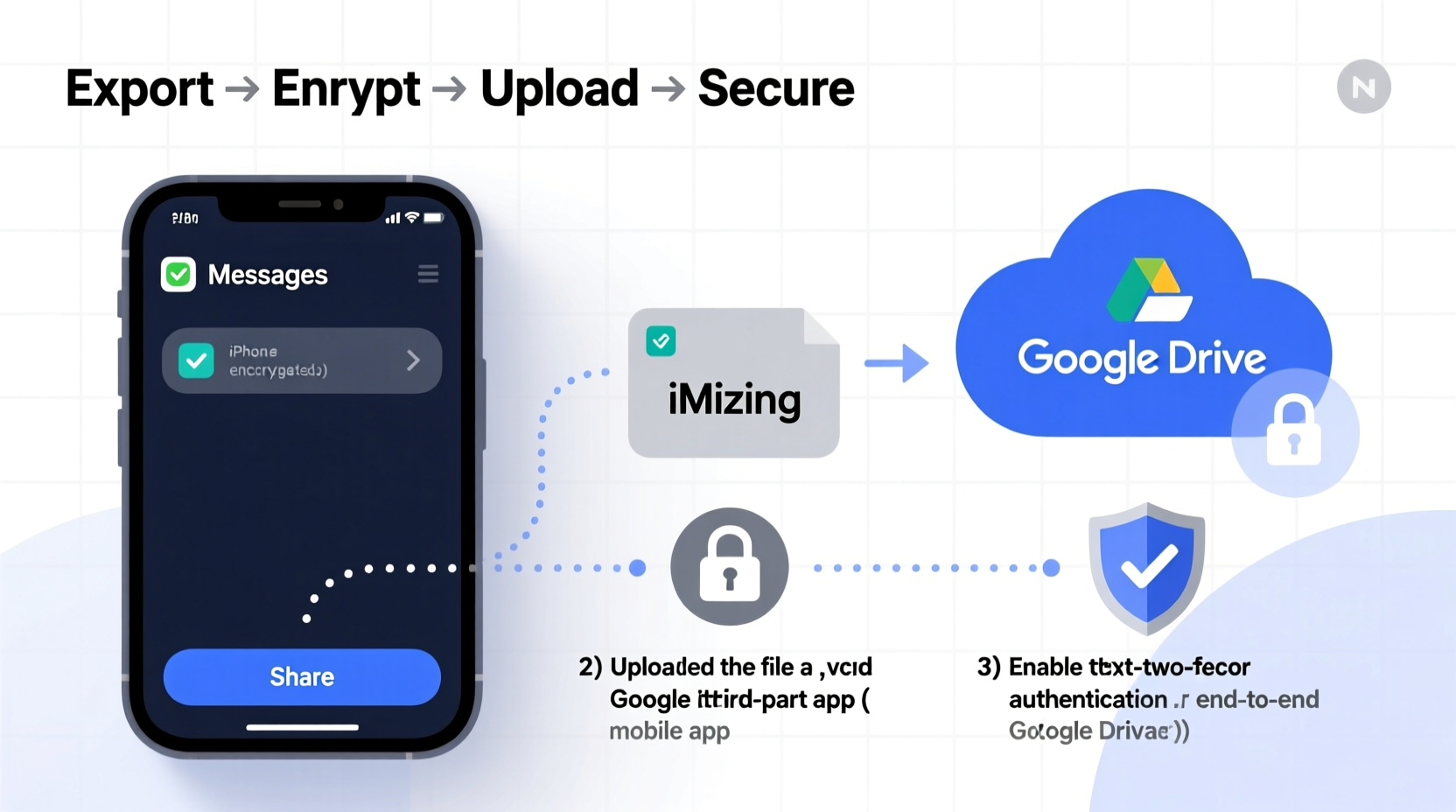
While iCloud offers seamless integration with Apple devices, relying solely on one ecosystem poses risks. Device loss, accidental deletion, or account lockouts can result in irreversible message loss. Google Drive provides an independent, cross-platform backup solution with 15 GB of free storage (shared across Gmail, Photos, and Drive), making it a practical secondary archive.
Additionally, Google Drive supports version history, access controls, and two-factor authentication—features that enhance both security and recovery options. By backing up messages externally, you gain:
- Protection against device failure
- Long-term archival beyond iCloud retention policies
- Accessibility from non-Apple devices
- Compliance with personal data redundancy best practices
“Cross-platform backups are essential in today’s multi-device world. Relying on a single vendor increases vulnerability.” — David Lin, Cybersecurity Analyst at CloudGuard Solutions
Step-by-Step: Secure Methods to Transfer Messages
There is no native way to export iMessage threads directly into Google Drive. Instead, you must use intermediary tools or manual exports. Below are three secure, proven methods ranked by ease of use and data fidelity.
Method 1: Export via Third-Party App (Recommended for Full Conversations)
Applications like iMazing, AnyTrans, or Dr.Fone – Phone Backup allow selective export of message threads with attachments, timestamps, and contact names. These apps run on macOS or Windows and connect via USB or Wi-Fi.
- Download and install a trusted desktop app (e.g., iMazing).
- Connect your iPhone using a certified Lightning cable.
- Unlock your device and tap “Trust This Computer” if prompted.
- Navigate to the Messages section within the app.
- Select specific conversations or choose “All Messages.”
- Click “Export” and choose format: PDF (readable) or plain text (.txt).
- Save the file to a secure folder on your computer.
- Upload the exported file to Google Drive via browser or desktop sync client.
Method 2: Manual Screenshot Archive (Best for Small Sets or Legal Evidence)
For short-term or legally significant messages (e.g., contracts, disputes), taking screenshots preserves exact formatting and timing. While time-consuming, this method ensures visual authenticity.
- Open the Messages app and navigate to the conversation.
- Scroll through and take screenshots (Power + Volume Up on most iPhones).
- Trim excess edges using the built-in editor if necessary.
- Create a new folder on your desktop named “iPhone Messages Backup – [Date].”
- Transfer screenshots into the folder and compress as a .zip file.
- Log in to Google Drive and upload the compressed archive.
- Right-click the uploaded file > “Share” > disable public links > set permissions to “Only You.”
This method works well for archiving proof of communication but becomes impractical for long histories due to file volume and lack of searchability.
Method 3: Use Gmail as a Bridge (For Ongoing Syncs)
If you want regular offsite preservation without software, email individual threads to yourself and save them in a dedicated Gmail label synced to Drive.
- In the Messages app, open a conversation.
- Tap and hold a message > “More” > select all relevant messages.
- Tap the share icon > “Mail” > send to your own email address.
- In Gmail, create a label: “Message Archives.”
- Apply the label and star important emails.
- Use Google Takeout or automated scripts to export these emails as .mbox files stored in Drive.
Note: This method lacks automation and scalability but requires no additional software.
Security Best Practices During Transfer
Data in transit is vulnerable. Whether you're exporting via USB or uploading to the cloud, follow these protocols to maintain confidentiality.
| Action | Do | Avoid |
|---|---|---|
| Software Source | Download tools only from official sites (e.g., imazing.com) | Unverified third-party download portals |
| Data Encryption | Encrypt exported files using AES-256 tools like 7-Zip or VeraCrypt | Plain text uploads without password protection |
| Google Account Security | Enable 2FA, use strong unique passwords | Logging in over public Wi-Fi without a VPN |
| File Sharing Settings | Set uploaded files to “Private” in Google Drive | Using “Anyone with the link” unless absolutely necessary |
Real Example: Recovering Critical Travel Details
Sophie, a freelance journalist based in Barcelona, relied on her iPhone for coordinating international assignments. During a trip to Morocco, she lost her phone after a pickpocket incident. Fortunately, two weeks prior, she had used iMazing to export recent message threads—including flight confirmations, hotel check-in codes, and embassy contacts—to an encrypted ZIP file stored in her Google Drive.
From a borrowed device, she accessed the file using her password manager-stored decryption key. Within minutes, she recovered critical logistics and avoided costly delays. “I didn’t think those texts mattered until I needed them,” she said. “Now I schedule monthly backups without fail.”
Her experience underscores the importance of proactive, secure offsite backups—not just for sentiment, but for operational continuity.
Checklist: Secure iPhone-to-Google Drive Message Backup
Follow this checklist to ensure your process is thorough and protected:
- ✅ Confirm your iPhone is updated to the latest iOS version
- ✅ Enable passcode and biometric locks on your device
- ✅ Choose a reputable message export tool (iMazing, AnyTrans, etc.)
- ✅ Connect via USB and authorize the computer securely
- ✅ Export messages in PDF or encrypted format
- ✅ Store the local copy in an encrypted folder
- ✅ Upload to Google Drive using a private browsing session
- ✅ Disable sharing settings on the uploaded file
- ✅ Test restoration by downloading and opening the file
- ✅ Delete temporary copies from your desktop after verification
Frequently Asked Questions
Can Google Drive automatically back up my iPhone messages?
No. Google Drive does not offer automatic synchronization with iPhone messages. You must manually export and upload message data using third-party tools or screenshot methods. Automation requires scripting or paid services like IFTTT combined with intermediate platforms, which may introduce security risks.
Are exported messages searchable in Google Drive?
Yes—but only if they are in a machine-readable format. PDFs and text files retain searchable content. However, image-based screenshots require OCR (Optical Character Recognition) processing to extract text. Use Google Docs’ “Open with Google Docs” feature on image files to convert them into searchable documents.
Is it legal to back up someone else’s messages?
Only if you have explicit consent. In many jurisdictions—including the U.S. under the Electronic Communications Privacy Act (ECPA)—capturing or storing another person’s messages without authorization is illegal. Always obtain permission before exporting shared conversations, especially in professional or sensitive contexts.
Conclusion: Take Control of Your Digital Conversations
Your text messages are part of your digital legacy. They hold value far beyond their initial purpose—proof of agreements, records of events, emotional keepsakes. Letting them remain siloed in a single device or proprietary cloud increases the risk of permanent loss.
By leveraging trusted tools, applying encryption, and using Google Drive as a secure vault, you create a resilient backup strategy that transcends platform limitations. The few minutes spent setting up a secure export today could save hours—or even protect your rights—tomorrow.




 浙公网安备
33010002000092号
浙公网安备
33010002000092号 浙B2-20120091-4
Comments
No comments yet. Why don't you start the discussion?