
Every photo you take, every message you send, every app setting you tweak—your phone holds a digital archive of your life. And yet, most people only think about backing up their phones after something goes wrong: a cracked screen, a lost device, or a factory reset gone wrong. The truth is, manual backups are unreliable because they depend on memory and effort. What you really need is a system that works whether you remember it or not.
Automatic phone backups eliminate the guesswork and human error. When configured correctly, they run in the background, syncing your data seamlessly to secure cloud storage or external drives. This guide walks through practical, tested methods to set up foolproof automatic backups for both iOS and Android devices. Once implemented, you’ll never have to worry about losing your data again.
Why Automatic Backups Matter
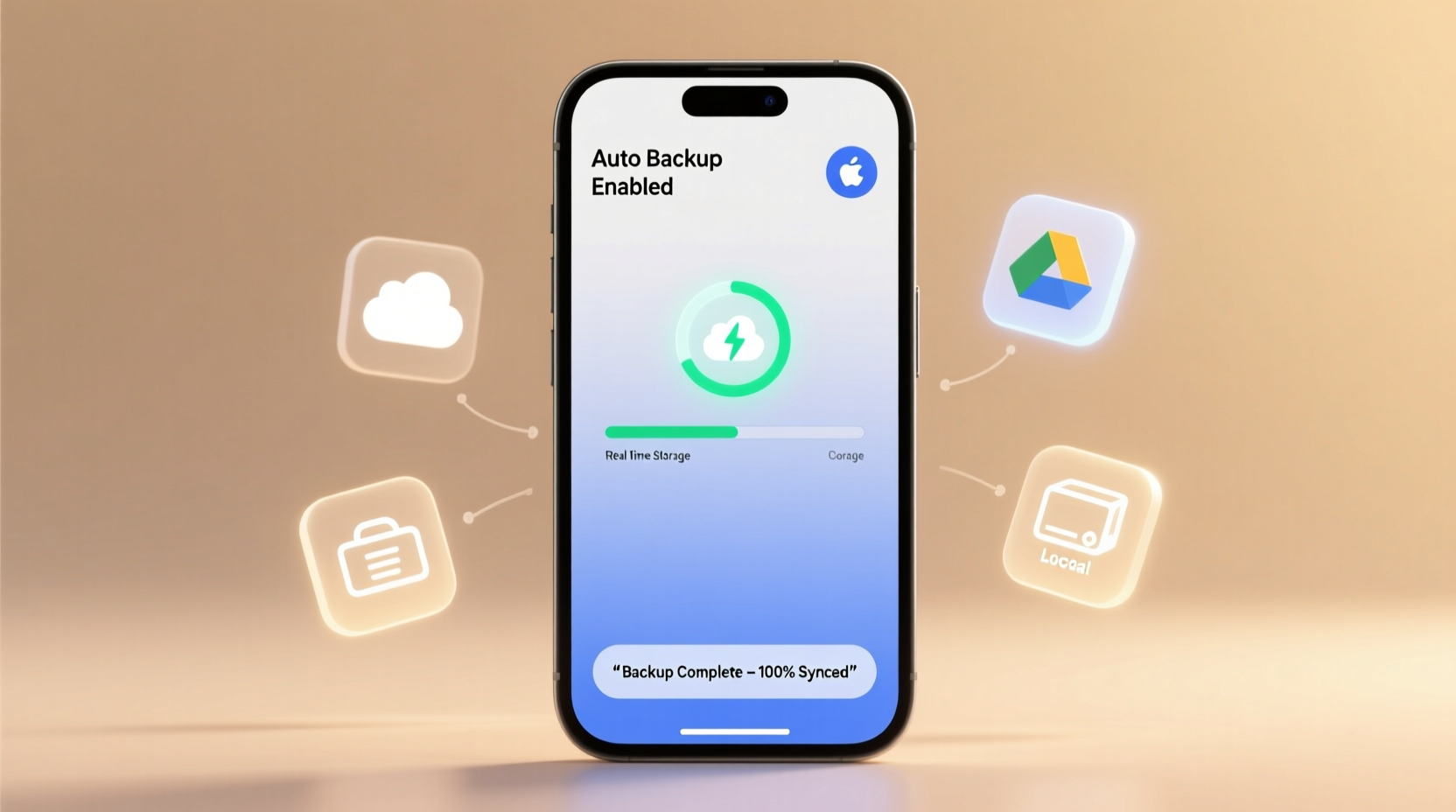
Phones are fragile. They get dropped, stolen, water-damaged, or simply wear out. According to a 2023 consumer survey by Statista, over 30% of smartphone users experienced data loss in the past year, with nearly half citing lack of backup as the primary reason. Photos, contacts, messages, and app data are often irreplaceable. Yet, fewer than 40% of users regularly back up their devices.
Manual backups require intention and time—two resources most people lack. You might promise yourself, “I’ll back up tonight,” but distractions pile up. Automatic backups solve this by removing the need for action. They rely on triggers like Wi-Fi connection, charging status, or time intervals to initiate syncs without any input from you.
“Data resilience starts with automation. If a backup depends on a person remembering to do it, it’s already broken.” — Dr. Lena Patel, Digital Archivist & Cybersecurity Researcher
How Cloud Services Make Automatic Backups Effortless
The cornerstone of hands-free phone backups is cloud storage. Major platforms like iCloud, Google Drive, and third-party services such as Dropbox and OneDrive offer built-in tools that can sync your phone data continuously.
iCloud: Seamless Integration for iPhone Users
If you own an iPhone, iCloud is the simplest path to automated backups. When enabled, it backs up your apps, settings, photos, messages, and health data nightly when your phone is locked, connected to Wi-Fi, and charging.
To verify your setup:
- Go to Settings > [Your Name] > iCloud.
- Select \"iCloud Backup.\"
- Toggle on \"iCloud Backup.\"
- Check \"Back Up Now\" to confirm functionality.
iCloud will display the date and time of the last successful backup at the bottom of the screen. As long as your iPhone meets the three conditions (locked, charging, Wi-Fi), it will back up daily.
Google One: The Android Advantage
Android users benefit from Google’s ecosystem through Google One, which combines cloud storage with intelligent backup features. By default, Android backs up app data, call history, device settings, and Wi-Fi passwords to your Google Account.
For photos and videos, Google Photos offers automatic syncing when enabled:
- Open the Google Photos app.
- Tap your profile picture > Settings > Backup.
- Ensure \"Backup\" is toggled on.
- Choose \"Upload Size\" (High Quality is free; Original Quality uses storage).
Once active, every photo taken is uploaded in the background whenever the phone is on Wi-Fi and charging. You can also enable location and contact backups under Settings > Google > Backup.
| Platform | Primary Backup Tool | Triggers Automatic Sync | Free Storage |
|---|---|---|---|
| iOS | iCloud | Wi-Fi + Charging + Locked | 5 GB |
| Android | Google One / Google Photos | Wi-Fi + Charging (optional) | 15 GB (shared across Gmail, Drive, Photos) |
| Cross-Platform | Dropbox | Wi-Fi + App Running | 2 GB (expandable via referrals) |
Advanced Automation: Third-Party Tools and Scheduled Syncing
While built-in options cover most needs, some users want more control or broader file coverage. Third-party apps fill gaps by backing up data not typically included in standard backups—like WhatsApp chats, SMS messages, or specific folders.
Automate with FolderSync (Android)
FolderSync allows you to create two-way sync tasks between your phone and cloud services like Dropbox, OneDrive, or even self-hosted servers. You can set it to trigger based on:
- Wi-Fi connection
- Charging status
- Time of day (e.g., every night at 2 AM)
- Device idle state
This means your Downloads folder, camera roll, or documents directory can be mirrored automatically without touching your phone.
Use Automator and Shortcuts (iOS)
Apple’s Shortcuts app enables powerful automation. For example, you can create a shortcut that:
- Detects when your phone connects to home Wi-Fi.
- Checks if it’s after 10 PM.
- Starts uploading selected files to iCloud Drive or Dropbox.
You can schedule this to run daily or use contextual triggers like location or battery level. While it requires initial setup, once live, it runs silently in the background.
Real-World Example: Recovering From a Lost Phone
Sophia, a freelance photographer in Portland, left her phone in a rideshare after a late-night shoot. She didn’t realize it was missing until the next morning. Panicked, she logged into her Google account from a friend’s laptop—and breathed a sigh of relief.
Thanks to automatic Google Photos backups, all 1,200 images from her latest client session were safely stored in the cloud. Her messages, contacts, and app logins synced instantly to a replacement device. Within hours, she was back online with minimal disruption.
\"I used to skip backups because I thought I’d do it ‘later,’” she said. “Now my phone backs up every night while I sleep. It’s not just convenient—it saved my business.\"
Your Automatic Backup Checklist
Follow this checklist to ensure your phone backs up without requiring your attention:
- Enable iCloud Backup (iPhone) or Google Backup (Android). Confirm it’s active in settings.
- Turn on photo syncing. Use iCloud Photos or Google Photos with auto-upload enabled.
- Connect to Wi-Fi regularly. Most automatic backups require Wi-Fi to avoid data charges.
- Charge your phone overnight. This satisfies the charging condition for scheduled backups.
- Lock your phone when not in use. Especially important for iPhones, which require the device to be locked for iCloud backups.
- Verify storage space. Upgrade your cloud plan if nearing capacity to prevent failed backups.
- Test recovery. Restore one photo or contact to confirm your backup is functional.
- Install third-party tools if needed. Use FolderSync, Dropbox, or Shortcuts for additional file types or customization.
Frequently Asked Questions
How do I know if my phone is backing up automatically?
On iPhone, go to Settings > [Your Name] > iCloud > iCloud Backup. It will show the date and time of the last backup. On Android, visit Settings > Google > Backup to see recent activity. For Google Photos, open the app and check the upload status in your library.
Do automatic backups use mobile data?
By default, no. Both iCloud and Google Photos are configured to back up only over Wi-Fi to prevent unexpected data usage. You can change this in settings, but it’s not recommended unless you have an unlimited data plan.
What happens if I run out of cloud storage?
Your backups will stop until you free up space or upgrade your plan. Deleted items may remain in trash folders for 30–60 days, consuming space. Regularly review your storage under iCloud or Google One settings to avoid interruptions.
Final Steps: Lock In Your Peace of Mind
Setting up automatic backups takes less than 20 minutes—but the protection it provides lasts indefinitely. The real cost isn’t in time or money; it’s in the risk of doing nothing. A single accident can erase years of memories, contacts, and critical information.
Take action now. Open your phone’s settings, enable the right switches, and let automation do the rest. Test the system by restoring a photo or checking your last backup timestamp. Once confirmed, you’ve achieved true digital resilience: your data is safe, even when you’re not thinking about it.




 浙公网安备
33010002000092号
浙公网安备
33010002000092号 浙B2-20120091-4
Comments
No comments yet. Why don't you start the discussion?