
In an age where personal data is increasingly valuable, backing up your phone is no longer optional—it's essential. While iCloud and Google Drive are convenient, not everyone wants their photos, messages, and contacts stored on corporate servers. Privacy concerns, subscription costs, and limited free storage push many users to seek alternatives. The good news: you can securely back up your phone without relying on either service. Whether you're using an iPhone or Android device, there are multiple effective, private, and cost-efficient options available.
Why Avoid Cloud-Based Backups?
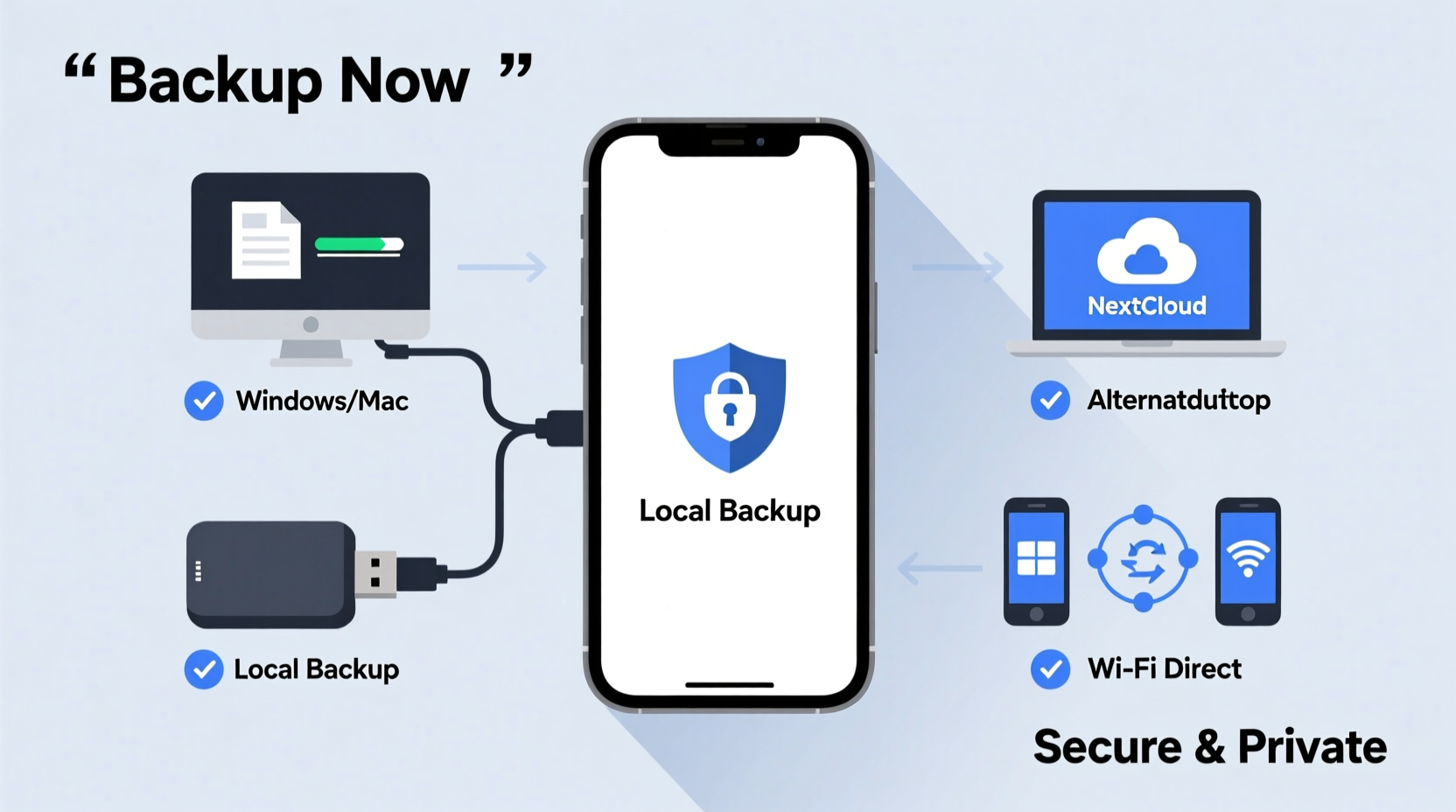
While cloud services dominate the backup landscape, they come with trade-offs. Many users prefer to avoid them for several reasons:
- Privacy risks: Data stored in the cloud may be subject to third-party access, government requests, or internal policies that allow scanning of user content.
- Subscription fatigue: Free tiers are often too small (5GB on Google Drive, 5GB on iCloud), forcing users into paid plans for full backups.
- Limited control: You don’t own the infrastructure—your access depends on the provider’s uptime, terms of service, and regional availability.
- Internet dependency: Large backups require stable, fast internet, which isn’t always accessible.
Local and self-managed solutions offer greater autonomy, faster transfer speeds, and long-term cost savings—especially if you already own external storage.
Backing Up an iPhone Without iCloud
iOS is tightly integrated with iCloud, but Apple also supports local backups through iTunes (on Windows) and Finder (on macOS Catalina and later). This method stores your entire device state—apps, settings, messages, and media—on your computer.
Step-by-Step: Local iPhone Backup via Computer
- Connect your iPhone to your Mac or PC using a USB cable.
- On macOS: Open Finder. On Windows: Open iTunes (download from apple.com if needed).
- Select your device when it appears in the sidebar.
- Under the “Backups” section, choose “This computer” instead of “iCloud.”
- Enable “Encrypt local backup” to include passwords, Health data, and Wi-Fi settings. Set a strong password you’ll remember.
- Click “Back Up Now.” Wait for the process to complete—this may take minutes to hours depending on data volume.
- Safely eject your device after completion.
This backup includes app data, settings, messages, call history, and device preferences. Photos synced through iTunes will also be backed up, but if you use the Photos app directly, ensure they’re included by enabling photo sync before backing up.
“Local backups give users full custody of their data. When encrypted, they’re among the most secure options available.” — Dr. Lena Torres, Cybersecurity Researcher at MIT
Alternative: Third-Party Tools for iPhone
Several trusted third-party tools offer enhanced iPhone backup features beyond what iTunes/Finder provides:
- iMazing: Allows selective backup of apps, messages, and attachments. Supports export to any folder on your drive.
- AnyTrans: Offers file-level access and cross-platform compatibility.
- CopyTrans: Free tool for basic backups without iTunes bloat.
These tools often provide better file management and restore options than Apple’s native software, though some features require paid licenses.
Backing Up an Android Phone Without Google Drive
Android offers more flexibility than iOS when avoiding cloud services. Since Android treats the phone like a portable storage device, direct file transfer and local automation are straightforward.
Manual File Transfer via USB
The simplest method is connecting your phone to a computer and copying files manually:
- Unlock your phone and connect it via USB.
- Swipe down the notification panel and change the USB mode to “File Transfer” (MTP).
- On your computer, open the device as a drive.
- Navigate to key folders: DCIM (photos), Movies, Downloads, Documents, WhatsApp/Media (for chats).
- Copy these folders to a designated backup location on your computer or external drive.
This method gives full control over what gets backed up and where. It’s ideal for media-heavy users who want to archive large photo and video collections.
Automated Local Backups with Apps
To avoid manual transfers every time, use local backup apps that automate the process:
- FolderSync: Syncs specified folders to local directories or network drives. Supports scheduling.
- Autosync: A modern successor to FolderSync with improved UI and reliability.
- Swift Backup (requires root): Backs up apps, SMS, call logs, and settings directly to internal or external storage.
For non-rooted devices, focus on file-based syncing. Rooted users gain access to full system-level backups, including app data and system settings.
Using External Storage Devices
Dedicated hardware solutions eliminate reliance on computers and cloud providers altogether.
USB OTG Drives for Android
Many Android phones support USB On-The-Go (OTG), allowing direct connection to flash drives or portable SSDs. Use a USB-C to USB-A adapter (or dual USB-C cable) to plug in a drive.
Once connected:
- Open your phone’s Files app.
- Navigate to internal storage.
- Select folders like DCIM, Downloads, or Documents.
- Copy and paste them to the external drive.
Some manufacturers, like Samsung, include built-in “Smart Switch” functionality that simplifies this process.
Wireless External Drives
Devices like the WD My Passport Wireless Pro or Seagate Mobile Drive act as portable Wi-Fi hotspots. Your phone connects directly to the drive, enabling wireless backup without internet.
Steps:
- Power on the drive and connect your phone to its Wi-Fi network.
- Open the companion app (e.g., WD Drive Utilities).
- Select “Backup Photos & Videos” or similar option.
- Choose source folders and destination on the drive.
- Start the transfer. Files are saved locally on the device.
These drives typically include rechargeable batteries and SD card slots, making them ideal for travelers or photographers.
Network Attached Storage (NAS)
For advanced users, a NAS device (like Synology or QNAP) acts as a personal cloud server within your home network. Once configured:
- Install the NAS manufacturer’s mobile app.
- Connect your phone to the same Wi-Fi network.
- Set up automatic photo and document uploads.
- Configure remote access for off-site retrieval (optional).
A NAS gives you unlimited scalable storage, full data ownership, and the ability to share backups across household devices—all without recurring fees.
“A well-configured NAS is the gold standard for private, automated backups. It’s like having your own Google Drive—without Google.” — Marcus Reed, IT Infrastructure Consultant
Comparison of Backup Methods
| Method | Best For | Speed | Privacy | Cost Over 5 Years |
|---|---|---|---|---|
| Computer (iTunes/Finder) | iOS users wanting full device backup | Fast (USB) | High (if encrypted) | $0 (uses existing hardware) |
| Manual USB Transfer | Simple file archiving | Fast | Very High | $0 |
| Third-Party Apps (iMazing, Swift Backup) | Advanced control and selective backup | Moderate | High | $30–$60 (one-time or annual) |
| Wireless External Drive | Travelers, photographers | Moderate (Wi-Fi) | Very High | $100–$200 (device cost) |
| NAS | Families, power users | Fast (local), Moderate (remote) | Very High | $300–$600 (initial setup) |
Mini Case Study: Sarah’s Off-the-Grid Backup Strategy
Sarah, a freelance journalist working in remote regions, needed a way to back up her phone without reliable internet or cloud access. She uses an Android phone and carries a 1TB SSD with a USB-C cable.
Every evening, she connects the SSD to her phone and uses the Files by Google app to copy her day’s photos, voice recordings, and notes. She labels each folder with the date and keeps a log on a separate text file. Once a month, she copies the data to her laptop and formats the SSD for reuse.
This low-tech, high-reliability approach ensures her work is preserved even when offline. She estimates she’s saved over $200 in cloud storage fees and maintains full control over sensitive interview material.
Essential Backup Checklist
Follow this checklist to ensure your backup is thorough and secure:
- ✅ Identify critical data: photos, videos, messages, documents, app data.
- ✅ Choose a primary method: computer, external drive, or NAS.
- ✅ Enable encryption for sensitive backups (e.g., iTunes encrypted backup).
- ✅ Label backups with dates and descriptions.
- ✅ Test restoration: verify that you can recover files when needed.
- ✅ Store backup drives separately: protect against fire, theft, or hardware failure.
- ✅ Schedule regular backups: weekly or monthly, depending on usage.
Frequently Asked Questions
Can I back up WhatsApp without Google Drive or iCloud?
Yes. On Android, go to WhatsApp Settings > Chats > Chat Backup. Tap “Back up to Google Drive” and select “Never.” Then, manually copy the WhatsApp/Databases and WhatsApp/Media folders to your computer or external drive. On iPhone, use iTunes/Finder backups with encryption enabled to capture WhatsApp data.
What happens if my backup drive fails?
Like any storage device, external drives can fail. To mitigate risk, follow the 3-2-1 rule: keep 3 copies of your data, on 2 different media types, with 1 offsite. For example: original phone data + computer backup + external drive stored elsewhere.
Are local backups safer than cloud backups?
Local backups offer greater control and privacy, but they’re vulnerable to physical threats like theft, fire, or water damage. Cloud backups are immune to local disasters but depend on provider security and policies. A hybrid approach—local plus encrypted cloud—offers balanced protection.
Final Thoughts and Next Steps
Backing up your phone without iCloud or Google Drive isn’t just possible—it can be smarter, safer, and more sustainable. By leveraging local storage, trusted software, and automated tools, you reclaim ownership of your digital life. Whether you’re protecting family memories, work documents, or sensitive communications, the right backup strategy gives peace of mind that no algorithm or policy change can undermine.
Start today: connect your phone to your computer, copy your photos, and create your first independent backup. Name the folder, store it safely, and set a reminder to repeat the process. Small steps now prevent irreversible loss later.




 浙公网安备
33010002000092号
浙公网安备
33010002000092号 浙B2-20120091-4
Comments
No comments yet. Why don't you start the discussion?