
In today’s digital world, spam calls have become a constant nuisance. Whether it’s fake tech support scams, robocalls about car warranties, or phishing attempts disguised as bank alerts, these unwanted calls waste time, erode trust, and can even pose real security risks. While Android devices come with increasingly sophisticated protections, many users still feel overwhelmed by the volume of spam calls they receive daily. The good news? You don’t have to live with it. With the right combination of built-in features, smart settings, and trusted third-party tools, you can significantly reduce—and in many cases, eliminate—spam calls from ever reaching your phone.
Understanding the Spam Call Problem on Android
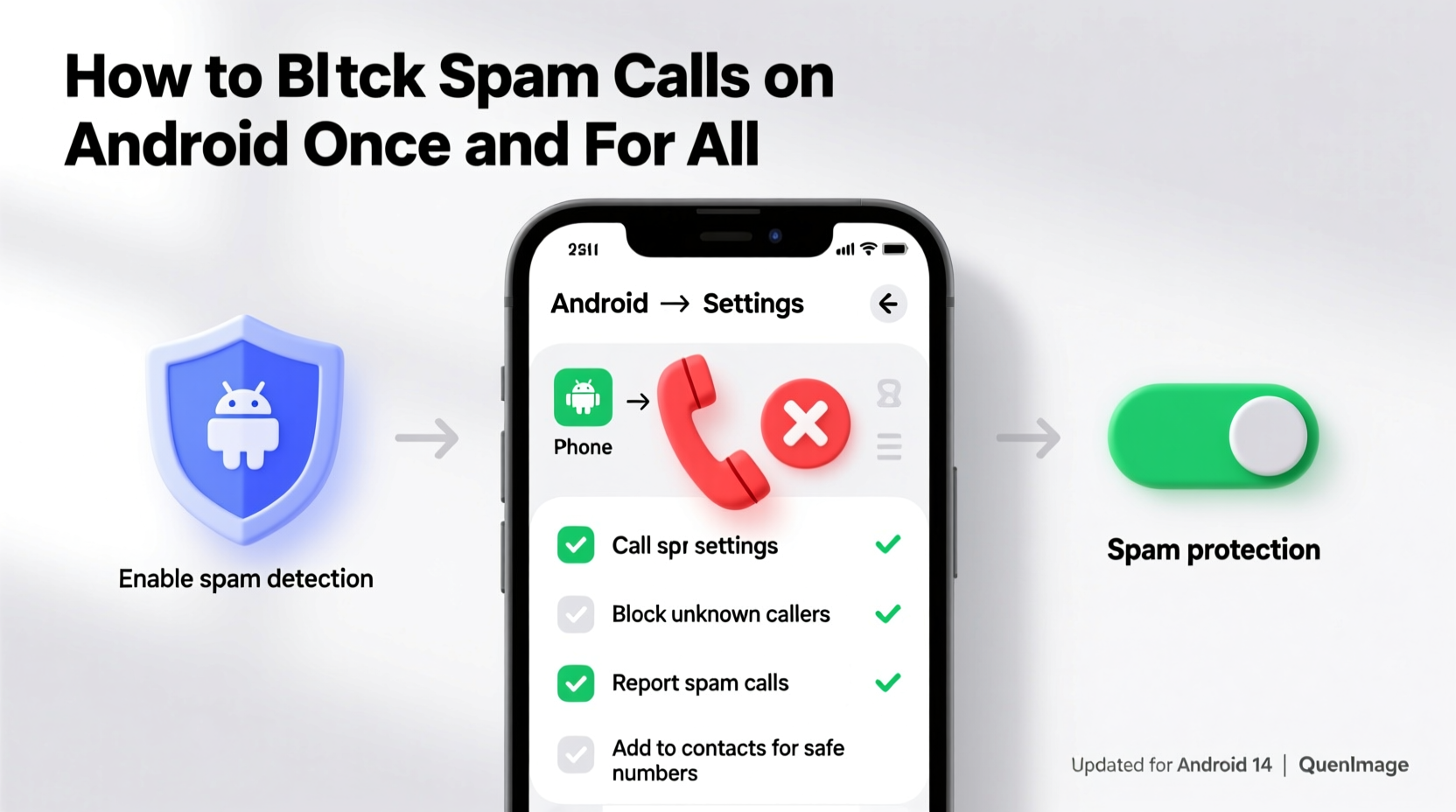
Spam calls are automated or mass-dialed calls sent from numbers that often appear legitimate but are used for fraudulent or marketing purposes. Scammers use number spoofing to disguise their identity, making it difficult to identify or trace them. According to the Federal Trade Commission (FTC), billions of spam calls are made each year in the U.S. alone, with Android users being frequent targets due to the platform’s open ecosystem.
Android has taken steps to combat this issue. Google regularly updates its Dialer app with call screening, spam detection, and reporting features powered by machine learning and crowd-sourced data. However, relying solely on default settings isn’t always enough. Many users need to take additional steps to customize their protection based on their calling patterns and risk exposure.
“Spam calls thrive on volume and evasion. The most effective defense combines automatic filtering, user reporting, and proactive blocking.” — David Lin, Senior Security Analyst at Mobile Threat Labs
Step-by-Step Guide to Blocking Spam Calls on Android
Eliminating spam calls requires a layered approach. Below is a comprehensive, step-by-step process to secure your Android device against unwanted callers.
1. Enable Built-In Spam Protection in Your Phone App
Most modern Android phones use the Google Phone app, which includes robust spam detection. To activate it:
- Open the Phone app.
- Tap the three-dot menu in the top-right corner and select Settings.
- Go to Spam and call screen.
- Toggle on Enable enhanced spam detection.
- Also enable Filter suspected spam calls.
Once enabled, Google will analyze incoming calls in real-time and flag suspicious ones. If a call is marked as spam, you’ll see a warning before answering, and the call may be automatically sent to voicemail.
2. Use Google’s Call Screen Feature
Call Screen acts like a virtual receptionist. When an unknown or suspected spam call comes in, Google Assistant answers it and transcribes the conversation in real time. You can watch the transcription and decide whether to pick up, send to voicemail, or block the number.
To set it up:
- Go to Phone Settings > Spam and call screen.
- Turn on See caller and spam ID.
- Enable Answer with Google Assistant.
This feature is especially useful during meetings or late at night when you don’t want to answer every unknown number.
3. Manually Block Persistent Spam Numbers
If a particular number keeps calling despite being flagged, block it directly:
- Open your recent calls list.
- Tap the spam number.
- Select Block / Report spam.
This not only blocks the number but also reports it to Google, helping improve spam detection for others.
4. Install a Trusted Third-Party Caller ID and Blocker App
While Google’s tools are strong, third-party apps offer deeper customization and global spam databases. Recommended options include:
- Hiya – Real-time spam detection and reverse lookup.
- Truecaller – Massive user-generated database with SMS filtering.
- RoboKiller – AI-powered spam blocking with call-scrambling features.
Install one of these from the Google Play Store and follow the setup wizard to sync contacts and enable call blocking.
5. Register Your Number with the National Do Not Call Registry
In the U.S., adding your number to the National Do Not Call Registry reduces legal telemarketing calls. While scammers ignore it, legitimate companies must comply. It won’t stop all spam, but it cuts down on valid-number abuse.
Comparison of Top Spam-Blocking Methods
| Method | Effectiveness | Setup Time | Privacy Considerations |
|---|---|---|---|
| Google Built-in Spam Filter | High (for known spam) | 2 minutes | Minimal data sharing; uses Google AI |
| Call Screen with Assistant | Very High (real-time verification) | 3 minutes | Transcriptions stored temporarily unless saved |
| Truecaller | Very High (crowd-sourced data) | 5–7 minutes | Requires contact access; some data shared with network |
| Hiya | High | 4 minutes | Limited data sharing; opt-out available |
| Manual Blocking | Low to Medium (reactive only) | 1 minute per number | No privacy risk |
Common Mistakes That Let Spam Calls Through
Even with protection enabled, many users unknowingly leave gaps in their defenses. Avoid these common pitfalls:
- Disabling spam filters to avoid false positives: While occasional legitimate calls may be mislabeled, turning off filtering entirely exposes you to hundreds of spam calls.
- Not updating the Phone app: Older versions lack the latest spam signatures and AI models.
- Ignoring reported spam numbers: Failing to report spam means Google and third-party apps can’t learn from your experience.
- Using unreliable call blocker apps: Some apps in the Play Store are poorly coded or collect excessive data. Stick to well-reviewed, established names.
- Answering unknown numbers out of curiosity: Even answering briefly can signal that your number is active, leading to more spam.
“Every time you interact with a spam call—even to yell at them—you confirm your line is monitored by a human. Silence is your best weapon.” — Lena Torres, Cybersecurity Educator
Real-World Example: How Maria Reduced Spam Calls by 95%
Maria, a small business owner in Austin, was receiving over 15 spam calls a day. Many appeared to be local numbers, making her hesitant to ignore them. After missing a critical client call because she assumed it was spam, she decided to take action.
She started by enabling Google’s spam filter and Call Screen. Within days, her phone began identifying scam callers with warnings like “Likely spam” and “Telemarketer.” She activated Truecaller to cross-reference incoming numbers. Any number flagged by both systems was automatically sent to voicemail.
She also reported every spam call through the Phone app. Over three weeks, her spam volume dropped sharply. Now, she receives fewer than one spam call per week—and when she does, Call Screen handles it before she even sees the notification.
Her total setup time: less than 20 minutes. The result? Peace of mind and regained control over her communication.
Essential Checklist: Block Spam Calls Once and for All
Follow this checklist to secure your Android device against spam calls:
- ✅ Update your Google Phone app to the latest version.
- ✅ Enable “Filter suspected spam calls” in Phone Settings.
- ✅ Turn on “Enhanced spam detection” for AI-based analysis.
- ✅ Activate Call Screen to let Google Assistant answer suspicious calls.
- ✅ Install a trusted third-party app like Truecaller or Hiya.
- ✅ Block and report recurring spam numbers manually.
- ✅ Register your number with the National Do Not Call Registry (if in the U.S.).
- ✅ Avoid answering calls from unknown international or suspicious-looking numbers.
- ✅ Regularly review blocked numbers and adjust filters if needed.
- ✅ Educate family members or coworkers on how to use these tools.
Frequently Asked Questions
Can I block spam calls without installing third-party apps?
Yes. Android’s built-in spam protection in the Google Phone app is highly effective for most users. By enabling spam filtering and Call Screen, you can block the majority of spam calls without downloading any additional apps.
Why do I still get spam calls after blocking numbers?
Scammers use number spoofing to generate new fake numbers constantly. Blocking one number doesn’t stop others. That’s why automated filtering and AI detection are more effective than manual blocking alone.
Are call-blocking apps safe for my privacy?
Reputable apps like Hiya and Truecaller are generally safe, but they require access to your contacts and call log. Review their privacy policies and permissions before installation. Avoid apps with poor reviews or vague data practices.
Take Control of Your Phone Line Today
Spam calls don’t have to be an unavoidable part of smartphone ownership. With Android’s evolving defenses and the right strategies, you can reclaim your peace of mind and ensure that every ring is worth answering. The key is consistency: enable all available protections, stay updated, and report spam when you see it. Each report strengthens the system for everyone.
Don’t wait for the next fake IRS call or phantom warranty reminder. Implement these steps now and experience what a truly quiet phone can feel like. Your attention is valuable—protect it from exploitation.




 浙公网安备
33010002000092号
浙公网安备
33010002000092号 浙B2-20120091-4
Comments
No comments yet. Why don't you start the discussion?