
Working from home has made video calls a daily necessity. Whether you're attending a team meeting, presenting to clients, or interviewing for a job, your surroundings matter. A cluttered room, messy laundry, or an unmade bed in the background can distract viewers and undermine your professionalism. While many assume that blurring a background requires expensive equipment like a green screen, Zoom offers powerful built-in tools that make it easy—no special gear needed.
The virtual background and background blur features in Zoom are designed specifically for users who want privacy, focus, and polish during video calls. The good news? You don’t need a green screen. With smart positioning, proper lighting, and a few settings tweaks, you can achieve a clean, blurred background that keeps attention where it belongs: on you.
How Zoom Background Blur Works
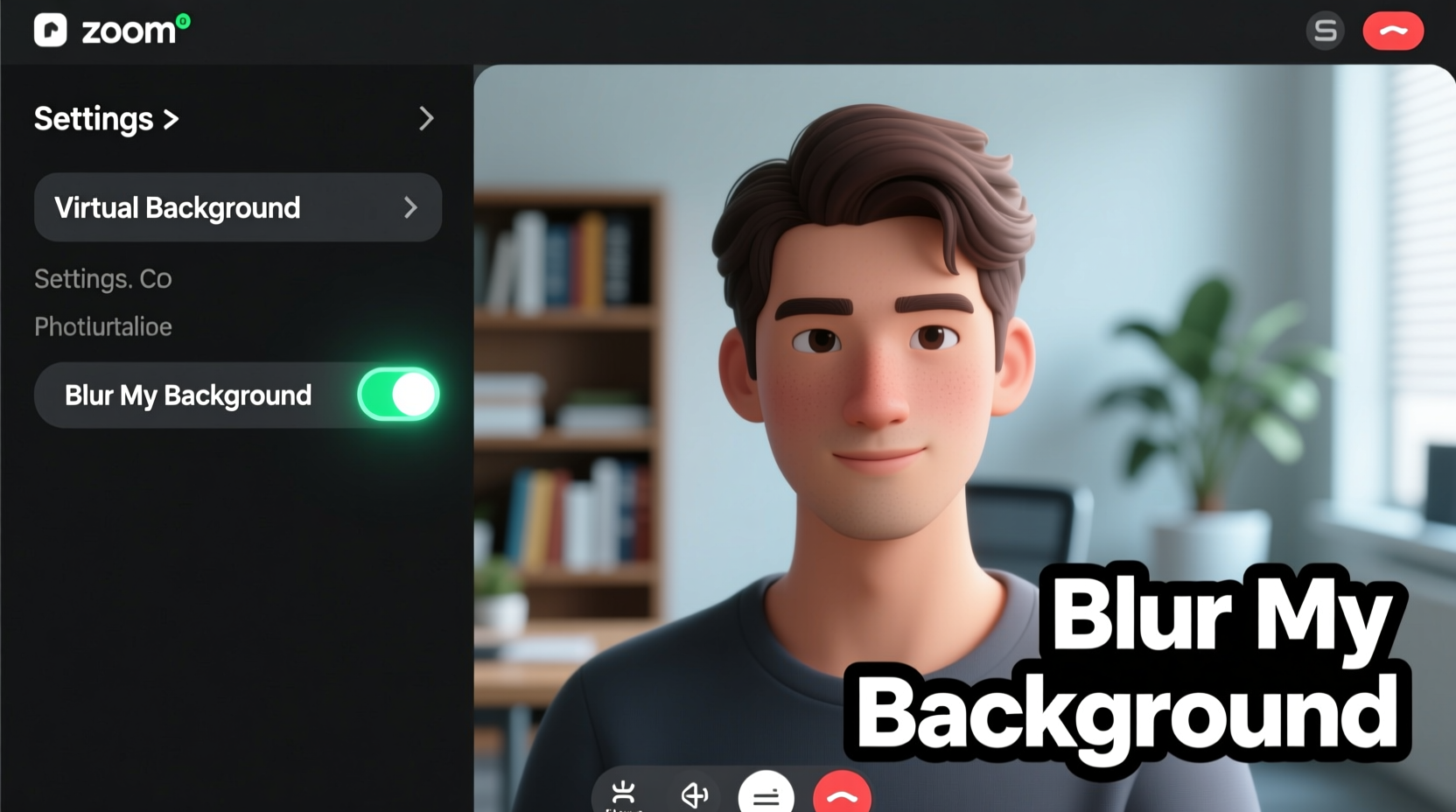
Zoom uses artificial intelligence and machine learning algorithms to distinguish between the user and their surroundings. This segmentation allows the app to apply effects like blurring or replacing the background while keeping the person in sharp focus. Unlike older video conferencing tools that required high-contrast backdrops (like green screens), Zoom’s AI is trained to detect human forms based on movement, shape, and contrast—even in typical home environments.
The technology works best when there's sufficient contrast between you and your background. For example, standing in front of a bookshelf with varying colors and textures is easier for Zoom to process than sitting against a wall painted the same color as your clothing. However, even in suboptimal conditions, modern versions of Zoom can deliver surprisingly accurate results—especially if your device has a decent camera and processor.
“AI-powered background processing has democratized professional video presence. You no longer need studio setups to look credible on camera.” — Dr. Lena Patel, UX Researcher at a leading video communication firm
Step-by-Step Guide to Blurring Your Background on Zoom
Blurring your background during a Zoom meeting is straightforward once you know where to find the settings. Follow these steps before or during your next call:
- Update Zoom: Ensure you’re running the latest version of the Zoom desktop or mobile app. Older versions may lack background effects or have reduced accuracy.
- Open Zoom Settings: Launch the Zoom application and click on your profile picture, then select “Settings.”
- Navigate to Background & Filters: In the left sidebar, click “Background & Filters.”
- Select “Blur”: From the list of available backgrounds, choose the “Blur” option. It appears as a thumbnail showing a hazy version of a room.
- Test the Effect: Use the live preview window to see how the blur looks. Adjust your position or lighting if parts of your body appear distorted or if the background isn’t fully obscured.
- Apply During a Meeting: If you’re already in a meeting, click the upward arrow next to “Stop Video,” then select “Choose Virtual Background,” and pick “Blur.”
Optimizing Your Environment for Best Results
While Zoom’s blur feature works out of the box, its effectiveness depends heavily on your physical setup. Poor lighting, busy patterns, or low-resolution cameras can cause glitches like halos around your head, flickering edges, or unintended parts of the background remaining visible.
To maximize clarity and smoothness, consider the following environmental adjustments:
- Use front-facing lighting: Position a lamp or natural light source in front of you (e.g., near your monitor). Avoid backlighting, such as sitting with your back to a window, which creates silhouettes and confuses Zoom’s AI.
- Increase distance from the background: Sit at least 3–6 feet away from walls or furniture. The more space between you and your surroundings, the easier it is for Zoom to separate you from the scene.
- Avoid busy patterns: Don’t wear clothing with complex prints or stand in front of shelves filled with colorful books or framed photos. These details challenge edge detection.
- Wear contrasting colors: If your wall is white or light gray, wear darker clothes. High contrast improves subject isolation.
- Ensure adequate internet speed: Background processing increases bandwidth usage. A stable connection prevents lag and rendering issues.
Real Example: Remote Worker Transforms Her Home Office Look
Sarah, a project manager based in Denver, used to feel self-conscious about her small apartment during client calls. Her bed was visible behind her, and sunlight streaming through the window often washed out her image. After reading about Zoom’s blur feature, she rearranged her workspace: she moved her desk to face into the room, added a floor lamp in front of her chair, and closed the blinds slightly to reduce backlighting.
She enabled the blur effect in Zoom and noticed an immediate improvement. Her silhouette became crisp, and the background dissolved into a soft haze. Clients stopped commenting on her environment and focused entirely on her presentation. Within two weeks, her confidence in virtual meetings improved significantly—and she received positive feedback on her “professional demeanor.”
Do’s and Don’ts: Background Blur Best Practices
| Do’s | Don’ts |
|---|---|
| Position a light source in front of you | Face bright windows or strong backlighting |
| Sit several feet away from your background | Stand too close to walls or cluttered shelves |
| Wear solid-colored clothing that contrasts with your surroundings | Wear green or blue tones if using virtual backgrounds (can trigger false detection) |
| Test the blur effect in a dry run | Assume it will work perfectly without testing |
| Keep your movements moderate during calls | Wave your arms excessively or move in and out of frame frequently |
Alternative Tools and Workarounds
If Zoom’s native blur isn’t delivering the results you want, third-party tools and hardware enhancements can help—even without a green screen.
- Use OBS Studio with Virtual Camera: Open Broadcaster Software (OBS) lets you create advanced video scenes with filters, including background blur. After configuring OBS, send the output to Zoom as a virtual camera feed. This method gives greater control over blur intensity and edge smoothing.
- Try AI-powered webcams: Devices like the Logitech Brio or Razer Kiyo Pro include built-in AI processors that enhance subject separation. They work seamlessly with Zoom and improve blur quality automatically.
- Install background removal apps: Apps like Snap Camera or ManyCam offer real-time filters and effects, including adjustable blur. Route the video into Zoom via virtual webcam integration.
- Upgrade your laptop or webcam: Higher-resolution cameras (1080p or better) capture more detail, helping Zoom’s AI make accurate distinctions between you and your environment.
Checklist: Prepare for a Flawless Blurred Background
Before your next Zoom call, go through this checklist to ensure optimal performance:
- ✅ Update Zoom to the latest version
- ✅ Test the “Blur” background in Settings
- ✅ Position a light source in front of you
- ✅ Sit at least 4 feet away from your background
- ✅ Wear solid, non-reflective clothing
- ✅ Close curtains or blinds if backlit by sunlight
- ✅ Run a test meeting to review video quality
- ✅ Ensure your internet connection is stable
- ✅ Disable any conflicting camera apps
- ✅ Restart your computer if experiencing lag
Frequently Asked Questions
Can I blur my background on Zoom mobile?
Yes. On both iOS and Android, open a Zoom meeting, tap the three-dot menu (More), select “Background and Filters,” then choose “Blur.” Note that performance may vary depending on your phone’s processing power and camera quality.
Why does my hair look glitchy when I use background blur?
Zoom’s AI sometimes struggles with fine details like loose strands, glasses, or fast movements. To minimize artifacts, avoid rapid head turns, keep hair tied back if possible, and ensure consistent front lighting to define your silhouette clearly.
Does blurring the background use more data?
Yes. Processing real-time AI segmentation increases CPU usage and bandwidth consumption slightly. Users on limited data plans or older devices might notice minor lag. Closing unnecessary applications can help maintain smooth performance.
Conclusion: Take Control of Your On-Camera Presence
Looking professional on Zoom doesn’t require a dedicated studio or thousands of dollars in gear. With just a few thoughtful adjustments, you can blur your background effectively—no green screen needed. The key lies in understanding how Zoom’s technology works and setting yourself up for success with proper lighting, positioning, and preparation.
Whether you're working remotely, studying online, or connecting with loved ones, a clean, blurred background helps you present your best self. It removes distractions, enhances privacy, and signals that you take your virtual interactions seriously. Start applying these strategies today, and transform every video call into a confident, polished experience.




 浙公网安备
33010002000092号
浙公网安备
33010002000092号 浙B2-20120091-4
Comments
No comments yet. Why don't you start the discussion?