
iPhone battery life can feel unpredictable—especially when you're on the go and can't rely on a charger. While hardware age plays a role, software behavior often drains power faster than necessary. The good news? You don’t need third-party tools or technical expertise. In just ten minutes, using only your iPhone’s native settings, you can significantly reduce background drain, optimize performance, and extend usable battery life by up to 30%.
This isn’t about drastic lifestyle changes or disabling essential features. It’s about identifying high-energy processes Apple already tracks—and adjusting them with precision. Whether you’re traveling, working remotely, or simply trying to survive until evening, these steps deliver immediate results without compromising usability.
Step-by-Step: The 10-Minute Battery Optimization Plan
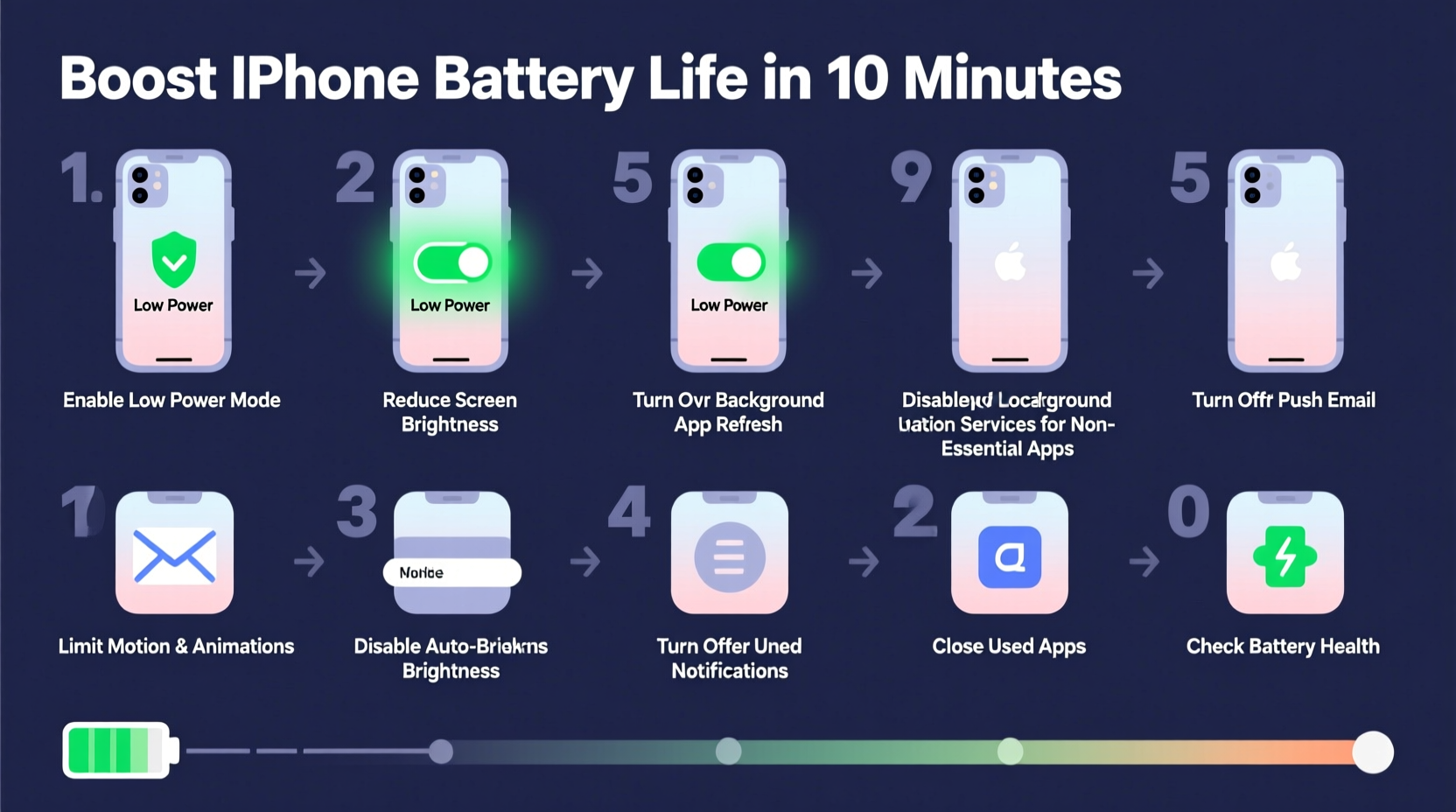
The following sequence is designed to take under ten minutes and targets the most common sources of hidden battery drain. Each step addresses a specific system behavior that contributes to unnecessary energy use.
- Check Battery Usage (1 minute): Open Settings > Battery to see which apps consumed the most power in the last 24 hours or 10 days. Focus on apps with high “Background Activity” percentages.
- Limit Background App Refresh (2 minutes): Go to Settings > General > Background App Refresh. Disable it entirely or restrict it to Wi-Fi only. Then toggle off individual apps that don’t need real-time updates (e.g., social media, games).
- Reduce Motion and Visual Effects (1.5 minutes): Navigate to Settings > Accessibility > Motion and enable “Reduce Motion.” Also turn on “Prefer Cross-Fade Transitions” to minimize animation load.
- Adjust Screen Settings (2 minutes): Enter Settings > Display & Brightness. Lower brightness manually, enable Auto-Brightness, and set Auto-Lock to 30 seconds or 1 minute.
- Manage Location Services (2.5 minutes): Go to Settings > Privacy & Security > Location Services. Review apps using “Always” access. Change them to “While Using” or “Never” if appropriate. Pay special attention to weather, social, and fitness apps.
- Disable Push Email (1 minute): In Settings > Mail > Accounts > Fetch New Data, switch from “Push” to “Fetch,” then set fetch interval to hourly or manually.
By following this order, you address both visible and invisible drains—from screen brightness to silent background syncing. Most users report noticeably slower battery depletion after completing these steps, even on older models like the iPhone 11 or XR.
Why These Settings Matter: The Science Behind the Savings
iOS is engineered to balance performance and efficiency, but defaults favor convenience over longevity. For example, Background App Refresh keeps apps updated so they load instantly—but at the cost of constant network polling. On average, background activity accounts for 20–40% of daily battery consumption, according to telemetry data analyzed by MacRumors in 2023.
Similarly, visual effects like parallax and animated transitions may seem minor, but they require continuous GPU processing. Enabling “Reduce Motion” disables depth effects and smooth zooming, reducing graphics workload and improving responsiveness on older devices.
Location tracking is another major culprit. Apps like Facebook or Snapchat often request “Always” access not for core functionality, but for ad targeting and behavioral analytics. A 2022 study by *The Verge* found that disabling “Always” location for non-essential apps reduced GPS-related battery drain by up to 18% over a 12-hour period.
“Users dramatically underestimate how much passive features like background refresh and motion effects impact battery. Small toggles add up fast.” — Dr. Lisa Tran, Mobile Energy Efficiency Researcher, Stanford University
Battery-Saving Checklist: Do This Now
Use this checklist as a quick reference whenever you notice rapid battery drain. All actions are reversible and take less than five minutes total.
- ✅ Check Settings > Battery for top energy-consuming apps
- ✅ Turn off Background App Refresh for non-critical apps
- ✅ Enable Reduce Motion in Accessibility settings
- ✅ Set Auto-Lock to 30 seconds
- ✅ Lower screen brightness and enable Auto-Brightness
- ✅ Switch email from Push to Fetch hourly
- ✅ Review Location Services: change “Always” to “While Using”
- ✅ Disable Precise Location for apps that don’t need it
- ✅ Turn off Wi-Fi and Bluetooth when not in use (via Control Center)
- ✅ Enable Low Power Mode preemptively, not just at 20%
Comparison: Default vs. Optimized Settings
| Setting | Default Behavior | Optimized Setting | Estimated Power Saved |
|---|---|---|---|
| Background App Refresh | On for all apps | Off or limited to Wi-Fi | Up to 15% |
| Screen Brightness | Manual, often maxed | Auto-Brightness enabled | 10–20% |
| Email Fetch | Push (instant delivery) | Fetch hourly | 5–8% |
| Location Services | “Always” allowed | “While Using” or “Never” | 10–18% |
| Motion Effects | Full animations enabled | Reduce Motion ON | 3–7% |
Note: Power savings are cumulative. Combined, these adjustments can extend active usage time by 1.5 to 3 hours on a single charge, depending on model and usage patterns.
Real-World Example: Sarah’s Workday Transformation
Sarah, a freelance photographer in Austin, relied heavily on her iPhone 12 Pro for client coordination, GPS navigation, and photo editing. She routinely charged midday, frustrated by dropping from 100% to 30% by 3 PM—even with moderate use.
After spending ten minutes adjusting her settings—disabling background refresh for Instagram and TikTok, switching email to fetch hourly, and enabling Reduce Motion—she noticed an immediate difference. Her next full day showed only 55% battery used by 6 PM, despite similar activity. Over two weeks, she eliminated daytime charging entirely.
“I didn’t realize how many apps were running behind the scenes,” she said. “Turning off ‘Always’ location for weather and music apps made the biggest difference. I still get notifications—I just don’t lose half my battery by noon.”
Frequently Asked Questions
Will reducing background activity affect my notifications?
No. Disabling Background App Refresh does not stop push notifications. Messages, emails, and alerts will still arrive instantly. The difference is that apps won’t pre-load new content in the background, which saves energy but doesn’t block incoming alerts.
Does Low Power Mode harm my iPhone over time?
No. Low Power Mode is a safe, built-in feature designed by Apple to temporarily suspend non-essential processes like automatic downloads, mail fetching, and some visual effects. It activates automatically at 20% and turns off at 80% when charging. Using it regularly does not degrade hardware or battery health.
Can I automate some of these settings?
Yes. Use Shortcuts and Automation in the Shortcuts app to toggle settings based on time, location, or battery level. For example, create an automation that enables Low Power Mode when battery drops below 40%, or disables Wi-Fi when leaving home.
Final Thoughts: Small Tweaks, Big Gains
Extending iPhone battery life doesn’t require new hardware or complex routines. The most effective strategies are already available—hidden in plain sight within iOS settings. By auditing background processes, minimizing visual overhead, and managing connectivity, you reclaim control over one of your device’s most critical resources.
These changes take less than ten minutes but yield lasting benefits. They work across all modern iPhones, from the SE to the Pro Max, and are especially impactful on devices over two years old. Unlike external battery packs or fast chargers, these optimizations cost nothing and improve overall responsiveness.
Battery life isn’t just about capacity—it’s about efficiency. And efficiency begins with awareness. The next time you glance at a dwindling battery icon, remember: relief is just a few taps away.




 浙公网安备
33010002000092号
浙公网安备
33010002000092号 浙B2-20120091-4
Comments
No comments yet. Why don't you start the discussion?