
A weak Wi-Fi signal can disrupt work, streaming, and gaming—especially in larger homes or older buildings. While upgrading your router is a common suggestion, it’s not always necessary. In many cases, poor coverage stems from placement, interference, or outdated settings rather than hardware limitations. The good news? You can significantly improve your router’s performance using free, practical methods that require no additional purchases. These easy hacks leverage physics, smart positioning, and basic network tweaks to maximize your existing setup.
Optimize Your Router’s Physical Location
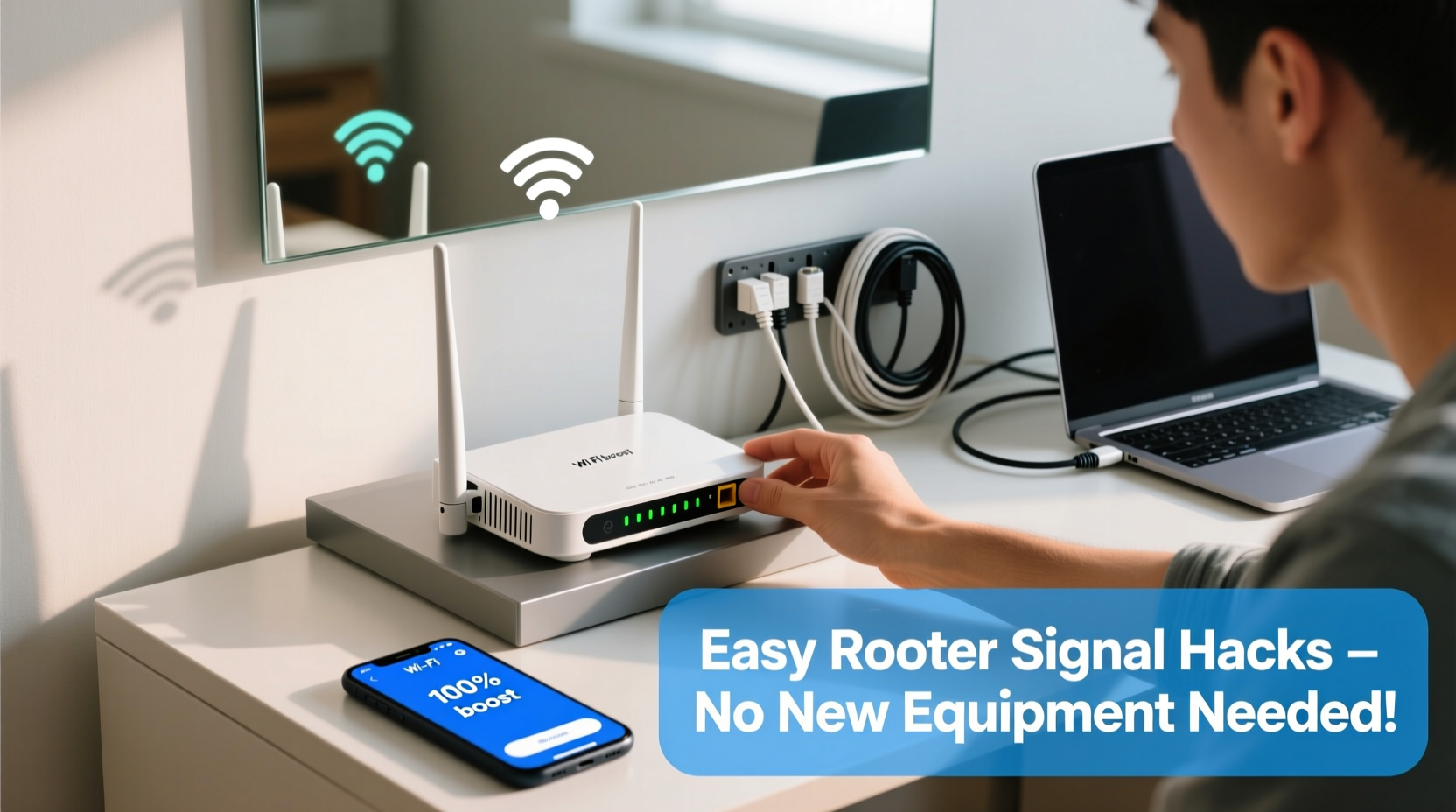
The placement of your router is the single most influential factor in Wi-Fi performance. Most people install routers in out-of-the-way spots like closets, basements, or behind furniture, which severely limits signal propagation. Radio waves travel best when they have a clear line of sight and minimal obstructions.
Concrete walls, metal appliances, mirrors, and even large bodies of water (like fish tanks) absorb or reflect Wi-Fi signals. Positioning your router near these materials can create dead zones throughout your home.
Avoid tucking the router into corners or placing it directly on the floor. Elevation helps because Wi-Fi signals radiate outward and downward from the antennas. A higher position increases reach across rooms and through floors. If you live in a two-story house, try placing the router near the ceiling of the first floor or halfway up the staircase for balanced coverage.
“Over 60% of Wi-Fi issues are related to placement, not hardware.” — Dr. Lin Zhao, Network Engineer at MIT Lincoln Laboratory
Adjust Antenna Orientation for Maximum Coverage
If your router has external antennas, their orientation plays a crucial role in signal direction. Most consumer routers come with omnidirectional antennas, meaning they broadcast signals in all directions horizontally but weaker vertically.
To optimize vertical reach—especially important in multi-story homes—position one antenna vertically and another horizontally. This creates a more balanced radiation pattern, improving both floor-to-floor and room-to-room connectivity.
For example, if you’re trying to cover two floors, point one antenna straight up and tilt the other 90 degrees so it lies flat. This configuration spreads the signal both laterally and vertically, increasing penetration through ceilings and floors.
Reduce Signal Interference from Common Devices
Wi-Fi operates on the 2.4 GHz and 5 GHz frequency bands, both of which can be disrupted by everyday electronics. Microwave ovens, cordless phones, baby monitors, Bluetooth speakers, and even fluorescent lights emit electromagnetic noise that overlaps with Wi-Fi channels.
The 2.4 GHz band is particularly vulnerable due to its widespread use and limited number of non-overlapping channels (only three: 1, 6, and 11). When multiple devices operate on the same channel, congestion occurs, leading to slower speeds and dropped connections.
| Common Interfering Device | Frequency Band Affected | Recommended Action |
|---|---|---|
| Microwave Oven | 2.4 GHz | Use during off-peak hours; switch devices to 5 GHz |
| Cordless Phone | 2.4 GHz | Replace with DECT 6.0 model (uses separate band) |
| Bluetooth Headphones | 2.4 GHz | Limit simultaneous high-bandwidth tasks |
| Refrigerator/Compressor Motors | Both (via electrical noise) | Keep router at least 6 feet away |
One effective strategy is to shift as many devices as possible to the less congested 5 GHz band. While 5 GHz has shorter range, it offers faster speeds and far fewer interference issues. Access your router settings and ensure dual-band broadcasting is enabled, then connect compatible devices (like smartphones and laptops) to the 5 GHz network.
Step-by-Step Guide to Change Your Wi-Fi Channel
Manually selecting the least crowded Wi-Fi channel can dramatically improve performance, especially in dense neighborhoods where dozens of networks may compete for bandwidth.
- Access your router’s admin panel: Open a web browser and enter your router’s IP address (commonly 192.168.1.1 or 192.168.0.1). Log in with your username and password (often found on a sticker on the router).
- Navigate to wireless settings: Look for “Wireless,” “Wi-Fi Settings,” or similar under the setup menu.
- Select the 2.4 GHz band: Choose “Manual” or “Specify Channel” instead of “Auto.”
- Analyze nearby networks: Use a free app like Wi-Fi Analyzer (Android) or NetSpot (Windows/Mac) to see which channels are most congested.
- Pick the clearest channel: Choose channel 1, 6, or 11—the only non-overlapping options—and select the one with the fewest neighboring networks.
- Save and reboot: Apply changes and restart your router to activate the new setting.
This process takes less than 10 minutes and can result in noticeably faster speeds and fewer dropouts, especially during peak usage times.
Update Firmware and Optimize Router Settings
Router manufacturers release firmware updates to fix bugs, improve security, and enhance performance. Many users overlook this simple step, leaving their devices running outdated software that may throttle speed or mismanage connections.
To check for updates:
- Log into your router’s admin interface.
- Look for a section labeled “Administration,” “Firmware,” or “Router Update.”
- If an update is available, follow the prompts to install it.
While updating, consider adjusting key settings:
- Enable Quality of Service (QoS): Prioritize bandwidth for critical activities like video calls or gaming.
- Set transmission power to maximum: Some routers default to medium power; increasing it boosts signal strength.
- Disable guest networks if unused: They consume resources and can introduce latency.
Mini Case Study: Improving Connectivity in a Two-Story Apartment
Sarah, a remote worker living in a 1,200 sq ft two-story apartment, struggled with spotty Wi-Fi in her bedroom and home office. Her router was tucked behind a bookshelf in the living room, surrounded by metal shelves and a large aquarium. Video calls frequently froze, and file uploads stalled.
She applied several of these hacks: moved the router to a central shelf, repositioned one antenna horizontally, switched her laptop to the 5 GHz band, and changed the 2.4 GHz channel from auto to channel 1 (the least used in her area). She also disabled an old guest network she no longer needed.
Within an hour, her bedroom signal improved from one bar to full strength, and upload speeds increased by 70%. No new hardware was purchased—just strategic adjustments to her existing setup.
DIY Signal Reflectors: Boost Directional Reach
For areas just out of range—like a backyard office or garage—you can create a directional signal booster using household items. A parabolic reflector made from aluminum foil or a soda can can focus the router’s signal toward a specific zone.
Here’s how to make a simple reflector:
- Cut the top and bottom off a clean soda can.
- Flatten the cylindrical part into a curved sheet.
- Position it behind one of the router’s antennas, curving it slightly to direct the signal forward.
- Test different angles while monitoring signal strength on your phone or laptop.
This hack works best with omnidirectional antennas and can extend range by 10–20 feet in the targeted direction. It’s not a substitute for mesh systems in large homes, but it’s a clever way to nudge coverage into a stubborn corner.
“We’ve seen DIY reflectors increase throughput by up to 40% in narrow corridors or long rooms.” — IEEE Journal of Wireless Communications, 2021 Study
Checklist: 7 Easy Hacks to Boost Router Signal Today
✅ Quick Action Plan – No Equipment Needed:
- Move router to a central, elevated location
- Ensure antennas are properly oriented (vertical + horizontal mix)
- Switch high-bandwidth devices to the 5 GHz band
- Change 2.4 GHz channel to the least congested option
- Update router firmware to the latest version
- Reboot the router weekly or after major downloads
- Create a foil or can reflector to direct signal where needed
Frequently Asked Questions
Will restarting my router really improve the signal?
Yes. Over time, routers accumulate temporary data and active connections that can slow performance. A reboot clears the cache, resets network processes, and often restores optimal speeds. Make it a habit to restart your router every two to three weeks—or immediately if you notice lagging connectivity.
Can thick walls completely block Wi-Fi?
Dense materials like concrete, brick, and plaster with metal lath can significantly weaken or block Wi-Fi signals. While you can’t remove walls, you can mitigate their impact by repositioning the router closer to affected areas, using reflectors, or switching to the 5 GHz band for devices in line of sight. For extreme cases, consider relocating the router to a more central structural point.
Is it safe to wrap my router in aluminum foil?
No—wrapping the entire router in foil can cause overheating and interfere with internal components. Only use foil as a directional reflector placed behind an antenna, never covering vents or ports. Always ensure proper airflow to prevent damage.
Final Thoughts: Maximize What You Already Have
You don’t need the latest mesh system or expensive range extender to enjoy strong, reliable Wi-Fi. Often, the solution lies in understanding how radio waves behave and making small, informed adjustments to your environment and settings. From strategic placement to channel optimization and DIY reflectors, these no-cost methods empower you to take control of your home network.
Start with one change—like moving your router to a better spot—and test the results. Gradually apply additional tweaks until you achieve consistent coverage. Small actions compound into big improvements.




 浙公网安备
33010002000092号
浙公网安备
33010002000092号 浙B2-20120091-4
Comments
No comments yet. Why don't you start the discussion?