
In large homes, weak Wi-Fi signals are a common frustration. Dead zones in bedrooms, garages, or basements disrupt streaming, gaming, and remote work. While mesh systems offer seamless coverage, they come with a steep price tag. The good news: you don’t need one to improve your network. With strategic adjustments and smart upgrades, you can significantly enhance your Wi-Fi reach and reliability using existing hardware or affordable accessories.
Wi-Fi performance depends on more than just your router’s power. Signal propagation is affected by building materials, interference, device placement, and outdated technology. By understanding these factors and applying targeted solutions, even older routers can deliver stronger, more consistent coverage across multiple floors and rooms.
Optimize Router Placement for Maximum Coverage
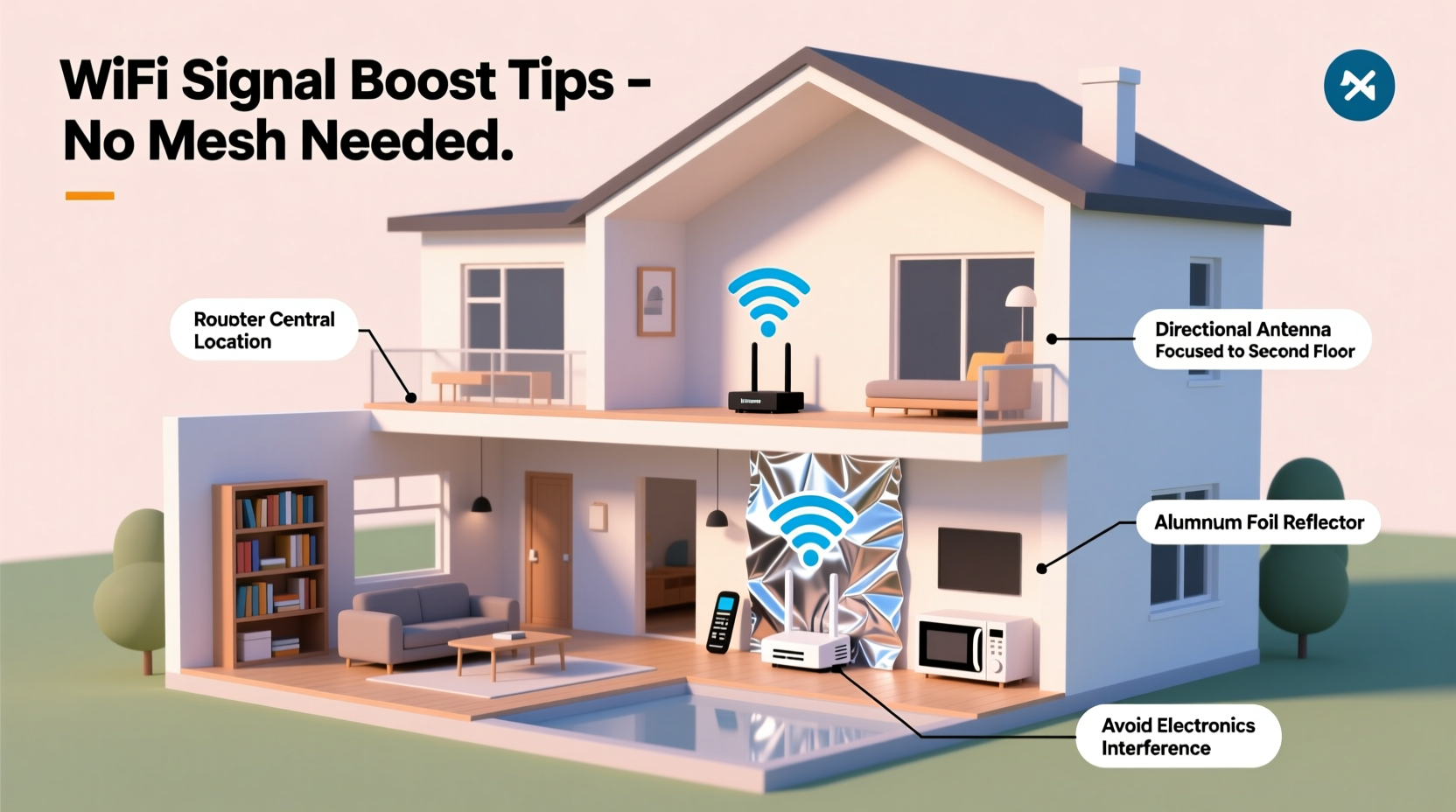
The location of your router is the single most impactful factor in Wi-Fi performance. Many people tuck their router away in a closet, basement, or corner—places that severely limit signal distribution. To maximize coverage, place your router in a central, elevated position within the home.
A central location ensures the signal travels equal distances in all directions, reducing dead zones. Elevation helps because Wi-Fi signals radiate outward and downward from the antennas. Placing the router on a shelf or desk, rather than on the floor, improves line-of-sight transmission through open spaces.
Additionally, orient the router’s antennas properly. If devices are primarily on the same floor, position one antenna vertically and one horizontally to support different device orientations. For multi-story homes, angle one antenna slightly upward to help direct signal to upper levels.
Upgrade Your Router’s Firmware and Settings
Many users overlook the software side of their router. Outdated firmware can lead to security vulnerabilities, instability, and poor performance. Manufacturers regularly release updates that improve speed, stability, and compatibility with modern devices.
To update your router’s firmware:
- Access the router’s admin panel (usually via 192.168.1.1 or 192.168.0.1 in your browser).
- Log in with your admin credentials (check the router label if unsure).
- Navigate to the “Administration” or “Firmware Update” section.
- Check for updates and install if available.
Beyond firmware, adjusting wireless settings can yield immediate improvements. Most routers default to auto channel selection, but this often results in congestion, especially in densely populated areas. Manually switching to a less crowded channel—particularly on the 5 GHz band—can reduce interference.
Use a Wi-Fi analyzer app (like NetSpot or Wi-Fi Analyzer) to scan nearby networks and identify the least used channels. Then, log into your router and set your 5 GHz band to a non-overlapping channel such as 36, 40, 44, or 48.
“Over 60% of home Wi-Fi issues stem from suboptimal configuration, not hardware limitations.” — Dr. Alan Reyes, Network Performance Engineer at Broadband Insights Group
Use Wi-Fi Extenders and Powerline Adapters Strategically
While mesh systems provide seamless roaming, simpler and cheaper alternatives exist. Wi-Fi extenders and powerline adapters can bridge coverage gaps when deployed correctly.
Wi-Fi extenders receive your existing signal and rebroadcast it, extending range. However, they must be placed within strong signal range of the main router—typically no more than one room away. Poor placement leads to slow speeds and instability, as the extender struggles to maintain a backhaul connection.
To use an extender effectively:
- Place it where the original signal is still strong (at least 75%).
- Ensure it’s not behind walls or near interfering devices.
- Use the same SSID and password as your main network for easier switching (though devices may not roam seamlessly).
Powerline adapters use your home’s electrical wiring to transmit data. One adapter plugs near the router and connects via Ethernet; another plugs into an outlet in a distant room and provides Wi-Fi or Ethernet access. They’re ideal for homes with inconsistent wiring layouts or thick walls that block radio signals.
Modern powerline kits (AV2 standard or higher) support speeds up to 1 Gbps and perform best on circuits without surge protectors or extension cords.
| Solution | Best For | Limits |
|---|---|---|
| Wi-Fi Extender | Single-room expansion, moderate walls | Speed loss up to 50%, needs strong parent signal |
| Powerline Adapter | Multi-floor homes, thick walls, stable speeds | Depends on circuit quality, older wiring reduces performance |
| Directional Booster Antenna | Targeted long-range coverage (e.g., backyard) | Reduces omnidirectional coverage, requires compatible router |
Replace Old Hardware with High-Gain Components
If your router is several years old, upgrading specific components can dramatically improve performance without replacing the entire unit. One of the most cost-effective upgrades is replacing stock antennas with high-gain models.
Most consumer routers come with omnidirectional antennas rated at 2–5 dBi. Swapping them for 8–9 dBi high-gain antennas increases signal strength in all directions. For directional focus—such as covering a distant wing of the house—use a parabolic grid antenna aimed toward the target area.
Ensure any replacement antenna has the correct connector type (commonly RP-SMA) and is compatible with your router model. Routers with internal antennas cannot be upgraded this way, so check specifications before purchasing.
Another option is using a Wi-Fi booster or signal amplifier. These small devices connect to your router’s antenna port and amplify output power, increasing broadcast range. While regulated by the FCC (output capped at 1 watt), even modest amplification can make a noticeable difference in weak-signal areas.
Minimize Interference and Optimize Band Usage
Wi-Fi operates on shared radio frequencies, making it vulnerable to interference from other electronics and networks. Common culprits include cordless phones, baby monitors, Bluetooth devices, and neighboring Wi-Fi networks.
To reduce interference:
- Switch to the 5 GHz band for devices close to the router—it’s faster and less congested than 2.4 GHz.
- Reserve 2.4 GHz for legacy devices (smart home gadgets, older phones) that don’t support 5 GHz.
- Enable band steering if your router supports it, encouraging dual-band devices to use 5 GHz.
- Turn off unused wireless features like WPS or guest networks if they’re not needed.
Additionally, consider your home’s construction. Materials like brick, stone, plaster with metal lath, and energy-efficient windows can block Wi-Fi signals. Rooms with these features may require targeted solutions like a powerline-connected access point or a strategically placed extender.
For homes with metal framing or foil-backed insulation, signals degrade quickly between floors. In such cases, running a single Ethernet cable from the router to a distant room and connecting a secondary access point (even an old router in AP mode) delivers far better results than wireless repeaters.
Mini Case Study: Improving Coverage in a 3,200 Sq Ft Colonial Home
Sarah lives in a three-story colonial with brick exterior walls and hardwood floors. Her router, located in the basement office, provided poor coverage to the second-floor bedrooms and no signal in the attic. She didn’t want to invest $300+ in a mesh system.
Her solution:
- Moved the router to a central closet on the first floor, midway between front and back.
- Updated firmware and manually set the 5 GHz channel to 44 after analyzing local congestion.
- Installed a powerline adapter kit in the second-floor hallway, connecting a spare router in access point mode.
- Added a high-gain antenna to the main router to boost upstream signal.
Result: Full 5 GHz coverage on all three floors, with download speeds averaging 85 Mbps in previously dead zones. Total cost: $89 for the powerline kit and $25 for the antenna.
Step-by-Step Guide to Boosting Your Signal
Follow this sequence to systematically improve your Wi-Fi without buying a mesh system:
- Assess current coverage: Walk through your home with a Wi-Fi analyzer app to map signal strength.
- Relocate the router: Move it to a central, elevated spot away from obstructions.
- Update firmware: Check for and install the latest version.
- Adjust wireless settings: Switch to optimal channels and separate 2.4 GHz/5 GHz bands.
- Add a powerline adapter or extender: Choose based on wiring and distance needs.
- Upgrade antennas: Install high-gain models if your router supports them.
- Test and refine: Re-scan signal strength and adjust placements as needed.
Frequently Asked Questions
Can I use two routers without a mesh system?
Yes. Connect a second router via Ethernet and configure it in access point (AP) mode. This avoids IP conflicts and extends coverage with full bandwidth. If Ethernet isn’t possible, use a powerline adapter to link the routers.
Why is my Wi-Fi strong in some rooms but dead in others?
This is typically due to physical barriers (walls, floors), interference from appliances, or distance from the router. Materials like concrete, metal, and water (in fish tanks or pipes) absorb or reflect signals. Try relocating the router or adding a wired access point in the weak zone.
Do Wi-Fi extenders slow down internet speed?
Yes, often by up to 50%. Extenders rely on wireless backhaul, which halves bandwidth with each hop. For better performance, use powerline adapters or Ethernet-connected access points instead.
Final Tips Checklist
- ✅ Place router centrally and off the floor
- ✅ Update router firmware monthly
- ✅ Use Wi-Fi analyzer to pick least congested channel
- ✅ Upgrade to high-gain antennas if possible
- ✅ Use powerline adapters for multi-floor coverage
- ✅ Separate 2.4 GHz and 5 GHz networks for optimal device pairing
- ✅ Test speed in problem areas after each change
Take Control of Your Home Network Today
Strong, reliable Wi-Fi shouldn’t require expensive gear. By rethinking placement, upgrading key components, and eliminating interference, you can transform spotty connectivity into seamless coverage throughout your large home. Start with one change—like moving your router or updating firmware—and build from there. Small steps lead to big improvements.




 浙公网安备
33010002000092号
浙公网安备
33010002000092号 浙B2-20120091-4
Comments
No comments yet. Why don't you start the discussion?