
A weak Wi-Fi signal can disrupt streaming, slow down downloads, and make video calls unbearable. While upgrading to a new router might seem like the obvious fix, it’s often unnecessary. Many homes suffer from poor signal not because of outdated hardware, but due to placement, interference, or configuration issues. The good news is that with smart adjustments and simple techniques, you can significantly improve your existing Wi-Fi performance—without spending a dime on new equipment.
Optimize Your Router’s Physical Placement
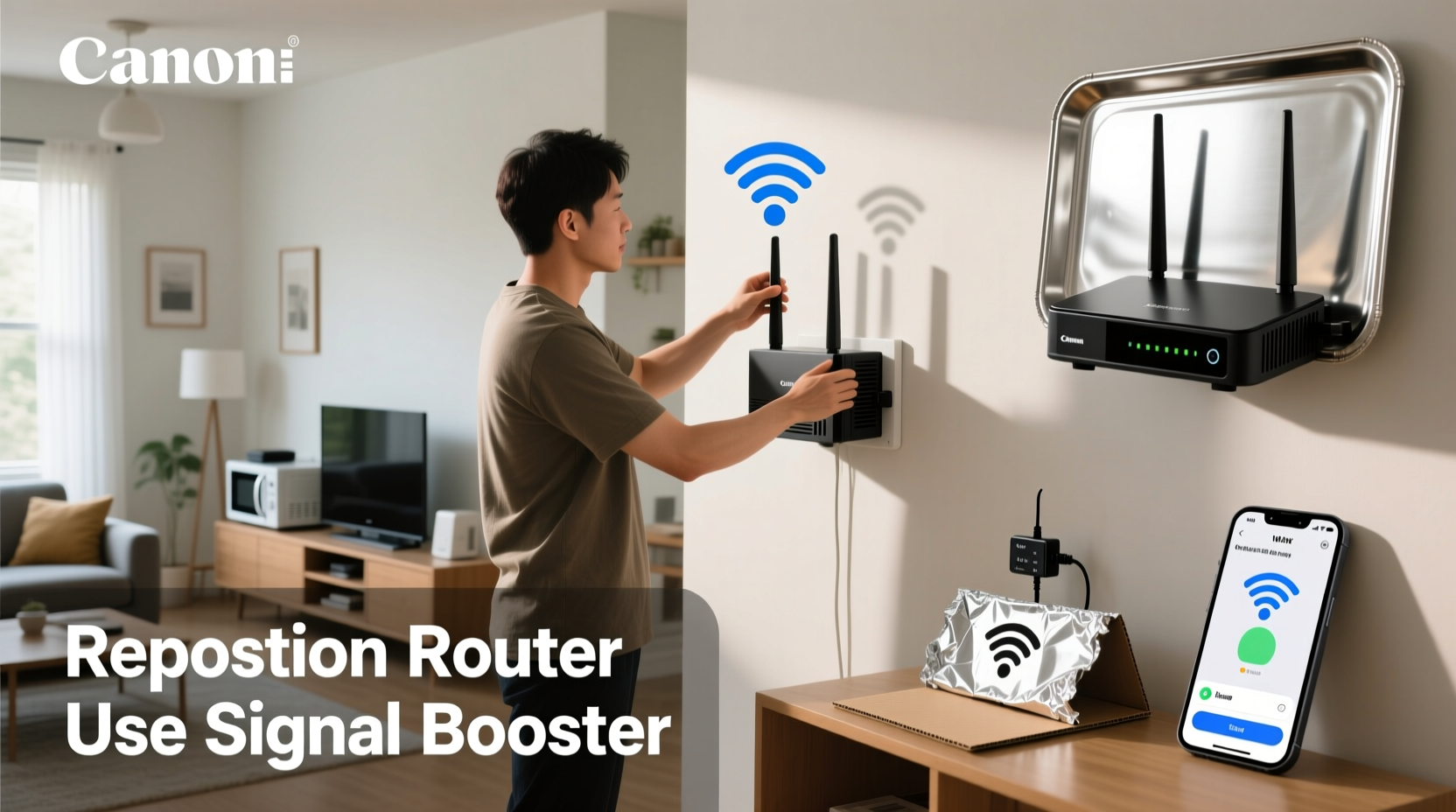
The location of your router plays a more critical role in signal strength than most people realize. Routers emit radio waves in all directions, but walls, furniture, and appliances can absorb or reflect those signals, creating dead zones. Centralizing your router and minimizing obstructions can dramatically enhance coverage.
Concrete walls, metal filing cabinets, mirrors, and even large aquariums can block or distort Wi-Fi signals. Avoid placing the router near microwaves, cordless phones, or Bluetooth devices, as they operate on similar frequencies and cause interference. If your home has multiple floors, position the router on an upper level if possible, as signals travel downward more effectively than upward.
Additionally, orient the router’s antennas properly. If you have dual antennas, position one vertically and one horizontally. This helps accommodate devices held in different orientations—phones upright, laptops flat—improving connection stability across various devices.
Reduce Interference from Nearby Devices
Wi-Fi operates on two main frequency bands: 2.4 GHz and 5 GHz. The 2.4 GHz band has longer range but is more prone to congestion from household electronics. Microwaves, baby monitors, and wireless speakers often use this band, causing intermittent slowdowns when active.
To minimize interference:
- Move high-emission devices away from the router.
- Switch nearby gadgets to wired connections where possible.
- Use battery-powered devices instead of AC-powered ones near the router, as power adapters can generate electromagnetic noise.
If your router supports both bands, encourage devices to connect to the 5 GHz network for faster speeds and less interference. Reserve the 2.4 GHz band for older devices or those located farther from the router.
“Over 60% of home Wi-Fi issues stem from environmental interference rather than hardware limitations.” — Dr. Alan Reyes, Network Engineer at Broadband Insights Lab
Update Firmware and Adjust Channel Settings
Routers, like any computing device, rely on firmware to function efficiently. Manufacturers release updates to fix bugs, patch security vulnerabilities, and improve performance. An outdated router may be underperforming simply because it hasn’t received the latest optimizations.
To check for firmware updates:
- Log into your router’s admin interface (usually via 192.168.1.1 or 192.168.0.1).
- Navigate to the Administration or Maintenance section.
- Look for a “Firmware Update” option and follow the prompts.
While in the settings, consider manually selecting a less congested Wi-Fi channel. In crowded neighborhoods, multiple routers may compete on the same default channel, causing slowdowns. Use a free app like Wi-Fi Analyzer (Android) or NetSpot (Windows/Mac) to scan nearby networks and identify the least busy channel.
For 2.4 GHz, channels 1, 6, and 11 are non-overlapping. Choose one with minimal competition. On 5 GHz, there are more available channels, so switching to a clear one can reduce latency and improve throughput.
| Band | Best Channels | When to Use |
|---|---|---|
| 2.4 GHz | 1, 6, 11 | Longer range, fewer devices connected |
| 5 GHz | 36–48 or 149–161 | Fewer neighbors, high-speed needs |
| Auto | Router-selected | Unsure of local congestion |
DIY Signal Reflectors and Range Extenders
You don’t need expensive gear to redirect or amplify your Wi-Fi signal. Simple household materials can act as reflectors to focus the signal toward desired areas.
A popular method involves creating a parabolic reflector using aluminum foil or a soda can. Cut the bottom off a clean soda can, shape it into a curve, and place it behind the router’s antenna. The metal surface reflects signals forward, increasing directional strength.
Alternatively, try this step-by-step guide to build a basic reflector:
- Gather a cardboard sheet, aluminum foil, tape, and scissors.
- Cut the cardboard into a semi-circular shape (about 12 inches wide).
- Cover the concave side with foil, shiny side out.
- Position it behind the router’s external antenna, curving toward the target area.
- Test signal strength before and after using a phone or laptop.
This technique won’t double your speed, but users commonly report improved signal in previously weak corners. It’s especially effective in long, narrow homes where the router sits at one end.
Real-World Example: Reviving Coverage in a Two-Story Home
Sarah lived in a 1,400-square-foot townhouse where the second-floor bedrooms consistently had poor Wi-Fi. Her router sat in a basement office tucked behind a bookshelf. Streaming would buffer, and video calls dropped frequently upstairs.
Instead of purchasing a mesh system, she tried these steps:
- Moved the router to a central hallway on the first floor.
- Updated the firmware after discovering it was two versions behind.
- Switched from auto-channel to channel 1 on 2.4 GHz, which was least used in her area.
- Built a foil reflector to beam signal upward toward the stairs.
- Connected her smart TV and gaming console via Ethernet to reduce wireless load.
Within a day, her phone showed full bars on the second floor. Speed tests improved from 8 Mbps to 32 Mbps upstairs. Sarah later added a $20 Wi-Fi extender only for her attic guest room—but the core fix came from repositioning and tuning her existing router.
Checklist: Quick Actions to Boost Wi-Fi Now
Follow this actionable checklist to maximize your current router’s potential:
- ✅ Reposition the router to a central, elevated spot.
- ✅ Remove physical obstructions like metal objects or thick walls.
- ✅ Update the router’s firmware through its admin panel.
- ✅ Switch to a less congested Wi-Fi channel using a scanning tool.
- ✅ Use the 5 GHz band for high-bandwidth devices nearby.
- ✅ Limit interference by relocating microwaves, cordless phones, etc.
- ✅ Create a DIY reflector to direct signal toward weak zones.
- ✅ Reduce connected devices by using Ethernet for stationary gadgets.
- ✅ Restart the router monthly to clear memory and refresh connections.
- ✅ Secure your network with a strong password to prevent bandwidth theft.
Common Myths About Wi-Fi Signal Boosting
Not all advice online is reliable. Some widely shared tips are ineffective or even harmful:
| Myth | Reality |
|---|---|
| Wrapping the router in aluminum foil boosts signal | Can block signals entirely; only controlled reflectors help |
| More antennas mean better speed | Antennas improve coverage and MIMO performance, not raw speed |
| Turning off Wi-Fi at night extends router life | No significant benefit; frequent power cycling may cause wear |
| Placing the router near a window improves outdoor signal | Signals leak outside, reducing indoor strength and security risk |
Focus on evidence-based methods rather than viral hacks. Small, consistent improvements yield better results than dramatic but misguided changes.
Frequently Asked Questions
Can I boost Wi-Fi without touching the router settings?
Yes. Simply changing the router’s location, removing obstacles, and turning off interfering devices can noticeably improve signal. Even reorienting the antennas can help without logging into settings.
Will restarting my router improve the signal?
Temporarily, yes. Restarting clears cached data, resets connections, and can resolve software glitches. For best results, reboot every few weeks—not just when problems occur.
Is it safe to use homemade reflectors?
Yes, as long as they don’t cover ventilation ports or touch hot surfaces. Use lightweight, non-conductive materials like cardboard with foil backing, and ensure airflow around the router isn’t blocked.
Final Thoughts: Maximize What You Already Have
Your current router likely has untapped potential. Before investing in new hardware, explore the low-cost, high-impact strategies outlined here. From strategic placement to firmware updates and smart reflectors, each adjustment contributes to a stronger, more reliable network.
Wi-Fi optimization isn’t about having the latest model—it’s about understanding how signals behave and making intelligent tweaks. Most improvements require only time and attention, not money. By applying these methods, you gain deeper control over your home network and avoid unnecessary expenses.




 浙公网安备
33010002000092号
浙公网安备
33010002000092号 浙B2-20120091-4
Comments
No comments yet. Why don't you start the discussion?