
Streaming while gaming demands more from your hardware than playing alone. You’re not just rendering a game—you’re encoding video in real time, uploading it to the internet, and managing chat interactions, all while keeping gameplay smooth. High-end builds can cost thousands, but you don’t need to break the bank to start streaming professionally. With smart component choices, strategic compromises, and careful planning, you can assemble a capable rig for under $700 that handles both gaming and 1080p60 streaming efficiently.
The key is balancing performance where it matters most: CPU multi-core power for encoding, a solid GPU for gaming at high settings, and enough RAM and fast storage to prevent bottlenecks. This guide walks through every step of building a budget-friendly streaming and gaming PC, including realistic part recommendations, optimization tips, and real-world examples.
Understanding the Dual Demands of Streaming and Gaming
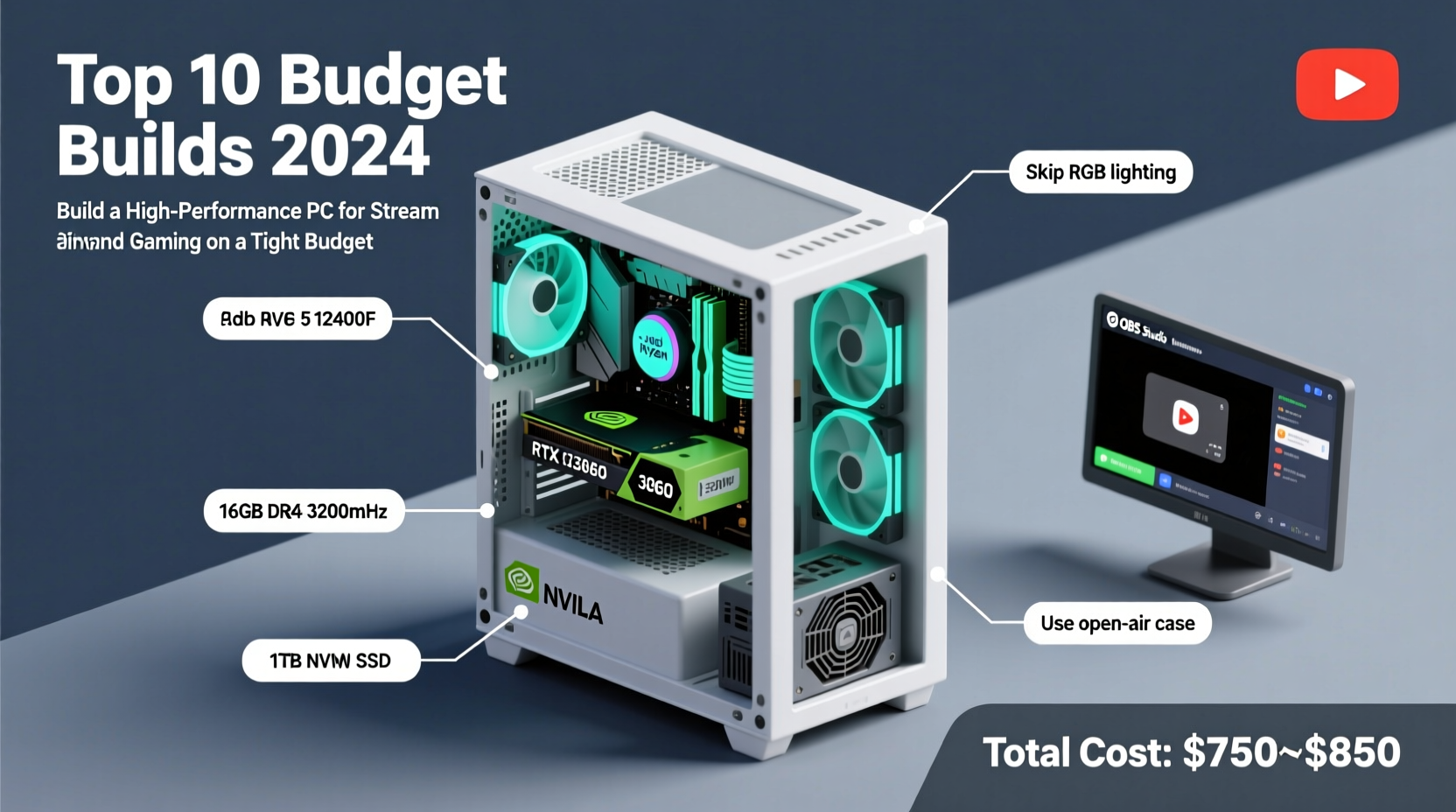
Gaming requires strong single-threaded CPU performance and a capable GPU to render frames quickly. Streaming adds another layer: real-time video encoding. Whether you use OBS Studio, Streamlabs, or other software, your CPU must compress your gameplay footage into a streamable format (usually H.264 or H.265) before sending it to platforms like Twitch or YouTube.
This dual workload means your CPU becomes the most critical component in a streaming build. A weak processor will cause dropped frames, stuttering streams, or laggy gameplay—even with a high-end graphics card. The solution? Prioritize a modern CPU with strong multi-core performance and integrated encoding features like AMD’s VCE or NVIDIA’s NVENC (when using a dedicated GPU).
“Streamers often overlook CPU requirements until they experience dropped frames. For sub-$700 builds, focus on CPUs with at least 6 cores and good encoder support.” — Jordan Lee, Tech Analyst at StreamBuilds Weekly
Additionally, allocate at least 16GB of RAM and use an SSD for your operating system and applications. These choices reduce load times and background hiccups during live broadcasts.
Step-by-Step Build Guide Under $700
Building a PC doesn’t have to be intimidating. Follow this logical sequence to assemble a reliable system optimized for gaming and streaming.
- Determine your budget and goals: Are you aiming for 1080p60 streaming with high in-game settings? Or are you okay with 720p30 to save money? Define your target resolution and platform.
- Select compatible components: Choose parts that work together—same socket type, supported RAM speed, and sufficient power supply wattage.
- Purchase from reputable retailers: Stick to Newegg, Amazon, Micro Center, or B&H Photo to avoid counterfeit products.
- Assemble the PC: Install CPU, cooler, RAM, and M.2 SSD onto the motherboard outside the case first. Then mount everything inside the chassis.
- Install OS and drivers: Use a bootable USB drive with Windows 10/11 and install essential drivers from manufacturer websites.
- Optimize for streaming: Configure OBS settings with NVENC or x264 tuned for your upload bandwidth.
Below is a complete parts list tailored for a $680 build that excels at 1080p gaming and stable 1080p30–60 streaming.
Budget-Friendly Component List (Total: ~$680)
| Component | Model | Price (USD) | Notes |
|---|---|---|---|
| CPU | AMD Ryzen 5 5600 | $130 | 6 cores / 12 threads, excellent multi-core performance for encoding |
| Motherboard | ASRock B550M-HDV | $85 | Supports PCIe 4.0, BIOS flashback, AM4 socket |
| RAM | Crucial DDR4 16GB (2x8GB) 3200MHz | $35 | Reliable brand, dual-channel for better performance |
| GPU | Zotac GTX 1660 Super 6GB | $190 | NVENC encoder support, great 1080p performance |
| Storage | Kingspec M.2 NVMe 500GB | $30 | Faster boot times; upgrade later if needed |
| PSU | EVGA 500 W1, 80+ WHITE | $50 | Compact, reliable, no cables—ideal for small builds |
| Case | Thermaltake Versa H17 | $40 | Affordable, good airflow, supports micro-ATX boards |
| WiFi (Optional) | TP-Link Archer TX20E (PCIe) | $30 | Adds WiFi 6 and Bluetooth 5.2 |
| Total | $690 | Prices fluctuate; shop sales for savings |
Why These Components Work for Streaming
The Ryzen 5 5600 is a standout value CPU. Despite being six years old in architecture (Zen 3), its 6 cores and 12 threads handle game logic and OBS encoding simultaneously when paired with NVENC. Unlike older AMD CPUs, it doesn’t rely solely on the CPU for encoding, which would cripple performance in budget builds.
The GTX 1660 Super remains one of the best budget GPUs for streamers because it includes NVIDIA’s second-gen NVENC encoder. This hardware-based encoder produces high-quality streams at low bitrates without taxing the CPU. In OBS, selecting “NVENC (new)” as the encoder ensures your GPU handles compression, freeing up the Ryzen 5 5600 for gameplay.
The 500GB NVMe SSD ensures fast OS and application loading. While larger drives are ideal, 500GB gives room for Windows, a few games, and streaming software. Upgrade later with a secondary 1TB SATA SSD (~$50) if needed.
The EVGA 500 W1 is a fanless PSU, making the system nearly silent—a bonus for streamers recording voice commentary. It delivers clean power and fits compact cases, though it only works with systems drawing under 500W.
Real Example: Sarah’s First Streaming Rig
Sarah, a college student, wanted to start streaming Valorant and Minecraft on Twitch but had only $700 to spend. She used the above configuration, buying parts gradually over two months during holiday sales. After assembling her PC, she configured OBS with NVENC at 1080p30, 6000 kbps bitrate, and CBR encoding. Her stream ran smoothly with zero dropped frames, even during intense gunfights.
She later upgraded her RAM to 32GB and added a Logitech Blue Yeti microphone, but the core system handled her growth for over a year. “I thought I’d need a $1,200 PC to stream well,” she said. “But this build proved me wrong.”
Common Mistakes to Avoid
- Choosing a low-core-count CPU: Pentium, Core i3, or older Ryzen 3 chips struggle with simultaneous gaming and encoding.
- Using outdated GPUs without NVENC: Cards like the GTX 1050 Ti lack efficient encoders, forcing CPU-based x264 encoding.
- Skimping on RAM: 8GB is insufficient. Modern games and browsers easily consume 12GB; 16GB is the minimum.
- Ignoring thermal design: Overheating causes throttling. Ensure your case has intake and exhaust fans.
- Buying incompatible parts: Always verify motherboard socket matches CPU, and case fits motherboard size (ATX, micro-ATX).
“Most failed budget builds fail due to poor CPU-GPU balance. Don’t pair a Ryzen 5 with a GT 1030. Match capabilities.” — Mark Tran, Hardware Reviewer at PCStream Labs
Optimization Tips for Better Streaming Performance
Even with solid hardware, poor software setup can ruin your stream. Apply these proven tweaks:
- Use Game Mode in Windows: Reduces background interruptions and prioritizes gaming resources.
- Update GPU drivers: NVIDIA and AMD regularly improve encoder efficiency in new drivers.
- Close unnecessary apps: Browsers with multiple tabs, Discord, and Spotify can eat RAM and CPU cycles.
- Set process priorities: In Task Manager, set OBS to “High” priority (but not Realtime) for smoother encoding.
- EnableResizable BAR (if supported): Allows GPU to access full VRAM, improving performance in some titles.
Streaming Settings Checklist
- ✅ Select “NVENC H.264” as encoder in OBS
- ✅ Set preset to “Quality” or “Max Quality”
- ✅ Use CBR bitrate between 4500–6000 kbps for 1080p
- ✅ Keyframe interval: 2 seconds
- ✅ Base and output resolution: 1920x1080
- ✅ Downscale filter: Lanczos (sharpest)
- ✅ Run OBS as administrator for stable capture
Frequently Asked Questions
Can I stream without a dedicated GPU?
Yes, but with limitations. Modern APUs like the AMD Ryzen 5 5600G have decent integrated graphics and video encoding (VCE). You can play lighter games like League of Legends or Among Us and stream at 720p30. However, for AAA titles or higher frame rates, a dedicated GPU is essential.
Is 16GB RAM enough for streaming?
Yes, 16GB is sufficient for most streaming setups, especially when running one game and OBS. If you multitask heavily (e.g., editing while streaming), consider upgrading to 32GB later. Avoid 8GB—it leads to stuttering and crashes.
Do I need a capture card for streaming?
No. Capture cards are for console streaming or multi-PC setups. If you’re streaming directly from your gaming PC, software like OBS captures your screen natively. Save the capture card for future expansions.
Final Thoughts and Next Steps
Building a PC for streaming and gaming on a tight budget is entirely achievable. The secret lies in intelligent prioritization: invest in a strong 6-core CPU and a GPU with hardware encoding, accept modest storage initially, and optimize software settings. The build outlined here delivers consistent 1080p performance and stable streams without costing a fortune.
As your audience grows, you can upgrade incrementally—add more storage, increase RAM, or swap in a better GPU. But the foundation you create now will serve you well for years. Thousands of successful streamers started exactly where you are: passionate, limited on funds, but equipped with the right knowledge.




 浙公网安备
33010002000092号
浙公网安备
33010002000092号 浙B2-20120091-4
Comments
No comments yet. Why don't you start the discussion?