
Organizing a holiday gift exchange can quickly turn chaotic when names are drawn manually, mismatches occur, or someone ends up buying for themselves. A digital solution streamlines the process, ensures fairness, and adds a touch of modern efficiency to tradition. The good news? You don’t need to hire a developer or use third-party apps. With Google Sheets, you can create a fully functional Secret Santa generator that randomly assigns givers and recipients—while preventing self-gifting—all within a collaborative, shareable environment.
This guide walks through building a reliable, reusable Secret Santa generator using only built-in Google Sheets functions. Whether you're managing a family tradition, office party, or friend group exchange, this method is free, private, and easy to customize.
Why Use Google Sheets for Secret Santa?
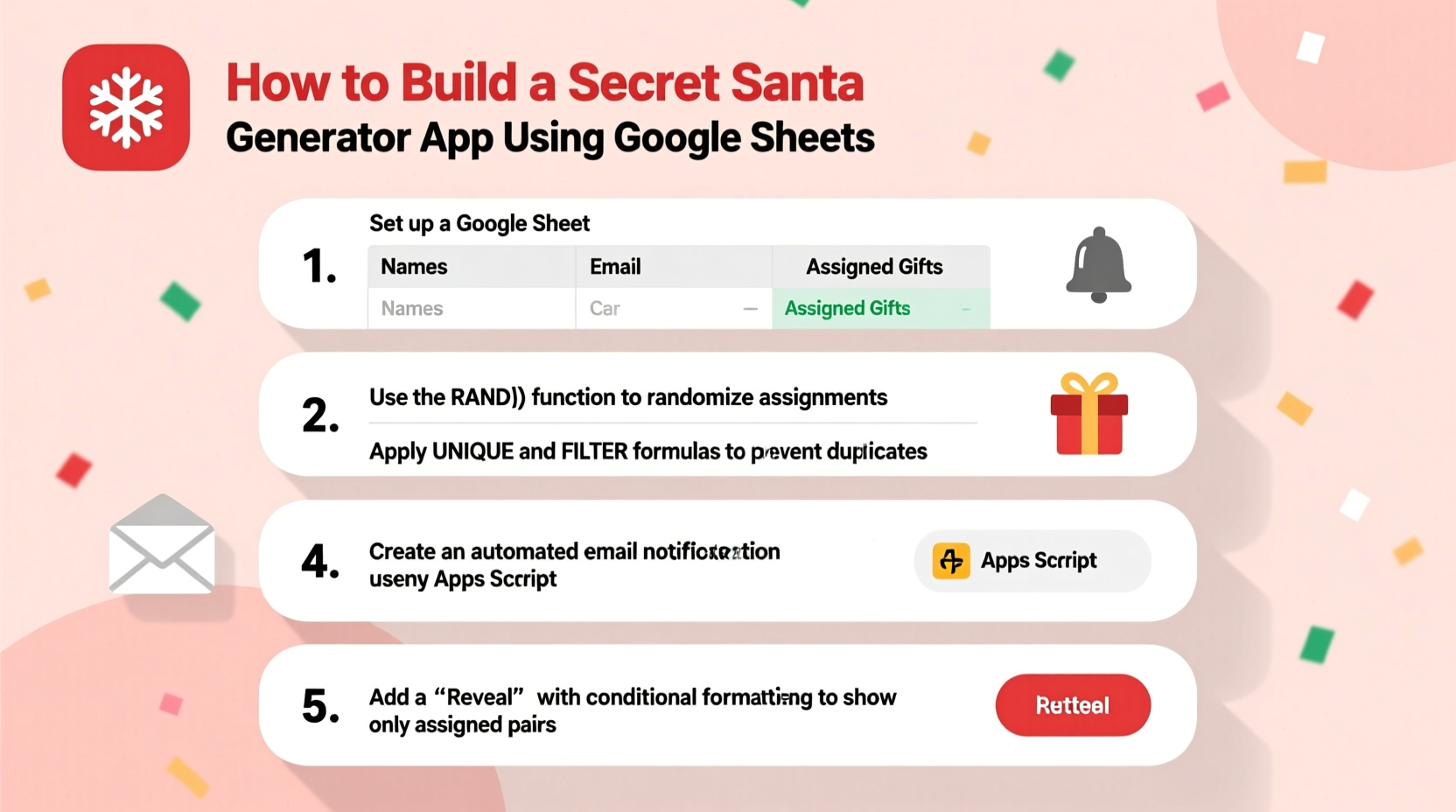
Google Sheets is more than just a spreadsheet tool—it's a lightweight application platform. Its real-time collaboration, cloud accessibility, and powerful formula engine make it ideal for automating small tasks like gift exchanges. Unlike standalone apps, Google Sheets doesn't require sign-ups, data permissions, or downloads. Everyone receives an equal role in viewing (or editing) the list, and you maintain full control over who sees what.
Additionally, using Google Sheets means your Secret Santa logic stays transparent. No black-box algorithms. You can audit every step, adjust rules, and even reuse the template year after year. For teams concerned about privacy or data tracking, this is a major advantage over external platforms.
“Automation doesn’t have to be complex. Sometimes the best tools are already in your browser tab.” — Lena Patel, Productivity Consultant
Step-by-Step: Building Your Generator
Follow these steps to set up a working Secret Santa assignment system. This version uses helper columns and randomization techniques to ensure valid pairings without repetition or self-matching.
- Create a new Google Sheet: Name it “Secret Santa Generator” or something festive like “Holiday Gift Exchange 2024”.
- List participants in Column A: Starting from cell A2, enter each participant’s name. Label cell A1 as “Participants”.
- Add random values in Column B: In cell B2, type
=RAND(). Copy this formula down for every participant. This generates a random decimal between 0 and 1 for each person. - Sort names by randomness: Select both columns (A and B), copy them, then paste into Columns D and E using “Paste Special > Values Only” to lock the random numbers.
- Sort pasted data by random value: Highlight Columns D and E, go to Data > Sort range by column E, A → Z. This shuffles the names.
- Assign recipients: In cell F2, enter the name from D3; in F3, enter D4—and so on. For the last person, assign the first name in the shuffled list (F7 gets D2 if there are six people).
- Label output columns: Mark D1 as “Shuffled Giver”, F1 as “Assigned Recipient”.
The result is a circular chain: each person gives to someone else, no one gives to themselves (assuming the shuffle avoids direct repeats), and all are included.
Preventing Self-Gifting with Conditional Logic
A common flaw in basic generators is assigning someone to themselves. While rare with sufficient participants, it’s still possible. To reduce this risk, add a validation check.
In cell G2, insert this formula:
=IF(D2=F2, \"CONFLICT: Self-gift!\", \"\")
Copy it down alongside all assignments. If any row shows “CONFLICT”, regenerate the RAND() values by recalculating the sheet (press Enter in any blank cell or reload).
For larger groups (8+ people), conflicts become statistically unlikely. But for smaller circles—like couples or trios—consider manually adjusting one link in the chain to avoid awkwardness.
Automating Assignments with Array Formulas (Advanced)
If you want a cleaner setup without manual sorting, use array formulas to automate the entire process.
In cell H1, label it “Auto-Assigned Recipient”. Then in H2, paste this formula:
=INDEX(SORT(A2:A, RANDARRAY(ROWS(A2:A)), TRUE), MOD(SEQUENCE(ROWS(A2:A))+1, ROWS(A2:A))+1)
This single line does the following:
RANDARRAY(ROWS(A2:A)): Creates an array of random values matching the number of participants.SORT(A2:A, ..., TRUE): Shuffles the names based on those random values.SEQUENCE(ROWS(...)): Generates a sequence like 1, 2, 3…MOD(... +1, n)+1: Shifts the index forward by one, wrapping the last back to the first.INDEX: Returns the correctly offset recipient for each giver.
This eliminates the need for helper columns and manual sorting. Every time the sheet recalculates, new random pairs form automatically.
Sharing with Participants Without Spoilers
One of the biggest challenges isn’t generating the pairs—it’s delivering them privately. You can’t just share the whole sheet or everyone will see who’s buying for whom.
Here’s how to reveal assignments securely:
- Create individual tabs: Right-click the sheet tab > Duplicate. Rename it for each participant (e.g., “For Maria”).
- Filter the master list: On the main sheet, add a header row above your data if not already present.
- Use FILTER function: In the duplicated tab, show only the current user’s assignment. For example, in cell A1 of “For Maria”:
=FILTER({D:D, F:F}, D:D = \"Maria\")
This displays only the row where Maria is the giver, showing her assigned recipient. Repeat for each person.
Then, share each tab via email or link with edit access turned off. Alternatively, export each tab as PDF and send individually.
Alternative: Email Integration with Apps Script
For full automation, consider adding Google Apps Script to email results directly.
- Go to Extensions > Apps Script.
- Paste a script that loops through the assignment list and sends Gmail messages.
- Trigger it once after generation.
Example snippet:
function sendSecretSantaEmails() {
  const sheet = SpreadsheetApp.getActiveSpreadsheet().getSheetByName(\"Results\");
  const data = sheet.getRange(\"D2:F\").getValues();

  data.forEach(row => {
    const giver = row[0];
    const recipient = row[1];
    const email = row[2]; // assuming you added emails in Column C

    if (giver && recipient && email) {
      MailApp.sendEmail({
        to: email,
        subject: \"Your Secret Santa Assignment\",
        body: `Hi ${giver},\
\
You've been assigned to buy a gift for ${recipient}.\
\
Happy Holidays!`
      });
    }
  });
}
This requires collecting email addresses and granting permission the first time, but saves hours in large groups.
Checklist: Launch Your Secret Santa Generator
- ✅ List all participants in Column A
- ✅ Generate random values with
=RAND()orRANDARRAY() - ✅ Shuffle names using SORT or manual sort
- ✅ Assign recipients in a circular manner (Person 1 → Person 2, ..., Last → First)
- ✅ Add conflict detection to flag self-gifts
- ✅ Test with 3–5 dummy names first
- ✅ Hide or delete helper columns before finalizing
- ✅ Share individual results privately via tabs or email
- ✅ Optional: Automate delivery with Apps Script
Real Example: Office Holiday Exchange
The marketing team at NovaTech has eight members. Each year, their Secret Santa devolves into confusion—someone forgets their match, or two people draw the same person. This year, Maya, the operations lead, decided to build a Google Sheet solution.
She listed all eight names in Column A, used =RAND() in B, copied and sorted D:E by the random values. Then she assigned recipients by shifting rows down, wrapping the last to the top. She added a simple IF check for conflicts—none appeared.
To deliver results, she created seven duplicate tabs named “For [Name]”, applied FILTER formulas, and shared read-only links with each colleague. One employee, James, accidentally got his own name due to a copy-paste error—but because the formula flagged it, Maya caught it before sending.
Within ten minutes, every team member knew their recipient. No emails were missed, no paper slips lost. The exchange ran smoother than ever.
Best Practices and Common Pitfalls
Even a well-built generator can fail if deployed incorrectly. Follow these do’s and don’ts to ensure success.
| Do | Don’t |
|---|---|
| Test the sheet with fake names before adding real ones | Assume RAND() won’t change—always lock values before sharing |
| Use named ranges for clarity (e.g., “Participants” = A2:A) | Share the raw editable file with everyone |
| Add instructions in a separate tab called “How It Works” | Forget to remove sensitive data like emails after use |
| Set sharing permissions to “View Only” for non-admins | Allow multiple people to regenerate assignments simultaneously |
| Archive the final version with frozen values | Use circular references or conflicting scripts |
Also, remember that randomness doesn’t guarantee perfect social outcomes. For instance, two close friends might end up giving to each other repeatedly across years. If fairness over time matters, consider tracking past matches in an adjacent column and filtering them out manually.
FAQ
Can I prevent certain people from being matched together?
Yes, but it requires manual oversight. Google Sheets alone can’t enforce exclusion rules without scripting. However, you can run the generator multiple times and reject invalid draws. For automated exclusions, use Google Apps Script to validate pairs before finalizing.
What if someone drops out after assignments are sent?
You have two options: redistribute only among remaining members (which may break secrecy) or let others keep their original assignments and simply skip the missing link. The latter preserves privacy but may leave one person unassigned. Communicate early and confirm participation before running the draw.
Is this method secure and private?
Yes, provided you manage sharing settings carefully. Google Sheets respects your permissions—if the file is shared only with specific people and individual results are delivered privately, no one sees more than they should. Avoid publishing the sheet publicly or enabling link-sharing without protection.
Conclusion: Turn Spreadsheets Into Holiday Helpers
Building a Secret Santa generator in Google Sheets proves that powerful automation doesn’t require expensive tools or technical expertise. With basic formulas and thoughtful design, you can create a fair, fun, and frustration-free gift exchange that scales from families to large organizations.
The real magic isn’t just in the randomization—it’s in the clarity, collaboration, and peace of mind that comes from knowing everyone is included and accounted for. Once set up, your template becomes a reusable asset, ready for next year’s celebration with minimal effort.




 浙公网安备
33010002000092号
浙公网安备
33010002000092号 浙B2-20120091-4
Comments
No comments yet. Why don't you start the discussion?