
As holiday seasons grow more tech-savvy, homeowners are increasingly turning to smart lighting to elevate their Christmas displays. But when you mix Philips Hue, LIFX, Nanoleaf, Govee, and TP-Link Kasa lights in one yard or home facade, the result can be chaotic—colors don’t match, brightness levels clash, and timing feels off. Without proper calibration, even the most elaborate setup risks looking amateurish.
The key to a professional-looking holiday display isn’t just the number of lights—it’s consistency. A unified look means every bulb, regardless of brand, reacts in sync, matches color tones, and transitions smoothly. Achieving this across different ecosystems requires planning, technical alignment, and some behind-the-scenes tuning. This guide walks through the practical steps to harmonize multiple smart light brands into a single, breathtaking Christmas experience.
Why Multi-Brand Calibration Matters
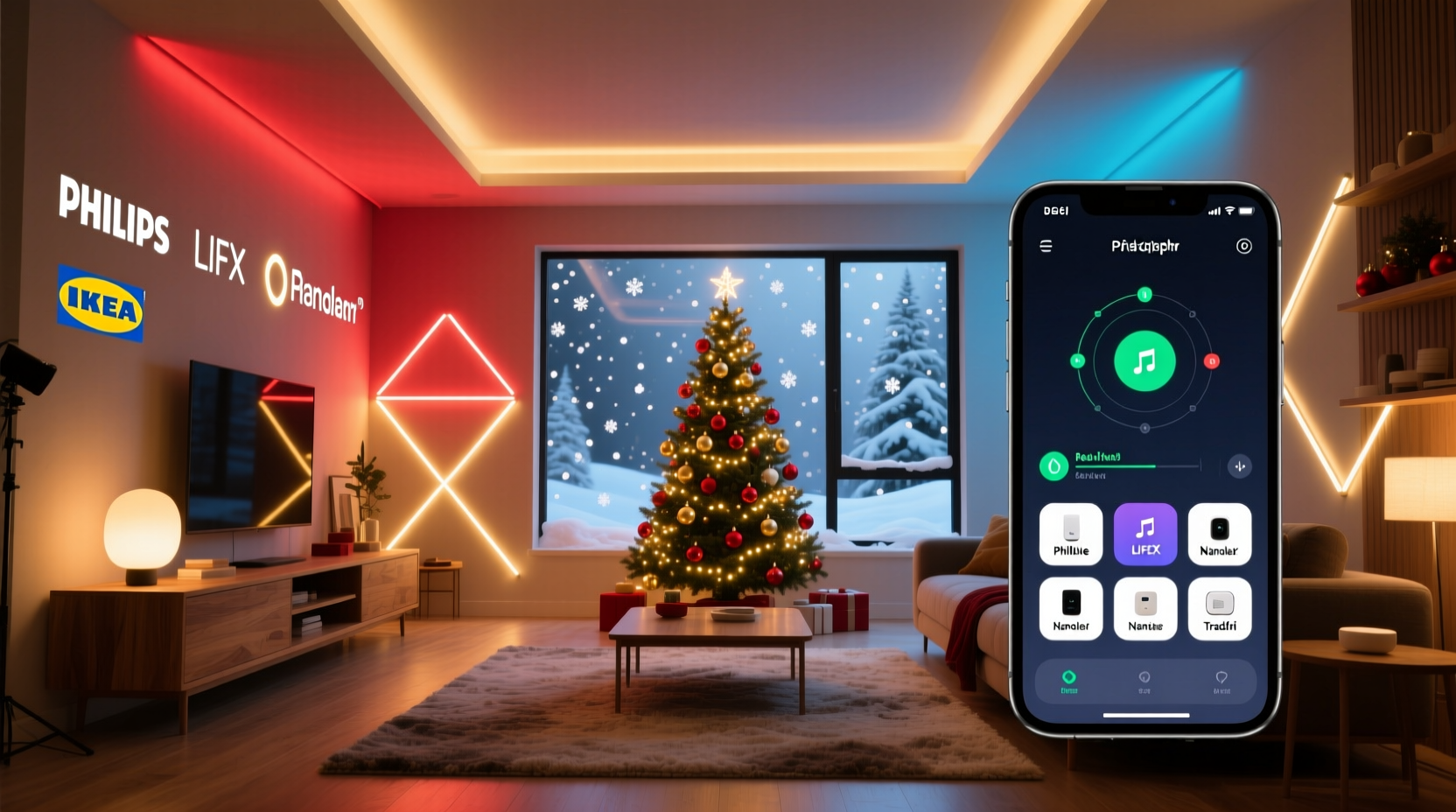
Smart lights from different manufacturers use varying color models, brightness scales, and firmware logic. For example, “warm white” on a Govee strip may appear noticeably yellower than the same setting on a Philips Hue bulb. Similarly, 50% brightness on a LIFX panel might outshine 80% on a Nanoleaf Shape at the same voltage. These discrepancies become glaring when lights are placed side by side outdoors or in overlapping zones.
Without calibration, your display might feature:
- One section pulsing red while another lags half a second behind.
- Green hues that look lime in one area and forest in another.
- Inconsistent white temperatures breaking visual continuity.
These mismatches distract from the intended effect. Professional light shows rely on uniformity—not just choreography. The solution? Treat your multi-brand setup like an audio system: each component must be tuned to the same reference point.
Step-by-Step: Calibrating Your Smart Light Network
Calibration isn’t a one-size-fits-all process. It involves physical setup, software coordination, and fine-tuning. Follow this timeline to ensure all devices behave as a cohesive unit.
- Inventory & Grouping (Day 1)
Create a list of all smart lights by brand, model, and location. Group them by zone—e.g., roofline, porch, tree, driveway. Note which ones support music sync, scheduling, and third-party integrations. - Network Optimization (Day 1–2)
Ensure all devices are on the same 2.4 GHz Wi-Fi network. Avoid signal congestion by placing routers centrally and using Wi-Fi analyzers to detect channel interference. Devices on different networks or mesh segments may lag during synchronization. - Update Firmware (Day 2)
Open each brand’s app (Hue, Govee, Kasa, etc.) and confirm all devices have the latest firmware. Outdated firmware causes inconsistent behavior and limits compatibility with automation platforms. - Set Color Reference Points (Day 3)
Choose a master device—ideally a high-CRI (Color Rendering Index) light like Philips Hue—as your color standard. Use its native app to set specific RGB or HSB values for key colors: pure red (255,0,0), deep green (0,128,0), warm white (2700K), and cool white (6500K). Record these values. - Match Secondary Lights (Day 3–4)
In each brand’s app, manually adjust secondary lights to visually match the master. This is best done side-by-side or via live video feed. Take photos under consistent conditions and compare on a calibrated screen if possible. - Test Brightness Uniformity (Day 4)
Set all lights to 50% brightness. Adjust individual sliders until perceived output looks even. Some brands use non-linear scaling—50% may actually emit 70% luminance. Compensate by lowering such devices. - Sync Timing & Transitions (Day 5)
Use a central automation platform (like Home Assistant or Apple Home) to trigger all lights simultaneously. Test fade durations, strobe speeds, and pattern cycles. If delays exceed 0.3 seconds, recheck network latency or switch to local control (avoid cloud-based triggers).
This process typically takes five days but pays off in flawless execution. Once calibrated, save presets labeled “Unified Red,” “Snow White,” or “Holiday Pulse” for reuse each season.
Using Automation Platforms for Unified Control
No single app controls all smart light brands natively. To unify operations, leverage cross-platform tools:
- Apple Home: Supports Hue, Nanoleaf, LIFX, and select Govee/Kasa devices via Matter or direct integration. Create scenes and automations triggered by time, geofence, or voice.
- Google Home: Broad compatibility but less precise timing. Best for static scenes rather than dynamic effects.
- Home Assistant: Offers granular control over timing, color accuracy, and local execution. Ideal for advanced users who want zero-latency sync.
- Ifttt: Useful for simple triggers (e.g., “When weather drops below 40°F, turn on lights”) but introduces delays unsuitable for choreographed shows.
For maximum reliability, avoid cloud-dependent workflows. Local execution ensures commands are processed instantly, critical for music-synced displays.
| Platform | Best For | Limits |
|---|---|---|
| Apple Home | Seamless iOS integration, reliable scene syncing | Limited Govee/Kasa functionality without bridges |
| Google Home | Voice control, broad device support | Slight delay in command delivery |
| Home Assistant | Precision timing, offline operation, scripting | Steep learning curve |
| Ifttt | Simple automation across niche devices | Not suitable for real-time sync |
Real Example: A Suburban Family’s 3-Brand Display
The Thompsons in Portland, Oregon, wanted a festive front-yard show using existing gear: Philips Hue outdoor spots (roof), Govee LED strips (porch railing), and Nanoleaf Shapes (window). Initially, their red-and-green sequence looked mismatched—Govee greens were too bright, Nanoleaf responded slowly, and Hue whites appeared cooler.
They followed the calibration steps:
- Updated all apps and firmware.
- Placed all devices on a dedicated 2.4 GHz SSID.
- Used a Hue bulb as the color master, setting RGB(255,0,0) for red.
- In the Govee app, adjusted green to RGB(0,110,0) to match Hue’s warmth.
- Manually reduced Nanoleaf brightness by 20% to align with others at 50% setting.
- Created a shared scene in Apple Home titled “Christmas Glow” with identical transition times.
The result was a cohesive, magazine-worthy display. Neighbors reported it felt “professionally installed.” The family now recalibrates annually before Thanksgiving, saving presets for quick activation.
“Even small differences in color temperature can break immersion. We treat our holiday lighting like a theater production—every element must support the story.” — Derek Lin, Smart Home Lighting Designer, SmartScenes Inc.
Checklist: Pre-Launch Calibration Verification
Before unveiling your display, run through this checklist to ensure full unity:
- ✅ All devices respond to a central automation trigger within 0.3 seconds.
- ✅ White tones match across brands (use a gray card test if possible).
- ✅ Primary colors (red, green, blue) appear consistent in side-by-side view.
- ✅ Brightness levels are balanced—no single zone dominates.
- ✅ Fade and transition speeds are identical across all devices.
- ✅ Music sync (if used) has no audible lag between light pulses and beats.
- ✅ Backup power or surge protection is in place for outdoor units.
- ✅ Presets are saved and tested at least twice.
Troubleshooting Common Calibration Issues
Even careful setups encounter hiccups. Here’s how to resolve frequent problems:
Problem: Lights flicker during transitions.
Solution: Reduce transition speed in automation settings. Rapid changes strain lower-end drivers, especially in budget Govee or Kasa models.
Problem: One brand consistently lags behind.
Solution: Check if the device relies on cloud processing. Switch to a local platform like Home Assistant or add a local hub (e.g., Hue Bridge) to minimize latency.
Problem: Colors drift over time.
Solution: LED phosphors degrade unevenly. Re-calibrate once per season. Store calibration notes digitally for faster future alignment.
Problem: Voice commands fail to activate all lights.
Solution: Ensure all devices are assigned to the same room or scene in your voice assistant app. Avoid naming conflicts (e.g., two “Christmas Lights” groups).
Frequently Asked Questions
Can I calibrate lights without a hub or bridge?
Yes, but with limitations. Wi-Fi-only devices (like many Govee strips) work directly over your network but depend on cloud services, introducing potential delays. For true synchronization, consider using a local controller like Home Assistant or a Matter-enabled hub to reduce reliance on external servers.
How do I match color temperatures when brands use different scales?
Use Kelvin (K) as your universal reference. Set your master light to 2700K (warm white) and manually adjust other brands until they visually match. Some apps only offer presets (“Soft White,” “Daylight”), so you may need to experiment. Take nighttime photos and zoom in to compare hue shifts on-screen.
Is it worth using third-party calibration tools?
For casual displays, manual tuning suffices. However, professionals often use spectrophotometers or smartphone color meter apps (like Luxi or Datacolor) to measure exact color output. These tools provide objective data, eliminating guesswork—especially useful when matching large installations.
Final Steps: Launching Your Unified Display
After calibration, conduct a full dress rehearsal at night. Invite a friend to watch from the curb and provide feedback. Pay attention to rhythm, balance, and flow. Make micro-adjustments as needed.
Once satisfied, schedule your display to activate automatically. Use sunrise/sunset triggers or calendar-based automations so your lights turn on promptly each evening. Share access with family members via your chosen platform so others can toggle scenes without disrupting settings.
Maintain your setup throughout the season. Cold weather affects battery-powered controllers and Wi-Fi range. Check connectivity weekly and retest synchronization if new devices join the network.
“The magic of holiday lighting isn’t just in the glow—it’s in the harmony. When every bulb moves as one, it creates emotional resonance people remember for years.” — Maria Santos, Lighting Curator, WinterLights Festival
Bring the Holidays to Life—Start Today
A unified Christmas display doesn’t require buying all the same brand. With careful calibration, you can blend Philips Hue elegance, Govee affordability, and Nanoleaf creativity into something greater than the sum of its parts. The effort invested in tuning transforms a collection of smart bulbs into a storytelling canvas—one that delights neighbors, strengthens community spirit, and becomes a seasonal tradition.
Your lights are already smart. Now make them speak the same language. Gather your gear, follow the calibration steps, and ignite a display that doesn’t just shine—it sings.




 浙公网安备
33010002000092号
浙公网安备
33010002000092号 浙B2-20120091-4
Comments
No comments yet. Why don't you start the discussion?