
For gamers who rely on controllers—especially in fast-paced first-person shooters (FPS) or battle royale titles—precise aiming can mean the difference between victory and defeat. While many players focus on sensitivity settings or hardware upgrades, few take full advantage of proper controller calibration. A well-calibrated controller ensures that inputs are accurate, consistent, and responsive, reducing input lag and improving muscle memory. This guide walks through the science and practice of fine-tuning your controller for pinpoint accuracy.
Why Calibration Matters for Aim Precision
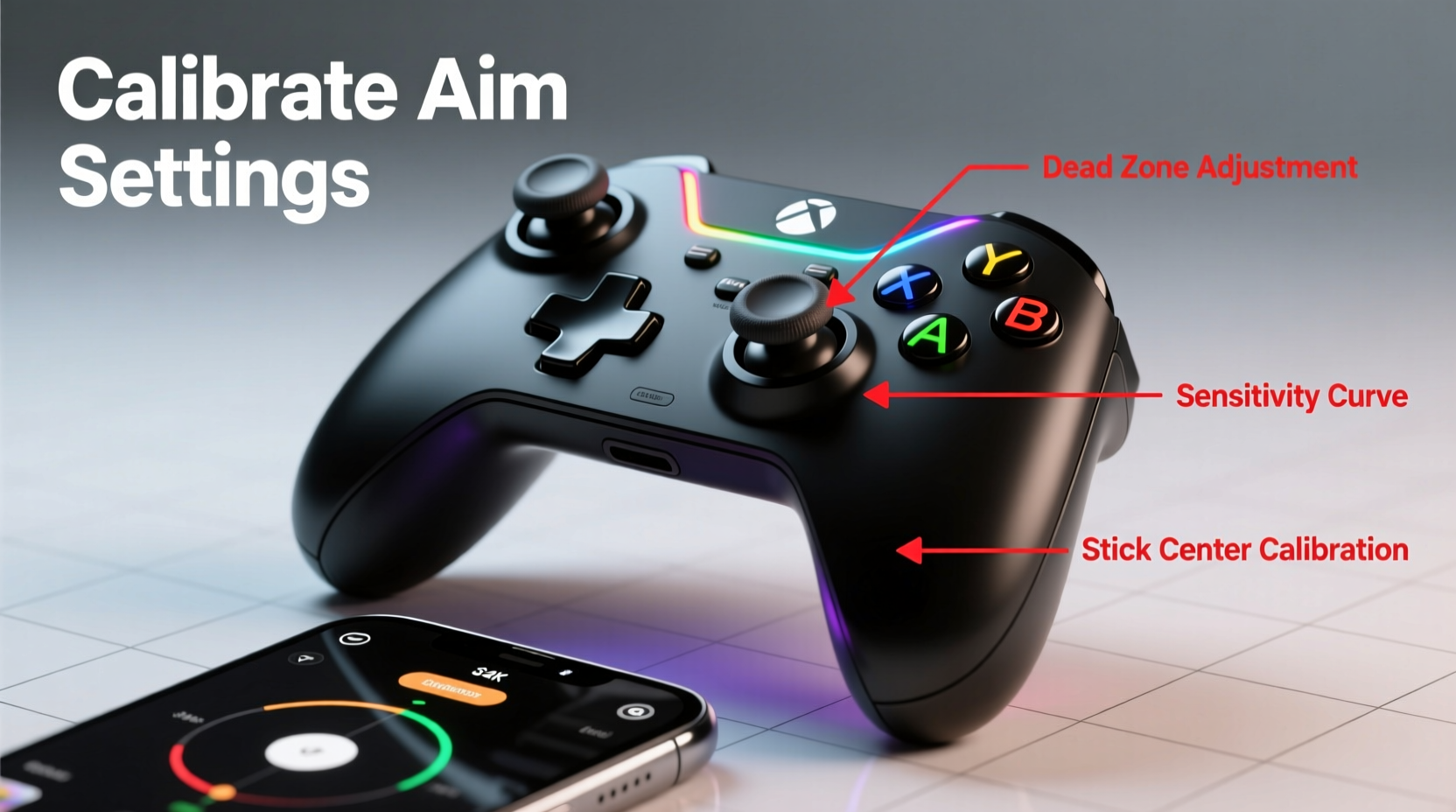
Controller calibration isn’t just about fixing drift or centering analog sticks—it’s about optimizing the entire input pipeline from thumbstick movement to on-screen response. Analog sticks use potentiometers to detect position, and over time, these sensors can degrade or develop dead zones due to wear, dust, or manufacturing inconsistencies. Even brand-new controllers may ship with minor imbalances that affect responsiveness.
Without calibration, small stick movements might not register, or the system may misinterpret neutral positions as directional input—leading to cursor wobble, inconsistent recoil control, or delayed reactions. In competitive play, where split-second adjustments matter, even a 5% deviation can throw off headshots or tracking.
“Proper calibration is the foundation of consistent aim. You wouldn’t race a car with misaligned wheels—you shouldn’t game with an uncalibrated controller.” — Jordan Lee, Lead Input Analyst at GamePerf Labs
Step-by-Step Guide to Calibrating Your Controller
Follow this comprehensive process to ensure your controller delivers optimal performance across platforms and games.
- Power Down and Clean: Turn off your controller and clean around the analog sticks using a soft brush or compressed air. Dust and debris can interfere with sensor readings.
- Connect via Recommended Method: Use a wired USB connection when possible. Wireless signals can introduce latency during calibration.
- Access System-Level Calibration Tool:
- PlayStation 5: Go to Settings > Accessories > Controllers > Adjust Stick Calibration.
- Xbox Series X|S: Use the Xbox Accessories app on Windows or the console’s device settings under Devices & Connections.
- Nintendo Switch: System Settings > Controllers and Sensors > Calibrate Control Sticks.
- PC (Generic): Navigate to Control Panel > Hardware and Sound > Devices and Printers > right-click your controller > Game Controller Settings > Properties > Settings tab > Calibrate.
- Perform Stick Centering: Follow on-screen prompts to rotate each analog stick fully clockwise and counterclockwise, then return to neutral. Do this slowly and smoothly.
- Test Raw Input Response: After calibration, test the sticks using the built-in diagnostics tool. Look for smooth, symmetrical movement across all axes without jitter or lag.
- Reboot and Reconnect: Restart both the controller and the host system to clear any cached input data.
Optimizing In-Game Sensitivity and Dead Zones
System-level calibration sets the baseline, but in-game settings determine how your inputs translate to character movement and camera control. Fine-tuning sensitivity, acceleration, and dead zones is essential for precision aiming.
Understanding Key Settings
- Dead Zone: The area around the stick’s neutral position where no input is registered. Too large, and small movements won’t register; too small, and stick drift causes unwanted movement.
- Sensitivity Curve: Determines how stick deflection translates to cursor speed. Linear curves offer consistency; exponential curves increase speed with greater stick movement.
- Aim Acceleration: Increases turning speed the longer you hold the stick. Often discouraged in competitive play for reducing predictability.
- Input Lag Reduction: Some games offer options like “raw input” or “high polling rate” that bypass OS filtering for faster response.
| Setting | Recommended for Precision Aim | Common Pitfalls |
|---|---|---|
| Inner Dead Zone | 5–10% | Too high = sluggish response |
| Outer Dead Zone | 95–100% | Too low = max speed not reached |
| Sensitivity Type | Linear or Custom Curve | Exponential = inconsistent control |
| Aim Acceleration | Off | Causes unpredictable turn rates |
| Input Mode | Raw / Direct | Processed input adds latency |
Adjust these settings gradually. Make one change at a time and test in a controlled environment like a target range or aim trainer. Trackpad users should also consider surface friction and palm grip stability, which indirectly affect calibration effectiveness.
Real-World Example: Competitive Player Reduces ADS Drift
Consider Alex, a ranked Apex Legends player on PlayStation. He noticed his scoped shots consistently landed just left of target despite perfect timing. After ruling out network issues and visual parallax, he suspected input inconsistency.
Using the PS5’s stick calibration tool, he discovered his right stick was registering a slight bias toward the upper-left quadrant—even at rest. After recalibration and adjusting the inner dead zone to 8% in-game, his aim stabilized. Within two days, his headshot accuracy improved by 23%, and he climbed three tiers in ranked play.
This case illustrates how subtle calibration errors compound under pressure. What felt like poor aim was actually a mechanical issue masked as skill deficiency.
Advanced Tips for Esports-Level Precision
For serious players, basic calibration isn’t enough. These advanced practices help squeeze every millisecond of performance from your setup.
- Create Game-Specific Profiles: A battle royale might need lower sensitivity for sniping, while a hero shooter benefits from faster flicks. Save separate calibration and sensitivity presets.
- Monitor Stick Wear with Diagnostic Apps: Tools like JoyConDrift.com (for Switch) or Controller Companion (PC) provide real-time graphs of stick output, helping detect early drift.
- Use Replaceable Stick Caps: Dome-shaped or concave caps improve tactile feedback and reduce finger slippage, enhancing micro-adjustments.
- Enable Gyro Aiming (When Available): On supported controllers (e.g., DualShock 4/5, Steam Controller), gyro provides ultra-fine adjustments. Calibrate it alongside sticks for seamless blending.
Checklist: Complete Controller Calibration Routine
- ✅ Clean analog sticks and housing
- ✅ Connect controller via USB cable
- ✅ Access system calibration tool
- ✅ Rotate both sticks fully and return to center
- ✅ Confirm neutral position reads as (0,0) in diagnostics
- ✅ Adjust in-game dead zones (start with 8% inner, 100% outer)
- ✅ Disable aim acceleration and smoothing
- ✅ Test in aim trainer or practice range
- ✅ Save profile and repeat monthly or after heavy use
Frequently Asked Questions
How often should I calibrate my controller?
At minimum, recalibrate once a month. If you play daily or notice drifting, do it biweekly. After any physical impact (e.g., dropping the controller), perform an immediate check.
Can software fix a physically broken stick?
No. Calibration compensates for minor sensor misalignment, but if the stick exhibits constant drift, skips, or resistance, it likely needs repair or replacement. Software workarounds like increased dead zones mask symptoms but reduce usable range.
Does calibration affect trigger sensitivity?
Not directly. Most calibration tools focus on analog sticks. However, some high-end controllers (e.g., Elite Series 2, DualSense) allow trigger dead zone adjustment separately. Check your device’s companion app for advanced tuning.
Conclusion: Precision Starts With Preparation
Mastering a game’s mechanics requires more than reflexes and strategy—it demands reliable hardware. Calibrating your gaming controller is a simple yet powerful step toward achieving consistent, accurate aim. Whether you're climbing the ranks in Call of Duty, dominating in Fortnite, or mastering Halo, taking five minutes to tune your inputs can yield lasting improvements.
Don’t wait for drift or frustration to prompt action. Build calibration into your routine like stretching before exercise. Your thumbs—and your K/D ratio—will thank you.




 浙公网安备
33010002000092号
浙公网安备
33010002000092号 浙B2-20120091-4
Comments
No comments yet. Why don't you start the discussion?