
Most people buy a high-end television and immediately start streaming their favorite shows without adjusting a single setting. The result? Colors that are oversaturated, skin tones that look orange, and black levels so crushed you miss entire scenes. Factory presets are designed to grab attention in bright retail stores—not to deliver accurate, natural-looking images in your living room. Calibrating your TV’s color settings transforms your viewing experience from decent to exceptional. The good news: you don’t need a professional or expensive equipment to do it right. With a few hours, some patience, and the right guidance, you can achieve near-reference-quality image performance at home.
Why Calibration Matters More Than You Think
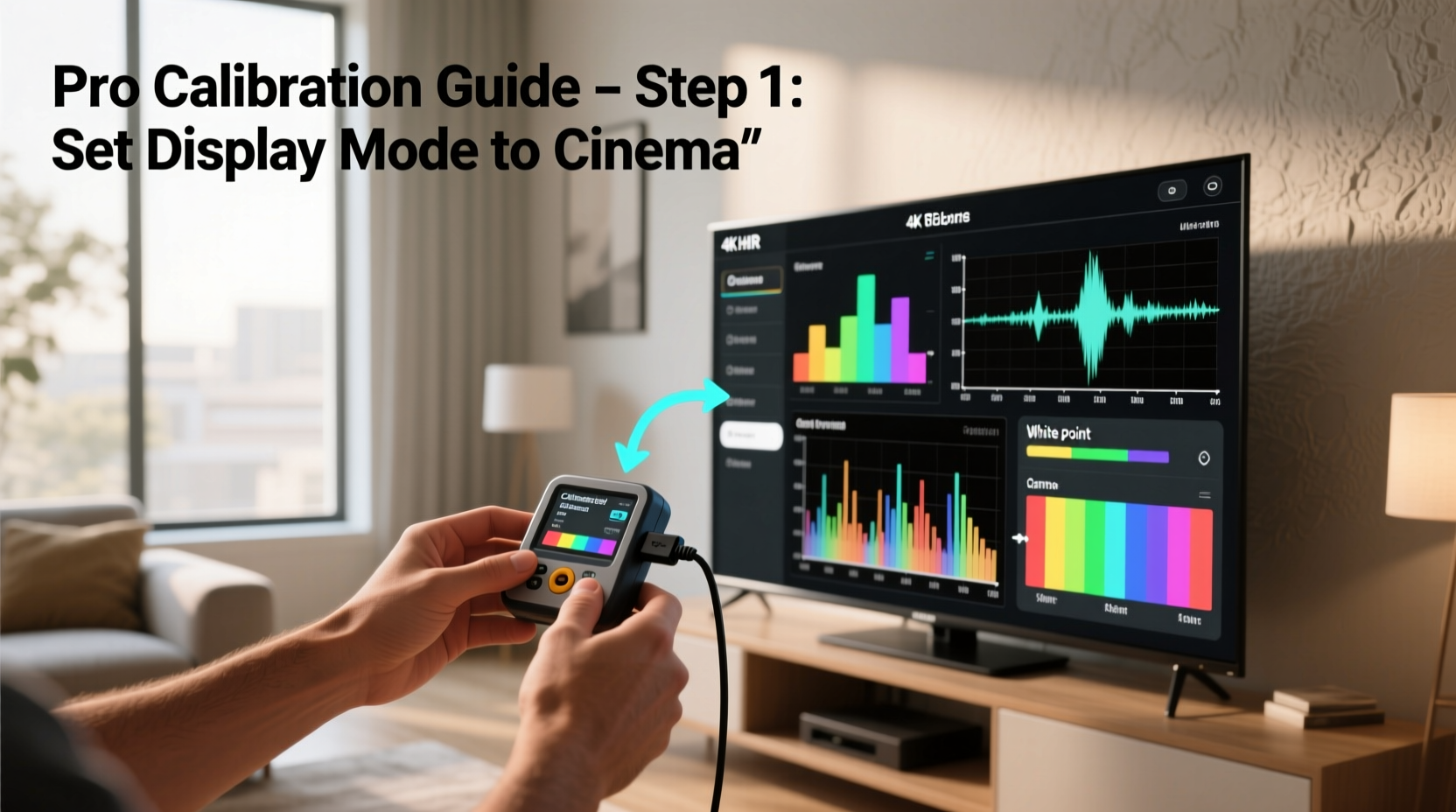
TV calibration isn't just for film buffs or home theater enthusiasts. It's about seeing content the way directors and cinematographers intended. Modern televisions come with flashy \"Vivid\" or \"Dynamic\" modes that exaggerate contrast and sharpness to stand out on store shelves. But these settings distort colors, wash out details, and fatigue your eyes over time.
Proper calibration improves:
- Color accuracy: Reds aren’t too red, greens aren’t neon, and skin tones appear lifelike.
- Contrast balance: Bright highlights don’t overpower dark scenes, preserving detail in both shadows and highlights.
- Viewing comfort: A well-balanced image reduces eye strain during long movie nights.
- Longevity of perception: An accurately calibrated TV ages better visually—you won’t tire of its look as quickly.
“Even minor adjustments to brightness and color temperature can dramatically improve realism. Most viewers are shocked by how much better their own TV looks once properly set.” — David Pogue, Consumer Tech Journalist and Former CBS News Correspondent
Your Calibration Toolkit: What You Really Need
You don’t need a $500 colorimeter to get excellent results. While professional tools exist (like the CalMAN software paired with an X-Rite i1Display), most homeowners can achieve 90% of the benefit using free or built-in resources.
Here’s what you’ll use:
| Tool | Purpose | Cost |
|---|---|---|
| Test patterns (YouTube or calibration DVDs) | Adjust brightness, contrast, color, tint, sharpness | Free |
| THX Tune-Up App or Disney WOW Blu-ray | Step-by-step guided calibration | $10–$30 |
| Remote control | Navigate TV menus | Included |
| Notepad and pen (or phone notes) | Track changes and reference values | Free |
| Patience and good lighting control | Avoid glare and distractions | Priceless |
The THX Tune-Up app, available on iOS and Android, offers real-time test patterns and voice-guided instructions. Alternatively, the Disney World of Wonder (WOW) disc included with many older Pixar Blu-rays remains one of the best free calibration tools ever released.
Step-by-Step Guide to Manual TV Calibration
This process takes about 60–90 minutes but pays dividends every time you watch TV. Follow these steps in order—they build on each other.
- Switch to Movie or Cinema Mode
Start by selecting the most accurate preset. On most TVs, this is labeled “Movie,” “Cinema,” or “Director’s Mode” (on LGs). Avoid “Vivid,” “Sports,” or “Dynamic.” These boost brightness and color artificially. - Set the Correct Aspect Ratio
Ensure your TV isn’t stretching or cropping the image. Use “Just Scan,” “Dot-by-Dot,” or “1:1 Pixel Mapping” if available. This prevents edge smoothing and maintains original framing. - Adjust Brightness (Black Level)
Play a pluge pattern (available on YouTube or calibration discs). This screen has bars slightly below and above true black. Adjust the brightness setting until the bar just below black disappears into the background—but don’t lose the one just above it. This ensures shadow detail without crushing blacks. - Set Contrast (White Level)
Use a white window pattern (e.g., 80% or 100% window). Increase contrast until whites are bright but not “blooming” or bleeding into surrounding areas. Stop when halos appear around bright objects—that means you’ve gone too far. - Tune Color and Tint
Use a color window pattern or follow the Disney WOW disc’s color checker. Adjust color (saturation) until reds, greens, and blues look natural—not cartoonish. Tint (also called hue) corrects green vs. magenta balance. Skin tones should look neutral, not sunburnt or sickly. - Refine Sharpness
Over-sharpening creates artificial halos around edges. Use a resolution wedge pattern. Lower sharpness until lines appear clean but not outlined. Often, the ideal setting is between 0–30%, depending on the model. - Select the Right Color Temperature
Choose “Warm” or “Warm2” mode. “Cool” or “Standard” usually adds excessive blue, making everything look icy. Warm mode targets ~6500K, the industry standard for neutral white. - Disable Unnecessary Processing Features
Turn off:- Auto Motion Plus / TruMotion (causes soap opera effect)
- Dynamic Contrast / Eco Sensor
- Noise Reduction (can blur fine detail)
- LED/LCD Local Dimming (if it causes blooming; adjust intensity otherwise)
Real Example: From Washed Out to Wow
Consider Mark, a film lover in Seattle who recently upgraded to a 65-inch OLED. Excited, he turned it on and started watching *Dune* (2021). He loved the deep blacks but noticed Paul Atreides’ face looked unnaturally warm—almost orange. Night scenes were stunning, but daytime sequences felt hazy.
He spent two hours following the calibration steps above, using the Disney WOW disc. First, he switched from “Vivid” to “Cinema” mode. Then adjusted brightness using the pluge pattern, bringing back detail in shadowy corridors on Arrakis. He lowered contrast slightly to prevent sandstorm highlights from blowing out. Finally, he corrected tint and selected “Warm2” color temperature.
The difference was immediate. Skin tones became realistic. Sand had texture, not glare. When he rewatched the same scene, he saw details he’d missed before—subtle embroidery on robes, individual grains in wide shots. “I didn’t realize my TV could look this good,” he said. “It feels like I upgraded again—for free.”
Advanced Tips for Different TV Types
While the core principles apply across brands, nuances matter based on display technology.
OLED TVs (LG, Sony, Samsung)
OLEDs have perfect blacks and infinite contrast, so focus on brightness and color accuracy. Use “ISF Dark” or “Expert1” modes if available. Avoid maxing out peak brightness unless in a very bright room.
QLED and LED-LCD TVs (Samsung, Hisense, TCL)
These rely on backlights, so local dimming settings are crucial. Enable “Local Dimming” but choose “Medium” or “Low” to reduce haloing. Backlight level can be higher than OLED—start at 70–80% for bright rooms, lower for dark ones.
Projectors
Projectors need even more careful calibration due to ambient light sensitivity. Use a gray screen if possible. Set gamma to “2.2” for standard rooms or “2.4” for darker environments. Pay close attention to lens alignment and zoom settings—they affect uniformity.
“The biggest mistake people make is trusting default settings. Even high-end TVs ship with aggressive processing that masks their true potential.” — Joe Kane, Pioneer in Video Calibration and Founder of HDGuru
Checklist: Quick Calibration Recap
Use this checklist to ensure nothing is missed during your session:
- ☑ Watch in normal viewing conditions (lights off/dimmed)
- ☑ Select “Movie” or “Cinema” picture mode
- ☑ Disable motion smoothing and dynamic contrast
- ☑ Set aspect ratio to 1:1 or “Just Scan”
- ☑ Adjust brightness using a pluge pattern
- ☑ Set contrast to avoid white clipping
- ☑ Fine-tune color and tint with a color window
- ☑ Reduce sharpness to eliminate edge halos
- ☑ Choose “Warm” or “Warm2” color temperature
- ☑ Save settings and label custom mode (e.g., “My Cinema”)
Frequently Asked Questions
Do I need to recalibrate my TV over time?
Yes. All displays drift over time, especially LCDs and plasmas. OLEDs are more stable but still benefit from a checkup every 6–12 months. If you notice colors looking “off” or blacks appearing gray, it’s time to revisit calibration.
Can I use my smartphone or tablet as a reference?
Only for basic comparisons. Mobile screens are highly variable and not color-accurate out of the box. Relying on them can mislead your adjustments. Stick to test patterns and known reference content instead.
What if my TV doesn’t have a pluge pattern or calibration disc?
Search YouTube for “pluge pattern,” “color window test,” or “grayscale ramp.” Many channels offer high-quality, full-screen versions. Just ensure the video is playing in full resolution without compression artifacts.
Final Thoughts: See Your TV in a Whole New Light
Calibrating your TV isn’t a one-time chore—it’s an investment in every future viewing experience. Once you see *Blade Runner 2049* with properly balanced neon glows, or witness the subtle gradations in a sunset on *Planet Earth II*, you’ll wonder how you ever enjoyed TV before. The settings you tweak today will enhance every movie, show, and game going forward.
You don’t need technical expertise or expensive gear. You only need attention to detail and a willingness to slow down and observe. In under two hours, you can unlock the full potential of your television—transforming it from a shiny gadget into a true window to cinematic worlds.




 浙公网安备
33010002000092号
浙公网安备
33010002000092号 浙B2-20120091-4
Comments
No comments yet. Why don't you start the discussion?