
Streaming content from your phone to your TV enhances the viewing experience—whether you're sharing vacation photos, watching a downloaded movie, or presenting a work project. While devices like Chromecast and Roku are popular for screen mirroring, not everyone owns them. The good news is that you don’t need additional hardware to cast your phone’s screen to your TV. Modern smartphones and smart TVs come with built-in capabilities that allow seamless wireless or wired connections. With the right method, you can mirror your Android or iPhone directly to most modern TVs.
This guide explores reliable, accessible ways to cast your phone screen to a television without relying on Chromecast or Roku. From wireless protocols like Miracast and AirPlay to physical connections via HDMI adapters, we’ll cover practical solutions backed by real-world usability.
Understanding Screen Mirroring vs. App Streaming
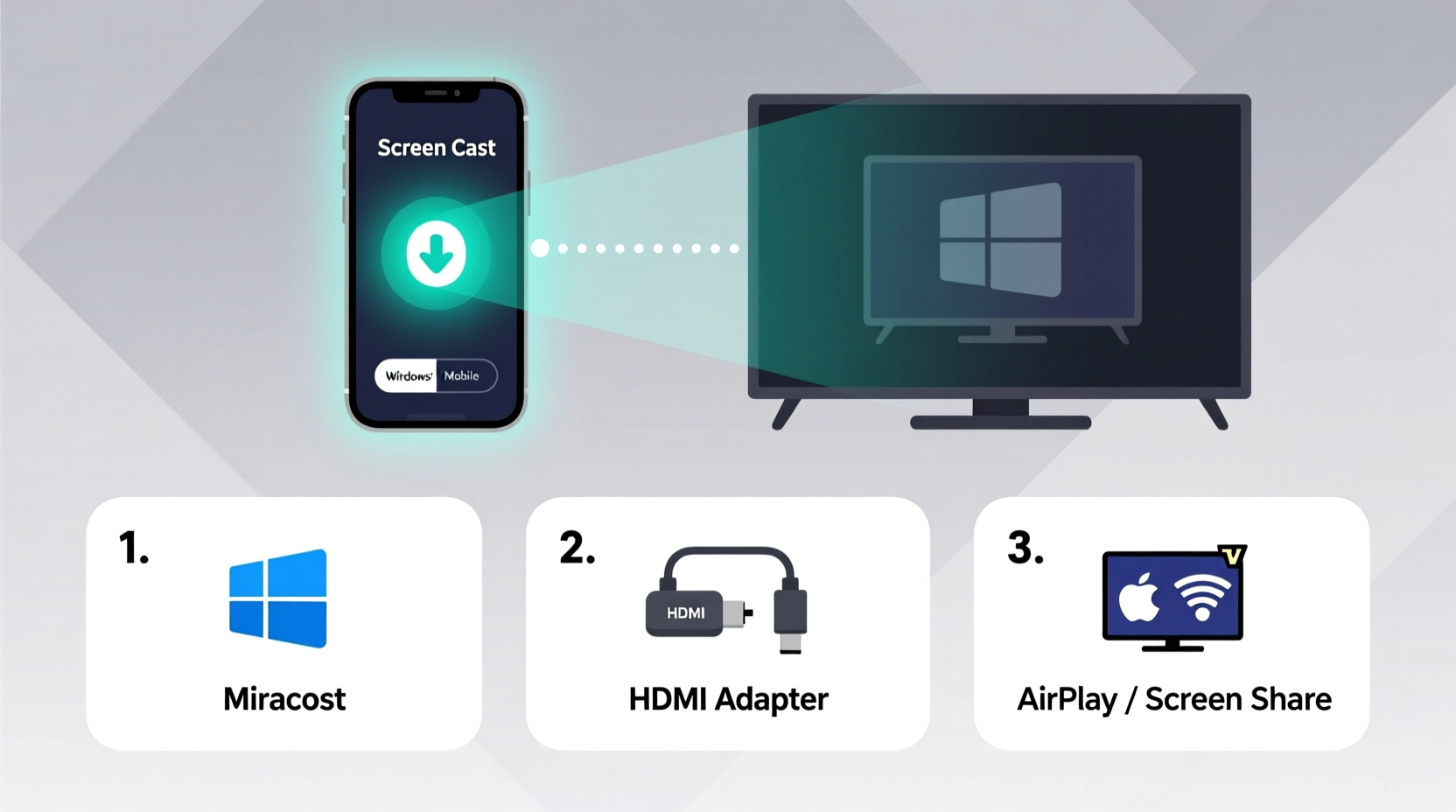
Before diving into methods, it’s important to distinguish between screen mirroring and app-based streaming. Screen mirroring duplicates your entire phone display onto the TV in real time. This means every notification, app, and tap appears on the big screen. It’s ideal for presentations, gameplay, or showing private videos stored locally.
In contrast, app streaming (like YouTube or Netflix casting) only sends media from a supported app to the TV. The rest of your phone remains private. For this article, we focus on full screen mirroring—replicating your phone’s interface exactly as it appears.
Wireless Methods: Using Built-In Protocols
Many modern TVs support direct wireless screen mirroring through standardized protocols. These eliminate the need for extra devices and often deliver smooth performance when both devices are on the same Wi-Fi network.
Miracast for Android Devices
Miracast is a wireless display standard that allows Android phones to mirror their screens to compatible TVs without requiring an internet connection. It works similarly to HDMI but over Wi-Fi Direct. Most Samsung, LG, and Sony smart TVs released after 2013 support Miracast under names like “Screen Sharing,” “Smart View,” or “Display Mirroring.”
To use Miracast:
- Ensure your TV is Miracast-enabled. Check the user manual or settings menu under \"Network\" or \"Display.\"
- On your Android phone, go to Settings > Connected devices > Connection preferences > Cast.
- Tap the three-dot menu and select Enable wireless display.
- Your TV should appear in the list if it's discoverable. Select it to begin mirroring.
If your phone doesn’t show the option, download a third-party Miracast app like ApowerMirror or Microsoft Connect, which can activate hidden support on some models.
AirPlay for iPhones (with Supported TVs)
Apple’s AirPlay 2 is now integrated into many newer smart TVs from brands like Samsung, LG, Sony, and Vizio. If your TV supports AirPlay 2, you can mirror your iPhone screen wirelessly—no Apple TV required.
To cast using AirPlay:
- Ensure both your iPhone and TV are connected to the same Wi-Fi network.
- Swipe down from the top-right corner (iPhone X and later) to open Control Center.
- Tap Screen Mirroring.
- Select your TV from the list.
- Enter the passcode displayed on the TV if prompted.
Note: Older TVs without AirPlay support won’t appear in the list. In that case, consider alternative methods below.
“AirPlay 2 integration in non-Apple TVs marks a turning point for cross-platform compatibility. Users no longer need proprietary hardware to enjoy seamless mirroring.” — David Lin, Senior Tech Analyst at HomeTech Review
Wired Solutions: Reliable and High-Quality
While wireless options offer convenience, they can suffer from lag, compression, or disconnections. A wired connection provides stable, high-definition output with minimal latency—ideal for gaming or video editing.
Using HDMI Adapters (Android & iPhone)
Both Android and iOS devices support video output via USB-C or Lightning ports using adapter cables.
- For Android: Use a USB-C to HDMI adapter. Plug the USB-C end into your phone and connect the HDMI cable to your TV. No setup needed—most phones auto-detect the external display.
- For iPhone: Use an Apple Lightning to HDMI adapter. Connect the adapter to your iPhone, then attach an HDMI cable to your TV. Power the adapter via USB if required (some models need external power for stability).
Once connected, your phone will mirror its screen instantly. Some phones offer a “Desktop Mode” (e.g., Samsung DeX), transforming the interface into a PC-like layout when connected to a large display.
Direct HDMI for Phones with Full-Sized Ports
Rare today, but some rugged or professional-grade phones (like certain Cat or Sharp models) still feature full-sized HDMI ports. Simply plug in a standard HDMI cable and switch your TV input source to view the mirrored screen.
Third-Party Apps for Seamless Casting
If your TV lacks native mirroring support, third-party apps can bridge the gap. These tools create a peer-to-peer connection over Wi-Fi, enabling screen sharing across platforms.
Popular Cross-Platform Apps
| App Name | Platform Support | Connection Type | Key Features |
|---|---|---|---|
| ApowerMirror | Android, iOS, Windows, Mac | Wi-Fi or USB | Low latency, supports audio, remote control |
| Reflector | iOS, Android, Chromebook | Wi-Fi | Receives AirPlay, Google Cast, Miracast; runs on Mac/PC connected to TV |
| Google Home (legacy casting) | Android only | Wi-Fi | Limited to supported apps, not full screen mirroring |
| TeamViewer QuickSupport | Android, iOS | Internet | Remote access with screen sharing; useful for troubleshooting |
To use these apps:
- Install the app on your phone and a companion receiver on a computer connected to your TV (or directly on a smart TV if supported).
- Ensure both devices are on the same network.
- Start the mirroring session from your phone.
- Select the target device from the app’s device list.
These apps often include bonus features like recording the mirrored screen, controlling the phone from a mouse, or sharing files during the session.
Mini Case Study: Presenting Without Hardware
Sarah, a freelance designer, was scheduled to present her portfolio at a client’s office. She arrived to find the conference room TV had no Chromecast or HDMI input available—only Wi-Fi and an old VGA port. Her laptop battery was low, and she didn’t bring any adapters.
She opened ApowerMirror on her iPhone and installed the desktop version on the client’s Windows PC, which was already connected to the TV via VGA. Within two minutes, she mirrored her phone screen wirelessly. She smoothly navigated her design app, zoomed in on mockups, and even took live feedback annotations—all without carrying extra gear. The presentation succeeded, and the client praised her preparedness.
This scenario highlights how software-based casting can be a lifesaver when hardware options fail.
Step-by-Step Guide: Mirror Your Phone in 5 Minutes
Follow this universal checklist to get your phone on the TV quickly—regardless of brand or model.
Checklist: How to Cast Your Phone Screen to TV
- ✅ Confirm your TV supports screen mirroring (look for “Screen Share,” “Miracast,” or “AirPlay” in settings).
- ✅ Connect both phone and TV to the same Wi-Fi network (for wireless methods).
- ✅ Update your phone’s OS and TV firmware to ensure compatibility.
- ✅ For Android: Enable Developer Options and turn on “Wireless Display” if not visible.
- ✅ For iPhone: Ensure AirPlay is enabled under Settings > General > AirPlay & Handoff.
- ✅ Try a wired connection using HDMI adapter if wireless fails.
- ✅ Install a third-party app like ApowerMirror or Reflector as backup.
By following these steps, you increase the likelihood of a successful connection, whether at home, in a meeting, or while visiting family.
Common Issues and Troubleshooting Tips
Even with the right setup, casting can sometimes fail. Here are frequent problems and fixes:
- No devices found? Restart both devices and ensure Wi-Fi is active on both. Disable VPNs or firewalls temporarily.
- Audio not working? Some apps mute audio during mirroring. Check volume settings and app permissions.
- Lag or stuttering? Move closer to the router or switch to a 5GHz Wi-Fi band for better bandwidth.
- Black screen after connection? Reboot the TV or try a different casting method. This often resolves handshake errors.
Frequently Asked Questions
Can I cast my phone to a non-smart TV?
Yes. Use a wired HDMI adapter to connect your phone directly to the TV’s HDMI port. Alternatively, connect your phone to a streaming stick (like Fire TV Stick) already plugged into the TV, then use screen mirroring within that ecosystem.
Is screen mirroring secure?
Generally yes, especially when using direct Wi-Fi or HDMI. However, avoid public networks when using third-party apps, as some may transmit data over the internet. Always use trusted, well-reviewed applications with strong privacy policies.
Does screen mirroring drain my phone battery quickly?
Yes—especially over Wi-Fi. The combination of screen-on time, processor load, and wireless transmission accelerates battery usage. Keep your phone plugged into a charger during extended sessions.
Conclusion: Take Control of Your Viewing Experience
You don’t need Chromecast or Roku to enjoy your phone’s content on the big screen. Whether through Miracast, AirPlay, HDMI adapters, or smart apps, multiple effective alternatives exist. The key is knowing your devices’ capabilities and having a backup plan ready. By mastering these techniques, you gain flexibility, privacy, and reliability—no matter where you are or what TV you’re using.
Start experimenting with one method today. Test your living room TV, practice before a presentation, or surprise your family with a photo slideshow on the widescreen. Once you’ve mastered wireless freedom or perfected your wired setup, you’ll wonder why you ever waited.




 浙公网安备
33010002000092号
浙公网安备
33010002000092号 浙B2-20120091-4
Comments
No comments yet. Why don't you start the discussion?