
Changing the background of an image or device interface is a practical skill whether you're enhancing social media photos, creating professional presentations, or personalizing your smartphone. With advancements in software and built-in tools, what once required expert design knowledge can now be done quickly—even by beginners. This guide walks through proven methods across platforms, offering clear steps, tools, and tips to achieve clean, natural-looking results.
Why Changing Backgrounds Matters
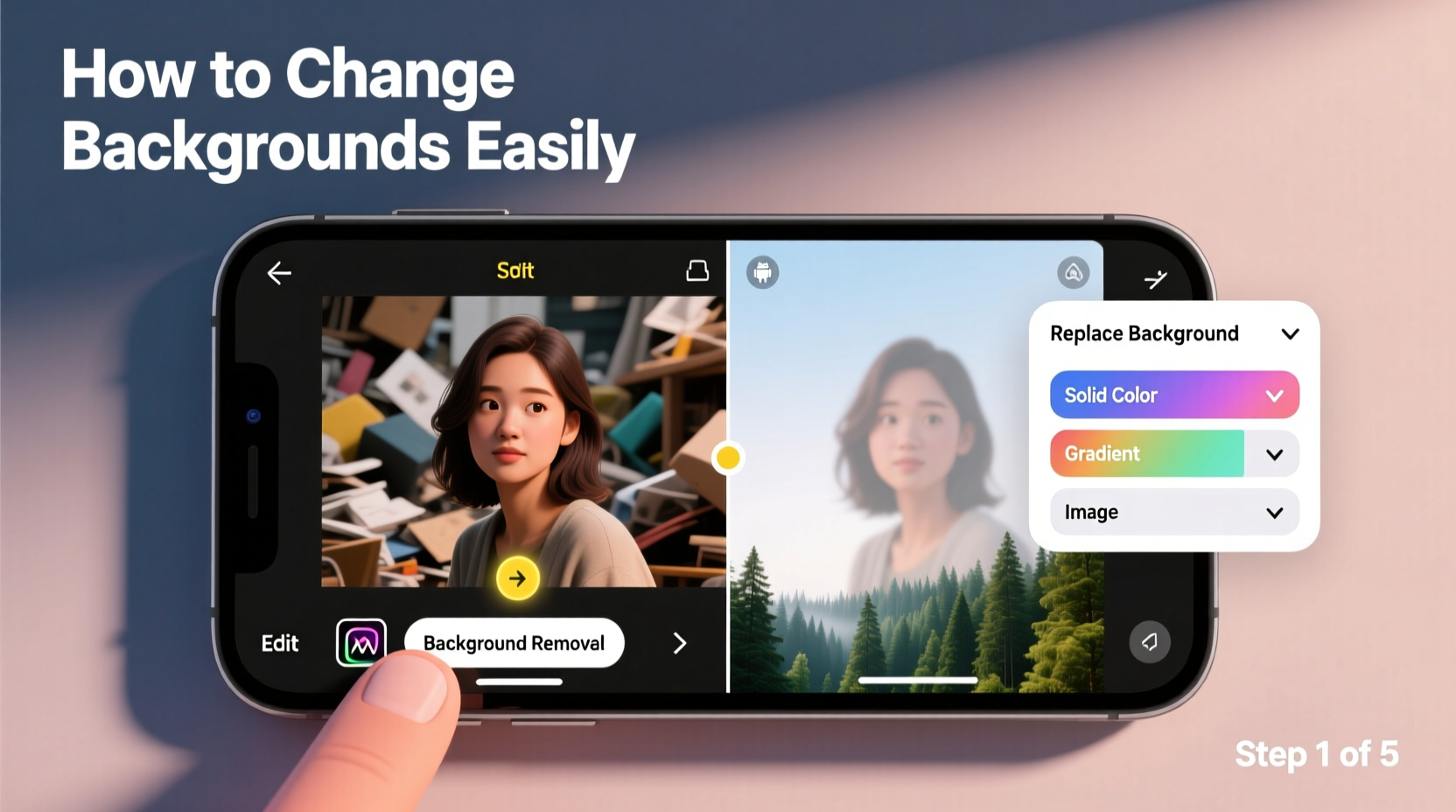
A well-changed background can transform an ordinary photo into something eye-catching and purposeful. For professionals, it ensures consistency in branding—think product shots on white backgrounds for e-commerce. For casual users, it adds fun and creativity to personal images. On devices like smartphones and computers, customizing backgrounds enhances user experience and reflects personal style.
The key to success lies not just in swapping the background but doing so seamlessly. Poorly edited images often reveal jagged edges, mismatched lighting, or unnatural shadows. The techniques below minimize these issues while maximizing efficiency.
Step-by-Step Guide: How to Change Image Backgrounds
Whether you’re using a desktop computer or a mobile device, changing an image background follows a consistent process. Here’s a universal workflow that applies across most tools:
- Select your image – Choose a high-resolution photo with clear subject separation from the original background.
- Use a background removal tool – Apply AI-powered or manual selection tools to isolate the subject.
- Clean up edges – Refine hair, transparency, and fine details for realism.
- Add a new background – Insert a solid color, gradient, or new scene.
- Adjust lighting and blending – Match tones, shadows, and perspective for a natural look.
- Export the final image – Save in appropriate format (JPEG for general use, PNG for transparency).
Best Tools for Image Background Editing
Different tools suit different needs. Here’s a comparison of popular options:
| Tool | Platform | Best For | Learning Curve |
|---|---|---|---|
| Remove.bg | Web, Mobile | Quick AI background removal | Very Low |
| Canva | Web, Mobile | Social media graphics | Low |
| Adobe Photoshop | Desktop | Precision editing, professionals | High |
| Figma | Web | Designers needing transparency | Moderate |
| Pixlr | Web, Mobile | Free alternative to Photoshop | Moderate |
“AI tools have democratized background editing—now anyone can achieve studio-quality results in minutes.” — Lena Torres, Digital Imaging Specialist at VisualFlow Studios
How to Change Device Wallpapers and Lock Screens
Personalizing your device background enhances usability and aesthetic appeal. Unlike image editing, this process doesn’t require altering the photo itself—just setting it correctly.
Smartphones (iOS and Android)
iOS:
- Open the Photos app and select your desired image.
- Tap “Share” and choose “Use as Wallpaper.”
- Adjust positioning, then tap “Set.”
- Choose “Set Lock Screen,” “Set Home Screen,” or both.
Android:
- Go to Wallpaper & Style in Settings or long-press the home screen.
- Select “Wallpapers” and choose “My Photos” or browse gallery.
- Pick an image and adjust zoom/positioning.
- Tap “Set” and choose location (Home screen, Lock screen, or both).
Computers (Windows and macOS)
Windows 10/11:
- Right-click the desktop and select “Personalize.”
- Click “Background,” then choose “Picture” or “Slideshow.”
- Browse to your image and select it.
- Adjust fit (Fill, Fit, Stretch, Tile) based on resolution.
macOS:
- Click the Apple menu → System Settings → Wallpaper.
- Click the + icon to add a new photo from your library.
- Select the image and drag to position.
- Close settings—wallpaper updates automatically.
Mini Case Study: E-Commerce Product Photography
A small online clothing brand struggled with inconsistent product images due to cluttered home backgrounds. Using Canva’s background remover, they isolated each model within seconds, replacing busy rooms with clean white backdrops. They then batch-applied the same background across all listings.
The result? A 38% increase in conversion rates over six weeks. Customers reported the site looked more professional and trustworthy. The entire editing process took less than two hours per week—time saved by leveraging automation instead of hiring a designer.
This real-world example shows how simple background changes can directly impact perception and performance.
Checklist: Ensure a Clean Background Change
- ✅ Use high-resolution source images
- ✅ Confirm subject-background contrast before editing
- ✅ Zoom in to refine edges (especially hair or fur)
- ✅ Match lighting temperature between subject and new background
- ✅ Avoid stretching images unnaturally
- ✅ Preview on target device/screen size
- ✅ Save final version with transparent layer if needed (PNG)
Common Mistakes to Avoid
Even with powerful tools, errors happen. Watch out for these pitfalls:
- Ignoring aspect ratio – Leads to distorted subjects when placed on mismatched backgrounds.
- Overlooking shadows – A floating subject without grounding shadows looks fake.
- Using low-quality replacements – Grainy or pixelated new backgrounds degrade overall quality.
- Skipping export settings – Saving in wrong format may lose transparency or compress detail.
“Editing isn’t just about removing the old—it’s about integrating the new convincingly.” — Raj Mehta, UX Design Lead at PixelForge
FAQ
Can I change a background without installing software?
Yes. Web-based tools like Remove.bg, Canva, and Pixlr allow full background editing directly in your browser—no download required.
Why does my edited image look fake?
This usually happens due to mismatched lighting, scale, or shadow direction. Try adjusting brightness/contrast and adding a soft drop shadow under the subject to ground it.
Is it legal to change someone’s photo background?
It depends on usage. For personal or editorial purposes with consent, it’s generally acceptable. However, altering images for deceptive advertising or impersonation may violate laws or platform policies.
Final Tips for Best Results
For consistently great outcomes, follow these additional guidelines:
- Shoot against solid colors when possible—green or white backdrops make automatic removal easier.
- Use layers in advanced editors to non-destructively test multiple backgrounds.
- Batch process similar images using templates in Canva or Photoshop Actions.
- Back up originals before making irreversible edits.
Conclusion
Changing backgrounds—whether for creative projects, professional assets, or personal devices—is now accessible to everyone. From AI-driven web apps to built-in OS features, the tools are intuitive and effective. What matters most is attention to detail: clean edges, realistic lighting, and thoughtful composition.
You don’t need years of design training to produce polished results. Start with one image today. Experiment with free tools. Apply the checklist and avoid common mistakes. Soon, editing will become second nature—and your visuals will stand out with clarity and confidence.




 浙公网安备
33010002000092号
浙公网安备
33010002000092号 浙B2-20120091-4
Comments
No comments yet. Why don't you start the discussion?