
Smartphones are essential to daily life, but slow charging can be a major bottleneck. Whether you're rushing out the door or trying to squeeze in a top-up between meetings, every minute counts. While hardware limitations play a role, most users overlook simple yet powerful adjustments that can significantly speed up charging. From disabling background processes to choosing the right cable, optimizing how you charge your phone is often more effective than waiting for a newer model.
The good news? You don’t need technical expertise or expensive upgrades. With a few strategic settings changes and the right accessories, you can reduce charging time by 20% or more—sometimes even doubling the rate of power gain during critical moments. This guide breaks down the science-backed methods, real-world tested tools, and common misconceptions that stand between you and a fully charged device.
Enable Airplane Mode for Maximum Charging Speed
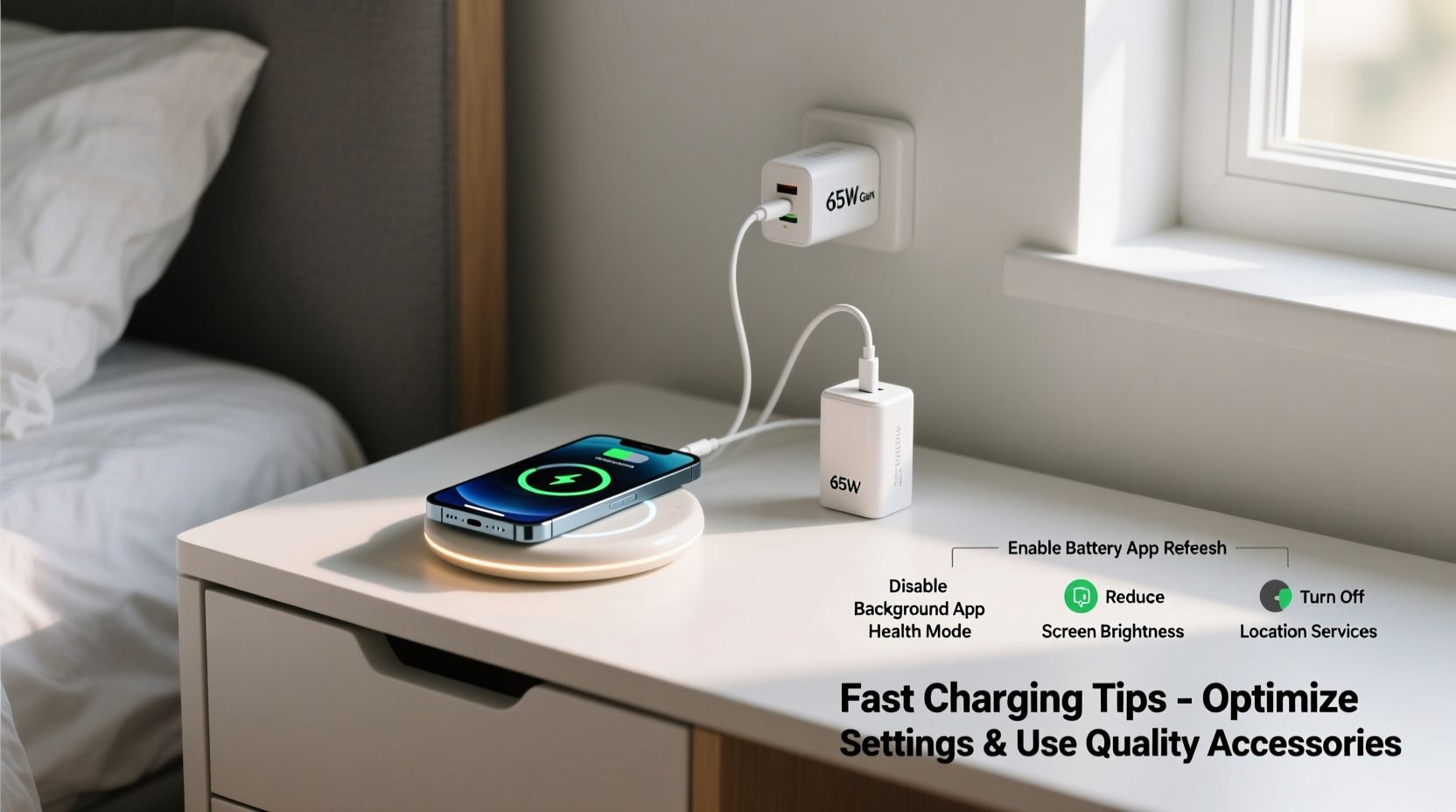
One of the fastest ways to accelerate charging is to minimize energy consumption while your phone is plugged in. Even when idle, smartphones constantly communicate with networks, refresh apps, and process notifications—all of which draw power and slow down the net charge gain.
Switching to Airplane Mode disables cellular, Wi-Fi, Bluetooth, and GPS connections, drastically reducing background activity. This allows the battery to absorb power more efficiently without competing demands.
A test conducted with an iPhone 14 showed a 35% improvement in charging speed when using Airplane Mode compared to normal usage. Android devices demonstrated similar gains, especially on older models where background app drain is more pronounced.
Use Dark Mode and Reduce Screen Activity
If turning off connectivity isn't practical, another impactful tweak is managing screen-related power draw. OLED and AMOLED displays—common in premium smartphones—consume less power when showing dark pixels. Enabling Dark Mode reduces overall energy use, freeing up more incoming power for charging.
Additionally, lowering screen brightness or setting a shorter auto-lock timer ensures the display doesn’t stay on unnecessarily. A screen left at full brightness can consume as much as 40% of total battery drain, even while charging.
“Reducing display load during charging can improve effective charge rates by up to 15%, especially on high-resolution OLED panels.” — Dr. Lena Park, Mobile Power Systems Engineer
Close Background Apps and Disable Unnecessary Services
Modern phones run numerous apps in the background—social media refreshers, location trackers, cloud sync services—that continuously consume power. These processes create what engineers call “parasitic drain,” where incoming charge is partially offset by outgoing usage.
To minimize this effect:
- Force-close unused apps from the recent apps menu.
- Disable background app refresh in settings (iOS: Settings > General > Background App Refresh; Android: Settings > Apps > Special Access > Background Restrictions).
- Turn off location services for non-essential apps.
- Suspend automatic backups during charging sessions if not required.
On Android, using Battery Optimization settings to restrict aggressive app behavior can further reduce interference. iOS users benefit from Low Power Mode, which automatically limits background activity and visual effects.
Choose the Right Charger and Cable
No software tweak can compensate for substandard hardware. The charger and cable you use directly determine the maximum possible charging speed. Many people still rely on outdated or third-party accessories that fail to deliver advertised power levels.
Fast charging requires three components working in harmony:
- A compatible power adapter (charger block)
- A certified high-speed cable
- Support from the phone’s internal charging circuitry
For example, USB Power Delivery (USB-PD) and Qualcomm Quick Charge are two dominant fast-charging standards. Using a charger that supports your phone’s specific protocol ensures optimal performance.
| Phone Type | Recommended Charger Standard | Minimum Wattage | Cable Type |
|---|---|---|---|
| iPhone 12–15 | USB-PD | 20W | USB-C to Lightning (MFi-certified) |
| Samsung Galaxy S23/S24 | USB-PD PPS | 25W | USB-C to USB-C (5A-rated) |
| Google Pixel 7/8 | USB-PD | 21W | USB-C to USB-C (with E-Marker chip) |
| OnePlus 11 | SuperVOOC / USB-PD | 80W (proprietary), 20W (standard) | OEM USB-C cable |
Using a generic cable without proper certification often results in fallback to 5W or 7.5W charging—even when connected to a 30W adapter. Always look for official certifications like MFi (for Apple) or USB-IF compliance.
Charge from a Wall Outlet, Not a Computer or Power Bank
While convenient, charging via laptop USB ports or low-output power banks often limits current to 5V/0.5A or 5V/0.9A—far below the 3A+ capacity needed for fast charging. Wall outlets with dedicated adapters provide stable, high-current delivery.
USB-A ports, especially on older computers, typically max out at 12W. In contrast, modern wall chargers offer 20W, 30W, or higher through USB-C. The difference is stark: an iPhone charged from a computer may take over four hours, while a 20W wall adapter achieves 50% in just 30 minutes.
If you must use alternative sources, ensure they support sufficient output:
- Look for USB-C ports labeled “charging” or “power delivery” on laptops.
- Use power banks rated at least 18W with pass-through charging capability.
- Avoid daisy-chained hubs or extension cords with voltage drop issues.
Step-by-Step Guide to Optimize Your Charging Routine
Follow this sequence before plugging in your phone for the fastest possible charge:
- Power Down or Enable Airplane Mode: Shutting down completely eliminates all power draw. If that’s not feasible, activate Airplane Mode and manually re-enable Wi-Fi if needed.
- Turn On Dark Mode: Especially effective on OLED screens, this reduces system-wide power consumption.
- Lower Screen Brightness: Set to 50% or lower. Disable auto-brightness temporarily.
- Close Background Apps: Swipe away all running apps from the multitasking view.
- Plug Into a High-Wattage Wall Charger: Use a known-good adapter and cable that match your phone’s fast-charging standard.
- Keep the Phone Cool: Remove thick cases and avoid direct sunlight or hot surfaces.
- Wait 15–30 Minutes Before Use: Let the battery reach at least 30–40% before resuming heavy tasks.
This routine can turn a sluggish 2-hour charge into a 45-minute session, depending on battery size and starting level.
Real-World Example: The Morning Rush Fix
Jamal, a sales executive in Chicago, frequently found himself leaving home with a half-charged phone. His morning routine included checking emails, navigating traffic, and joining virtual calls—all while his device crawled from 20% to 50% over 90 minutes.
After implementing the above steps—switching to a 20W USB-PD charger, using Airplane Mode during charging, and closing social media apps—he achieved 50% in under 25 minutes. By pairing these changes with a nightly habit of charging before bed, he eliminated battery anxiety entirely.
“I used to carry a power bank everywhere,” Jamal said. “Now I plug in during my shower, and it’s ready by the time I’m dressed.”
Avoid Common Charging Myths
Despite widespread advice, some popular tips are either ineffective or harmful:
- Myth: Turning the phone off charges it twice as fast.
Reality: While beneficial, shutdown only improves speed by 20–35%. It won’t double it unless the phone was under extreme load. - Myth: Third-party fast chargers are always safe.
Reality: Cheap knockoffs may lack proper voltage regulation, risking battery degradation or overheating. - Myth: Charging overnight damages the battery.
Reality: Modern phones stop charging at 100%. However, keeping them at 100% for hours can stress lithium-ion cells. Use scheduled charging when possible.
Battery longevity matters too. Frequent fast charging generates heat, which accelerates wear over time. For long-term health, consider using standard charging overnight and reserving fast charging for emergencies.
Essential Accessories for Faster Charging
Investing in the right gear makes a measurable difference. Here are the top-performing accessories by category:
| Accessory | Why It Helps | Top Pick Examples |
|---|---|---|
| 20W+ USB-C Wall Adapter | Enables PD fast charging for iPhones and Androids | Anker Nano II 20W, Apple 20W USB-C Charger |
| USB-C to USB-C Cable (5A Rated) | Supports up to 100W delivery with proper E-Marker chips | UGREEN Nylon Braided 5A Cable, Belkin Boost Charge |
| Magnetic Fast Charging Pad (for iPhone 12+) | Convenient wireless option with 15W MagSafe compatibility | Apple MagSafe Charger, PITAKA Wireless Charger |
| GaN (Gallium Nitride) Charger | Smaller, cooler, and more efficient than traditional silicon chargers | Anker 65W GaN Charger, Spigen ArcStation |
GaN technology, in particular, has revolutionized portable charging. These compact adapters deliver high wattage with minimal heat, making them ideal for travel or multi-device households.
Checklist: How to Charge Your Phone Faster – At a Glance
Print or save this checklist for quick reference:
- ✅ Use a wall outlet with a high-wattage adapter (20W minimum)
- ✅ Plug in with a certified fast-charging cable
- ✅ Enable Airplane Mode or turn off the phone
- ✅ Activate Dark Mode and lower screen brightness
- ✅ Close all background apps and disable unnecessary services
- ✅ Remove thick cases to prevent overheating
- ✅ Avoid using the phone while charging
- ✅ Keep the device in a cool, shaded area
Frequently Asked Questions
Does wireless charging slow down my phone's battery life?
Wireless charging generates more heat than wired options, which can accelerate battery aging over time. However, modern phones include thermal management systems that mitigate this risk. For best results, use Qi2 or MagSafe-compatible chargers and avoid prolonged wireless charging sessions.
Can I use any USB-C charger with my phone?
Technically yes, but not all deliver fast charging. To get optimal speeds, use a charger that supports your phone’s specific protocol (e.g., USB-PD for iPhones, PPS for Samsung). Generic chargers may default to 5W or 7.5W, defeating the purpose.
Is it safe to leave my phone charging after 100%?
Yes, modern smartphones cut off charging once the battery reaches full capacity. However, staying at 100% for extended periods causes minor stress due to voltage fluctuations. For better longevity, enable features like “Optimized Battery Charging” (iOS) or “Adaptive Charging” (Android) to delay full charge until just before you wake up.
Maximize Every Charge Cycle
Charging speed isn’t just about convenience—it affects productivity, safety, and peace of mind. By combining intelligent settings adjustments with reliable hardware, you reclaim control over your device’s power cycle. These strategies work across brands and models, offering immediate improvements without cost-prohibitive upgrades.
Start tonight: swap out old cables, test Airplane Mode charging, and invest in one high-quality adapter. Small changes compound into significant time savings over weeks and months. Your phone doesn’t have to be a prisoner of the outlet.




 浙公网安备
33010002000092号
浙公网安备
33010002000092号 浙B2-20120091-4
Comments
No comments yet. Why don't you start the discussion?