
Auto clickers have evolved from niche tools into essential utilities for gamers, automation enthusiasts, and professionals managing repetitive tasks on mobile devices. Whether you're automating taps in a game, streamlining form submissions, or reducing strain from constant screen interaction, a well-chosen auto clicker can save time and improve efficiency. However, selecting the right one—and configuring it properly—requires careful consideration of security, functionality, and compatibility. This guide walks through everything you need to know to make an informed decision and set up your auto clicker effectively.
Understanding Auto Clickers: What They Are and How They Work
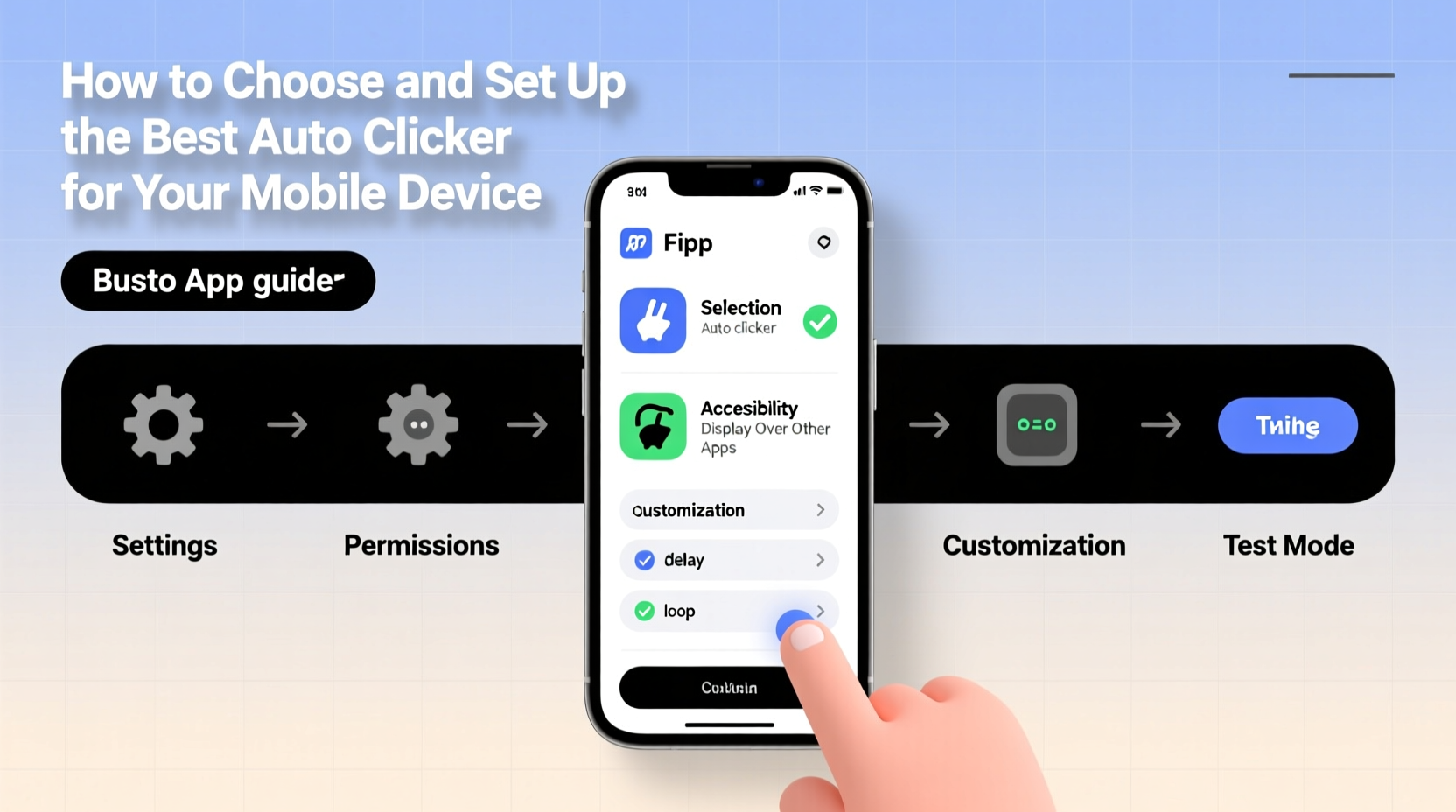
An auto clicker is a software application that simulates repeated touch inputs on your mobile screen at predefined intervals. It works by leveraging accessibility services or overlay permissions on Android, or through limited automation features on iOS (such as Shortcuts). These tools allow users to automate taps, swipes, long presses, and even gestures without manually interacting with the screen.
On Android, most auto clickers use the system’s Accessibility API to detect screen coordinates and simulate input events. This method doesn’t require root access but does demand user permission due to its powerful capabilities. On iOS, automation is more restricted; apps like Shortcuts can simulate actions within specific contexts, but true background tapping isn't supported due to Apple's strict security model.
“Automation tools are only as effective as their integration with the operating system allows. Understanding platform limitations is key.” — Rajiv Mehta, Mobile Automation Developer
Choosing the Right Auto Clicker: Key Factors to Consider
Not all auto clickers are created equal. Some prioritize ease of use, while others offer granular control over timing, location, and gesture types. To ensure you select a reliable and safe option, evaluate each candidate based on the following criteria:
- Compatibility: Ensure the app supports your device’s OS version and architecture.
- Permissions Required: Be cautious if an app requests unnecessary permissions like SMS access or contacts.
- User Interface: A clean, intuitive interface reduces setup errors and improves usability.
- Customization Options: Look for adjustable click intervals, multi-point clicking, and gesture recording.
- Security & Privacy: Check reviews and developer reputation. Avoid apps with excessive ads or hidden data collection.
- Update Frequency: Regular updates indicate active maintenance and responsiveness to bugs or security flaws.
Top Auto Clicker Apps Compared
| App Name | Platform | Key Features | Free/Paid | Security Rating |
|---|---|---|---|---|
| Auto.js Pro | Android | Scriptable automation, JavaScript support, gesture recording | Paid | ★★★★☆ |
| Touch Assistant | Android | One-tap macro creation, floating control panel, delay settings | Free (with ads) | ★★★☆☆ |
| Auto Clicker – Automatic Tap | Android | Scheduled clicks, multiple points, pause/resume function | Free | ★★★☆☆ |
| Shortcuts (Apple) | iOS | App-specific automation, voice triggers, limited tap simulation | Free | ★★★★★ |
| Automate | Android | Flow-based logic, extensive integrations, advanced conditions | Free + Pro upgrade | ★★★★☆ |
While Auto.js Pro offers the most flexibility for developers, casual users may prefer Touch Assistant for its simplicity. For iOS users, Shortcuts remains the safest and most integrated solution despite its functional limits.
Step-by-Step Setup Guide for Android Devices
Setting up an auto clicker on Android involves enabling permissions and defining your automation parameters. Follow these steps carefully to avoid misconfiguration:
- Download the App: Install your chosen auto clicker from the Google Play Store or a verified source.
- Enable Accessibility Service: Go to Settings > Accessibility > Installed Services, and toggle on the auto clicker app.
- Grant Overlay Permission: Allow the app to draw over other apps via Settings > Apps > [App Name] > Draw Over Other Apps.
- Set Click Coordinates: Open the app, position the target area on-screen, and place the cursor where taps should occur.
- Adjust Timing: Configure interval (e.g., every 500ms), duration, and number of repetitions.
- Start Automation: Activate the service using the floating button or widget. Monitor performance closely during initial runs.
- Test Safely: Run a short test session first to confirm accuracy before leaving it unattended.
Real-World Example: Automating Daily Game Tasks
Lena, a mobile gamer, plays a resource-gathering game requiring her to tap a mine every 30 seconds to collect crystals. Manually doing this for two hours daily became tedious. She downloaded “Auto Clicker – Automatic Tap” and configured it to simulate a tap every 28 seconds on the mine icon. After testing for five minutes without crashes or incorrect inputs, she enabled it during her work breaks. Within a week, her in-game resources increased by 40%, and she reported reduced hand fatigue. Importantly, she ensured the app wasn’t banned by checking the game’s terms of service—many games prohibit automation, so discretion was critical.
Essential Checklist Before You Begin
Before activating any auto clicker, verify the following:
- ✅ Your device meets the app’s OS requirements
- ✅ The app has been downloaded from a trusted source
- ✅ Accessibility and overlay permissions are granted
- ✅ No sensitive actions (like banking) will be triggered accidentally
- ✅ You’ve tested the tool in a controlled environment
- ✅ You’re not violating any app or service’s terms of use
Frequently Asked Questions
Can auto clickers damage my phone?
No, auto clickers do not physically harm your device. They simulate digital input rather than mechanical stress. However, prolonged screen-on usage may generate heat or accelerate battery wear if used excessively.
Are auto clickers allowed in mobile games?
It depends on the game. Many competitive or online multiplayer games explicitly ban automation tools and may suspend accounts detected using them. Always review the game’s policy before use.
Why won’t my auto clicker work on certain apps?
Some apps, especially banking or secure platforms, block external input methods for security reasons. Additionally, full-screen games or apps with anti-cheat systems may disable overlay interactions, preventing auto clickers from functioning.
Final Thoughts and Responsible Use
Auto clickers are powerful tools when used responsibly. From simplifying mundane tasks to enhancing gaming efficiency, they offer tangible benefits—but only if configured correctly and ethically. Prioritize safety by downloading reputable apps, respecting platform rules, and avoiding automation in contexts where it could compromise fairness or security.
The key to success lies not just in choosing the right tool, but in understanding its limitations and applying it thoughtfully. As mobile automation continues to evolve, staying informed ensures you remain in control—not the other way around.




 浙公网安备
33010002000092号
浙公网安备
33010002000092号 浙B2-20120091-4
Comments
No comments yet. Why don't you start the discussion?