
In today’s digital world, most people spend hours each day staring at screens—on computers, smartphones, tablets, and televisions. While these devices are essential for work, learning, and entertainment, prolonged exposure often leads to discomfort, including headaches, blurred vision, dry eyes, and mental fatigue. A major but frequently overlooked contributor to these symptoms is improper screen brightness.
Brightness that's too high or too low forces your eyes to strain, disrupting natural visual processing and increasing tension in the muscles around the eyes and forehead. Over time, this can trigger chronic discomfort and even disrupt sleep patterns due to excessive blue light exposure. The good news? With a few intentional adjustments, you can significantly reduce eye strain and prevent headaches by simply optimizing your screen’s brightness for your environment and personal comfort.
Understanding Screen Brightness and Eye Strain
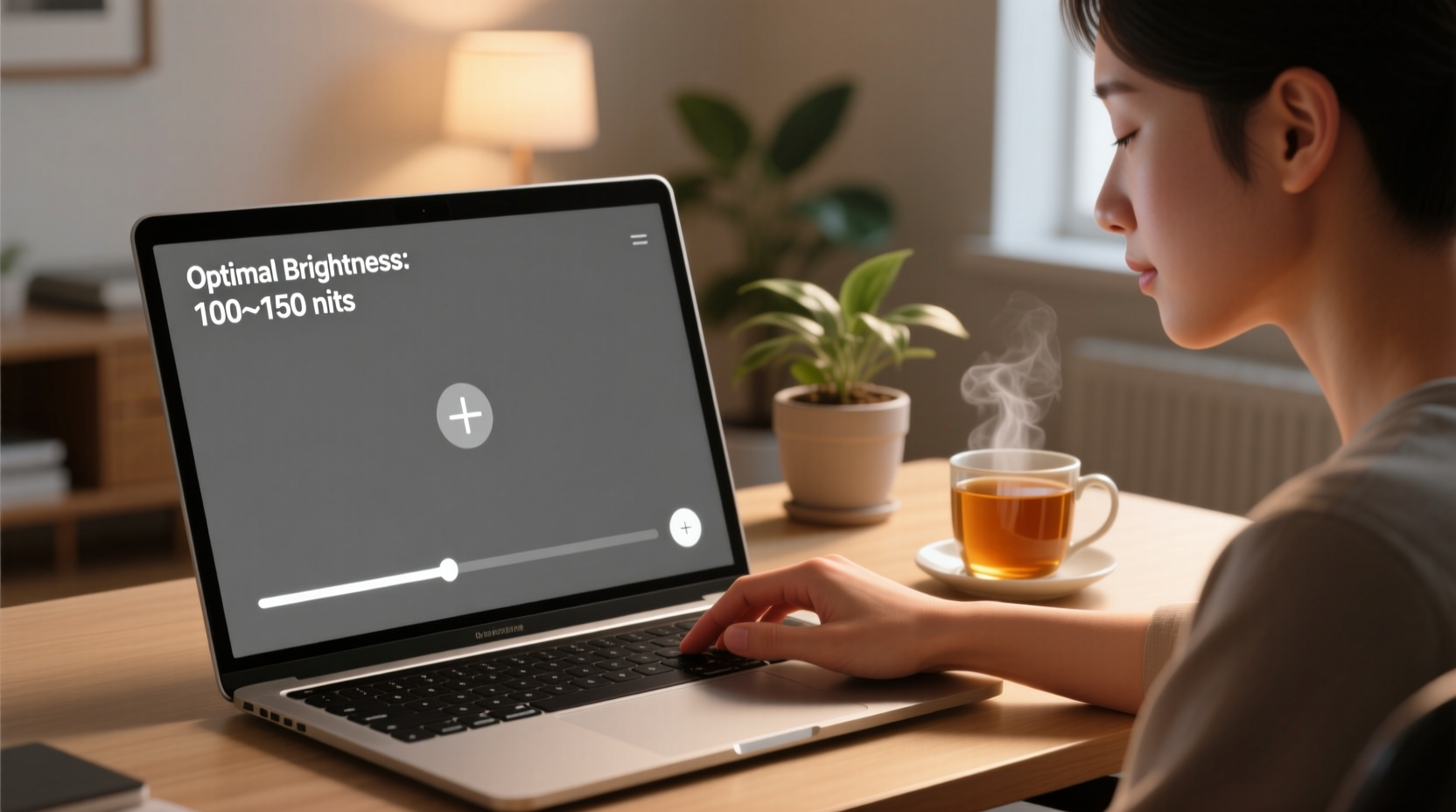
Screen brightness refers to the intensity of light emitted from a display. Measured in nits (candelas per square meter), typical screens range from 200 to 500 nits, though high-end monitors may exceed 1,000. However, peak capability doesn’t mean maximum brightness is best. In fact, using a screen at full brightness indoors is like turning on car headlights inside a garage—unnecessarily harsh and counterproductive.
Your eyes function best when ambient lighting and screen output are balanced. When your screen is much brighter than the room, it creates glare and contrast stress. Conversely, if the screen is dimmer than surrounding light, your pupils dilate to compensate, causing strain as they struggle to process both bright surroundings and a dark screen.
The American Optometric Association notes that digital eye strain affects nearly 60% of screen users, with improper brightness cited as a primary factor. Symptoms include:
- Headaches, especially behind the eyes or temples
- Dry or watery eyes
- Blurred or double vision
- Neck and shoulder pain from poor posture while squinting
- Difficulty concentrating
These issues aren’t just uncomfortable—they can impair productivity and long-term ocular health. Adjusting brightness isn’t a luxury; it’s a necessity for sustainable screen use.
How to Calibrate Screen Brightness for Comfort
Choosing the right brightness isn’t about a fixed number—it’s about context. Follow this step-by-step calibration method to find your ideal setting.
- Assess your environment: Measure the ambient light. Is the room brightly lit, dimly lit, or dark? Use a simple test: hold your hand up. If you cast a sharp shadow, the light is strong. If no shadow appears, the room is low-light.
- Start with auto-brightness off: While convenient, automatic settings often overcompensate. Manually control brightness for more consistent results.
- Adjust to match paper reflectivity: Place a blank white sheet of paper next to your screen. Dim or brighten your display until its white background closely matches the paper under the same light. This mimics natural reading conditions.
- Test readability without strain: Read a paragraph of text. If you feel yourself squinting or leaning forward, the brightness is likely too low. If the screen feels “glaring” or causes afterimages, it’s too high.
- Check during transitions: Re-evaluate brightness when daylight changes or you move locations (e.g., from office to home).
This method leverages the principle of luminance matching—aligning screen output with real-world visual references. It’s used by professional designers and ophthalmologists to minimize visual fatigue.
Night vs. Day Settings
Daylight demands higher screen output to remain visible, but indoor lighting rarely requires more than 30–50% brightness. At night, aim for 20–40%, especially if using dark mode. Excessive brightness in low-light environments suppresses melatonin production, worsening both eye strain and sleep quality.
“Your screen shouldn’t be a flashlight in a dark room. Matching brightness to ambient light reduces pupil stress and prevents neural overstimulation.” — Dr. Lena Torres, Neuro-Ophthalmologist, Boston Vision Institute
Optimal Brightness by Environment
The ideal brightness level varies significantly depending on your surroundings. The table below outlines recommended settings based on common scenarios.
| Environment | Ambient Light Level | Recommended Brightness | Additional Tips |
|---|---|---|---|
| Office with overhead lighting | Moderate to bright | 50–70% | Use indirect lighting; avoid glare on screen |
| Home during daytime | Natural daylight | 40–60% | Position screen perpendicular to windows |
| Dim evening room | Low (lamp only) | 20–40% | Enable warm color temperature or night mode |
| Dark bedroom at night | Near darkness | 10–25% | Avoid bright screens 1 hour before bed |
| Outdoor (shaded area) | Very bright | 80–100% | Use anti-glare screen protector; seek shade |
Note that individual sensitivity varies. Some people are more prone to photophobia (light sensitivity) and may need lower settings regardless of environment.
Device-Specific Adjustments
Different devices offer varying levels of brightness control. Here’s how to optimize each:
Laptops
Most laptops have function keys (e.g., F2/F3 or Fn + arrow keys) to adjust brightness. For finer control, access display settings in your operating system. On Windows, go to Settings > System > Display. On macOS, use System Settings > Displays. Disable auto-brightness initially to manually calibrate, then re-enable it once you’ve established a baseline.
Smartphones and Tablets
Mobile devices often default to aggressive auto-brightness. While useful, they can fluctuate rapidly. To stabilize settings:
- Turn off auto-brightness temporarily to set a manual level.
- Use adaptive brightness features like iOS’s “True Tone” or Android’s “Adaptive Display,” which adjust color and brightness based on surroundings.
- Activate dark mode in low light—it reduces overall luminance and improves contrast.
Desktop Monitors
External monitors usually have physical buttons or on-screen menus (OSD) for brightness and contrast. Aim for a brightness value between 100–150 cd/m² in typical office lighting. Many professional-grade monitors allow preset profiles (e.g., sRGB, Reading, Low Blue Light) that automatically adjust brightness and color temperature.
Real-World Example: Sarah’s Remote Work Transformation
Sarah, a 34-year-old content writer, worked remotely from her home office. She began experiencing daily afternoon headaches and frequent eye dryness. Initially, she blamed dehydration or stress. After consulting an optometrist, she discovered her laptop brightness was set to 90% in a softly lit room with only a desk lamp.
Following a simple adjustment protocol—lowering brightness to 45%, switching to dark mode at night, and adding a bias light behind her monitor—her symptoms decreased within three days. Within a week, her headaches disappeared entirely. Her productivity improved because she no longer needed frequent breaks to rest her eyes.
Sarah’s case highlights how small environmental tweaks can yield dramatic improvements in comfort and well-being.
Comprehensive Checklist for Reducing Eye Fatigue
Use this checklist daily or weekly to maintain optimal screen settings and eye health:
- ✅ Calibrate screen brightness to match ambient light using the white paper test
- ✅ Turn off auto-brightness to gain manual control during initial setup
- ✅ Lower brightness in evenings; use night mode or blue light filters
- ✅ Position screen to avoid reflections from windows or lights
- ✅ Add ambient background lighting (e.g., a soft LED behind the monitor)
- ✅ Take regular breaks using the 20-20-20 rule: every 20 minutes, look at something 20 feet away for 20 seconds
- ✅ Clean your screen weekly—dust and smudges increase glare and perceived brightness
- ✅ Update device firmware to ensure accurate sensor performance (for auto-brightness)
Frequently Asked Questions
Can low brightness also cause eye strain?
Yes. If your screen is too dim relative to the room, your eyes work harder to interpret details, leading to fatigue. In bright environments, insufficient brightness forces constant pupil dilation, which contributes to muscle strain and headaches.
Is dark mode better for reducing eye fatigue?
Dark mode can help in low-light settings by reducing overall screen luminance and minimizing blue light emission. However, in bright rooms, light-on-dark text may cause halation (blurring around letters) for some users, especially those with astigmatism. Use dark mode strategically—preferably at night—and ensure sufficient contrast to maintain readability.
How do I know if my brightness is correct?
You’ll know your brightness is correct when:
- The screen feels comfortable after 15–20 minutes of reading
- You’re not squinting or leaning closer
- The screen doesn’t leave afterimages when you look away
- Your eyes feel rested, not tired or dry, at the end of a session
If any of these signs are present, recalibrate your settings.
Final Thoughts: Small Changes, Lasting Relief
Headaches and eye fatigue from screens aren’t inevitable—they’re often preventable with thoughtful adjustments. By tuning your screen brightness to match your environment, you align technology with human biology rather than fighting against it. This small act of mindfulness can dramatically improve comfort, focus, and long-term visual health.
Start today. Take two minutes to reassess your current brightness. Compare your screen to a white sheet of paper. Make one adjustment. That single step could be the beginning of clearer vision, fewer headaches, and more enjoyable screen time.




 浙公网安备
33010002000092号
浙公网安备
33010002000092号 浙B2-20120091-4
Comments
No comments yet. Why don't you start the discussion?