
A clean keyboard is more than just a matter of appearance—it directly affects performance, hygiene, and longevity. Over time, dust, crumbs, skin cells, and oils accumulate between and under the keys, creating a breeding ground for bacteria and potentially interfering with keystroke responsiveness. While many guides suggest removing keys for deep cleaning, doing so risks damaging delicate mechanisms or misplacing small parts—especially on laptops or compact keyboards. Fortunately, it’s entirely possible to maintain a spotless keyboard without ever prying off a single key.
This guide outlines safe, proven techniques to thoroughly clean your keyboard while preserving its structural integrity. Whether you're using a mechanical, membrane, or laptop-style keyboard, these steps will help eliminate grime, reduce germ buildup, and extend your device’s functional life—all without disassembly.
Why Avoid Removing Keys?
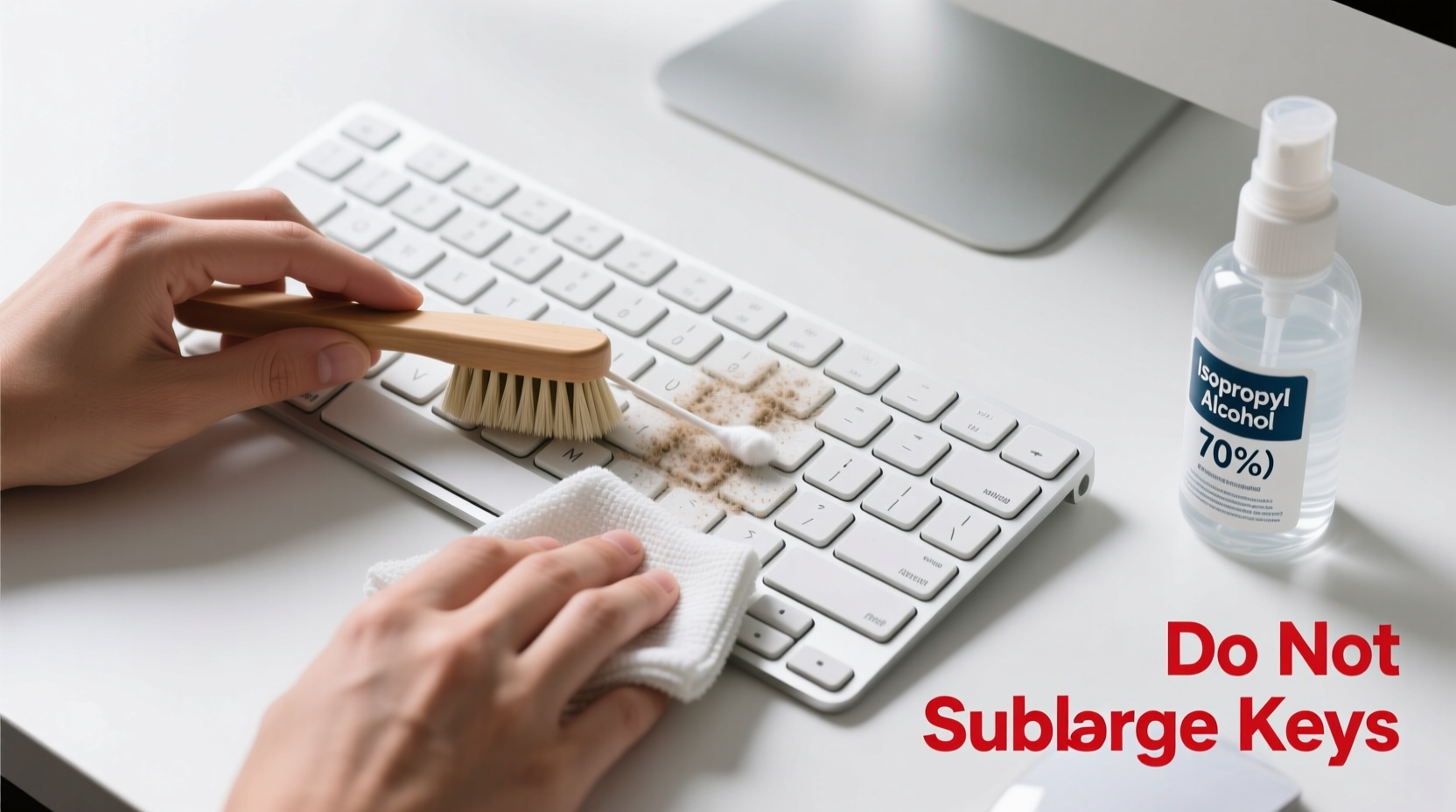
While some enthusiasts advocate for full keycap removal during cleaning, this approach isn’t always advisable. Key switches—especially on mechanical keyboards—are sensitive to debris and moisture, but they’re also vulnerable to improper reattachment. On laptops and low-profile keyboards, keys are often secured by fragile scissor-switch mechanisms that can snap if removed incorrectly.
Additionally, once keys are taken off, replacing them in the correct order becomes a challenge. Missing even one alignment clip or twisting a stabilizer bar can result in wobbly or unresponsive keys. For most users, especially those without technical experience or spare replacement parts, avoiding disassembly is not only safer—it's smarter.
“Most consumer keyboards don’t require key removal for effective cleaning. A well-executed surface and interstitial cleaning regimen can achieve 90% of the benefits with zero risk.” — Dr. Alan Reyes, Electronics Maintenance Specialist at TechCare Labs
Essential Tools for Non-Invasive Cleaning
Cleaning a keyboard without removing the keys relies on precision tools designed to reach tight spaces safely. Here’s what you’ll need:
- Compressed air canister: Blows out dust and debris from between keys.
- Microfiber cloth: Soft, lint-free material ideal for wiping surfaces without scratching.
- Isopropyl alcohol (70% concentration): Effective at disinfecting without damaging plastic components.
- Cotton swabs (Q-tips): Useful for targeted cleaning around stubborn spots.
- Soft-bristled brush: A clean makeup or artist’s brush works well for sweeping particles away.
- Vacuum with narrow nozzle attachment: Optional, for gentle suction after loosening debris.
Step-by-Step Cleaning Process
Follow this detailed sequence to clean your keyboard thoroughly and safely without removing any keys.
- Power down and disconnect: Turn off your computer and unplug the keyboard. For wireless models, remove batteries or disable Bluetooth. This prevents accidental input and protects circuits from static discharge.
- Shake out loose debris: Hold the keyboard upside down over a trash can and gently shake it. Gravity helps dislodge larger particles like crumbs or hair.
- Use compressed air: Tilt the keyboard at a 45-degree angle and spray short bursts between rows of keys. Move systematically across the layout, starting from the top left. Keep the can upright to avoid propellant leakage, which can leave residue.
- Brush away residual dust: With a soft-bristled brush, lightly sweep across the keybed in one direction. This removes fine particles stirred up by the air.
- Dampen microfiber cloth with isopropyl alcohol: Moisten the cloth slightly—never soak it. Wipe each key’s surface and sides, applying minimal pressure. Focus on high-contact areas like spacebar, Enter, and letter keys frequently used in typing.
- Target crevices with cotton swabs: Dip a swab in alcohol and carefully run it along edges where grime accumulates. Rotate the swab as it gets dirty to avoid redepositing grime.
- Vacuum gently (optional): If available, use a vacuum with a brush attachment to pull out loosened particles. Do not press hard—use light contact only.
- Let dry completely: Allow at least 10–15 minutes for all moisture to evaporate before reconnecting or powering on.
This process typically takes 20–30 minutes and should be performed every 4–6 weeks for regular users. Heavy typists or those who eat near their desks may benefit from monthly cleanings.
Do’s and Don’ts of Keyboard Hygiene
| Do | Don't |
|---|---|
| Use 70% isopropyl alcohol for disinfection | Use water or liquid cleaners directly on the keyboard |
| Hold compressed air can upright when spraying | Invert the can, which can release freezing liquid |
| Clean in a well-lit area to spot hidden dirt | Use metal tools or sharp objects to scrape under keys |
| Wipe keys with a slightly damp microfiber cloth | Saturate the cloth or pour liquid onto the keyboard |
| Store keyboard covered when not in use for long periods | Leave it exposed to pets, food, or humid environments |
Real-World Example: Office Worker Reduces Illness Frequency
Sarah M., a project manager in Chicago, noticed she caught colds more frequently than her colleagues despite good hand hygiene. After reading about bacterial buildup on shared office equipment, she decided to audit her workspace. Using a UV inspection lamp, she discovered significant microbial growth on her keyboard—particularly around the arrow keys and function row.
She began a biweekly cleaning routine using compressed air, alcohol wipes, and a small brush. Within three months, she reported fewer instances of illness and improved typing comfort due to smoother key response. Her team later adopted similar practices, leading to a noticeable drop in sick days across the department.
This case illustrates how simple maintenance can yield measurable health and productivity benefits—even without dismantling hardware.
Alternative Methods and Their Risks
Some online tutorials recommend unconventional approaches such as using masking tape, Play-Doh, or sticky lint rollers to lift debris. While these may offer limited success in picking up surface dust, they carry notable drawbacks:
- Tape: Can leave adhesive residue or pull up keycap labels over time.
- Play-Doh or modeling clay: May push debris deeper into switches or degrade into oily compounds.
- Lint rollers: Less effective on greasy film and ineffective for disinfection.
These methods lack scientific validation and aren’t recommended by manufacturers. Stick to controlled tools like compressed air and alcohol-based cleaning for reliable results.
Preventative Habits for Long-Term Cleanliness
The best way to minimize cleaning frequency is to reduce contamination at the source. Incorporating a few daily habits can dramatically extend the time between deep cleanings:
- Wash hands before typing: Oils and bacteria from fingers are primary contributors to grime buildup.
- Avoid eating at the desk: Crumbs accelerate debris accumulation and attract pests.
- Use a keyboard tray or cover: Physical barriers limit exposure to airborne particles.
- Keep drinks away: Spills are a leading cause of keyboard failure.
- Run weekly air blasts: A 30-second burst of compressed air once a week prevents compaction of dust layers.
“Hygiene starts before the first symptom appears. Regular preventive care keeps devices running smoothly and reduces cross-contamination in shared environments.” — Dr. Lena Patel, Occupational Health Consultant
Frequently Asked Questions
Can I use hand sanitizer to clean my keyboard?
No. Hand sanitizers often contain additives like glycerin or fragrances that can leave sticky residues on keys. Stick to pure isopropyl alcohol diluted to 70% for optimal cleaning and evaporation.
How often should I clean my keyboard?
For average use, a thorough cleaning every 4–6 weeks is sufficient. High-use environments (gaming, call centers, classrooms) should aim for every 2–3 weeks. Light users may extend to every two months.
Is it safe to use a vacuum on my keyboard?
Yes, but only with caution. Use a vacuum equipped with a HEPA filter and a narrow brush attachment. Apply minimal suction and avoid pressing down on the keys. Never use industrial vacuums or shop vacs, as their strong airflow can damage internal components.
Final Checklist: Safe Keyboard Cleaning Without Key Removal
Before you begin your next cleaning session, refer to this concise checklist:
- ✅ Power off and disconnect the keyboard
- ✅ Shake out loose debris over a trash can
- ✅ Use compressed air at a 45° angle (short bursts)
- ✅ Brush between keys with a soft-bristled tool
- ✅ Dampen microfiber cloth with 70% isopropyl alcohol
- ✅ Wipe key surfaces and sides gently
- ✅ Clean crevices with alcohol-dipped cotton swabs
- ✅ Optional: Vacuum lightly with brush nozzle
- ✅ Allow 10–15 minutes drying time
- ✅ Reconnect and test functionality
Conclusion: Maintain Performance and Hygiene with Minimal Risk
Cleaning your computer keyboard doesn’t require technical expertise or risky disassembly. With the right tools and consistent technique, you can maintain a hygienic, responsive, and visually appealing keyboard using only non-invasive methods. The process preserves warranty conditions, avoids mechanical damage, and supports both personal health and device longevity.




 浙公网安备
33010002000092号
浙公网安备
33010002000092号 浙B2-20120091-4
Comments
No comments yet. Why don't you start the discussion?