
Mechanical keyboards are prized for their tactile feedback, durability, and customizability. But over time, dust, crumbs, oils from fingertips, and environmental debris accumulate between the keys and under the keycaps. A dirty keyboard not only looks unprofessional but can also affect performance—leading to sticky keys, inconsistent actuation, or even long-term switch damage. The good news: cleaning your mechanical keyboard doesn’t require expensive tools or technical expertise. With the right approach, you can deep-clean it thoroughly while keeping every keycap intact and functional.
The key is using a methodical process that avoids common pitfalls—like forcing off keycaps, using harsh chemicals, or exposing switches to excess moisture. This guide walks through a complete, safe cleaning protocol trusted by enthusiasts and IT professionals alike, ensuring your keyboard stays responsive, hygienic, and built to last.
Why Regular Cleaning Matters
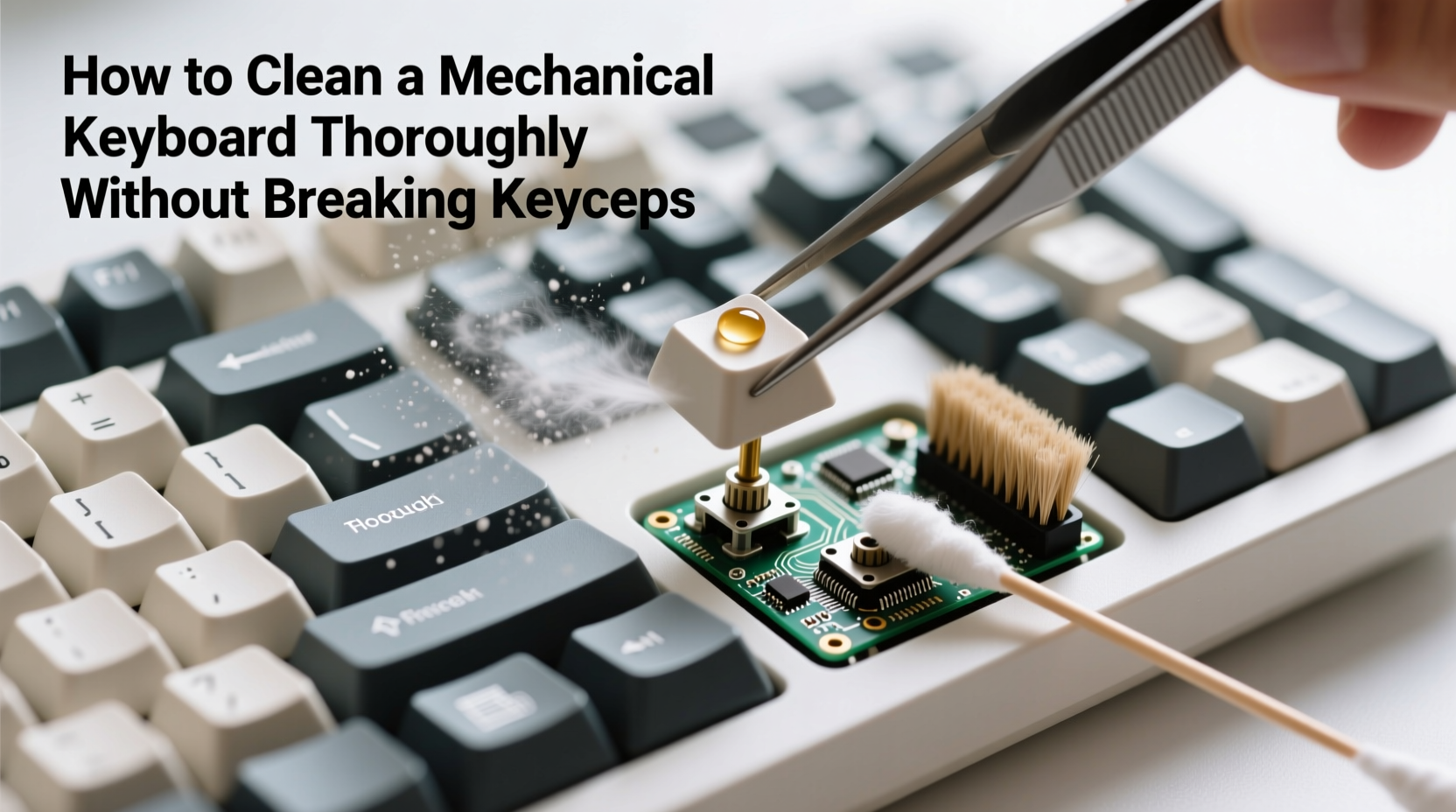
A mechanical keyboard isn't just a peripheral—it’s an investment. High-end models often cost hundreds of dollars, and even mid-range boards are expected to last five years or more. Yet many users neglect basic maintenance until problems arise. Dust and grime don’t just degrade aesthetics; they interfere with switch mechanics and can corrode internal components when combined with moisture from hand sweat.
According to Alex Rivera, senior technician at KeyMech Labs, “We see at least 30% of reported switch failures tied directly to poor hygiene. Most could have been avoided with routine cleaning.” Accumulated debris increases friction in linear switches, disrupts contact in tactile ones, and shortens the lifespan of stabilizers—especially on larger keys like spacebars and shift.
“Consistent cleaning prevents micro-abrasions and maintains consistent keystroke performance.” — Alex Rivera, Senior Keyboard Technician
Cleaning also improves typing comfort and hygiene. Studies show that keyboards can harbor more bacteria than a toilet seat. For anyone spending hours at a desk, removing this buildup supports both health and productivity.
Essential Tools and Supplies
Before starting, gather the right tools. Using improper items—like paper towels (which shed lint) or household cleaners (which may contain alcohol or ammonia)—can do more harm than good.
| Tool/Supply | Purpose | Recommended Options |
|---|---|---|
| Keycap Puller | Safely removes keycaps without scratching | Plastic or silicone-coated metal puller |
| Compressed Air | Dislodges dust and debris from switches and crevices | Canned air with thin nozzle attachment |
| Soft-Bristle Brush | Loosens particles around switches | Toothbrush (dedicated), paintbrush, or electronics brush |
| Isopropyl Alcohol (70–90%) | Sanitizes and dissolves oils without residue | Pharmaceutical-grade IPA in spray or wipe form |
| Lint-Free Cloths | Wipes down surfaces safely | Microfiber cloths (no paper towels) |
| Ziplock Bags or Small Containers | Stores keycaps during cleaning | Labeled bags to avoid mix-ups |
Step-by-Step Cleaning Process
Follow this timeline-based method to clean your keyboard completely and safely. Allow 45–90 minutes depending on size and level of grime. Work in a well-lit, dry area away from food or liquids.
- Power Down and Unplug
Disconnect the keyboard from your computer. If wireless, remove batteries or turn off power. Never clean a powered device. - Remove Keycaps with a Puller
Use a keycap puller to gently lift each keycap straight up. Start from the top row and work downward. Avoid twisting or prying. For larger keys (spacebar, Enter), use a wire-style puller if available, as these often have stabilizers that require even pressure. - Sort and Store Keycaps
Place removed keycaps into labeled containers or ziplock bags by row or zone (e.g., “ASDF row,” “numpad”). This helps during reassembly, especially on non-standard layouts. - Blow Out Debris with Compressed Air
Hold the can upright and spray short bursts into each switch housing at a 45-degree angle. Focus on areas under frequently used keys like WASD and spacebar. Tilt the keyboard slightly to let particles fall out. - Brush Away Residual Dust
Use a soft-bristle brush to sweep across the switch plate and PCB. Gently agitate any stubborn particles. Do not press hard—switch stems are delicate. - Clean Keycaps Separately
Soak keycaps in warm water with a drop of mild dish soap for 15–20 minutes. Use a soft brush to scrub tops and sides. Rinse thoroughly and lay flat on a towel to dry completely (minimum 4 hours). Do not submerge PBT or double-shot legends unless necessary—brief soaking is sufficient. - Spot-Clean Switch Area (Optional)
If visible oil or residue remains on the PCB, dampen a cotton swab with 70%+ isopropyl alcohol and lightly wipe around—but not directly on—the switch stem. Let it air dry fully before proceeding. - Reattach Keycaps Carefully
Once everything is dry, begin reinstalling keycaps. Press them straight down until they click. Test larger stabilizer-equipped keys by pressing both ends evenly. Misaligned caps can cause wobble or inconsistent feel. - Final Wipe and Inspection
Use a microfiber cloth slightly dampened with IPA to wipe the case exterior. Check alignment, test all keys with a tool like keyboardtester.com, and ensure no debris remains.
Common Mistakes to Avoid
Even experienced users make errors that compromise keyboard longevity. Here are the most frequent missteps—and how to prevent them.
- Using fingers to pry off keycaps: Fingernails can scratch ABS plastic or crack stems. Always use a proper puller.
- Skipping the drying phase: Reassembling wet keycaps leads to condensation inside switches. Wait until they’re bone-dry.
- Cleaning too aggressively: Scrubbing with abrasive pads or steel wool will scratch surfaces and wear legends.
- Ignoring stabilizers: These hidden mechanisms under large keys collect gunk and need brushing just like switches.
- Not labeling keycap layout: Without organization, reassembly becomes frustrating—especially with custom or ergonomic designs.
“Many people ruin perfectly good keyboards by rushing the drying step. Patience saves hardware.” — Jamie Lin, Mechanical Keyboard Enthusiast & Content Creator
Real Example: Recovering a Three-Year-Old Gaming Keyboard
Derek, a freelance developer and avid gamer, noticed his favorite mechanical board was becoming increasingly inconsistent. Certain keys would double-register, and the spacebar felt gritty. After three years of daily use—often while eating at his desk—he decided to clean it properly.
He followed the steps outlined above: unplugged the keyboard, removed all 104 keycaps using a plastic puller, stored them in labeled bags, and cleaned the base with compressed air and a soft brush. His keycaps were soaked in soapy water, brushed gently, rinsed, and left to dry overnight. When reassembled, the difference was immediate. All keys responded crisply, the spacebar stabilized smoothly, and the overall typing experience felt like new.
“I thought I’d need to replace it,” Derek said. “But after cleaning, it performs better than some newer models I’ve tried. I now clean it every six months.”
Do’s and Don’ts Summary Table
| Action | Do | Don’t |
|---|---|---|
| Removing Keycaps | Use a keycap puller; apply even pressure | Use fingers or tweezers; twist or jerk |
| Cleaning Solution | Isopropyl alcohol (70–90%), mild soap | Bleach, acetone, or multipurpose sprays |
| Drying Time | Allow 4+ hours for full evaporation | Reassemble damp parts |
| Brushing | Use soft bristles; light strokes | Press hard or use metal brushes |
| Storage During Cleaning | Label and separate keycaps | Leave them scattered on a table |
FAQ
Can I clean a mechanical keyboard without removing the keycaps?
Yes, but only for light maintenance. Use compressed air and a damp microfiber cloth for surface cleaning. However, a thorough clean requires removing keycaps to access the switches and PCB underneath.
How often should I deep-clean my mechanical keyboard?
Every 3–6 months for regular users. Heavy typists, gamers, or those who eat near their desk should aim for every 3 months. Visible debris or sticky keys are clear signals it’s time to clean.
Will alcohol damage my keycaps?
No, 70–90% isopropyl alcohol is safe on ABS and PBT plastics when used appropriately. Avoid prolonged soaking or mixing with other chemicals. It evaporates quickly and leaves no residue, making it ideal for electronics.
Checklist: Complete Keyboard Cleaning Routine
- ✅ Disconnect keyboard from power source
- ✅ Gather tools: puller, compressed air, brush, IPA, microfiber cloths
- ✅ Remove keycaps using a puller—start from top row
- ✅ Sort and store keycaps by layout zone
- ✅ Blow out debris from switches and crevices
- ✅ Brush around switches and stabilizers gently
- ✅ Soak keycaps in warm soapy water (15–20 min)
- ✅ Rinse and dry keycaps completely (4+ hours)
- ✅ Spot-clean PCB with IPA-dampened swab if needed
- ✅ Reinstall keycaps straight and firmly
- ✅ Wipe case and test all keys for responsiveness
Conclusion
Your mechanical keyboard is more than a tool—it’s a precision instrument shaped by your habits and care. Cleaning it thoroughly without breaking the keycaps isn’t complicated, but it demands attention to detail and respect for its mechanical nature. By following this method, you preserve not just appearance but function, responsiveness, and longevity.
Now that you know the right way to maintain your keyboard, commit to a regular schedule. Whether quarterly or biannually, consistent care keeps your device performing like new for years. Share your cleaning experience, favorite tools, or before-and-after results with others—because great gear deserves great stewardship.




 浙公网安备
33010002000092号
浙公网安备
33010002000092号 浙B2-20120091-4
Comments
No comments yet. Why don't you start the discussion?