
Your Mac is more than just a computer—it’s a daily companion for work, creativity, and communication. Over time, dust, oils, and debris accumulate on the screen, keyboard, and casing, affecting both performance and hygiene. Cleaning your Mac properly doesn’t require expensive products or complicated routines. With the right techniques, you can maintain a spotless device that looks and functions like new. This guide delivers practical, safe, and effective cleaning strategies tailored specifically for Apple hardware.
Why Regular Cleaning Matters
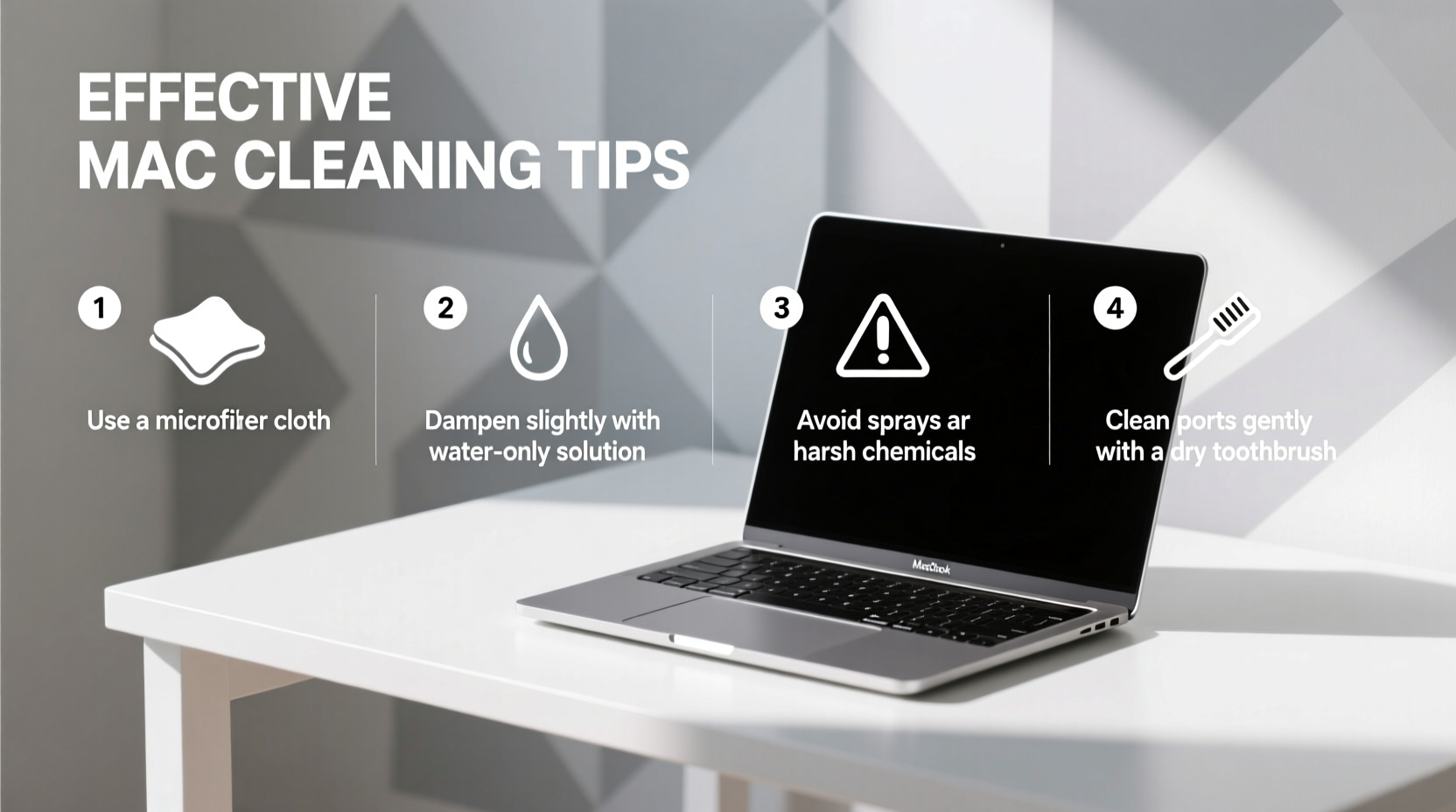
Dust, skin oils, and food particles settle into every crevice of your Mac. The keyboard collects crumbs and grime, the trackpad becomes sticky, and the screen gathers smudges that impair visibility. Beyond aesthetics, unclean devices can harbor bacteria and interfere with airflow, potentially leading to overheating. Apple recommends routine cleaning to preserve functionality and extend lifespan. However, using improper tools or cleaners can cause irreversible damage to sensitive surfaces like Retina displays or aluminum enclosures.
Essential Tools and Safe Materials
Before starting, gather the correct supplies. Using household cleaners like Windex or paper towels may seem convenient, but they’re harmful to Mac finishes. Instead, use materials designed for electronics or those approved by Apple.
| Item | Recommended Use | Avoid |
|---|---|---|
| Lint-free microfiber cloth | Screen, casing, trackpad | Paper towels, tissues, rough fabrics |
| Distilled water | Slightly dampening cloth | Tap water (minerals can leave residue) |
| 70% isopropyl alcohol | Disinfecting surfaces (diluted on cloth) | Direct spraying, full-strength application |
| Compressed air | Keyboard gaps, ports | Holding canister upside down or too close |
“Always power off your Mac before cleaning. Never spray liquid directly onto the device.” — Apple Support Guidelines, 2023
Step-by-Step Guide to Cleaning Your Mac
Cleaning your Mac should be methodical to avoid missing spots or causing damage. Follow this timeline for thorough, safe results.
- Shut down and unplug: Turn off your Mac and disconnect the power cable. If using a MacBook, ensure it’s not charging.
- Remove accessories: Detach any external drives, mice, or cases to access all surfaces.
- Clean the screen: Dampen a microfiber cloth with distilled water (never spray directly). Gently wipe the display in straight lines or small circles. For stubborn smudges, lightly moisten the cloth with 70% isopropyl alcohol.
- Clear the keyboard: Tilt the MacBook at a 75-degree angle and use short bursts of compressed air between keys. Avoid shaking or tilting excessively to prevent debris from moving deeper.
- Wipe keycaps and palm rests: Lightly dampen a corner of the microfiber cloth with alcohol solution and gently clean around each key. Don’t press hard—aluminum casings can scratch.
- Sanitize the trackpad: Use the same dampened cloth to wipe the surface evenly. Let it air dry completely before use.
- Check ports and vents: Use compressed air to remove lint from USB-C/Thunderbolt ports and speaker grilles. Keep the nozzle at least 2 cm away.
- Reassemble and restart: Once everything is dry (wait at least 5 minutes), reconnect cables and power on your Mac.
Common Mistakes That Damage Macs
Many users unintentionally harm their devices while trying to clean them. These errors are easy to make but critical to avoid.
- Spraying cleaner directly on the screen: Liquids can seep under the display and damage internal components.
- Using bleach or ammonia-based cleaners: These degrade anti-reflective coatings on Retina displays.
- Ignoring ventilation areas: Dust buildup in fans reduces cooling efficiency and increases fan noise.
- Skipping hand hygiene: Washing hands before use reduces oil transfer significantly.
- Using abrasive cloths: Paper towels or dish rags create micro-scratches on aluminum and glass.
Real Example: A Writer’s Weekly Cleaning Routine
Jamie, a freelance journalist who uses her MacBook Pro for 8+ hours a day, noticed sluggish typing and frequent fan activation. After inspecting the device, she found packed crumbs beneath the spacebar and a film of oil on the screen. She followed the step-by-step process outlined above—using only a microfiber cloth, distilled water, and compressed air. Within 20 minutes, her keyboard responded crisply, screen clarity improved, and the fan noise reduced noticeably. Now, she cleans her Mac every Friday evening, which has extended its smooth operation beyond the three-year mark.
Checklist: Monthly Deep Clean for Your Mac
Keep this checklist handy for consistent maintenance:
- ✅ Power down and unplug the device
- ✅ Remove case (if applicable)
- ✅ Wipe screen with microfiber cloth (dry, then slightly damp)
- ✅ Blow out keyboard with compressed air
- ✅ Disinfect keycaps and palm rest with alcohol-dampened cloth
- ✅ Clean trackpad and Touch ID sensor
- ✅ Clear dust from ports and speakers
- ✅ Inspect battery and charging port for debris
- ✅ Allow 5–10 minutes to dry before restarting
Frequently Asked Questions
Can I use disinfectant wipes on my Mac?
Yes—but only if they contain 70% isopropyl alcohol and are used correctly. Do not use Clorox or Lysol wipes unless specified as safe for electronics. Always apply the wipe to a microfiber cloth first, never directly to the Mac.
How do I remove yellow stains from an older MacBook keyboard?
Yellowing is often due to UV exposure or material degradation, not dirt. Cleaning won’t reverse this. For mild discoloration, a paste of baking soda and water applied gently with a cotton swab may help. However, aggressive scrubbing risks damaging legends on keys. Consider professional restoration or replacement for severe cases.
Is it safe to open the Mac to clean inside?
For most users, internal cleaning is not recommended. Modern MacBooks have sealed designs, and opening them voids warranties. If you suspect internal dust buildup affecting performance, contact an Apple Authorized Service Provider instead.
Final Tips for Long-Term Care
Maintaining a clean Mac goes beyond periodic wiping. Simple habits make a lasting difference. Avoid eating over the keyboard, store your Mac in a protective sleeve when traveling, and wash your hands before prolonged use. Consider using a matte screen protector if you’re prone to fingerprints—though Apple does not endorse them, many users find them helpful. Lastly, keep your software updated; macOS often includes optimizations that improve thermal management, reducing strain on hardware.
“A clean Mac isn’t just about appearance—it’s about maintaining peak performance and protecting your investment.” — Dr. Lena Torres, Hardware Maintenance Specialist
Take Action Today
Your Mac deserves care that matches its performance. By dedicating just 15–20 minutes a week, you can prevent grime buildup, enhance usability, and prolong your device’s life. Start with a gentle screen wipe and build up to a full deep-clean routine. Small efforts compound into long-term benefits. Share your own cleaning hacks in the comments and help others keep their Macs looking flawless.




 浙公网安备
33010002000092号
浙公网安备
33010002000092号 浙B2-20120091-4
Comments
No comments yet. Why don't you start the discussion?