
A sluggish laptop doesn’t always mean it’s time for an upgrade. Often, the culprit is something far simpler: a clogged fan. Dust buildup restricts airflow, causes overheating, forces the CPU to throttle, and shortens hardware lifespan. While cleaning the internal fan seems like the logical fix, most users hesitate—rightfully so—because opening the device can void the warranty. The good news? You don’t need to crack open your laptop to make a meaningful difference. With careful, manufacturer-compliant methods, you can improve cooling, restore performance, and extend your device’s life—all while keeping your warranty intact.
Why Laptop Fan Maintenance Matters
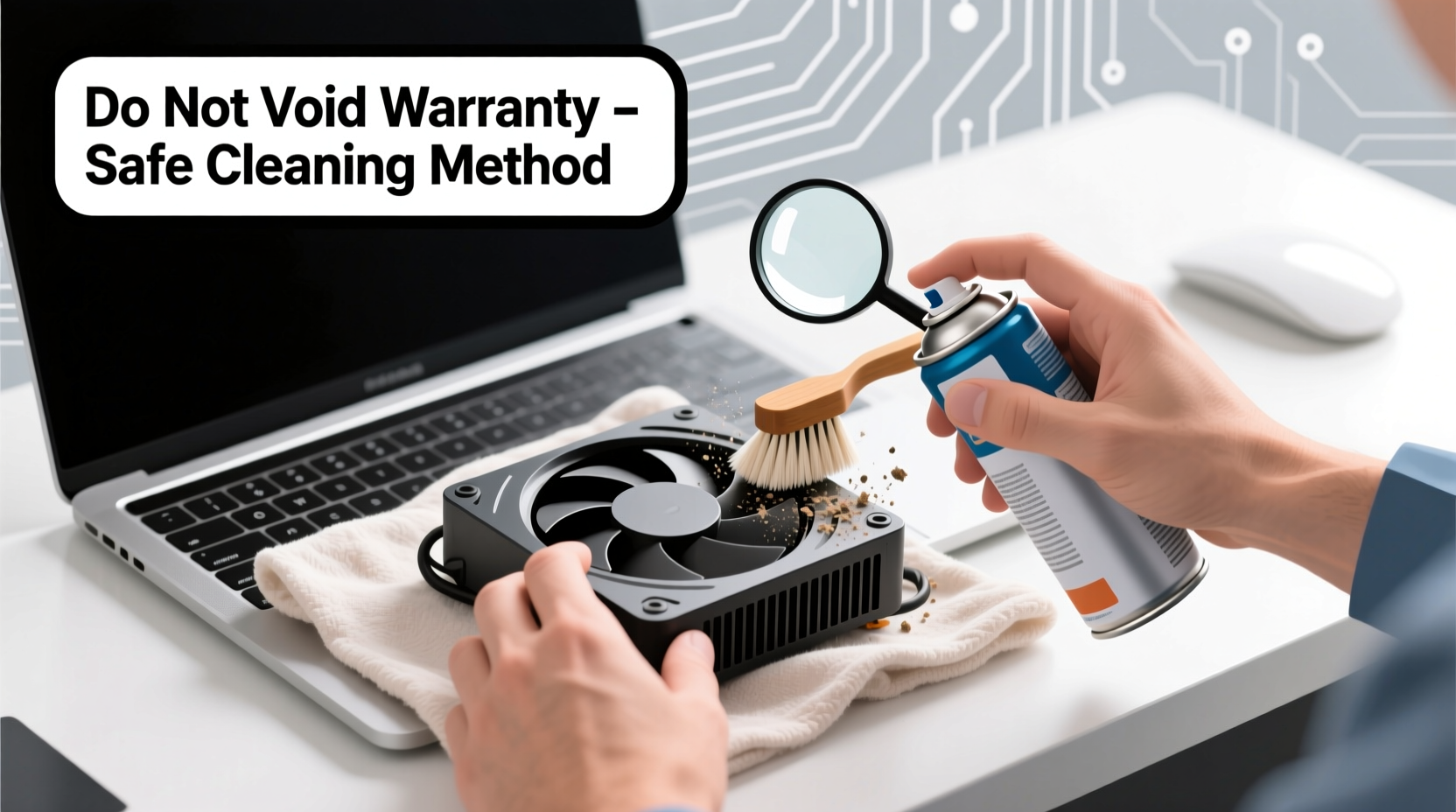
Laptops are designed with compact thermal systems that rely heavily on efficient airflow. Over time, dust, pet hair, and environmental debris accumulate in the vents and around the fan blades. This layer acts as insulation, trapping heat inside the chassis. As temperatures rise, the system responds by slowing down processor speeds—a process known as thermal throttling—to prevent damage. This results in lag, longer load times, and reduced battery efficiency.
According to a 2023 study by the IEEE Electronics Packaging Society, laptops operating above 75°C under sustained load experience up to 40% faster degradation of internal components compared to those maintained below 60°C. Keeping your fan and vents clear isn’t just about performance—it’s about preserving your investment.
Understanding Warranty Limitations and Safe Practices
Most manufacturers—including Apple, Dell, HP, Lenovo, and ASUS—state that warranty coverage is voided only if damage occurs due to unauthorized service or modifications. Simply removing screws or accessing internal components often triggers this clause. However, many warranties explicitly allow user-accessible maintenance such as RAM or SSD upgrades, provided no damage is done.
The key distinction lies in intent and method. Using compressed air through existing vents does not constitute disassembly. Similarly, cleaning external grilles with soft tools is universally considered safe. The risk arises when users force open sealed panels or use conductive tools near circuitry.
“Warranty terms protect against improper handling, not routine care. Cleaning intake vents with compressed air is acceptable and encouraged by our engineering team.” — Rajiv Mehta, Senior Support Engineer at Dell Technologies
What Voiding Really Means
Voiding a warranty doesn’t automatically strip all coverage. It typically means the manufacturer will deny claims related to damage caused by user intervention. If your screen fails six months after using a screwdriver inside the case—even if unrelated—the repair may be denied. Therefore, avoiding invasive steps preserves not only cooling efficiency but also long-term support eligibility.
Step-by-Step Guide: Non-Invasive Fan Cleaning Process
You can significantly reduce dust accumulation and improve airflow without ever touching a screwdriver. Follow this structured approach every 3–6 months, depending on your environment (e.g., dusty rooms, pet owners, or smokers should clean more frequently).
- Power down and unplug: Shut down the laptop completely and disconnect the charger. For models with removable batteries, take it out. This eliminates electrical risks and ensures fans won’t spin during cleaning.
- Position correctly: Place the laptop upside-down on a soft, lint-free cloth. This aligns the vents with gravity, helping dislodged particles fall out rather than deeper in.
- Use compressed air properly: Hold the can upright and insert the straw nozzle into each vent opening. Use short bursts (1–2 seconds) at a 45-degree angle to avoid moisture buildup from propellant. Focus on exhaust vents (usually along the sides or back) and intake vents (typically under the palm rest or near hinges).
- Rotate and repeat: Tilt the laptop to different angles between bursts to help debris escape. Never shake the can while spraying, as this releases liquid coolant that can damage circuits.
- Clean exterior grilles: Dampen a microfiber cloth with 70% isopropyl alcohol and gently wipe vent surfaces. Avoid soaking; moisture seeping inside can cause corrosion.
- Test performance: Power on the system and run a basic task (e.g., video playback or file extraction). Listen for smoother fan operation and monitor temperature using free tools like HWMonitor (Windows) or iStat Menus (Mac).
Performance Optimization Beyond Cleaning
Cleaning the fan addresses physical obstructions, but software and usage habits also impact thermal performance. Combine hardware care with these digital strategies for maximum effect.
Adjust Power Settings
On Windows, switch to “Balanced” or “Power Saver” mode to reduce CPU load during idle periods. On macOS, enable “Automatic graphics switching” to let the system choose between integrated and discrete GPUs based on demand.
Manage Background Processes
Applications running in the background—especially browsers with multiple tabs, cloud sync tools, or updaters—can keep the CPU active unnecessarily. Use Task Manager (Ctrl+Shift+Esc) or Activity Monitor to identify high-usage processes and close what you don’t need.
Update Firmware and Drivers
Manufacturers periodically release BIOS/UEFI updates that optimize fan curves and thermal thresholds. Check your laptop model’s support page quarterly for available updates. Similarly, outdated GPU drivers can cause inefficient rendering and excess heat.
| Action | Impact on Performance | Warranty-Safe? |
|---|---|---|
| Compressed air cleaning via vents | High – immediate temp drop of 8–15°C | Yes |
| Updating BIOS/firmware | Moderate – better thermal regulation | Yes |
| Using a cooling pad | Moderate – adds airflow from below | Yes |
| Opening chassis to clean fan | Very High – direct access | No (usually) |
| Replacing thermal paste | High – improves heat transfer | No |
Real-World Example: Sarah’s Overheating MacBook
Sarah, a freelance graphic designer, noticed her 2020 MacBook Pro was shutting down unexpectedly during Adobe Premiere renders. She feared a logic board failure and dreaded costly repairs. Instead of sending it in immediately, she tried a non-invasive cleaning method recommended by a colleague.
She powered off the Mac, turned it upside-down, and used a can of compressed air to blast the left-side vents (where the fan exhausts). After three rounds of short bursts, visible dust clumps fell out. Upon rebooting, she monitored temperatures using iStat Menus and found CPU temps dropped from 98°C to 81°C during rendering. The shutdowns stopped entirely. Six months later, with bi-monthly maintenance, her laptop remains stable—without violating Apple’s warranty or requiring professional service.
This case illustrates how simple interventions can resolve complex-seeming issues. Sarah saved over $300 in diagnostic and repair fees—all by staying within safe maintenance boundaries.
Checklist: Safe Laptop Fan Maintenance Routine
- ✅ Power off and unplug the laptop before cleaning
- ✅ Use only manufacturer-approved tools (e.g., compressed air)
- ✅ Clean intake and exhaust vents every 3–6 months
- ✅ Wipe external vents with alcohol-dampened microfiber cloth
- ✅ Update BIOS, OS, and drivers regularly
- ✅ Monitor temperatures using reliable software
- ✅ Avoid sharp objects or vacuum cleaners near vents
- ✅ Store laptop in low-dust environments when not in use
- ✅ Use a hard, flat surface instead of beds or couches during operation
- ✅ Consider a passive cooling pad for extended sessions
Frequently Asked Questions
Can I use a household vacuum to clean my laptop vents?
No. Regular vacuums generate static electricity that can damage sensitive electronics. They also suck too hard, potentially pulling small internal parts loose. Compressed air is the only recommended tool for this task.
Will cleaning the fan make my laptop last longer?
Yes. Consistent cleaning reduces thermal stress on components like the CPU, GPU, and battery. A 2021 study by the University of California, San Diego found that laptops cleaned every six months had a median lifespan 2.3 years longer than neglected units.
My laptop still gets hot after cleaning. What should I do?
If temperatures remain high despite proper vent cleaning, consider software factors: malware scans, excessive startup programs, or outdated drivers. Also ensure you’re not running demanding applications on power-saving modes, which can cause inefficient processing. If problems persist, consult authorized service—do not attempt internal repairs yourself.
Conclusion: Maintain Smart, Perform Better
Your laptop’s performance isn’t solely determined by its specs—it’s also shaped by how well you maintain it. Cleaning the fan without voiding the warranty is not only possible but essential for sustained speed and reliability. By using compressed air responsibly, optimizing system settings, and monitoring heat output, you reclaim performance that dust and neglect have quietly stolen.
These practices cost nothing but a few minutes every few months, yet they deliver outsized returns in responsiveness, stability, and longevity. Don’t wait for warning signs like fan noise or crashes. Start today, follow the checklist, and give your laptop the care it deserves—without risking a single warranty term.




 浙公网安备
33010002000092号
浙公网安备
33010002000092号 浙B2-20120091-4
Comments
No comments yet. Why don't you start the discussion?