
A clean laptop screen makes all the difference in clarity, comfort, and productivity. Whether you're working from home, attending virtual meetings, or watching videos, a smudge-free display enhances your experience. But many people reach for paper towels and household cleaners—mistakes that can lead to permanent damage. The good news: you don’t need expensive commercial products to achieve a streak-free finish. With a few common household ingredients and the right technique, you can safely clean your laptop screen at home using a simple DIY spray.
Why Most People Clean Their Laptop Screens Wrong
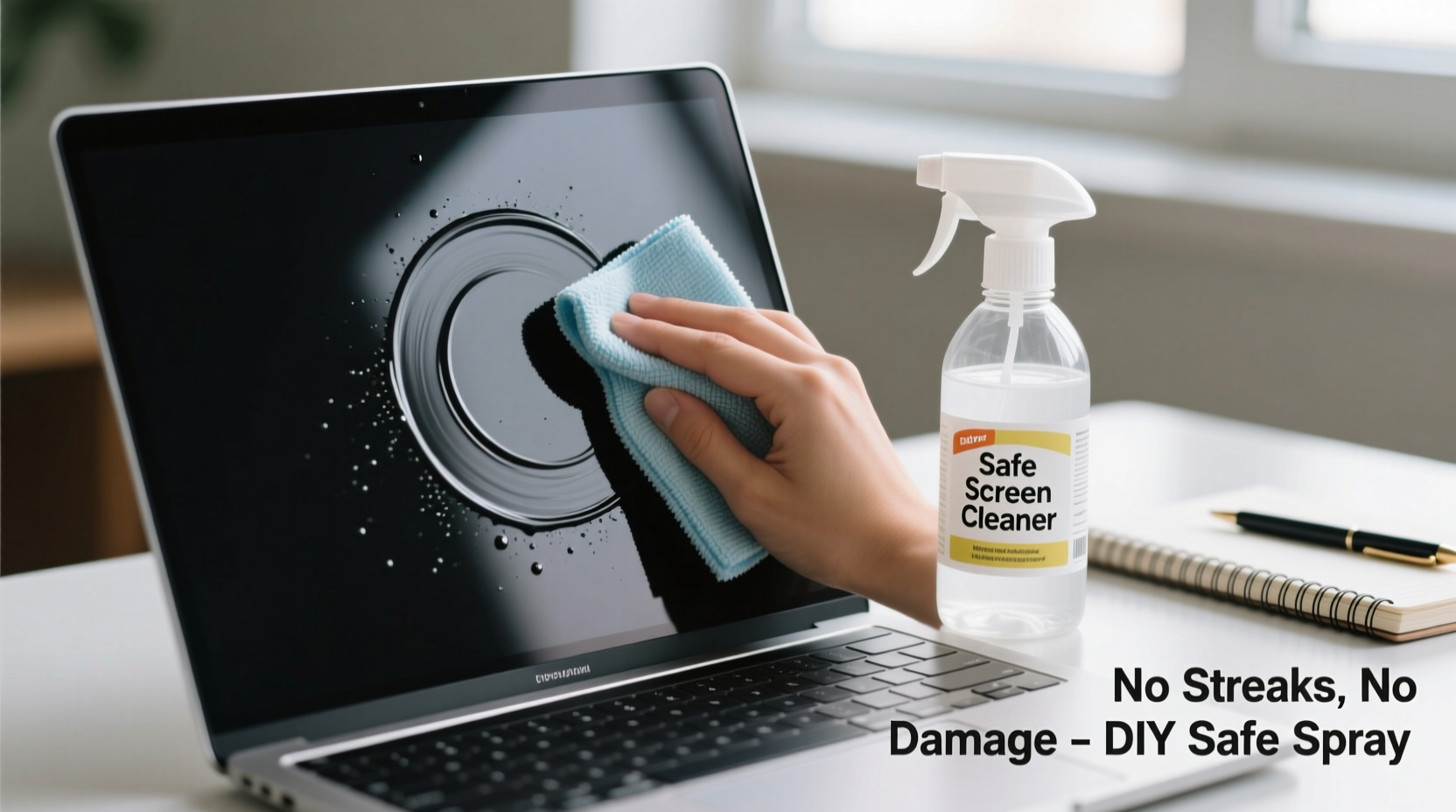
The average person touches their face hundreds of times a day, transferring oils, dust, and bacteria to their hands—and eventually to their laptop screen. Over time, this builds up into a hazy film that dulls colors and reduces visibility. Unfortunately, many users respond by wiping aggressively with whatever is on hand: tissues, shirts, or multipurpose cleaners.
These methods are not only ineffective—they’re risky. Paper towels and rough fabrics scratch anti-glare coatings. Ammonia-based glass cleaners like Windex degrade sensitive screen layers over time. Even excessive pressure can damage pixels, especially on OLED or high-resolution displays.
“Most modern laptop screens have delicate anti-reflective and oleophobic coatings. Harsh chemicals or abrasive materials strip these away permanently.” — Dr. Lena Park, Display Technology Specialist, Consumer Electronics Lab
What You Need: Safe Ingredients for DIY Screen Cleaning
The key to a streak-free, safe cleaning solution lies in gentle ingredients that dissolve oils without damaging coatings. Commercial screen cleaners often contain isopropyl alcohol and deionized water—but you can make an equally effective version at home for pennies.
DIY Spray Formula (Proven Effective)
Mix the following in a clean 8–12 oz spray bottle:
- ½ cup distilled water (never tap water—minerals cause spots)
- ¼ cup white vinegar (natural degreaser, cuts through fingerprints)
- 1–2 drops of mild dish soap (optional, for heavy grime)
Vinegar acts as a natural disinfectant and dissolves oily residue, while distilled water ensures no mineral deposits. A tiny amount of dish soap boosts cleaning power but should be used sparingly—too much leaves residue.
Shake gently before each use. Store in a cool place and label clearly. This solution lasts up to two weeks.
Step-by-Step Guide: Clean Your Screen Without Streaks
Cleaning isn’t just about what you use—it’s how you do it. Follow this precise sequence for a flawless result every time.
- Power down and unplug. Turn off your laptop and disconnect it from power. This prevents electrical risk and makes smudges more visible against a dark screen.
- Remove loose dust. Use a dry microfiber cloth or a soft-bristled brush (like a clean makeup brush) to gently sweep away dust and debris. Skip this step, and you risk grinding particles into the surface.
- Prepare your cleaning cloth. Fold a lint-free microfiber cloth into quarters. This gives you multiple clean surfaces and increases control.
- Spray the solution onto the cloth—not the screen. Lightly mist one corner of the cloth until damp, not wet. Excess moisture can seep into bezels and damage internal components.
- Wipe in straight lines. Starting at the top, move the cloth vertically across the screen with light pressure. Avoid circular motions—they leave swirl marks.
- Switch to a dry section of the cloth. Flip or refold the cloth and go over the screen again using dry strokes to absorb any remaining moisture.
- Inspect under angled light. Tilt the screen slightly under room lighting to check for missed spots or streaks. Repeat if necessary.
- Clean the bezel and keyboard area. Use a cotton swab dampened with the same solution to wipe around the edges, camera cover, and vents.
Frequency Recommendations
| Usage Level | Screen Cleaning Frequency | Additional Care Tips |
|---|---|---|
| Light (occasional use) | Every 3–4 weeks | Dust removal weekly |
| Moderate (daily work/school) | Every 10–14 days | Wipe palms and fingers before use |
| Heavy (gaming, long sessions) | Weekly | Use a screen protector; clean keyboard regularly |
Do’s and Don’ts: What to Avoid When Cleaning Your Screen
Mistakes happen quickly when you’re in a rush. Keep this checklist handy to avoid irreversible damage.
| Do’s ✅ | Don’ts ❌ |
|---|---|
| Use distilled water and vinegar mix | Use Windex, ammonia, or bleach-based cleaners |
| Apply solution to microfiber cloth first | Spray directly on screen |
| Wipe in straight, overlapping lines | Use circular scrubbing motions |
| Clean in a low-humidity environment | Clean in direct sunlight (causes fast drying and streaks) |
| Replace cloths when they become gritty | Use paper towels, napkins, or clothing |
Real Example: How Sarah Fixed Her Blurry Work Screen
Sarah, a freelance graphic designer in Portland, noticed her MacBook screen looked increasingly foggy despite daily wipes with a tissue. Colors appeared washed out, and she developed eye strain during long projects. After researching screen care, she realized she’d been using a citrus-scented all-purpose cleaner and a cotton t-shirt—both harmful to her display.
She switched to the DIY vinegar-water spray and a dedicated microfiber cloth. Following the vertical wiping method, she cleaned her screen one evening. The next morning, she was stunned by the difference: text was sharper, blacks were deeper, and glare had reduced significantly. More importantly, no new smudges formed as quickly, likely because the proper cleaning removed built-up oil residue that attracted more fingerprints.
“I didn’t think a $1 homemade spray could outperform store-bought ‘premium’ solutions,” she said. “But it did—and my eyes thank me.”
When to Consider a Screen Protector
If you travel frequently, share your device, or have kids nearby, a matte screen protector can reduce glare and shield the original surface from scratches and oils. High-quality protectors are anti-reflective and touch-sensitive, making them ideal for tablets and touchscreen laptops.
While a protector adds another layer to clean, it also means you can clean more aggressively on the replaceable film instead of the actual screen. Just remember: clean the protector the same way—no harsh chemicals.
Frequently Asked Questions
Can I use rubbing alcohol to clean my laptop screen?
You can—but with caution. Solutions above 50% isopropyl alcohol may degrade anti-reflective coatings over time. If you choose to use alcohol, dilute it to 30–50% with distilled water, apply lightly to a cloth, and never soak the screen. The vinegar-water DIY spray is safer for regular use.
Why does my screen still have streaks after cleaning?
Streaks usually come from one of three causes: using a dirty or low-quality cloth, applying too much liquid, or wiping in circles. Ensure your microfiber is clean and dry before starting. Dampen only a small portion of the cloth, and always wipe in straight lines from top to bottom. Let the screen air-dry for 30 seconds before inspecting under angled light.
Is it safe to clean a touchscreen laptop or tablet the same way?
Yes. Touchscreens use similar coatings to standard laptop displays. The DIY vinegar-water solution is safe for most capacitive touchscreens, including those on iPads, Microsoft Surface devices, and Android tablets. Avoid excessive moisture near seams and ports. For frequent cleaning, consider a specialized touchscreen wipe alongside your DIY spray.
Your Action Plan: Start Today for a Clearer Tomorrow
Clear vision starts with a clean screen. You don’t need special tools or expensive sprays to maintain your laptop’s display. What matters is consistency, technique, and using ingredients that respect the technology you rely on.
Gather a spray bottle, distilled water, white vinegar, and a microfiber cloth. Mix your DIY solution tonight. Power down your laptop, remove the dust, and clean with deliberate, vertical strokes. See the difference immediately—and feel the relief of knowing you’re protecting your investment.
Make screen cleaning part of your routine, just like backing up files or updating software. Your eyes, your work, and your device will last longer and perform better.




 浙公网安备
33010002000092号
浙公网安备
33010002000092号 浙B2-20120091-4
Comments
No comments yet. Why don't you start the discussion?