
In today’s digital world, the apps we download, search for, or browse leave behind traces in our App Store activity. While this data can help personalize recommendations, it also poses privacy risks and clutters your digital footprint. Whether you're concerned about targeted ads, shared devices, or simply want a cleaner browsing experience, managing your App Store history is a crucial step toward taking control of your online presence. This guide walks through practical methods to clear and organize your App Store history on both iOS and Android, offering actionable steps to enhance privacy and streamline your mobile experience.
Why Managing Your App Store History Matters
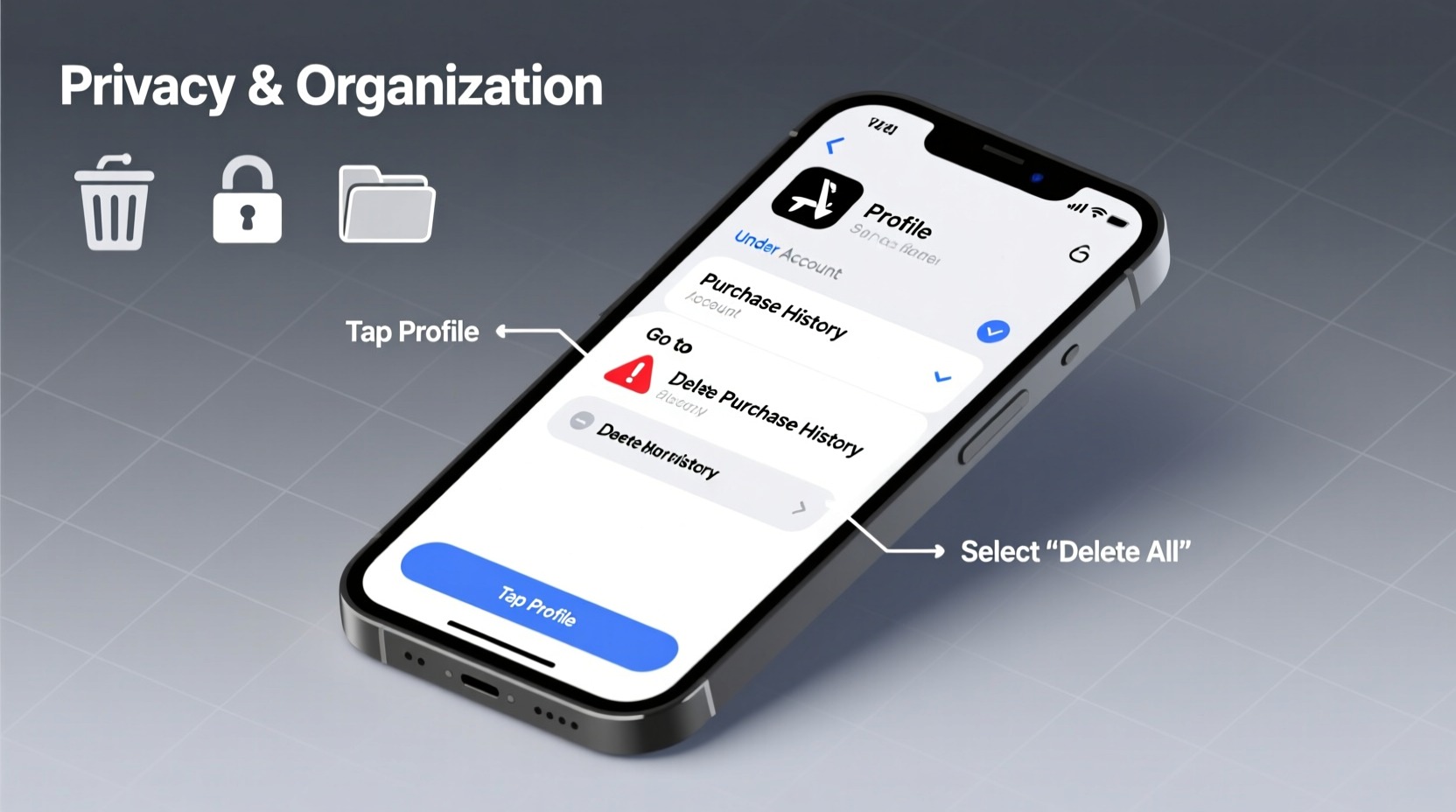
Your App Store history includes search queries, downloaded apps, viewed app pages, and suggested content based on usage. Over time, this builds a detailed profile that can be used to infer interests, habits, and even personal preferences. Without regular maintenance, this information remains stored locally and in cloud accounts—accessible not only to algorithms but potentially to others with access to your device or account.
Privacy isn’t the only concern. A cluttered App Store history can lead to irrelevant suggestions, making it harder to discover new apps you genuinely want. Cleaning up this data improves recommendation accuracy and reduces digital noise. Moreover, if you frequently switch devices or share an Apple ID or Google account within a family group, unmanaged history may expose personal choices unintentionally.
How to Clear App Store History on iOS Devices
Apple does not provide a direct “clear history” button in the App Store, but there are effective workarounds to reset your browsing and search behavior. These steps apply to iPhone and iPad running iOS 15 and later.
- Turn Off Personalized Ads: Go to Settings > Privacy & Security > Apple Advertising and toggle off “Personalized Ads.” This limits tracking based on your activity.
- Reset Identifier: Navigate to Settings > Privacy & Security > Tracking and tap “Reset Advertising Identifier.” This breaks continuity between past and future tracking.
- Sign Out and Back Into App Store: In Settings, tap your name at the top, select Media & Purchases, then Sign Out. Reopen the App Store and sign back in. This often resets local suggestion algorithms.
- Delete Search Suggestions Manually: Open the App Store, go to the Search tab, and tap the search bar. Individual suggestions can be removed by swiping left and tapping Delete.
- Restrict Usage Data Sharing: Under Settings > Privacy & Security > Analytics & Improvements, disable “Share Across Devices” and “Improve Siri & Dictation.”
While these actions don’t erase all historical records from Apple’s servers, they significantly reduce local profiling and reset behavioral patterns visible in the App Store interface.
Managing Google Play Store History on Android
Google offers more transparency and control over app browsing data through its Activity Controls dashboard. Unlike Apple, Google stores much of this data in your Google Account, making centralized management possible.
To clear your Google Play Store history:
- Visit myactivity.google.com on any browser while logged into your Google account.
- In the left sidebar, click “Filter by product” and select “Play Store.”
- You’ll see a timeline of your searches, app views, downloads, and interactions.
- To delete specific entries, hover over an item and click the three-dot menu > Remove.
- To delete everything at once, click “Delete” in the left panel, choose “All time,” and confirm deletion under the Play filter.
Additionally, you can pause future data collection:
- Go to Google Account > Data & Privacy > Activity Controls.
- Toggle off “Web & App Activity.”
- When prompted, choose “Pause” to stop saving future Play Store interactions.
This prevents Google from storing your future app-related behavior unless re-enabled.
| Platform | Data Stored | Can Be Cleared? | Auto-Save Preventable? |
|---|---|---|---|
| iOS App Store | Search terms, viewed apps, download history | Partially (via reset methods) | Limited (no full opt-out) |
| Google Play Store | Searches, views, installs, ratings | Yes (full deletion via My Activity) | Yes (disable Web & App Activity) |
Best Practices for Ongoing App Store Hygiene
Maintaining privacy requires consistent habits, not just one-time cleanups. Incorporate these strategies into your routine to stay organized and secure.
Use Private Browsing When Exploring Apps
On Android, consider using incognito mode in browsers when researching apps outside the Play Store. While the Play Store itself lacks an incognito mode, minimizing logged-in sessions reduces tracking exposure.
Review Installed Apps Monthly
Uninstall apps you no longer use. Fewer active apps mean less background data influencing recommendations. Go to Settings > Apps and sort by last used date to identify dormant ones.
Limit Ad Tracking Across Platforms
Both iOS and Android allow you to limit ad tracking, which reduces how much your behavior informs third-party advertising networks. Enable these settings even if full history deletion isn’t possible.
“Most users don’t realize how much their app browsing history reveals about their lifestyle. Simple cleanup steps can dramatically improve digital privacy.” — Dr. Lena Patel, Cybersecurity Researcher at Digital Trust Initiative
Mini Case Study: Recovering Control After a Device Handover
Sophia, a college student, decided to sell her old iPhone to buy a new model. Before transferring ownership, she backed up her data and signed out of iCloud—but forgot about her App Store history. The buyer, curious about previous usage, noticed repeated searches for mental health apps and niche fitness tools. Embarrassed after learning this, Sophia realized she had overlooked invisible digital traces.
She now uses a checklist before every device transition: resetting advertising identifiers, manually removing search suggestions, and signing out of media services. Her experience highlights how easily private interests can be exposed—even without malicious intent—and underscores the importance of proactive history management.
Frequently Asked Questions
Does clearing App Store history uninstall my apps?
No. Clearing your App Store history only removes browsing data, search records, and recommendation profiles. Your installed apps remain unaffected.
Will deleting my Play Store history affect app updates?
No. App updates depend on installation status and permissions, not browsing history. Disabling or deleting activity has no impact on functionality or update delivery.
Can someone else see my App Store history?
If they have access to your Apple ID or Google account, yes—especially on shared devices or family plans. Always sign out of accounts when using public or shared devices, and enable two-factor authentication for added security.
Final Thoughts: Take Charge of Your Digital Footprint
Your App Store history may seem minor, but it forms part of a larger digital identity shaped by everyday behaviors. By regularly clearing and managing this data, you protect your privacy, refine your user experience, and maintain greater control over what gets recorded—and shared. These practices should be as routine as updating passwords or organizing files.




 浙公网安备
33010002000092号
浙公网安备
33010002000092号 浙B2-20120091-4
Comments
No comments yet. Why don't you start the discussion?