
In today’s wireless world, relying on a single Bluetooth connection is no longer enough. Whether you're streaming music to two sets of headphones, connecting a keyboard and mouse to your tablet, or syncing a smartwatch with active earbuds, managing multiple Bluetooth devices simultaneously has become essential. However, doing so often leads to audio dropouts, lag, pairing failures, and frustrating disconnections—symptoms of signal interference and bandwidth congestion.
The good news: with the right setup, modern technology can support multiple concurrent connections efficiently. The key lies in understanding Bluetooth limitations, optimizing device compatibility, and applying strategic pairing practices. This guide walks through actionable methods to maintain stable, interference-free multi-device connectivity across smartphones, laptops, tablets, and smart home systems.
Understanding Bluetooth Limitations and Capabilities
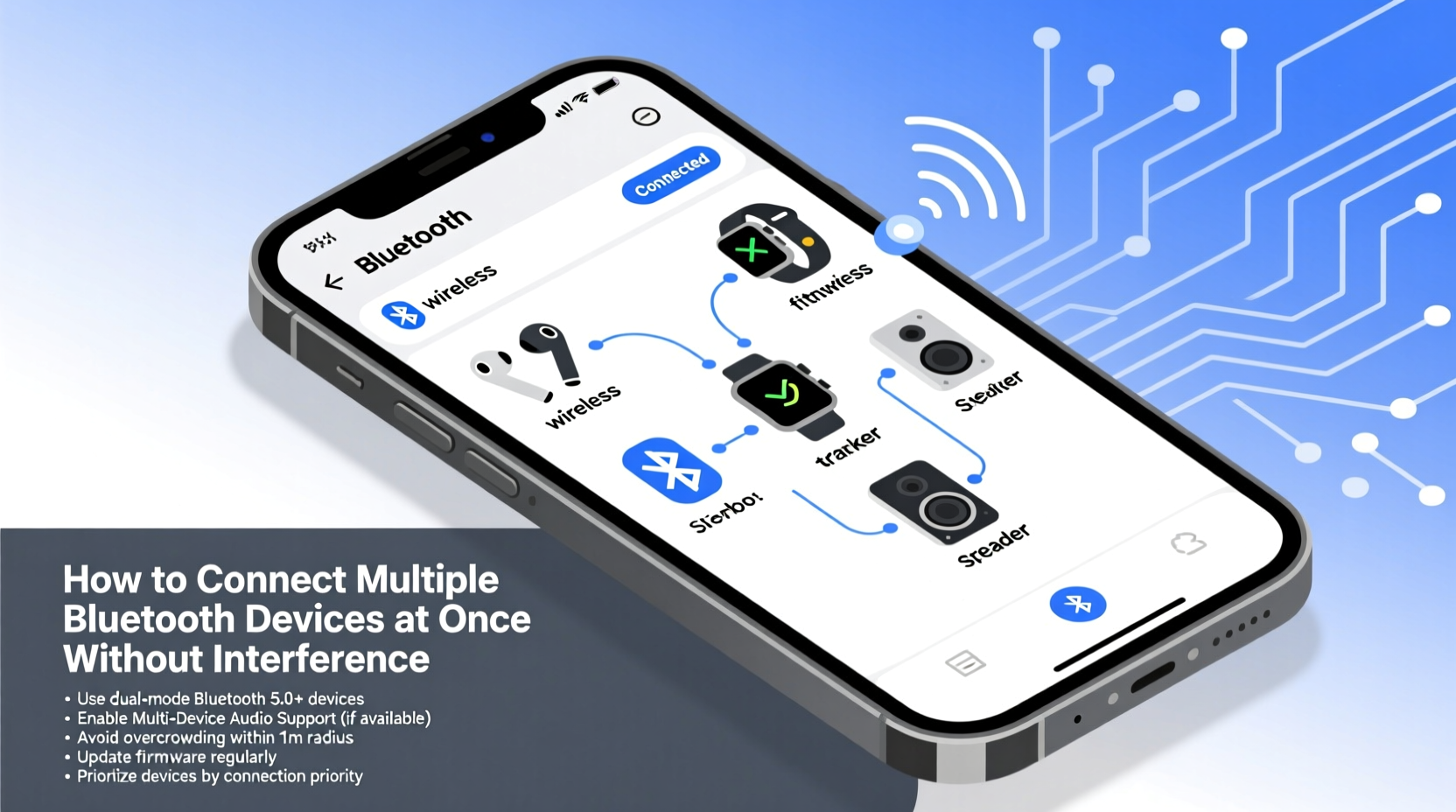
Bluetooth operates in the 2.4 GHz frequency band—the same range used by Wi-Fi routers, microwaves, and many cordless devices. While convenient, this shared spectrum increases the risk of interference when multiple wireless signals compete for space. Additionally, not all Bluetooth versions handle multitasking equally.
Bluetooth Classic (used for audio streaming) and Bluetooth Low Energy (BLE, used for fitness trackers and IoT devices) function differently. Most consumer devices use a combination of both, but only certain chipsets and operating systems allow true simultaneous transmission to more than one output device.
For example, Android 10+ supports dual audio, enabling two Bluetooth headphones to play the same audio stream. Apple's ecosystem allows AirPods sharing between iOS devices but limits third-party multi-output capabilities. Windows and macOS have limited native support, often requiring third-party tools or hardware adapters.
“Modern Bluetooth 5.0 and later standards offer improved coexistence with other wireless signals and better data throughput, making multi-device setups far more reliable than just five years ago.” — Dr. Lena Patel, Wireless Communications Engineer at MIT Lincoln Lab
Step-by-Step Guide to Pairing Multiple Devices Without Interference
Successfully connecting multiple Bluetooth devices requires preparation, correct sequence, and post-pairing optimization. Follow these steps to minimize conflicts:
- Update All Device Firmware
Outdated firmware can cause compatibility issues. Check each device manufacturer’s website or app for updates before pairing. - Enable Bluetooth Multipoint (if supported)
Multipoint allows one headset or speaker to stay connected to two source devices (e.g., phone and laptop). Activate it via the device’s manual mode or companion app. - Turn On Bluetooth on Your Primary Device
Go to Settings > Bluetooth and ensure it’s enabled. Disable any currently connected devices temporarily to avoid confusion during setup. - Enter Pairing Mode on Each Accessory
Press and hold the pairing button on each device until its LED flashes rapidly. Refer to user manuals for exact instructions. - Pair Devices One at a Time
Add them sequentially through your main device’s Bluetooth menu. Avoid rushing; allow 10–15 seconds between pairings. - Test Connections Individually
Play audio or send input commands to verify each device works independently before using them together. - Use Built-in Multi-Device Features
On Android, enable “Dual Audio” under Bluetooth settings. On Samsung phones, use “Audio Sharing.” For Apple users, activate “Share Audio” when connecting two sets of AirPods. - Minimize Physical Obstructions
Keep all devices within 30 feet (10 meters) of the host and free from walls, metal objects, or large electronics that block signals.
Optimizing Environment and Signal Quality
Even perfectly paired devices can suffer performance degradation due to environmental factors. Interference doesn’t always come from poor settings—it often stems from physical surroundings.
Common sources of disruption include:
- Dense Wi-Fi networks (especially in apartments or offices)
- Microwave ovens operating nearby
- USB 3.0 ports and poorly shielded cables
- Fluorescent lighting and power strips
To reduce interference:
- Switch your Wi-Fi router to the 5 GHz band if possible, freeing up space in the 2.4 GHz range.
- Relocate Bluetooth devices away from large metal surfaces and electronic clusters.
- Use Bluetooth 5.2 or higher devices, which feature adaptive frequency hopping—a technique that avoids crowded channels automatically.
- Limit the number of active Bluetooth devices to only those in use. Every connected device consumes bandwidth, even when idle.
| Bandwidth Use Case | Recommended Max Devices | Risk Level |
|---|---|---|
| One audio stream + one HID (keyboard/mouse) | 2–3 | Low |
| Two stereo audio streams | 2 | Medium |
| Three or more high-bitrate audio devices | Not recommended | High |
| Multiple BLE sensors (fitness trackers, thermometers) | Up to 7 | Low (due to low data rate) |
Real Example: Managing a Hybrid Workstation Setup
Jamal, a remote software developer based in Denver, uses a MacBook Pro as his primary machine. His daily workflow involves attending Zoom calls on wireless earbuds while typing on a Bluetooth mechanical keyboard and tracking productivity with a smartwatch. Initially, he experienced frequent audio stutters and delayed keystrokes.
After investigation, he realized his desk sat directly between his Wi-Fi router and microwave. He moved his laptop closer to the center of the room and switched his router to 5 GHz. He also updated his earbuds’ firmware and disabled unused Bluetooth devices like an old fitness band.
The result? Stable triple-device connectivity with zero interruptions during video conferences. He now uses his watch for notifications, earbuds for audio, and keyboard for input—all running smoothly without manual toggling.
This case illustrates that success isn’t just about having the right gadgets—it’s about configuring the environment and eliminating hidden bottlenecks.
Checklist: Ensuring Clean Multi-Device Bluetooth Performance
Before attempting to run multiple Bluetooth devices together, go through this checklist to maximize reliability:
- ✅ Confirm all devices support Bluetooth 4.2 or higher
- ✅ Update firmware/drivers on host device and peripherals
- ✅ Enable dual audio or multipoint features where applicable
- ✅ Reduce nearby sources of RF interference (Wi-Fi, microwaves, USB 3.0 hubs)
- ✅ Keep devices within line-of-sight and under 30 feet from the host
- ✅ Remove outdated or unused Bluetooth pairings
- ✅ Test each device individually before activating multiple connections
- ✅ Monitor battery levels—low power can weaken signal strength
Do’s and Don’ts When Connecting Multiple Devices
| Do’s | Don’ts |
|---|---|
| Use devices with Bluetooth 5.0+ | Try to connect more than three high-bandwidth audio devices |
| Place your central device (phone/laptop) centrally | Stack Bluetooth speakers directly on top of each other |
| Leverage built-in OS features like Dual Audio or Share Audio | Ignore firmware update notifications |
| Turn off Bluetooth on idle devices | Run Bluetooth and 2.4 GHz Wi-Fi at full power in close proximity |
| Use aptX Adaptive or LDAC codecs for high-quality audio | Assume all Bluetooth headphones work in dual mode |
Frequently Asked Questions
Can I connect two Bluetooth speakers to one phone at the same time?
Yes, most Android phones running Android 10 or later support dual audio, allowing simultaneous connection to two speakers or headphones. Go to Bluetooth settings, pair both devices, and enable “Dual Audio.” Note that some apps may not support stereo splitting, so sound might be duplicated rather than balanced.
Why does my Bluetooth mouse disconnect when I start playing music?
This typically happens because high-bandwidth audio streaming overwhelms the Bluetooth controller, especially on older devices or those with lower-tier chipsets. It can also occur if the system prioritizes audio over HID (Human Interface Device) traffic. To fix this, reduce background Bluetooth usage, move closer to the host device, or use a USB Bluetooth adapter with better signal handling.
Is there a limit to how many Bluetooth devices I can pair?
Technically, Bluetooth protocol supports up to seven connected devices in a piconet. However, practical limits are much lower—usually 3–4 active devices depending on type and bandwidth. Most operating systems cap visible/paired devices at around 100, but only a few can remain actively connected at once.
Conclusion: Take Control of Your Wireless Experience
Connecting multiple Bluetooth devices without interference is entirely achievable with the right knowledge and tools. By upgrading to modern Bluetooth standards, minimizing environmental disruptions, and leveraging built-in OS features, you can create a seamless, responsive wireless ecosystem tailored to your lifestyle or work demands.
Start small—connect two devices first, test stability, then expand. Over time, refine your setup based on real-world performance. Remember, consistency matters more than complexity. A well-managed two-device connection outperforms a chaotic four-device network every time.




 浙公网安备
33010002000092号
浙公网安备
33010002000092号 浙B2-20120091-4
Comments
No comments yet. Why don't you start the discussion?