
Local multiplayer gaming brings people together—friends on the same couch, families competing in friendly matches, or roommates diving into co-op adventures. But before the fun begins, you need to get all your controllers working at once. Whether you're using a PlayStation, Xbox, Nintendo Switch, or PC, connecting multiple controllers doesn’t have to be complicated. With the right approach, setup can take minutes, not hours. This guide walks through universal principles, platform-specific steps, common pitfalls, and pro tips to ensure smooth, reliable controller connections every time.
Understanding Controller Types and Compatibility
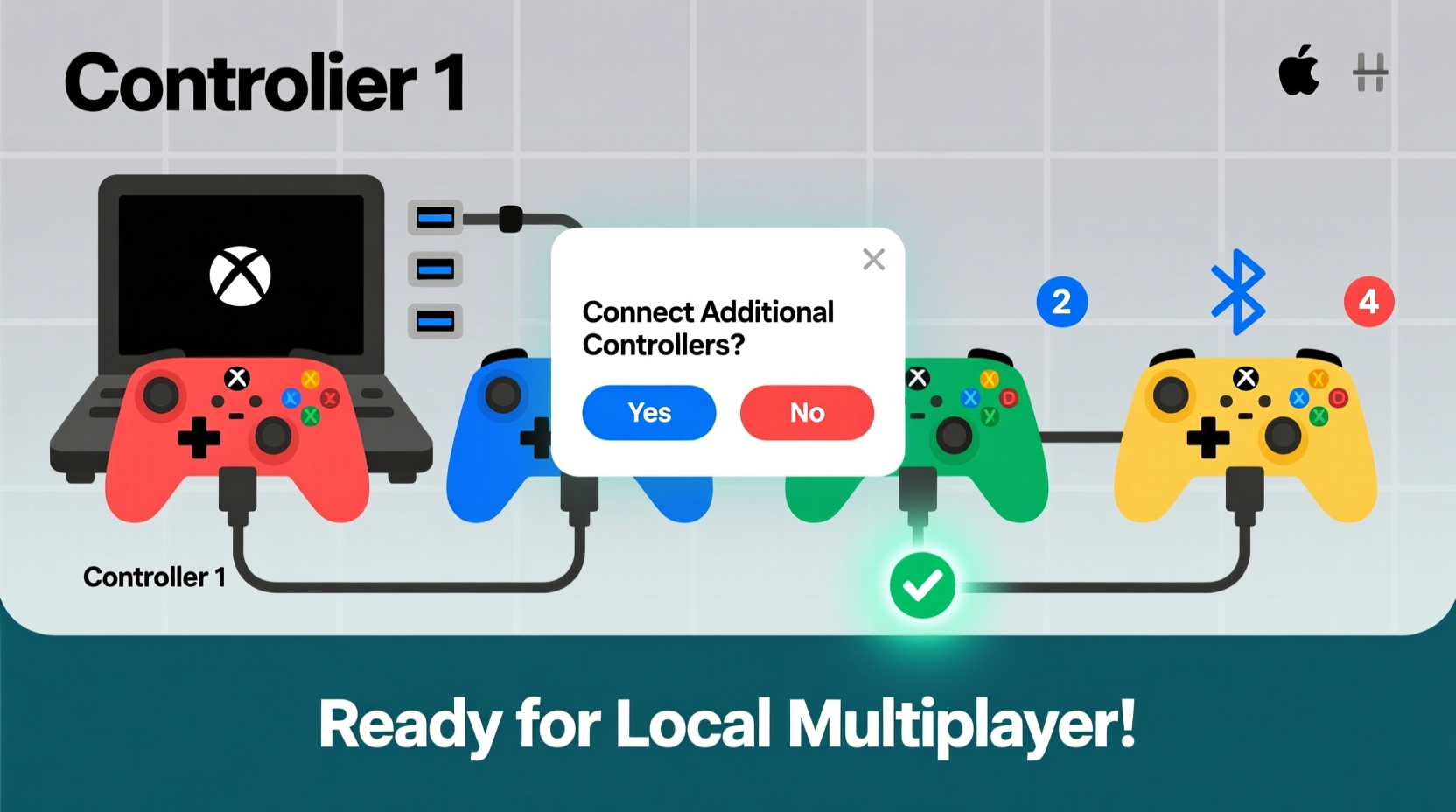
Before plugging in or pairing devices, it’s essential to know what kind of controllers you’re working with. Controllers fall into three main categories: wired, wireless (Bluetooth), and proprietary wireless (like Xbox Wireless or Nintendo’s Joy-Con protocol). Each has different connection methods and limitations when used simultaneously.
Wired controllers are the most straightforward—they plug directly into USB ports and usually don’t require pairing. Wireless controllers offer more freedom but rely on Bluetooth or dedicated dongles. Proprietary systems often provide better latency and support more simultaneous connections than standard Bluetooth.
Compatibility is another critical factor. While many modern controllers support cross-platform use via USB or Bluetooth, some games or systems restrict input devices to official hardware. For example, certain PlayStation exclusives may only accept DualShock or DualSense controllers, even if other gamepads are technically connected.
Step-by-Step Guide: Connecting Multiple Controllers by Platform
The process varies depending on your gaming platform. Below is a clear breakdown for major systems.
PlayStation 4 & 5
- Power on your console.
- Connect the first controller via USB cable and press the PS button to pair it as the primary user.
- For additional wireless controllers: Press and hold the PS + Share buttons (DS4) or PS + Create (DS5) until the light bar flashes.
- Go to Settings > Controllers > Accessories and select “Pair Device.” Choose the flashing controller from the list.
- Repeat for each extra controller.
- Alternatively, plug in extra controllers via USB—most games recognize them instantly.
Up to four wireless controllers can be connected simultaneously on both PS4 and PS5.
Xbox Series X|S and Xbox One
- Turn on the console.
- Press the Sync button on the console (located near the USB ports).
- On the first controller, press the small sync button on top (near the battery compartment).
- The controller will vibrate upon successful pairing.
- Repeat Steps 2–4 for each additional controller.
You can connect up to eight wireless controllers at once using Xbox Wireless technology. Wired USB connections also work seamlessly and don’t count against the wireless limit.
Nintendo Switch
- From the home screen, go to System Settings > Controllers and Sensors > Change Grip/Order.
- The system will begin searching for nearby controllers.
- Press the Sync button on the top of each Joy-Con or Pro Controller.
- When detected, the player LED (1–4) will illuminate.
- To reconnect previously paired controllers, press any button while within range.
You can connect up to eight controllers—including Joy-Cons, Pro Controllers, and third-party licensed pads—via Bluetooth.
PC (Windows)
- Use a combination of USB and Bluetooth connections.
- Plug in wired controllers directly into available USB-A or USB-C ports.
- For wireless: Open Settings > Devices > Bluetooth & other devices, then click “Add device.”
- Select “Bluetooth” and follow prompts to pair each controller (e.g., DualSense, Xbox Wireless Adapter, or generic gamepad).
- Install necessary drivers if prompted (Xbox controllers usually auto-install; others may require Steam or manufacturer software).
- Test inputs in Game Controllers under Control Panel.
Steam Big Picture Mode offers advanced controller configuration and supports mixing brands—ideal for local multiplayer sessions with varied hardware.
Universal Best Practices for Multi-Controller Setup
No matter your platform, these strategies improve reliability and reduce frustration during setup.
- Charge all controllers beforehand. Low batteries lead to dropouts mid-game.
- Minimize wireless interference. Keep routers, microwaves, and cordless phones away from your play area.
- Label controllers by player. Assign colors or stickers so players always grab the same one.
- Update firmware regularly. Manufacturers release updates that fix connectivity bugs and improve performance.
- Stick to one brand when possible. Mixing brands can cause input lag differences or mapping inconsistencies.
“Reliable local multiplayer starts with stable input. A single dropped signal ruins immersion and fairness.” — Marcus Lin, Senior Game Tester at IndieForge Studios
Troubleshooting Common Connection Issues
Even with careful setup, problems arise. Here’s how to resolve frequent issues quickly.
| Issue | Possible Cause | Solution |
|---|---|---|
| Controller not recognized | Low battery, outdated firmware, or incorrect pairing mode | Recharge, update firmware, re-pair using correct button combo |
| Input lag or stuttering | Wireless interference or overloaded USB hub | Switch to wired, move away from Wi-Fi sources, use powered hub |
| Only one controller works | Game limits or system settings restriction | Check game’s local multiplayer requirements; restart console |
| Controllers disconnect randomly | Battery saving mode or signal obstruction | Disable auto-sleep in settings; ensure line-of-sight for receivers |
Mini Case Study: Hosting a Local Mario Kart Tournament
Jason wanted to host a weekend Mario Kart 8 Deluxe tournament for his nieces, nephews, and friends. He planned for eight players using a mix of Joy-Con pairs and Pro Controllers. Initially, only four controllers connected reliably. After checking, he realized two older Joy-Cons had degraded Bluetooth modules. He replaced them with freshly charged ones and reset the pairing order through the Switch menu. He also placed the console centrally on the coffee table instead of inside an entertainment cabinet, reducing signal blockage. The second attempt succeeded—eight players raced smoothly without input delays. The key takeaway? Test everything ahead of time and optimize physical placement.
Checklist: Preparing for a Multiplayer Session
Follow this checklist before starting your next local multiplayer event:
- ✅ Charge all controllers overnight
- ✅ Confirm game supports desired number of players
- ✅ Update console and controller firmware
- ✅ Clear space around the console for wireless signals
- ✅ Label each controller with player number or name
- ✅ Test input response in game’s options menu
- ✅ Have spare batteries or charging cables on hand
- ✅ Restart the system after final pairing to stabilize connections
Frequently Asked Questions
Can I mix different types of controllers on the same system?
Yes, in most cases. Modern consoles and PC games support mixed input devices. However, some titles—especially exclusives—may limit functionality or disable features (like haptic feedback) on non-native controllers. Always verify compatibility before relying on mixed setups.
Why does my fifth controller fail to connect?
Each platform has a hard limit on simultaneous connections. PlayStation caps at four, Switch at eight, Xbox at eight, and PC depends on USB bandwidth and driver efficiency. If you’re hitting the ceiling, consider switching one or more players to wired alternatives or splitting into smaller groups.
Do Bluetooth adapters help with PC controller connections?
Absolutely. Built-in laptop Bluetooth is often weak and supports fewer devices. A dedicated USB Bluetooth 5.0+ adapter improves range, stability, and allows smoother pairing of multiple wireless controllers. For Xbox users, the official Xbox Wireless Adapter for Windows enables full eight-controller support with low latency.
Optimizing for Retro and Emulation Setups
Retro gaming enthusiasts often face unique challenges when connecting multiple controllers, especially for emulated games on Raspberry Pi or PC-based frontends like RetroArch. These systems typically require manual configuration of input mappings.
To streamline the process:
- Use USB hubs with individual power switches to isolate problematic controllers.
- Assign player slots in RetroArch’s Input Menu immediately after detection.
- Name controllers clearly (e.g., “Player 1 – SNES Pad”) to avoid confusion.
- Save input profiles per core (NES, Genesis, etc.) since layouts differ.
For arcade cabinets or permanent setups, soldered GPIO connections to Raspberry Pi eliminate wireless issues entirely, offering arcade-perfect responsiveness.
Conclusion: Ready, Set, Play Together
Connecting multiple controllers for local multiplayer doesn’t need to be a technical hurdle. By understanding your platform’s capabilities, preparing in advance, and following proven setup routines, you can transform game night from frustrating to flawless. Whether you’re racing in Mario Kart, surviving zombies in co-op mode, or battling it out in fighting games, seamless controller integration ensures everyone stays in the action. Don’t let poor prep ruin the vibe—test early, charge fully, and keep this guide handy for stress-free sessions.




 浙公网安备
33010002000092号
浙公网安备
33010002000092号 浙B2-20120091-4
Comments
No comments yet. Why don't you start the discussion?