
Gaming on PC doesn’t mean you have to give up the comfort and precision of your DualSense PS5 controller. With Steam’s native support and straightforward pairing options, connecting your PS5 controller to a Windows PC is not only possible—it’s simple. Whether you prefer a wired connection for zero latency or wireless freedom via Bluetooth, this guide walks you through every step, including advanced settings, common issues, and optimization tips to ensure a seamless experience.
Why Use a PS5 Controller on PC?
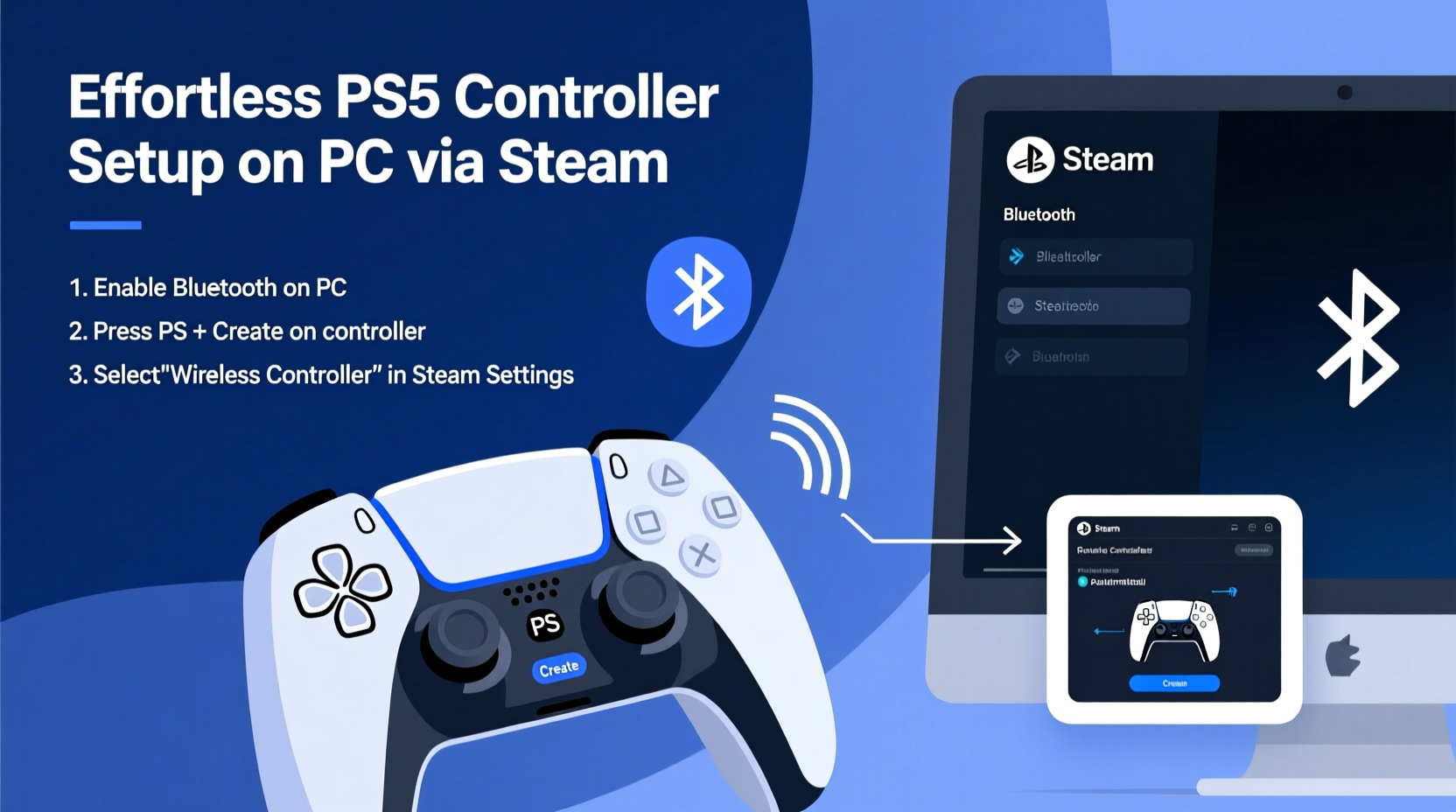
The DualSense controller stands out with its adaptive triggers, haptic feedback, and ergonomic design—features that elevate gameplay beyond standard gamepads. Titles like *Elden Ring*, *Cyberpunk 2077*, and *Hades* benefit greatly from precise analog input and immersive tactile responses. Steam’s robust input system supports these features natively, allowing you to enjoy console-quality control on your desktop or laptop.
Unlike third-party drivers or external software, Steam offers plug-and-play functionality for the PS5 controller, minimizing setup complexity while maximizing compatibility across thousands of games in your library.
“Steam’s integration with the DualSense has redefined what PC gamers expect from controller support.” — Jordan Lee, Senior Game Developer at Horizon Interactive
What You’ll Need: Equipment Checklist
- PS5 DualSense controller (original or revised model)
- Windows 10 or Windows 11 PC (macOS and Linux also supported with limitations)
- USB-C to USB-A cable (for wired connection)
- Bluetooth capability (for wireless pairing)
- Latest version of Steam installed
Ensure your PC’s Bluetooth is enabled and functioning. If your computer lacks built-in Bluetooth, a low-cost USB Bluetooth adapter (version 4.0 or higher) will suffice.
Step-by-Step: Connecting Your PS5 Controller to PC via Steam
Method 1: Wired Connection (Recommended for First-Time Setup)
A wired connection ensures immediate recognition and firmware updates. It's ideal for initial configuration before switching to wireless.
- Launch Steam on your PC and log into your account.
- Click on Settings (the gear icon in the top-right corner).
- Navigate to the Controller tab.
- Select Enable Steam Input. This activates support for non-XInput devices like the DualSense.
- Connect your PS5 controller to your PC using a USB-C cable.
- Wait a few seconds. Steam will automatically detect the controller and display it under “Detected Controllers.”
- Open the Big Picture Mode or go to Devices & Connections to verify the connection.
Once recognized, you can customize button layouts, sensitivity, and even remap controls per game using Steam Input.
Method 2: Wireless Bluetooth Pairing
For cord-free gaming, Bluetooth is the preferred method. Follow these steps carefully, as timing during pairing is crucial.
- Ensure your PC’s Bluetooth is turned on. On Windows, go to Settings > Devices > Bluetooth & other devices.
- Put the DualSense controller in pairing mode:
- Press and hold the PS button and Create button (the one left of the touchpad) simultaneously for about 3–5 seconds until the light bar starts flashing white.
- In Windows, click Add Bluetooth or other device > Bluetooth.
- Wait for “Wireless Controller” to appear in the list and select it.
- Once paired, open Steam and confirm that Steam Input detects the controller.
If the controller connects via Bluetooth but isn’t detected by Steam, restart Steam or re-enable Steam Input in Settings.
Optimizing Performance: Advanced Configuration in Steam
Steam Input unlocks powerful customization tools. Access them by going to Settings > Controller > General Controller Settings, then clicking Manage Controller Schemes.
Customizing Controls Per Game
- Select any game in your library.
- Click the pencil icon next to the controller layout.
- Modify button mappings, adjust trigger resistance simulation, or enable gyro aiming (if supported).
- Save your scheme and test in-game.
Enabling Haptic Feedback and Adaptive Triggers
Some games support full DualSense features. To enable them:
- In Steam Input configuration, select DualShock/DS4 as the emulation type.
- Check Enable Haptics and Use Trigger Effects.
- Note: Not all games support these features. Titles like *Death Stranding* and *A Plague Tale: Requiem* offer enhanced feedback.
| Feature | Supported in Steam? | Game Requirements |
|---|---|---|
| Haptic Feedback | Yes (via Steam Input) | Game must output vibration data |
| Adaptive Triggers | Limited (simulated resistance) | Few titles support true tension effects |
| Touchpad as Mouse | Yes | Configurable in Steam Input |
| Battery Level Indicator | Yes (in Big Picture Mode) | Requires stable Bluetooth or USB connection |
While Steam simulates some advanced functionality, true adaptive trigger behavior remains limited outside PlayStation-native ports or specially optimized titles.
Troubleshooting Common Issues
Even with careful setup, problems may arise. Here are solutions to frequent concerns:
Controller Not Detected by Steam
- Ensure Steam Input is enabled in Settings > Controller.
- Try a different USB port or cable.
- Restart Steam with the controller already plugged in.
- Update your PC’s Bluetooth drivers via Device Manager.
Bluetooth Connection Drops Frequently
- Keep the controller within 3 feet of your PC.
- Avoid interference from Wi-Fi routers, microwaves, or other wireless devices.
- Use a USB extension cable to move your Bluetooth receiver closer to the play area.
No Sound Through Controller Headphone Jack
The PS5 controller does not route audio over Bluetooth on Windows. For headset use:
- Plug headphones directly into a PC audio jack or USB sound card.
- Or use a wireless headset separate from the controller.
Battery Drains Too Fast
Real-World Example: Sarah’s Smooth Transition to PC Gaming
Sarah, a long-time PlayStation enthusiast, recently built her first gaming PC. She wanted to continue using her DualSense controller for *Horizon Zero Dawn* and *God of War*. Initially frustrated by failed Bluetooth attempts, she followed the reset procedure and used a recommended USB 3.0 port. After enabling Steam Input and updating her Bluetooth drivers, the controller connected instantly. She customized the touchpad to function as a quick-menu shortcut and reduced light bar brightness to preserve battery. Within an hour, she was immersed in PC gaming without sacrificing her preferred control feel.
Her experience highlights the importance of patience during initial setup and the value of optimizing settings post-connection.
Do’s and Don’ts When Connecting PS5 Controller to PC
| Do’s | Don’ts |
|---|---|
| Always update Steam and your OS before pairing | Don’t rely solely on third-party apps like DS4Windows unless necessary |
| Use Steam Input for best compatibility | Don’t ignore firmware updates delivered via USB |
| Test controller in multiple games to verify responsiveness | Don’t leave the controller charging overnight regularly |
| Label custom control schemes for easy access | Don’t assume all games support haptics or triggers |
Frequently Asked Questions
Can I use my PS5 controller on PC without Steam?
Yes, but with limitations. Windows recognizes the DualSense as a generic XInput device when wired, allowing basic functionality in many games. However, Bluetooth pairing outside Steam can be unstable, and advanced features like touchpad support or haptics require additional software such as DS4Windows. For full functionality and ease of use, Steam remains the best option.
Does the PS5 controller work with non-Steam games on PC?
It depends. Games launched through launchers like Epic Games Store or Ubisoft Connect generally support controllers if launched within Steam. Add the game as a non-Steam shortcut, and Steam Input will apply configurations. Standalone executables may not support all features unless explicitly coded for DualSense.
How long does the PS5 controller battery last on PC?
Under typical usage (wireless, moderate vibration), expect 6–8 hours. Heavy haptic use or constant light bar illumination can reduce this to 4–5 hours. Charging via USB takes approximately 2–3 hours. Consider keeping a spare cable nearby for uninterrupted sessions.
Final Tips for Long-Term Success
- Keep firmware updated: Occasionally connect your controller via USB while Steam is running to receive updates.
- Use profiles wisely: Create separate schemes for platformers, shooters, and racing games.
- Monitor battery health: Avoid deep discharges; recharge when below 20%.
- Stay updated: Valve frequently improves Steam Input—ensure automatic updates are enabled.
Conclusion: Take Control of Your PC Gaming Experience
Connecting your PS5 controller to a PC through Steam is no longer a technical hurdle—it’s a seamless process that enhances how you interact with games. From plug-and-play wired setups to responsive Bluetooth connections, modern tools make cross-platform gaming more accessible than ever. By following this guide, you unlock the full potential of the DualSense, bringing console-grade immersion to your favorite PC titles.




 浙公网安备
33010002000092号
浙公网安备
33010002000092号 浙B2-20120091-4
Comments
No comments yet. Why don't you start the discussion?