
Converting and saving a video as a file is a common task whether you're editing footage, sharing clips online, or archiving personal recordings. Despite the abundance of tools and platforms, many users struggle with format compatibility, quality loss, or confusing interfaces. The process doesn’t have to be complicated. With the right approach, you can convert any video into a usable file quickly and efficiently—without sacrificing clarity or spending money on premium software.
This guide walks through everything you need to know: from understanding video formats to choosing the right tool, converting your file, and saving it correctly. Whether you're working on a smartphone, tablet, or desktop, these steps apply universally across devices and operating systems.
Understanding Video Formats and Why They Matter
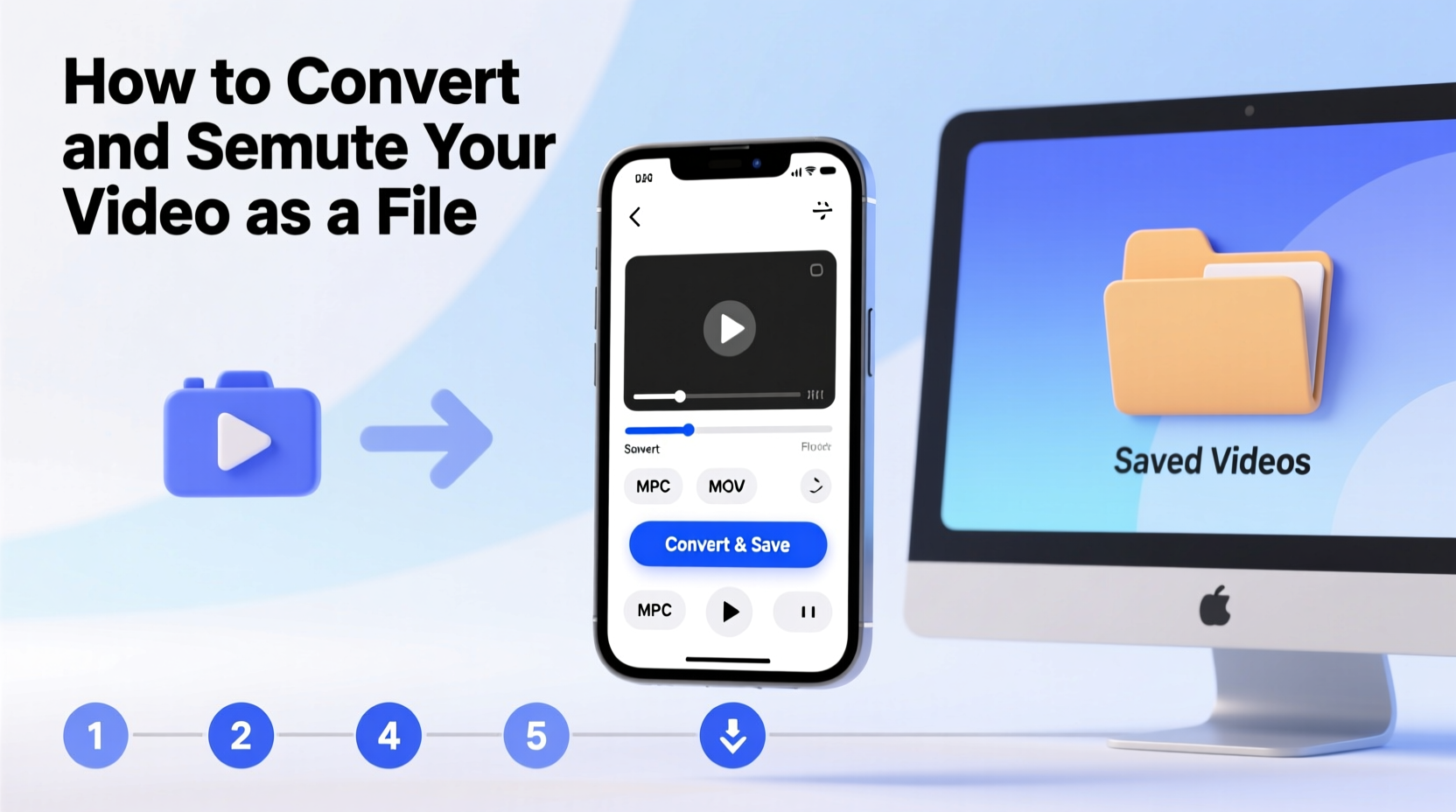
Before diving into conversion, it's essential to understand what a video file actually is. A video file consists of two main components: the container (file extension like .mp4, .avi, .mov) and the codec (the method used to compress and decompress the video data). Not all formats are compatible with every device or platform. For example, an .mkv file might play perfectly on your computer but fail to load on a smartphone or social media site.
The most widely supported format today is MP4 using the H.264 codec. It balances high quality with small file size and works across nearly all devices and websites. Other common formats include:
- AVI – High quality but large file sizes; older format with limited streaming support.
- MOV – Apple’s native format; excellent for editing but less universal outside macOS.
- WMV – Developed by Microsoft; good for Windows environments but not ideal for cross-platform use.
- WebM – Open-source format optimized for web use, especially in HTML5 video players.
Choosing the right output format ensures your video plays smoothly wherever you intend to use it—be it YouTube, email attachments, presentations, or offline viewing.
Step-by-Step Guide to Converting and Saving Your Video
Follow this clear sequence to successfully convert and save your video regardless of source or destination.
- Identify your source video – Locate the video you want to convert. This could be a recording from your phone, a downloaded clip, or a screen capture.
- Determine your target format – Decide where the video will be used. For social media, stick with MP4. For professional editing, consider MOV or AVI.
- Choose a conversion tool – Select software or an online service based on your needs (more on options below).
- Import the video – Open the converter and upload or drag in your original file.
- Select output settings – Choose resolution, bitrate, frame rate, and format. Default presets usually work well for general use.
- Start the conversion – Click “Convert” or “Export.” Processing time depends on file size and device performance.
- Save the new file – Once complete, choose a location to save the converted video. Use descriptive names and organize into folders.
- Verify playback – Open the new file on your intended device or platform to confirm compatibility and quality.
This process typically takes just minutes, even for longer videos, especially when using modern hardware and efficient software.
Best Tools for Video Conversion
You don’t need expensive software to convert videos. Many free and user-friendly tools deliver professional-grade results. Here’s a comparison of top options:
| Tool | Type | Supported Formats | Platform | Cost |
|---|---|---|---|---|
| HandBrake | Desktop App | MP4, MKV, AVI, WebM | Windows, Mac, Linux | Free |
| FFmpeg | Command-line Tool | All major formats | Cross-platform | Free |
| CloudConvert | Online Service | Over 200 formats | Browser-based | Freemium |
| VLC Media Player | Media Player + Converter | MP4, AVI, MOV, MKV | All platforms | Free |
| Shotcut | Video Editor | MP4, MOV, WMV, WebM | Windows, Mac, Linux | Free |
For beginners, HandBrake offers an intuitive interface with powerful encoding controls. Power users may prefer FFmpeg for automation and batch processing. Online tools like CloudConvert are ideal when you’re on a public computer or lack installation rights.
“Using the wrong format can lead to playback issues, long load times, or rejected uploads. Always match your output to your platform.” — David Lin, Multimedia Engineer at StreamLogic Inc.
Common Pitfalls and How to Avoid Them
Even simple conversions can go wrong if key details are overlooked. Below are frequent mistakes and their solutions:
- Ignoring aspect ratio – Cropping or stretching occurs when output dimensions don’t match the source. Always preserve aspect ratio unless intentional editing is needed.
- Over-compressing – Setting bitrate too low results in pixelation and poor sound. For HD video, aim for at least 5 Mbps for smooth playback.
- Saving over the original – Accidentally replacing your master file can result in irreversible data loss. Always save conversions under a new name.
- Not checking audio sync – Some converters misalign audio tracks during transcoding. Play back the first minute to verify lip-sync accuracy.
- Using outdated software – Older versions may lack support for modern codecs like H.265 (HEVC). Keep your tools updated.
Mini Case Study: Converting Interview Footage for Web Upload
Sarah, a freelance journalist, recorded a 45-minute interview on her DSLR camera in MOV format. She needed to upload it to her news website, which only accepted MP4 files under 500MB. Her original file was 1.8GB and wouldn't play in most browsers.
She used HandBrake, selected the “Fast 1080p30” preset, adjusted the quality slider to maintain clarity while reducing size, and exported the video. The final file was 480MB, played instantly on the site, and retained crisp audio. By following a structured workflow, she avoided re-shoots and met her deadline.
Checklist: Convert & Save Your Video Like a Pro
Use this checklist before starting your next conversion:
- ✅ Back up the original video file
- ✅ Confirm the required format and specifications
- ✅ Choose a trusted conversion tool
- ✅ Match resolution and aspect ratio to source (unless resizing)
- ✅ Set appropriate bitrate: 5–8 Mbps for HD, 10+ Mbps for Full HD/4K
- ✅ Preserve audio quality (AAC at 128–256 kbps recommended)
- ✅ Save to a labeled folder with a clear filename
- ✅ Test playback on the target device or platform
Frequently Asked Questions
Can I convert videos without losing quality?
Yes, but only if you avoid recompression. If you must re-encode, use a high bitrate and modern codec like H.264 or H.265. Lossless conversion is possible with tools like FFmpeg using copy settings (-c:v copy), which retain the original stream while changing only the container.
Is it safe to use online video converters?
Most reputable services use encryption and delete files after a few hours. However, avoid uploading sensitive or private content to unknown platforms. For confidential material, always use offline tools like HandBrake or VLC.
Why won’t my converted video play on my phone?
This usually happens when the format or codec isn’t supported. Even if the file ends in .mp4, it might use a rare codec. Reconvert using H.264 video and AAC audio—the most universally compatible combination.
Final Thoughts and Next Steps
Converting and saving a video as a file is a skill every digital user should master. Whether you're preparing content for work, school, or personal projects, knowing how to handle video files gives you control over quality, compatibility, and delivery. The tools are accessible, the methods are straightforward, and the results make a real difference.
Don’t let technical hurdles stop you from sharing your story. Take one video today, follow the steps outlined here, and turn it into a polished, ready-to-use file. Once you’ve done it once, you’ll do it with confidence forever.




 浙公网安备
33010002000092号
浙公网安备
33010002000092号 浙B2-20120091-4
Comments
No comments yet. Why don't you start the discussion?