
In today’s digital world, managing multiple roles—personal, professional, freelance, or side projects—can quickly clutter a single inbox. A second Gmail account offers a powerful solution: clear boundaries, reduced distractions, and improved focus. Whether you're separating work from personal life, launching a business, or simply seeking cleaner communication, setting up and maintaining a secondary Gmail account is both simple and strategic. This guide walks through the entire process—from creation to daily management—with practical tips to keep your email ecosystem efficient and secure.
Why a Second Gmail Account Makes Sense
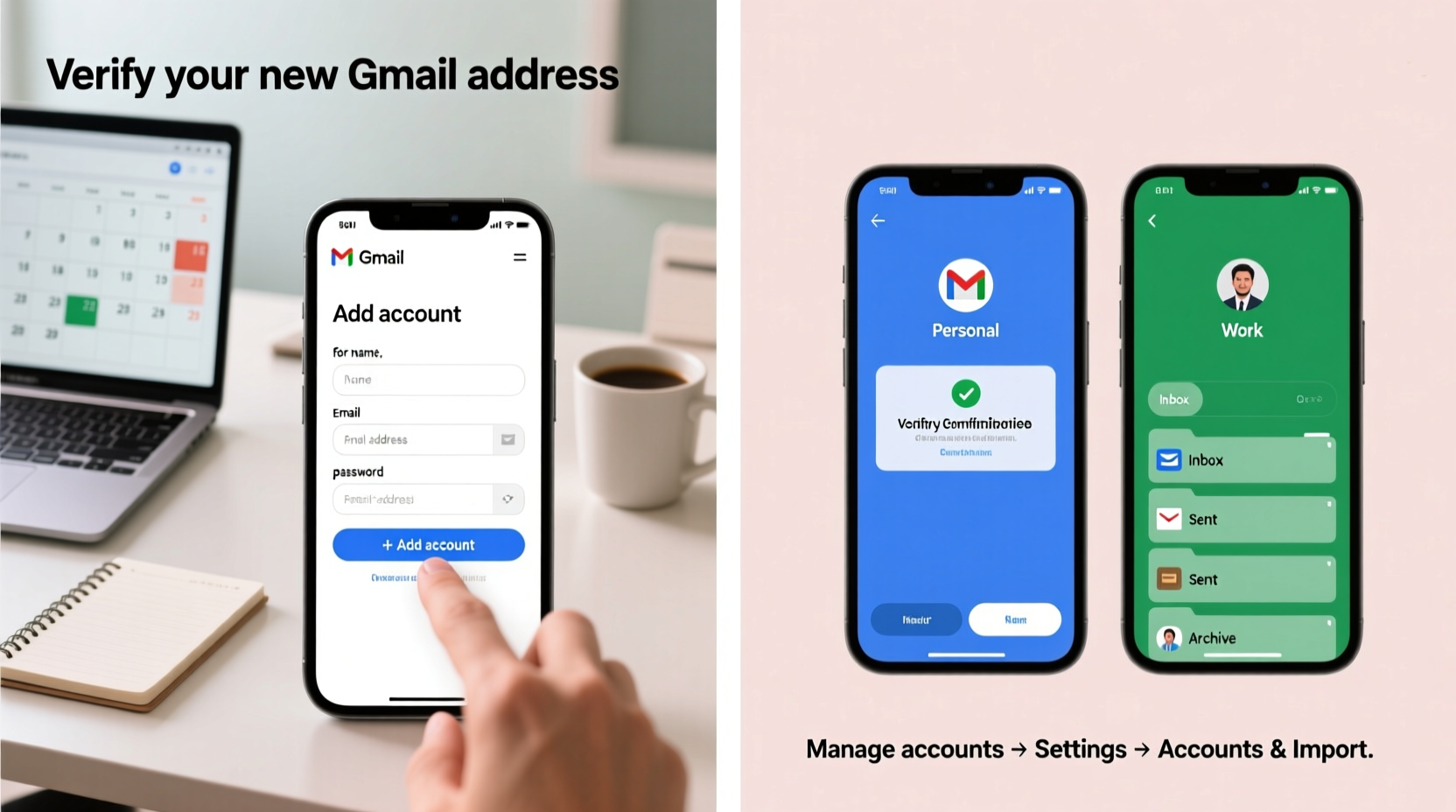
Using one inbox for everything often leads to missed messages, disorganization, and unnecessary stress. A dedicated second Gmail account allows you to compartmentalize your digital identity. For example, job seekers can use one account exclusively for applications and networking, shielding their personal communications from potential spam. Entrepreneurs might reserve a second account for client correspondence, invoices, and business platforms like Google Workspace or Shopify.
Google's ecosystem also rewards multi-account users. With separate logins, you can remain simultaneously signed into different accounts across Chrome, YouTube, Drive, and Calendar—switching contexts with a single click. This flexibility enhances workflow without constant logging in and out.
Step-by-Step: Creating Your Second Gmail Account
Setting up an additional Gmail account takes just a few minutes. Follow this sequence to ensure a smooth setup:
- Open an incognito or private browsing window (or sign out of your current Google account) to avoid automatic login conflicts.
- Navigate to accounts.google.com/signup.
- Choose a name and enter your desired email address. If your preferred username is taken, try variations (e.g., adding numbers or dots).
- Create a strong, unique password—one you won’t reuse on other accounts.
- Provide a recovery phone number or alternate email. This step is crucial for security and account recovery.
- Complete the CAPTCHA verification and agree to Google’s terms.
- Click “Next” to finalize registration.
Once created, immediately customize the account settings. Go to Gmail settings (gear icon > “See all settings”) and adjust the default reply format, signature, and theme. Consider enabling two-factor authentication right away under Google Account Security settings.
Best Practices for Managing Two Gmail Accounts
Having two accounts is only beneficial if you manage them effectively. The key is consistency and automation. Here’s how to stay organized:
- Use account switching: Stay logged into both accounts in your browser. Click your profile icon in the top-right corner of any Google service to toggle between them instantly.
- Set up filters and labels: In your second account, create labels like “Invoices,” “Clients,” or “Newsletters” and apply filters to auto-sort incoming mail.
- Enable forwarding selectively: If needed, forward critical emails from your secondary account to your primary inbox—but use this sparingly to avoid re-cluttering.
- Sync calendars: Link both Google Calendars to view all events in one place while keeping event creation context-specific.
| Action | Primary Account | Secondary Account |
|---|---|---|
| Purpose | Personal communication, family, social | Work, business, subscriptions |
| Email Format | firstname.lastname@gmail.com | initials+profession@gmail.com |
| Notification Priority | High (all emails) | Low (only flagged/senders) |
| Device Sync | Phone & desktop | Desktop only |
Real Example: Freelancer Email Separation
Sophie, a freelance graphic designer, used her personal Gmail for client outreach and project coordination. Over time, her inbox became unmanageable—client deadlines were buried under birthday invites and retail promotions. She created a second Gmail account: sophie.design.work@gmail.com. She updated her portfolio, LinkedIn, and contracts with this new address. Within weeks, she noticed faster response times from clients and fewer missed follow-ups. By using filters to label projects by client and enabling automated replies during vacation periods, Sophie reclaimed control over her workflow—all without touching her personal inbox.
“Separating professional and personal communication isn’t just about organization—it’s a form of digital self-respect.” — Dr. Alan Torres, Digital Wellbeing Researcher, Stanford University
Avoiding Common Pitfalls
While managing two accounts offers advantages, missteps can undermine their effectiveness. Below are frequent issues and how to prevent them:
- Password confusion: Never reuse passwords. Use a reputable password manager (like Bitwarden or 1Password) to store credentials securely.
- Forgotten logins: Regularly access both accounts—at least once every few weeks—to prevent deactivation due to inactivity.
- Mixed identities: Avoid sending emails from the wrong account. Double-check the “From” field before hitting send, especially when replying.
- Overlapping subscriptions: Don’t let both accounts accumulate newsletters or trial services. Assign subscription handling to one account only.
Essential Checklist for Setting Up a Second Gmail Account
Before going live with your new account, complete this checklist to ensure full functionality and security:
- ✅ Choose a professional, recognizable email address
- ✅ Set a strong, unique password
- ✅ Enable two-factor authentication (2FA)
- ✅ Add recovery phone number and backup email
- ✅ Customize signature and default reply settings
- ✅ Create folders (labels) for major categories (e.g., Clients, Finance)
- ✅ Set up filters for automatic sorting
- ✅ Update relevant profiles and contact information
- ✅ Test sending and receiving emails
- ✅ Sync calendar and contacts if needed
Frequently Asked Questions
Can I use the same phone number for two Gmail accounts?
Yes, Google allows the same phone number to be used as a recovery option for multiple accounts. However, for maximum security, consider using different numbers if available, or rely on authenticator apps instead.
Will having two Gmail accounts slow down my phone or computer?
No. Modern devices handle multiple accounts efficiently. You can sync both inboxes selectively—for example, only the primary account on mobile, and the secondary on desktop—to optimize performance.
How do I prevent my second Gmail from being marked as spam?
To maintain sender credibility: use a real name in the account, avoid mass unsolicited emails, authenticate your domain if branding matters, and regularly check the “Spam” and “Promotions” tabs to train Gmail’s filters.
Final Thoughts: Take Control of Your Digital Flow
A second Gmail account isn’t just a technical adjustment—it’s a mindset shift toward intentional communication. By creating a dedicated space for specific activities, you reduce cognitive load, improve responsiveness, and protect your primary identity from digital noise. The setup takes less than 15 minutes, but the long-term benefits in clarity and productivity are substantial.




 浙公网安备
33010002000092号
浙公网安备
33010002000092号 浙B2-20120091-4
Comments
No comments yet. Why don't you start the discussion?