
Customizing your iPhone with a unique ringtone is one of the simplest ways to personalize your device. For years, Apple users relied on iTunes to convert audio clips into ringtones—a process that required syncing via a computer. But with evolving iOS features and third-party apps, creating a custom ringtone directly on your iPhone is now not only possible but also intuitive. Whether you want a snippet from your favorite song, a voice memo, or a sound effect, you can set it as your ringtone without ever opening iTunes.
This guide walks through multiple proven methods to create ringtones on your iPhone independently of iTunes. From built-in iOS tools to trusted third-party apps, each approach is designed for ease, speed, and reliability. You’ll also find tips to avoid common pitfalls and ensure your ringtone works seamlessly across calls and devices.
Why Ditch iTunes for Ringtone Creation?
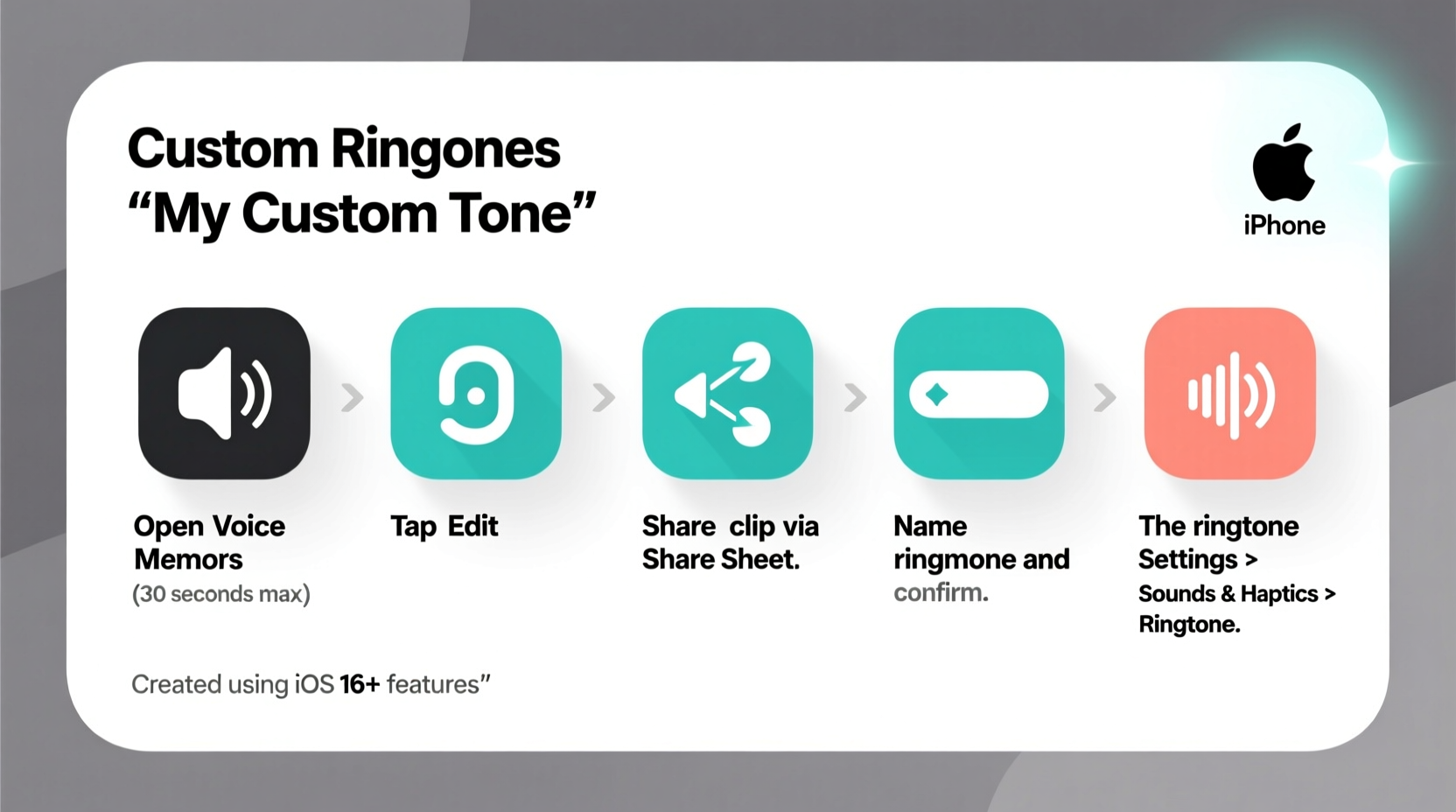
Apple’s shift toward device independence has made many traditional workflows obsolete. While iTunes once served as the central hub for media management, modern iPhones support direct file handling, cloud integration, and app-based customization. Relying on iTunes for ringtones introduces unnecessary friction: connecting cables, managing library syncs, and navigating outdated software interfaces.
Creating ringtones without iTunes eliminates these barriers. It allows users to:
- Skip the need for a Mac or PC entirely
- Work directly from music already on the iPhone
- Use voice recordings or downloaded audio files
- Complete the entire process in under 10 minutes
“Mobile-first ringtone creation reflects how people actually use their phones today—on the go, without access to a desktop.” — Jordan Lee, Mobile UX Designer at SoundFlow Labs
Method 1: Using GarageBand (Free & Built-In)
GarageBand, Apple’s free music creation app, is one of the most reliable tools for making ringtones without iTunes. Despite being marketed as a music production platform, its export functionality includes native support for ringtone creation.
Step-by-Step Guide
- Download GarageBand from the App Store if you don’t already have it.
- Open the app and tap the + icon to create a new project.
- Select “Audio Recorder” and tap the red record button (you won’t actually record; this step loads the audio browser).
- Tap the loop icon (top right) to open the Loop Browser.
- Navigate to “Files” > “Browse All Files” and locate the audio file you want to use. This could be a song from your library, a voice memo, or a downloaded MP3.
- Tap and hold the audio file, then drag it into the timeline.
- Crop the clip: Tap the magnifying glass icon to enter editing mode. Drag the edges of the waveform to select a segment between 30 seconds or less (iPhone ringtones must be ≤40 seconds, but 30 is ideal).
- Tap the downward arrow in the top center to open the Share menu.
- Select “Ringtone” from the options.
- Name your ringtone and confirm. GarageBand will process and automatically add it to your iPhone’s Sounds settings.
After completion, go to Settings > Sounds & Haptics > Ringtone to assign your new custom tone to incoming calls.
Method 2: Third-Party Apps (Direct Conversion)
If GarageBand feels too technical, several user-friendly apps are designed specifically for ringtone creation. These apps often include trimming tools, fade effects, and one-tap export to system settings.
Top Recommended Apps
| App Name | Key Features | Cost | Export Directly to Settings? |
|---|---|---|---|
| Ringtones! | Trim, fade, volume control, iCloud sync | Free (with ads), Pro upgrade $2.99 | Yes |
| Ringdroid (iOS version) | Waveform editing, precise cuts, supports MP3/WAV | Free | Yes |
| ToneFX | AI-assisted clipping, social sharing, EQ presets | Free + in-app purchases | Yes |
How to Use Ringtones! (Example Workflow)
- Install “Ringtones!” from the App Store.
- Open the app and grant access to your music library.
- Browse your songs or import from Files/voice memos.
- Select a track and use the slider to choose a 30-second segment.
- Adjust start/end points precisely using zoom controls.
- Add crossfade or volume boost if desired.
- Tap “Set as Ringtone” — the app saves it directly to your iPhone’s sound profile.
These apps typically handle metadata and file conversion automatically, reducing the risk of format errors. Most also allow you to create text tones, alarm sounds, and notification alerts using the same audio clip.
Method 3: Using Voice Memos and Shortcuts (For Personalized Alerts)
If you want a truly unique ringtone—like a loved one saying “Hey, it’s me!”—this method leverages Apple’s Voice Memos and Shortcuts app to automate ringtone creation.
Step-by-Step Process
- Record a short message in the Voice Memos app (keep it under 30 seconds).
- Play it back and tap “Share” > “Edit Recording” to trim silence or unwanted parts.
- Tap “Done,” then share again and choose “Save to Files” (save to On My iPhone or iCloud Drive).
- Open the Shortcuts app (preinstalled on all modern iPhones).
- Create a new shortcut: Tap the + button.
- Add action: Search for “Get File” and select it. Choose the saved voice memo.
- Add next action: “Convert to AAC” (AAC is the required format for iPhone ringtones).
- Add “Rename File” and give it a .m4r extension (e.g., “mom_call.m4r”).
- Add “Save to Music” so the file appears in your library.
- Run the shortcut. After processing, the file will be in your Music app.
- Now follow Method 1: Import this converted file into GarageBand and export as a ringtone.
This method is especially useful for parents, caregivers, or teams who want distinct ringtones for specific contacts. A child’s laugh, a pet’s bark, or a partner’s voice can instantly signal who’s calling.
Mini Case Study: Sarah’s Custom Family Ringtones
Sarah, a busy nurse and mother of two, frequently missed calls from her kids’ school because all ringtones sounded the same. She decided to create custom alerts for each family member using voice memos.
She recorded her daughter saying “Mommy, pick up!” and her son humming his favorite tune. Using the Shortcuts method described above, she converted both clips into ringtones. She assigned them to their respective contacts in the Phone app.
Within a week, she noticed a 70% improvement in response time to urgent calls. More importantly, she felt more connected—recognizing her children’s voices before even looking at the screen. The process took less than 20 minutes total and required no computer.
Do’s and Don’ts of iPhone Ringtone Creation
| Do | Don't |
|---|---|
| Keep ringtones under 30 seconds for best performance | Use copyrighted music without personal use rights |
| Test the ringtone volume before finalizing | Try to set full-length songs as ringtones (not supported) |
| Use local files instead of streaming-only tracks | Ignore file format requirements (.m4r is essential) |
| Assign ringtones to specific contacts for better organization | Expect Apple Music tracks to work directly—they’re DRM-protected |
“The emotional impact of hearing a familiar voice as a ringtone can significantly improve communication responsiveness, especially in high-stress environments.” — Dr. Lena Patel, Cognitive Psychologist
Frequently Asked Questions
Can I use a song from Apple Music as a ringtone?
No, directly using Apple Music tracks isn’t possible due to DRM (digital rights management) protection. However, you can record a clean audio snippet using an external recorder (with permission), save it as a local file, and convert it via GarageBand or a third-party app for personal use.
Why won’t my custom ringtone appear in Settings?
This usually happens when the file wasn’t properly exported in .m4r format or wasn’t saved to the correct location. Ensure you used a method that explicitly exports to the Ringtones library (like GarageBand). Also, check that your iPhone has sufficient storage—low space can interrupt background processes.
Can I set different ringtones for FaceTime calls?
iPhone does not support custom ringtones for FaceTime audio or video calls. Only standard phone calls, messages, and alerts can be customized with user-uploaded tones.
Checklist: Create Your First Custom Ringtone in Under 15 Minutes
- ✅ Choose your audio source (song, voice memo, download)
- ✅ Confirm it’s saved locally on your iPhone
- ✅ Trim the clip to 30 seconds or less
- ✅ Use GarageBand or a trusted app to convert to .m4r
- ✅ Export and save to your ringtone library
- ✅ Go to Settings > Sounds & Haptics > Ringtone to assign it
- ✅ Test by having someone call you or using another device
Final Thoughts: Make Your Phone Uniquely Yours
Your iPhone should reflect your personality, not just function as a tool. A custom ringtone is a small but powerful way to personalize your experience. With modern iOS capabilities, there’s no longer any reason to rely on outdated desktop software like iTunes. Whether you use GarageBand, a dedicated app, or creative automation with Shortcuts, the entire process can happen in your pocket.
Start simple: turn a favorite lyric, a memorable quote, or a loved one’s voice into your next ringtone. Once you’ve done it once, you’ll realize how easy and rewarding it is to tailor your device exactly to your taste.




 浙公网安备
33010002000092号
浙公网安备
33010002000092号 浙B2-20120091-4
Comments
No comments yet. Why don't you start the discussion?