
In today’s digital world, sharing visual content is more important than ever. Whether you're a blogger embedding an image in a post, a marketer sending assets to a team, or someone simply wanting to share vacation photos, having a reliable way to generate shareable photo links simplifies communication. A direct image link allows others to view, download, or embed your photo without needing access to your device or cloud storage.
Despite its usefulness, many people struggle with creating clean, functional, and durable image links. The process can seem technical, especially when platforms restrict external linking or obscure file paths. This guide breaks down the entire process into clear, actionable steps—so you can generate shareable photo links quickly, securely, and efficiently.
Why Shareable Photo Links Matter
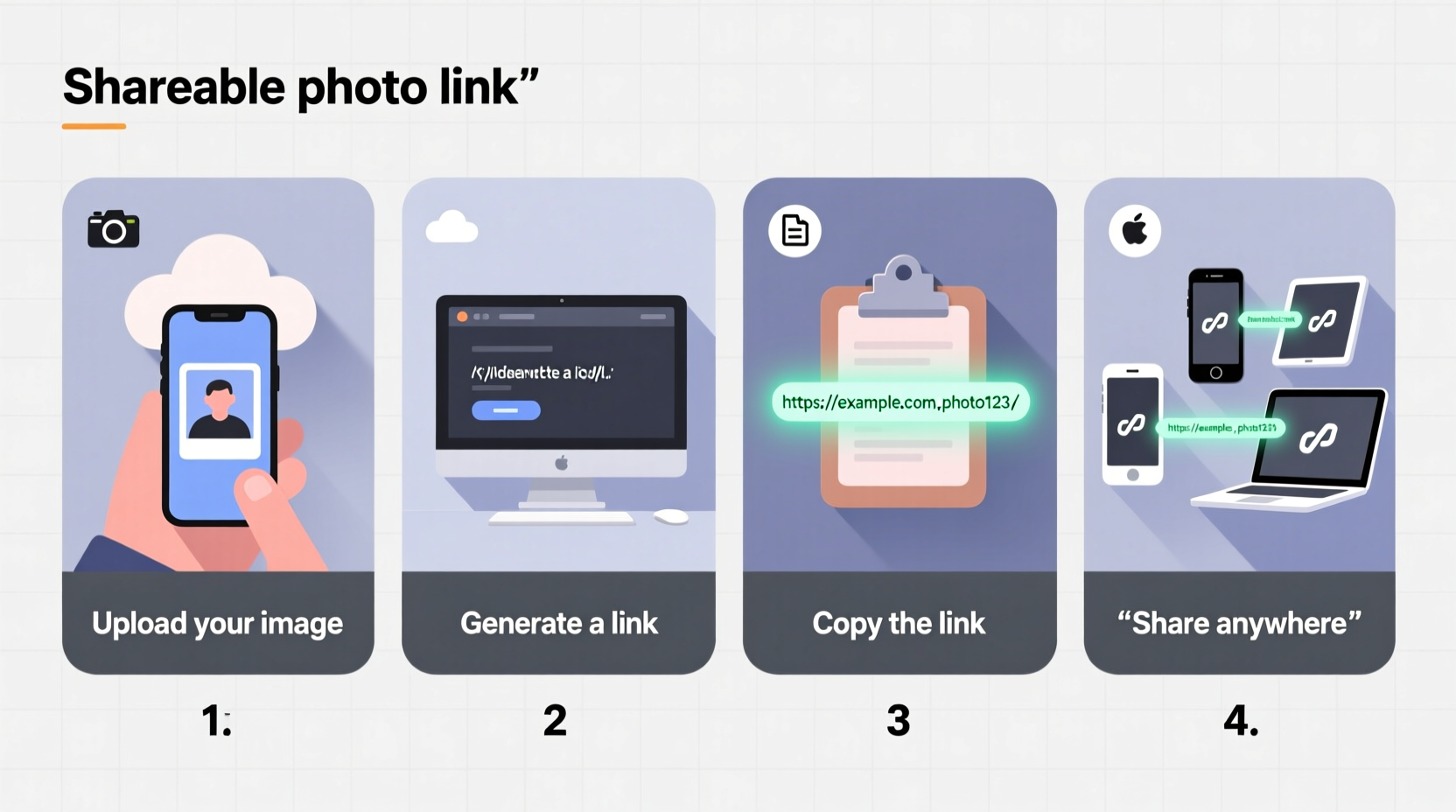
A shareable photo link is a direct URL pointing to an image hosted online. Unlike attachments or social media posts, these links are lightweight, embeddable, and accessible across devices. They’re essential for:
- Embedding images in blogs, emails, or documentation
- Sharing high-resolution files without size limitations
- Collaborating with remote teams on design or marketing projects
- Driving traffic from visual content back to your website or portfolio
When done correctly, a single image link can serve multiple purposes across platforms—making it one of the most versatile tools in digital communication.
Step-by-Step Guide to Creating Shareable Photo Links
Follow this structured process to generate a working, shareable image link in minutes.
- Choose a Hosting Platform: Select a service that supports direct image linking. Popular options include Google Drive, Dropbox, Imgur, GitHub, and dedicated image hosts like Postimages or Cloudinary.
- Upload Your Image: Log in to your chosen platform and upload the photo. Ensure the filename is descriptive (e.g., “product-launch-event.jpg” instead of “IMG_1234.jpg”) for better usability.
- Adjust Sharing Settings: Set the file permissions to “Anyone with the link can view.” Avoid private or restricted settings that block external access.
- Generate the Direct Link: Look for a “Share” button. In most cases, copying the shared link isn’t enough—you need the actual image URL. For true direct linking, ensure the URL ends in .jpg, .png, .webp, or another image extension.
- Test the Link: Paste the URL into a new browser tab. If the image loads directly (not within a webpage), it's ready to use. If a page appears instead, further adjustments are needed.
- Use the Link: Embed it in websites using HTML
<img src=\"your-link-here\">, paste it into messages, or integrate it into presentations.
Best Platforms for Hosting Shareable Images
Not all hosting services are created equal when it comes to generating clean, stable image links. Here’s a comparison of top platforms based on reliability, ease of use, and link format.
| Platform | Direct Link Support | Free Tier? | Best For |
|---|---|---|---|
| Imgur | Yes – automatic .png/.jpg URLs | Yes | Quick sharing, forums, social media |
| Google Drive | Limited – requires URL modification | Yes | Private sharing within teams |
| Dropbox | Yes – with public folder or link settings | Yes (limited) | Professional file exchange |
| GitHub | Yes – raw file URLs work perfectly | Yes | Developers, technical documentation |
| Cloudinary | Yes – advanced transformation features | Yes (generous free tier) | Web developers, marketers, dynamic imaging |
For beginners, Imgur offers the smoothest experience. Developers may prefer GitHub or Cloudinary for greater control. Dropbox strikes a balance for business users who need secure but accessible links.
Common Pitfalls and How to Avoid Them
Even experienced users make mistakes when generating image links. These issues often result in broken, inaccessible, or non-embeddable URLs.
- Using preview pages instead of direct links: Many platforms generate a web page URL rather than the image itself. To fix this, modify the URL: in Google Drive, replace
/file/d/[ID]/viewwith/uc?export=view&id=[ID]. - Overlooking permission settings: If the link prompts login, the file is still set to “private.” Adjust sharing settings to “anyone with the link.”
- Assuming permanence: Free hosting services may delete inactive files. For long-term use, consider self-hosting via your website or a paid CDN.
- Ignoring image optimization: Large files slow down loading. Compress images before uploading using tools like TinyPNG or Squoosh.
“Direct image links are the backbone of efficient digital collaboration. A properly formatted link saves hours of miscommunication.” — Dana Reyes, Digital Workflow Consultant
Real-World Example: Marketing Team Image Distribution
A mid-sized e-commerce brand prepares for a product launch. The marketing team needs to distribute high-res product images to external partners: influencers, PR agencies, and affiliate sites.
Instead of emailing bulky attachments or using insecure file-sharing apps, they upload images to Cloudinary. Each image receives a unique, compressed, and trackable URL. These links are embedded in press kits and shared via a simple spreadsheet.
The result? Faster distribution, no download failures, and the ability to update images centrally—if the photo changes, the link stays the same, ensuring consistency across all channels.
Action Checklist: Create a Shareable Photo Link in 5 Minutes
Use this checklist to streamline your workflow every time you need to share an image online.
- ✅ Choose a hosting platform (e.g., Imgur, Dropbox, or GitHub)
- ✅ Upload the image with a clear, descriptive filename
- ✅ Set sharing permissions to “Anyone with the link can view”
- ✅ Extract or generate the direct image URL (ending in .jpg, .png, etc.)
- ✅ Test the link in a private browser tab
- ✅ Use the link in your desired context: email, website, chat, or document
- ✅ (Optional) Shorten the URL using Bitly or TinyURL for cleaner appearance
Frequently Asked Questions
Can I password-protect a shareable photo link?
Yes, some platforms like Dropbox and Google Drive allow password protection or expiration dates on shared links. However, this may prevent embedding in websites or automatic loading in emails.
Why does my image link show a download prompt instead of displaying the photo?
This usually happens when the server sends the wrong MIME type or the file is zipped. Ensure you’re using the raw image URL and not a compressed version. Platforms like GitHub require using the “Raw” button to get the correct link.
Are shareable image links safe?
They are safe if used responsibly. Avoid sharing sensitive or personal images via public links. Always revoke access or delete the file when it’s no longer needed. For confidential data, use encrypted sharing tools instead.
Final Thoughts and Next Steps
Creating shareable photo links doesn’t require advanced technical skills—just the right tools and a clear method. Once mastered, this simple technique enhances productivity, improves collaboration, and expands the reach of your visual content.
Start small: upload one image today using Imgur or Dropbox and generate a working link. Test it, embed it, share it. As you grow more confident, explore advanced platforms like Cloudinary for resizing, caching, and performance optimization.




 浙公网安备
33010002000092号
浙公网安备
33010002000092号 浙B2-20120091-4
Comments
No comments yet. Why don't you start the discussion?