
The Samsung Galaxy S8, though released in 2017, remains a favorite among users who appreciate its sleek design and reliable performance. One of the most visible elements on the device is the large digital clock that appears front and center on the lock screen. While it’s functional, some users find it too prominent or simply prefer a minimalist look. Fortunately, you can customize—or even hide—this clock using built-in settings or third-party tools. This guide walks you through every method available to tailor your lock screen appearance to your personal taste.
Understanding the Default Lock Screen Clock
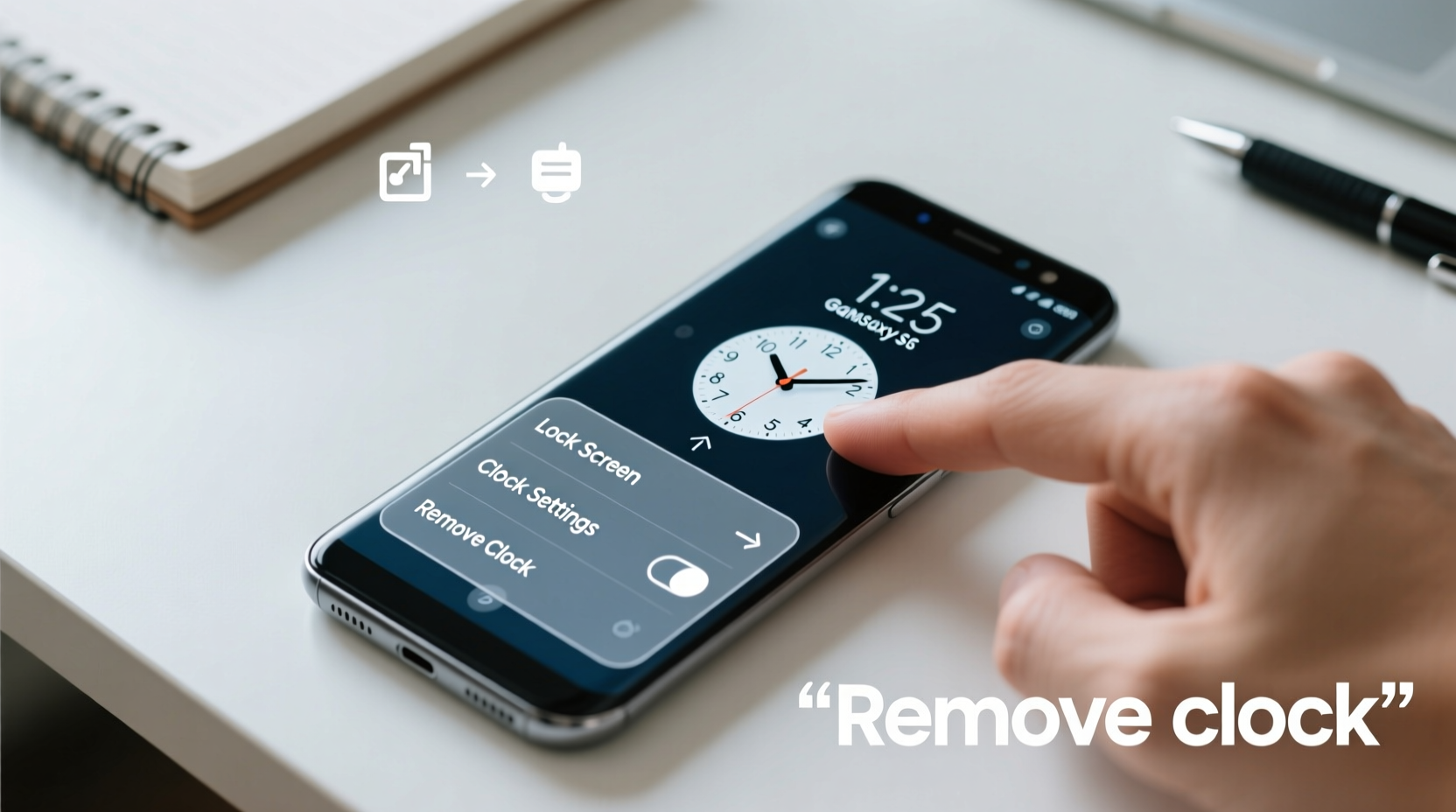
By default, the Galaxy S8 displays a bold, centered digital clock on the lock screen. This clock is part of Samsung’s Always On Display (AOD) feature and the standard lock screen interface. It's designed for convenience—allowing users to glance at the time without unlocking the phone. However, this prominence isn’t for everyone. Some may want a subtler time display, while others might prefer no clock at all for aesthetic or privacy reasons.
Samsung does not provide a direct “remove clock” toggle in the main settings, but there are workarounds that offer varying degrees of control over the clock’s visibility and style.
Step-by-Step: How to Hide or Customize the Lock Screen Clock
While complete removal of the clock from the unlocked lock screen isn't officially supported by Samsung, you can achieve a similar effect through customization and alternative launchers. Here’s how:
- Disable Always On Display (AOD)
The AOD shows the time, date, and notifications even when the screen is off. Turning it off removes the floating clock during standby.
Navigate to: Settings → Lock screen → Always On Display
Toggle off the feature. You’ll no longer see the clock when the screen is dark. - Change Lock Screen Style
Samsung allows limited customization of the lock screen clock’s appearance.
Go to: Settings → Lock screen → Clock and face widgets
Choose a minimal clock style or one that blends into the wallpaper. Some options reduce the size or opacity of the clock. - Use a Third-Party Lock Screen App
Apps like Hi Locker, Smart Launcher, or Nova Launcher + KLWP let you replace the default lock screen entirely.
These apps allow full control over what appears on the lock screen—including removing the clock completely. Note: Due to Android security restrictions, third-party apps cannot fully replace the system lock screen if secure lock methods (PIN, pattern, fingerprint) are enabled. However, they can overlay a custom interface after authentication. - Set a Busy Wallpaper
A creative workaround is using a wallpaper that visually \"hides\" the clock. Choose an image with a dark or busy section in the center where the clock normally sits. This doesn’t remove the clock but makes it less noticeable. - Enable Minimalist Mode via Themes
Use Samsung’s built-in Theme Store to apply a theme that simplifies the lock screen. Some themes reduce the clock to a small corner display or dim it significantly.
Open: Galaxy Store → Themes
Search for “minimal,” “dark,” or “clean” themes and preview their lock screen designs before applying.
Comparison of Methods: Pros and Cons
| Method | Effectiveness | Difficulty | Drawbacks |
|---|---|---|---|
| Disable AOD | Removes clock when screen is off | Easy | Clock still appears when unlocking |
| Change Clock Style | Moderate – reduces visibility | Easy | Limited options; clock remains large |
| Third-Party Locker | High – full customization | Moderate | May conflict with security features |
| Busy Wallpaper | Low to Moderate – visual trick | Easy | Clock still present; depends on lighting |
| Apply Minimal Theme | Moderate – varies by theme | Easy | Few truly minimalist options |
Real Example: Maria’s Minimalist Makeover
Maria, a graphic designer and long-time Galaxy S8 user, found the default clock distracting. She wanted a clean, distraction-free lock screen that matched her aesthetic preferences. After trying several methods, she combined two approaches: she disabled Always On Display and installed Hi Locker with a monochrome wallpaper. The app allowed her to hide the clock and show only essential notifications. Though she had to re-authenticate each time, she found the trade-off worth it for the sleek look. “It feels more intentional,” she said. “Like my phone respects my focus.”
“Users often overlook the psychological impact of cluttered interfaces. A simplified lock screen can reduce cognitive load and improve daily interactions with your device.” — Dr. Alan Reyes, Human-Computer Interaction Researcher
Checklist: Customize or Remove Your Galaxy S8 Lock Screen Clock
- ✅ Disable Always On Display to remove the idle clock
- ✅ Explore clock styles under Lock screen settings
- ✅ Browse and apply minimalist themes from Galaxy Store
- ✅ Select a wallpaper with a dark center to obscure the clock
- ✅ Install a trusted third-party locker app for full control
- ✅ Test changes in different lighting conditions
- ✅ Backup settings before making major UI changes
Frequently Asked Questions
Can I completely remove the clock when unlocking my Galaxy S8?
No, Samsung does not allow complete removal of the lock screen clock through native settings. However, third-party apps can overlay a custom interface that hides it after authentication. Full removal without root access is not possible due to system-level UI constraints.
Will disabling Always On Display save battery?
Yes. The Always On Display uses the AMOLED screen’s pixel efficiency, but it still consumes power. Disabling it can extend battery life by 5–15% depending on usage, especially in older devices like the S8 where battery degradation may be present.
Are third-party lock screen apps safe to use?
Most reputable apps from the Google Play Store are safe, but avoid granting unnecessary permissions. Stick to well-reviewed apps with high download counts. Be aware that some may show ads or require in-app purchases for full features.
Final Thoughts and Recommendations
While the Galaxy S8 doesn’t offer a one-click solution to delete the lock screen clock, a combination of settings tweaks and smart tools can get you very close to that goal. For casual users, changing the clock style or using a dark wallpaper is sufficient. Power users seeking total control should explore third-party launchers and lock screen apps—even with minor limitations, the results can be transformative.
Remember, customization isn’t just about looks—it’s about creating a device that aligns with how you live and work. Whether you’re streamlining your phone for focus, privacy, or personal style, taking charge of your lock screen is a meaningful step toward digital wellness.




 浙公网安备
33010002000092号
浙公网安备
33010002000092号 浙B2-20120091-4
Comments
No comments yet. Why don't you start the discussion?