
On macOS, the way an MP3 file appears in Finder, Quick Look, or media apps like Music (formerly iTunes) is influenced by its embedded metadata—including album artwork. Customizing this preview not only makes your music library more visually appealing but also helps you quickly identify tracks in file browsers. While macOS handles many audio details automatically, manually updating album art gives you full control over how your files are displayed. This guide walks through reliable methods to change album artwork on MP3 files directly from your Mac, using both native tools and trusted third-party applications.
Why Album Artwork Matters in File Previews
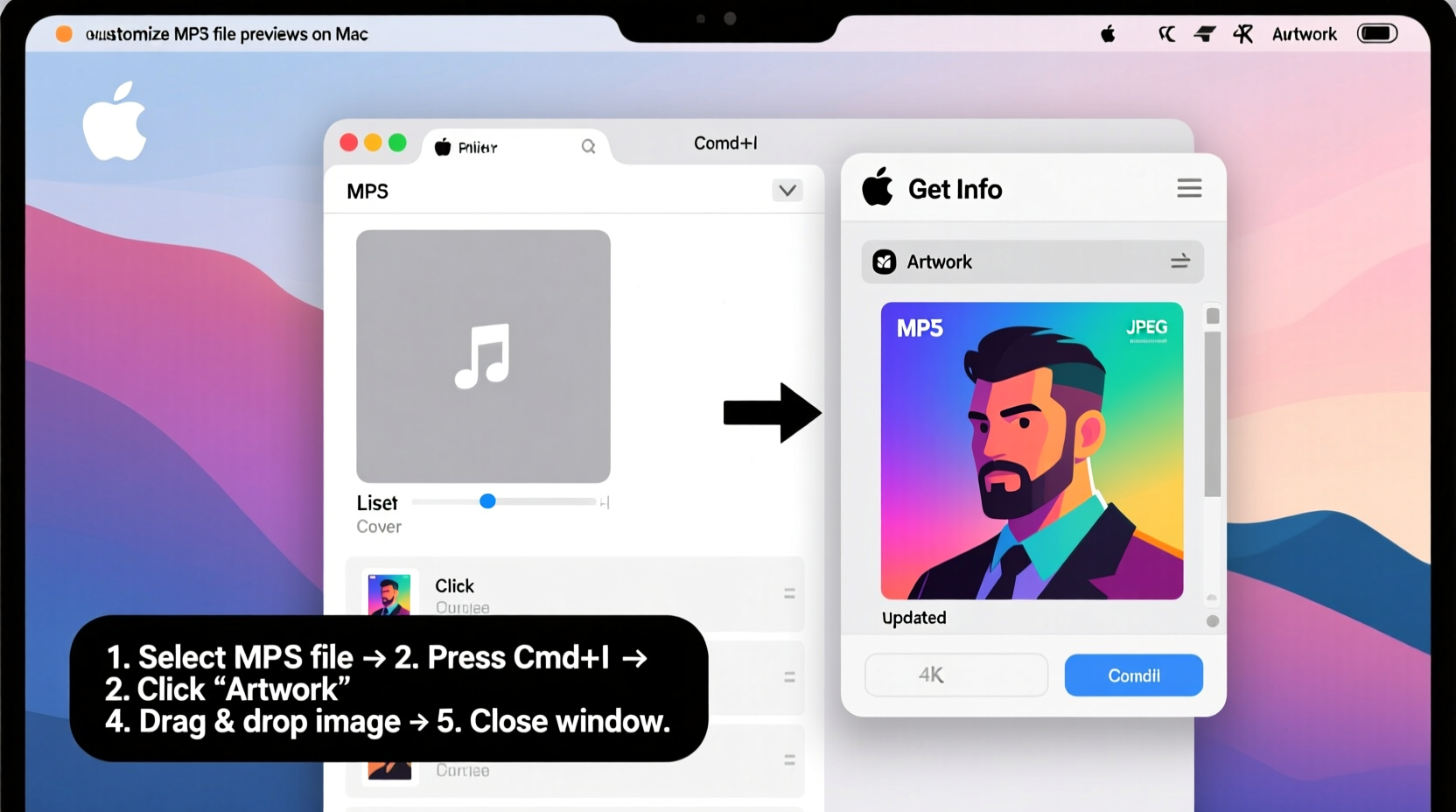
Album artwork isn’t just for streaming platforms. When embedded correctly into an MP3 file, it becomes part of the ID3 tag—a standard metadata container that stores information like title, artist, genre, and cover art. On Mac, when you hover over an MP3 file and press Spacebar to use Quick Look, the system pulls the embedded image to generate a visual preview. Without artwork, the preview defaults to a generic music note icon, making files harder to distinguish at a glance.
Well-labeled and visually consistent music files improve organization, especially if you manage a large offline collection or share files across devices. Whether you're archiving rare recordings, curating playlists for events, or simply want your personal library to look polished, embedding custom artwork is a small step with noticeable impact.
“Visual cues in file management reduce cognitive load and increase efficiency—album art is one of the most effective ways to make digital audio feel tangible.” — Dr. Alan Reyes, Digital Media Archivist at Stanford University Libraries
Step-by-Step: How to Change Album Artwork Using Apple Music
The easiest way to edit MP3 artwork on Mac is through Apple’s built-in Music app. It supports direct editing of ID3 tags and seamlessly updates embedded images. Follow these steps:
- Open the Music app on your Mac.
- Drag and drop the MP3 file(s) you want to edit into your library, or go to File > Add to Library and select them.
- Locate the track in your library, right-click (or Control-click), and select Get Info.
- In the window that appears, click the Artwork tab.
- If there’s existing artwork, select it and press the minus (–) button to remove it.
- Click the plus (+) button, then choose Add Artwork from file or paste from clipboard.
- Select a high-quality JPEG or PNG image (recommended size: 1400x1400 pixels or larger).
- Click OK to save changes.
- Right-click the track again and select Show in Finder to verify the updated file.
After saving, the new artwork will appear in Finder previews, Quick Look, and other compatible apps. Note: If the file doesn’t update immediately, try restarting the Music app or clearing the Quick Look cache via Terminal with qlmanage -r.
Using Third-Party Tools for Advanced Control
While the Music app works well for basic edits, power users may prefer dedicated tagging software that offers batch processing, format support beyond MP3, and greater metadata precision. Two top-rated options include:
- MP3Tag (via CrossOver or virtual machine) – Though native to Windows, MP3Tag runs smoothly on Mac using compatibility layers and provides granular control over ID3 versions and frame types.
- Tag Editor (Mac App Store) – A fully native, open-source tool that allows bulk editing, drag-and-drop artwork, and JSON-based backup of tags.
For example, with Tag Editor:
- Download and install Tag Editor from the Mac App Store.
- Launch the app and drag your MP3 files into the interface.
- Click the blank artwork area and either paste an image or click “Choose File” to upload one.
- Edit additional fields like genre, year, or comments as needed.
- Click Save Changes. The app embeds the image directly into the file’s metadata.
These tools are especially useful when managing entire albums or re-tagging poorly labeled downloads. They also preserve your changes even if you later move files outside Apple’s ecosystem.
Do’s and Don’ts of Embedding Album Art
| Do | Don't |
|---|---|
| Use JPEG or PNG formats for artwork | Embed BMP or TIFF files (poor compatibility) |
| Keep file size under 500 KB per image | Add multiple large images (slows down playback) |
| Verify changes with Quick Look after editing | Rely solely on app thumbnails—check actual file data |
| Backup original files before bulk editing | Assume all players display art consistently |
| Standardize naming (e.g., Artist - Title.jpg) | Use copyrighted images without permission |
Real Example: Fixing a Mislabeled Live Recording
Sophie, a podcast producer and vinyl collector, downloaded a rare live performance of her favorite band from a fan archive. The MP3 had no artwork and was labeled generically as “Track04.mp3.” To integrate it into her curated playlist, she followed these steps:
- She searched for a high-resolution photo from that concert tour and cropped it to a square.
- She added the file to Apple Music and used “Get Info” to embed the image.
- She updated the metadata: title (“Live at Red Rocks”), artist (band name), album (“2019 Summer Tour”), and year.
Within minutes, the file appeared in Finder with a clear, professional preview. When she shared it with a friend via AirDrop, the artwork displayed instantly on their iPhone. This simple edit transformed an anonymous audio file into a meaningful keepsake.
Frequently Asked Questions
Will changing album art affect sound quality?
No. Album artwork is stored separately from the audio data within the ID3 tag. Embedding or modifying it does not alter the MP3’s bitrate, encoding, or playback quality in any way.
Why doesn’t my artwork show up in Quick Look?
This can happen if the image wasn’t properly embedded, the file cache is outdated, or the app used didn’t write to the correct ID3 frame. Try reopening the file in Apple Music, re-adding the art, and running qlmanage -r in Terminal to reset the preview generator.
Can I automate artwork updates for hundreds of files?
Yes. Apps like Tag Editor or MusicBrainz Picard support batch operations. You can apply the same artwork to multiple tracks at once or auto-fetch missing covers using online databases.
Final Checklist Before You Finish
- Checklist:
- ✅ Backed up original MP3 files
- ✅ Used a high-resolution, properly formatted image
- ✅ Embedded artwork using Apple Music or a trusted tag editor
- ✅ Verified preview in Finder using Quick Look
- ✅ Confirmed metadata accuracy (artist, title, album)
- ✅ Tested file on another device or app to ensure compatibility
Take Control of Your Music Library Today
Customizing MP3 file previews on Mac is more than a cosmetic upgrade—it's about ownership, organization, and pride in your digital collection. With just a few clicks, you can turn bland, unmarked audio files into visually rich, easily identifiable assets. Whether you’re a casual listener or a meticulous archivist, taking the time to embed proper album artwork pays off every time you browse your library or share music with others.




 浙公网安备
33010002000092号
浙公网安备
33010002000092号 浙B2-20120091-4
Comments
No comments yet. Why don't you start the discussion?