
Your Android home screen is more than just a launching pad for apps—it’s your digital command center. With the right approach, you can transform it from a cluttered grid into a streamlined, visually cohesive interface that reflects your personality and enhances productivity. Most users barely scratch the surface of what’s possible. By leveraging launchers, icon packs, widgets, and automation tools, you can achieve a level of customization unmatched by any other mobile platform.
The beauty of Android lies in its openness. Unlike rigid ecosystems, Android allows deep system-level modifications without requiring root access. Whether you’re using a Samsung Galaxy, a Google Pixel, or a budget-friendly device, the principles of elite home screen design remain consistent: purpose, consistency, and polish. This guide breaks down exactly how to elevate your setup beyond default aesthetics and unlock true personalization potential.
Choose the Right Launcher as Your Foundation
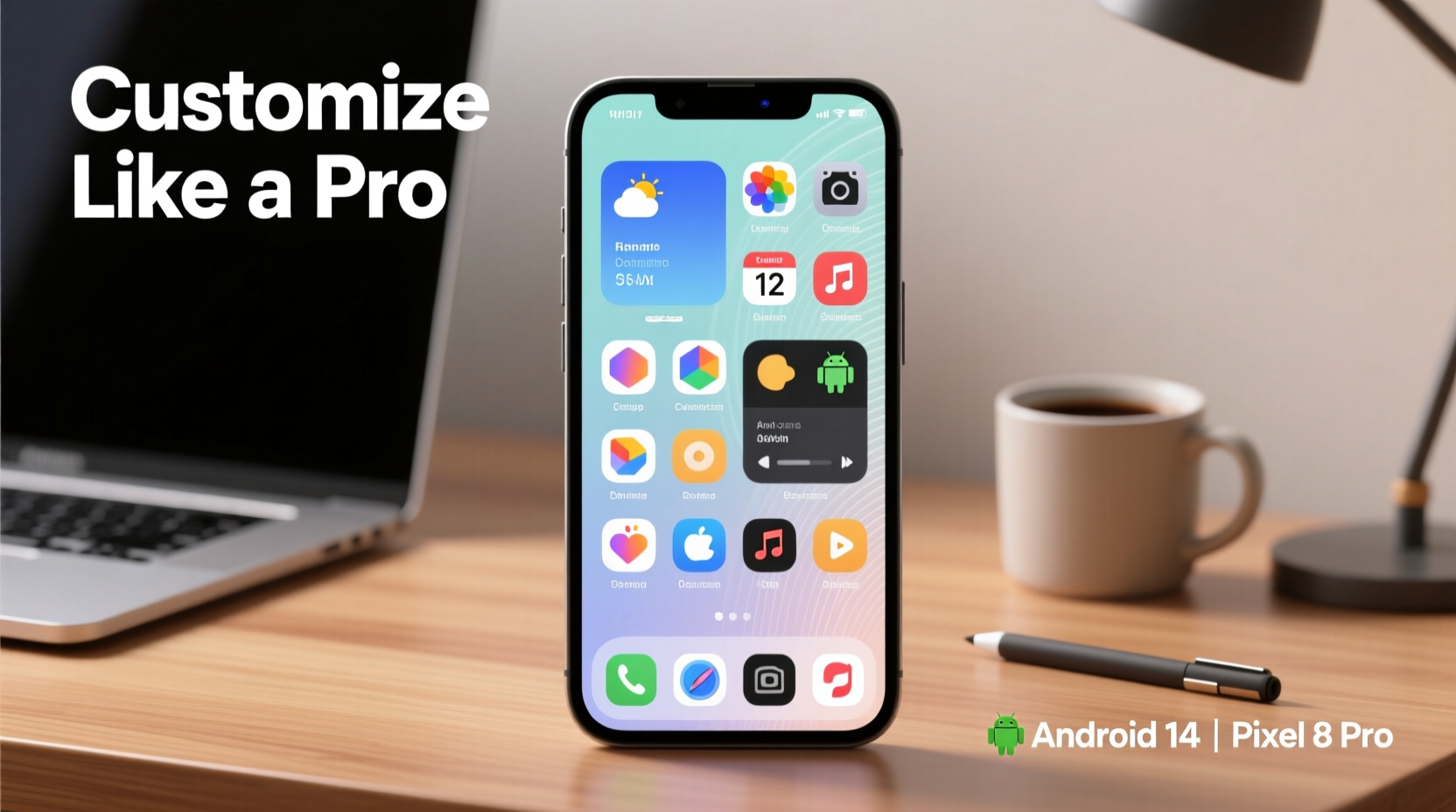
The launcher is the engine behind your home screen experience. It dictates layout options, animation style, gesture support, and overall flexibility. Stock launchers—like Samsung’s One UI Home or Xiaomi’s MIUI Launcher—offer basic functionality but lack depth. To go pro, switch to a third-party launcher designed for customization.
Top-tier options include:
- Nova Launcher: The gold standard for power users. Offers granular control over every visual and functional aspect, including icon size, grid spacing, scroll effects, and even backup/restore of entire layouts.
- Action Launcher: Blends elegance with innovation. Features Quicktheme (auto-color matching), peek notifications, and seamless integration with Google’s Material You design language.
- Microsoft Launcher: Ideal for productivity-focused users. Syncs with Outlook, Microsoft 365, and Windows devices, offering timeline integration and cross-platform continuity.
- Apex Launcher: Lightweight alternative with strong theming support and smooth performance on mid-range hardware.
After installing your preferred launcher, set it as default via Settings > Apps > Default Apps > Home App. Then spend time exploring its settings. Adjust the dock size, enable swipe-up gestures, and fine-tune animation speed. A well-configured launcher should feel invisible—intuitive, fast, and perfectly aligned with your usage habits.
Master Icon Packs and Visual Consistency
Icons are the most visible element of your home screen. Inconsistent shapes, colors, and styles create visual noise. Professional setups use unified icon packs to establish harmony across all apps.
Start by selecting an icon pack that matches your aesthetic. Popular choices include:
- Crisp: Minimalist, monochrome icons with subtle gradients.
- Whicons: Ultra-thin line icons ideal for clean, modern themes.
- Linebit: Rounded, playful design with excellent app coverage.
- Gradient Icons: Adds soft color transitions for a vibrant yet balanced look.
Apply the pack through your launcher settings. Nova and Action Launcher allow per-app icon replacement, letting you mix and match if needed. For best results, pair your icon pack with a matching wallpaper—preferably one with muted tones that don’t compete with the interface.
“Visual consistency reduces cognitive load. When everything follows the same design language, users interact faster and remember locations more easily.” — Lena Torres, UX Designer at Android Authority
To take it further, consider masking icons into uniform shapes. Many launchers support icon shape overlays, turning all icons into circles, squares, or squircles regardless of the original design. This eliminates visual fragmentation and creates a magazine-like grid.
Optimize Layout and App Organization
A professional home screen isn’t just about looks—it’s about function. The way you organize apps determines how quickly you can access what you need. Avoid dumping everything onto the first page. Instead, adopt a tiered structure:
- Primary Screen: Reserved for 5–7 essential apps (Phone, Messages, Camera, Browser, Calendar, Email, Maps).
- Secondary Screens: Grouped by category—Productivity, Social, Media, Finance, Utilities.
- App Drawer: Houses everything else, ideally sorted alphabetically or by usage frequency.
Use folders strategically. Name them clearly (“Work Tools,” “Finance,” “Travel”) and apply folder preview icons so they blend with your theme. Limit each folder to 9–12 apps to avoid overwhelming menus.
| Layout Strategy | Best For | Pro Tip |
|---|---|---|
| Minimalist Single Page | Focused workflows, distraction-free use | Use only 4x4 grid; hide app drawer entirely |
| Category-Based Zones | Power users with many apps | Label screens with sticky note widgets |
| Time-of-Day Rotation | Dynamic personalization | Use Tasker to auto-switch layouts morning/night |
Leverage Widgets for Real-Time Utility
Widgets are where Android truly shines. They turn passive screens into dynamic dashboards. But most users underutilize them or place them haphazardly. A pro-grade setup uses widgets purposefully—not decoratively.
Essential widget categories:
- At-a-Glance Info: Clock, calendar, weather, battery level.
- Quick Actions: Music player, flashlight, Wi-Fi toggle, notes.
- Data Trackers: Step count, water intake, habit checklists.
- Smart Automation: Tasker or MacroDroid widgets that trigger multi-step routines.
For example, a morning routine widget could automatically turn off Do Not Disturb, read your calendar aloud, and start brewing coffee via smart home integration. Position such widgets on your primary screen for instant access.
Design-wise, avoid oversized or brightly colored widgets that dominate the layout. Opt for minimalist designs with transparent backgrounds. Niagara Launcher’s compact search bar or KWGT’s custom dashboard panels exemplify elegant utility.
Mini Case Study: Maria’s Productivity Transformation
Maria, a freelance designer, used to waste 15 minutes daily navigating between apps. Her home screen was cluttered with social media, duplicated utilities, and outdated shortcuts. After applying advanced customization techniques, she redesigned her interface around workflow zones.
She installed Nova Launcher, applied the Linebit icon pack, and created three dedicated screens: “Client Work” (Figma, Trello, Slack), “Admin” (Gmail, Invoicing, Calendar), and “Personal” (Spotify, Instagram, Health). She added a KWGT widget showing deadlines and a Tasker shortcut to mute notifications during focus hours.
Within a week, Maria reported a 30% reduction in task-switching time and fewer missed deadlines. Her home screen became a tool, not a distraction.
Advanced Customization with Automation and Theming
True mastery involves going beyond static design. Use automation tools to make your home screen responsive to context.
Tasker and MacroDroid allow conditional changes based on time, location, or device state. Examples:
- Switch to dark theme at sunset.
- Show commute widgets when leaving work.
- Auto-launch navigation when connected to car Bluetooth.
Combine these with KLWP (Kustom Live Wallpaper) to create animated wallpapers that react to battery level, weather, or unread messages. While steep in learning curve, KLWP enables cinematic-level interactivity—such as a sun that moves across the sky in real-time or a mood-based color shift.
For security-conscious users, ensure any downloaded widget or automation script comes from trusted sources like GitHub, XDA Developers, or official app stores. Malicious scripts can access sensitive data.
Checklist: Pro-Level Home Screen Setup
Follow this step-by-step checklist to build a polished, functional home screen:
- Install and configure a powerful launcher (Nova or Action recommended).
- Select a cohesive icon pack and apply it globally.
- Choose a neutral, high-resolution wallpaper with subtle texture.
- Create a minimal primary screen with only essential apps.
- Organize remaining apps into labeled folders or categorized screens.
- Add 2–3 functional widgets (e.g., calendar, weather, music).
- Adjust grid size and icon spacing for visual balance (try 5x6 or 6x6).
- Enable gesture navigation for cleaner edge-to-edge flow.
- Set up automated routines using Tasker or MacroDroid (optional).
- Test usability over 3 days and refine based on actual usage patterns.
Frequently Asked Questions
Will customizing my home screen slow down my phone?
Not significantly. Light launchers like Nova have minimal impact on performance. However, excessive live wallpapers or poorly coded widgets can drain battery and cause lag. Stick to trusted sources and monitor device behavior after major changes.
Can I revert to my original home screen anytime?
Yes. Go to Settings > Apps > See all apps > [Your Launcher] > Disable or Uninstall. Android will automatically fall back to the default launcher. Always keep the stock option enabled in case you want to return.
Do all Android phones support deep customization?
Virtually all do. While manufacturers like Samsung or OnePlus may impose minor restrictions, third-party launchers bypass most limitations. Devices running near-stock Android (e.g., Google Pixels) offer the smoothest customization experience due to fewer software conflicts.
Final Thoughts: Elevate Your Digital Experience
Customizing your Android home screen isn’t just about aesthetics—it’s about crafting an environment tailored to your life. Every pixel should serve a purpose. From choosing the right launcher to automating daily routines, each decision compounds into a faster, smarter, and more enjoyable mobile experience.
Don’t settle for the default. Experiment with layouts, iterate on designs, and refine based on real-world use. The most effective home screens evolve over time, shaped by how you actually interact with your device.




 浙公网安备
33010002000092号
浙公网安备
33010002000092号 浙B2-20120091-4
Comments
No comments yet. Why don't you start the discussion?