
In today’s hyper-connected world, a weak cellular signal can disrupt everything from business calls to emergency communications. While many assume signal strength is entirely dependent on location or carrier, the truth is that you have more control over your phone’s reception than you think. By adjusting specific settings and understanding how your device interacts with networks, you can significantly improve call clarity, reduce dropped calls, and enhance overall connectivity—even in areas traditionally considered low-signal zones.
This guide walks through actionable steps to fine-tune your phone’s reception behavior, leveraging built-in features, network preferences, and environmental adjustments to get the most out of your mobile connection.
Understanding How Cellphone Reception Works
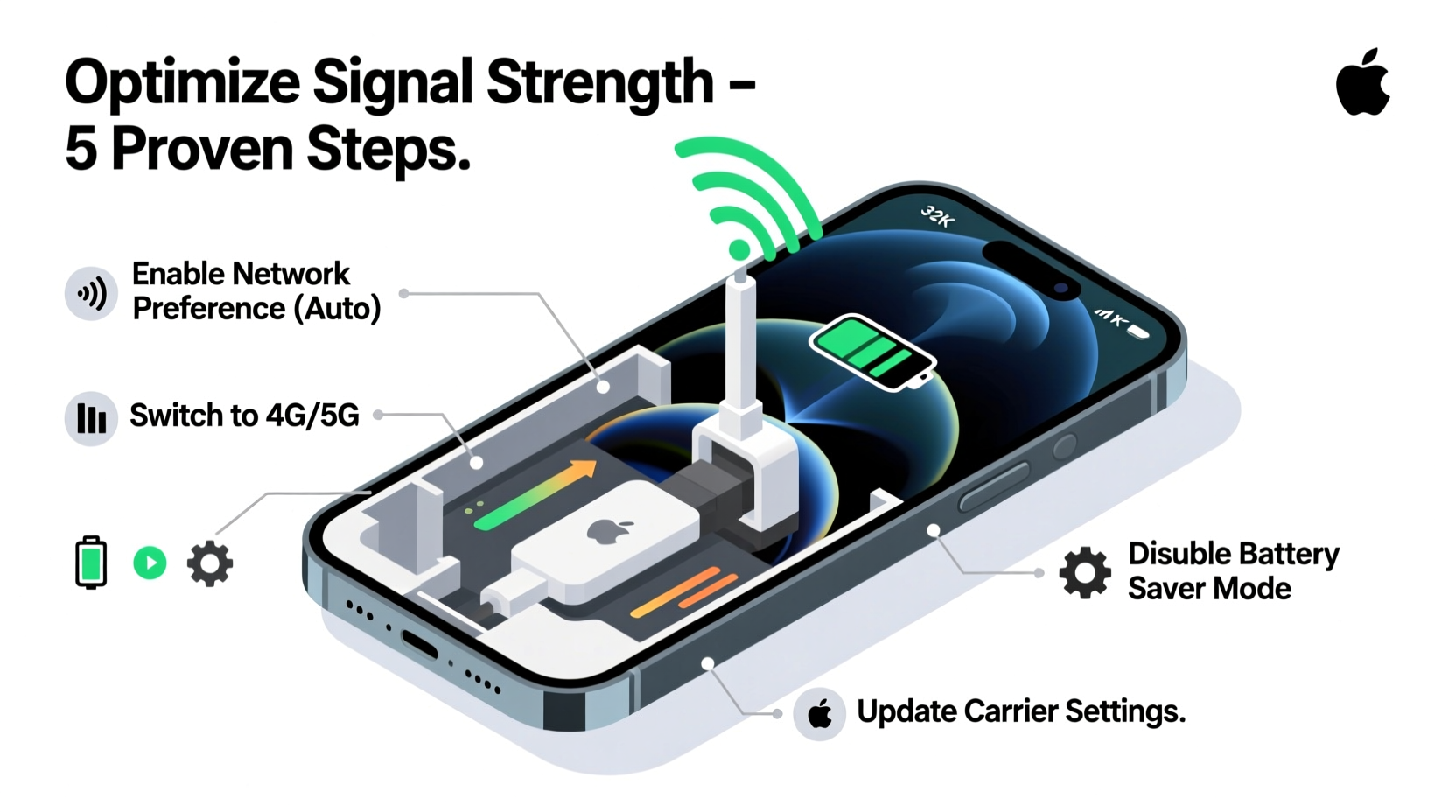
Your smartphone constantly communicates with nearby cell towers using radio frequencies. The strength and stability of this connection depend on several factors: distance to the tower, physical obstructions (like buildings or trees), network congestion, and your device’s ability to interpret signals efficiently.
Modern phones support multiple frequency bands—such as LTE, 5G, and older 3G—and automatically switch between them based on availability and performance. However, default settings may not always prioritize the strongest or most stable band. Customizing these behaviors allows you to override automatic decisions when they’re suboptimal.
Carriers also use different technologies across regions. For example, T-Mobile relies heavily on mid-band 5G for coverage, while Verizon uses high-band mmWave in cities and low-band elsewhere. Knowing your carrier’s infrastructure helps inform which settings adjustments will be most effective.
“Many users don’t realize their phone might be clinging to a distant 5G tower instead of switching to a closer 4G one. A manual preference change can restore reliable service.” — Dr. Alan Reyes, Wireless Network Engineer at MIT Lincoln Laboratory
Step-by-Step Guide to Optimizing Reception Settings
Follow this structured approach to maximize your phone’s signal potential:
- Enable Airplane Mode Briefly: Turn on Airplane Mode for 10–15 seconds, then disable it. This forces your phone to re-scan for the nearest and strongest available tower, often resulting in a better connection.
- Switch Between Network Modes: Go to Settings > Mobile Network > Network Mode. Try switching from “5G/4G Auto” to “LTE Only” if 5G is spotty. Conversely, enable “5G Preferred” in urban areas where 5G coverage is robust.
- Manually Select Your Carrier: Disable “Automatic Network Selection” and choose your provider manually. Sometimes phones latch onto weaker MVNOs or roaming partners even when the primary network is available.
- Reset Network Settings: If signal issues persist, reset network settings (Settings > General > Reset > Reset Network Settings). This clears corrupted APNs or cached tower data without affecting personal files.
- Update Carrier Settings: Check for carrier updates under Settings > General > About. Carriers push updates that optimize tower handoffs and band prioritization.
Do’s and Don’ts of Signal Optimization
| Do | Don’t |
|---|---|
| Use Wi-Fi calling when cellular signal is weak but Wi-Fi is strong | Assume all “bars” mean good call quality—sometimes full bars still result in poor voice transmission |
| Keep your phone away from metal objects and thick walls indoors | Place your phone in pockets or bags lined with metallic materials (e.g., RFID-blocking wallets) |
| Install software updates promptly—they often include modem firmware improvements | Ignore SIM card issues; try reseating or replacing an old/damaged SIM |
| Test signal strength in different parts of a room or building | Expect consistent 5G performance in basements or remote locations without dedicated small cells |
Real-World Example: Improving Rural Call Quality
Sarah, a freelance journalist living in northern Vermont, struggled with dropped calls and garbled audio despite having two to three signal bars on her Android phone. Her home sits in a valley surrounded by hills, limiting direct line-of-sight to towers.
After testing various solutions, she discovered that her phone was frequently connecting to a distant 5G node rather than a closer 4G tower. She disabled 5G in her network settings and enabled Wi-Fi calling through her mesh router system. Additionally, she mounted her phone near a south-facing window during important interviews.
The changes were immediate: call success rate improved from 60% to over 95%, and background noise during recordings decreased significantly. Sarah now keeps a small signal booster near her desk for backup but rarely needs it thanks to proper setting customization.
Advanced Tips for Power Users
For those comfortable navigating deeper system options, consider these advanced techniques:
- Use Field Test Mode (iOS): On iPhones, dial
*3001#12345#*to enter Field Test Mode. Here, you’ll see precise signal strength in dBm (decibel-milliwatts). Anything above -85 dBm is good; below -100 dBm indicates weak signal. - Check Band Locking (Android): Some Samsung and Google Pixel models allow viewing connected frequency bands via hidden menus (e.g., *#*#4636#*#* > Phone Information). If stuck on a high-frequency band (like n77 5G), forcing LTE may yield better results.
- Third-Party Apps: Tools like Network Cell Info Lite or CellMapper show real-time tower connections, helping identify whether your phone is latching onto optimal towers.
Frequently Asked Questions
Can I boost my signal without buying hardware?
Yes. Software-based optimizations—like switching network modes, resetting network settings, enabling Wi-Fi calling, and updating carrier profiles—can dramatically improve reception without purchasing amplifiers or boosters.
Does turning off Bluetooth or GPS help signal strength?
Not directly. These services operate on different frequencies and don’t interfere with cellular radios. However, reducing overall wireless activity can slightly extend battery life, preserving power for maintaining a stable signal during long trips.
Why does my phone show full bars but still drop calls?
Bars are a simplified representation of signal strength and don’t reflect latency, interference, or tower congestion. A full bar reading could mean strong signal but poor quality due to network overload or duplex mismatch. Use field test tools for accurate diagnostics.
Final Checklist: Optimize Your Phone Today
- Signal Optimization Checklist
- ☐ Toggle Airplane Mode to refresh network connection
- ☐ Switch from 5G to LTE (or vice versa) based on local performance
- ☐ Manually select your carrier instead of auto-selection
- ☐ Enable Wi-Fi Calling in Settings
- ☐ Update carrier settings and OS firmware
- ☐ Reseat or replace old SIM cards
- ☐ Use Field Test Mode (iPhone) or network diagnostic apps (Android) to monitor dBm readings
- ☐ Position your phone near windows or higher elevations indoors
Take Control of Your Connection
You don’t need expensive equipment or a new phone to enjoy clearer calls and stronger reception. With a few strategic adjustments to your phone’s network behavior, you can unlock better performance from existing infrastructure. Whether you're working remotely, commuting, or simply trying to stay in touch with family, optimizing your device’s settings empowers you to make every call count.




 浙公网安备
33010002000092号
浙公网安备
33010002000092号 浙B2-20120091-4
Comments
No comments yet. Why don't you start the discussion?