
Digital clutter accumulates silently. Over time, your computer fills with outdated documents, duplicate photos, forgotten downloads, and temporary files that serve no purpose—except to slow down your system and make it harder to find what you actually need. While the idea of cleaning up your digital life is appealing, many people hesitate. The fear of accidentally deleting something critical—a tax record, a project draft, or a family photo—keeps folders bloated and disorganized. But with a thoughtful, structured approach, you can reclaim control of your digital space without risking valuable data.
Why Digital Decluttering Matters
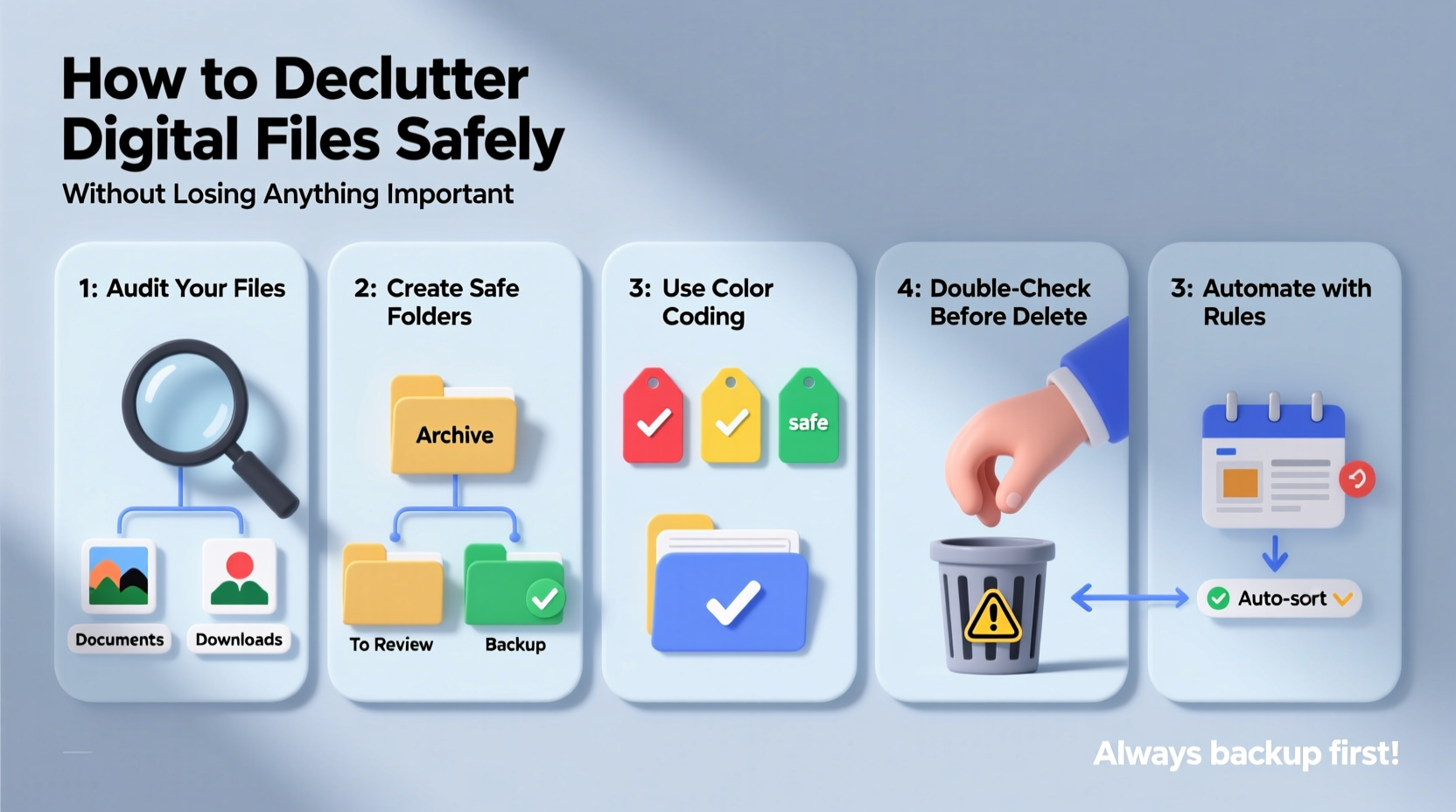
A cluttered digital environment doesn’t just waste storage; it affects productivity, mental clarity, and even cybersecurity. Files buried in nested folders lead to wasted time searching. Old versions of documents create confusion. And forgotten files may contain sensitive information vulnerable to breaches if left unmanaged.
According to research from the International Data Corporation (IDC), the average knowledge worker spends nearly two hours per day looking for misplaced files. That adds up to over 500 hours a year—more than two full workweeks lost to poor file organization.
The goal isn’t just deletion—it’s intelligent curation. You're not throwing things away; you’re creating a system where everything has a place, and nothing important gets lost in the noise.
A Strategic Approach: The 5-Step Decluttering Framework
Randomly clicking “Delete” leads to regret. Instead, follow this proven five-step process to clean up your files with confidence.
- Backup First: Before touching any file, ensure you have a complete backup. Use an external drive or cloud service like Google Drive, Dropbox, or Backblaze.
- Assess & Categorize: Survey your digital landscape. Identify major folders: Documents, Photos, Downloads, Work Projects, Personal Media, etc.
- Apply the Rule of Three: For each file, ask: Is it current, useful, or irreplaceable? If not, consider archiving or deleting.
- Organize with Intention: Create a clear folder hierarchy based on function, not date or randomness. Use consistent naming conventions.
- Maintain Regularly: Schedule monthly or quarterly reviews to prevent re-cluttering.
How to Identify What’s Safe to Delete
Not all files are created equal. Some are essential; others are digital debris. Use these criteria to distinguish between them.
Files You Can Likely Remove
- Temporary internet files and browser cache
- Old software installers after successful setup
- Duplicate images or documents (verify content before removing)
- Email attachments already saved elsewhere
- Auto-saved drafts from years ago
- Outdated versions of finalized reports or contracts
Files Worth Keeping—or Archiving
- Tax records (keep for at least 7 years)
- Legal documents (leases, wills, deeds)
- Original high-resolution photos and videos
- Project source files (e.g., Photoshop PSDs, video editing timelines)
- Official certifications or academic transcripts
- Correspondence related to ongoing matters
| File Type | Retention Period | Action |
|---|---|---|
| Bank statements | 1–3 years | Delete after downloading annual summaries |
| Tax returns | 7+ years | Archive securely; keep copies off-device |
| Work presentations (finalized) | Until project ends + 1 year | Move to long-term archive folder |
| Family photos | Indefinite | Back up in multiple locations; avoid deletion |
| Software installers | After installation confirmed | Delete unless offline access is needed |
“Digital minimalism isn’t about having fewer files—it’s about making your important files easier to find.” — Cal Newport, author of *Digital Minimalism*
Real Example: How Sarah Regained Control of Her Laptop
Sarah, a freelance graphic designer, hadn’t cleaned her laptop in four years. Her Documents folder had 2,847 files across 137 subfolders. She avoided organizing because she feared losing client work or original design assets.
She started by backing up everything to an encrypted external drive. Then, she created a new folder structure: Clients > Project Name > Final Deliverables / Source Files / References. Using file-sorting tools, she grouped files by type and date. Anything older than three years without edits went into a “Legacy Archive” folder.
For two weeks, she moved files instead of deleting them. After confirming all active projects were intact, she reviewed the “To Delete” folder. Out of 843 files marked for removal, only 12 were restored. The rest—temporary exports, test mockups, old invoices—were safely deleted.
Result: She freed up 47 GB of space, reduced search time by 70%, and now updates her system every quarter without anxiety.
Essential Tools and Techniques
You don’t need to do this manually. Leverage technology to speed up identification and reduce risk.
Duplicate Finders
Tools like Duplicate Cleaner (Windows), Gemini 2 (Mac), or CCleaner can scan for redundant files. Always preview matches before deletion. Be cautious with media files—sometimes slight variations matter (e.g., edited vs. original photo).
Disk Space Analyzers
Use WinDirStat (Windows) or DaisyDisk (Mac) to visualize which folders consume the most space. These tools display directories as proportional blocks, helping you spot outliers quickly—like a 15 GB folder of old Zoom recordings.
Cloud Sync Verification
If you rely on iCloud, OneDrive, or Google Drive, confirm sync status before deleting local copies. Check settings to see whether files are “stored online only” or fully downloaded. Accidentally deleting a locally cached file while assuming it’s backed up can lead to permanent loss.
Checklist: Your Digital Decluttering Action Plan
Follow this step-by-step checklist to ensure a safe, thorough cleanup:
- ✅ Back up all data to an external drive or trusted cloud service
- ✅ List all major folders needing review (Downloads, Desktop, Documents, etc.)
- ✅ Install a disk analyzer tool to identify space hogs
- ✅ Run a duplicate file scanner and review results carefully
- ✅ Create a new folder structure based on function, not chronology
- ✅ Sort files into: Keep, Archive, Delete
- ✅ Move “Delete” candidates to a holding folder labeled “Review – Do Not Empty Until [Date]”
- ✅ Wait 30 days, then permanently delete contents of the review folder
- ✅ Update file-naming conventions across all active projects
- ✅ Schedule a recurring calendar event for quarterly maintenance
Frequently Asked Questions
What if I delete a file and realize I need it later?
If you’ve backed up your system, recovery is usually possible. Most cloud services retain deleted files in a trash folder for 30 days. On local drives, use built-in recovery tools like Windows File History or Mac Time Machine. This is why backups and delayed deletion are critical parts of the process.
Should I delete old emails and their attachments?
Yes—but selectively. Emails more than 2–3 years old with no ongoing relevance can be archived or deleted. However, download and save attachments (contracts, receipts, tickets) to your organized document system before removing the email. Once saved properly, the attachment in the email becomes redundant.
Is it safe to use automated cleanup tools?
Only if used cautiously. Tools like CCleaner or Mac’s built-in storage management can help, but they sometimes flag important files. Always review what will be deleted. Disable aggressive “auto-clean” features unless you fully understand their scope. Manual oversight beats blind automation.
Final Thoughts: Build a Sustainable System
Decluttering isn’t a one-time event—it’s the beginning of better digital habits. The most effective systems aren’t perfect; they’re maintainable. Design a structure that reflects how you actually work, not how someone else says you should.
Start small. Tackle one folder at a time. Celebrate progress, not perfection. Over time, you’ll develop intuition about what matters and what doesn’t. The goal isn’t an empty hard drive—it’s peace of mind knowing your digital life is under control.
Every file you organize reduces cognitive load. Every duplicate you remove frees up space for creativity. And every decision you make today builds resilience against tomorrow’s clutter.




 浙公网安备
33010002000092号
浙公网安备
33010002000092号 浙B2-20120091-4
Comments
No comments yet. Why don't you start the discussion?