
Digital photography has made capturing life’s moments easier than ever. But with convenience comes clutter. Smartphones, tablets, laptops, and multiple cloud accounts often store duplicate, blurry, or forgotten images—filling up valuable storage and making it harder to find the photos that truly matter. Left unchecked, digital photo chaos can lead to disorganization, wasted time, and even data loss. The solution isn’t deleting memories—it’s creating a smart, sustainable system to manage them. This guide walks you through a comprehensive approach to declutter your digital photos across all devices and cloud platforms, so you can preserve what’s meaningful and let go of the rest with confidence.
Why Digital Photo Clutter Is a Growing Problem
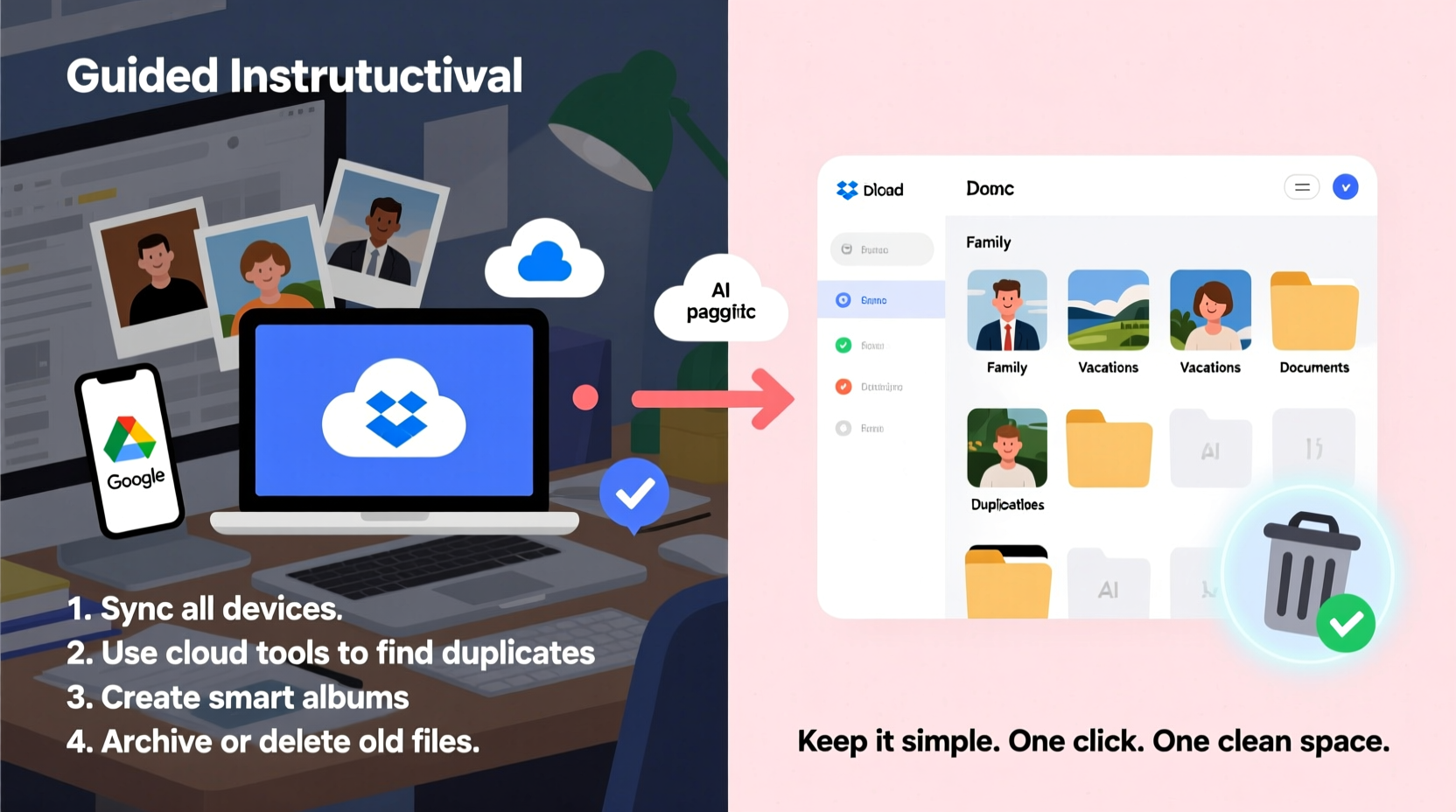
The average smartphone user takes over 700 photos per year. Multiply that by several years and multiple devices, and it’s easy to see how photo libraries balloon into thousands of unorganized files. Many people rely on automatic cloud syncing from Apple iCloud, Google Photos, or Samsung Cloud, which often leads to redundancy. A single photo taken on a phone may appear in three different locations: the device itself, a backup folder, and a cloud album. Over time, this duplication makes sorting inefficient and inflates storage costs.
Beyond storage bloat, disorganized photo collections make it difficult to locate specific images when needed. Family events, travel memories, or important documents like receipts and IDs become buried under screenshots, failed shots, and accidental bursts. Worse, without a clear management strategy, photos are vulnerable to accidental deletion or hardware failure.
A Step-by-Step System to Declutter Across Devices and Clouds
Decluttering digital photos isn’t about rushing through thousands of images in one sitting. It’s a structured process that ensures consistency, reduces stress, and protects your most valuable memories. Follow this timeline-based approach to regain control.
- Inventory Your Sources (Week 1): List every device and cloud account where photos are stored—iPhone, Android, iPad, laptop, desktop, Google Photos, iCloud, Dropbox, OneDrive, etc. Note down storage usage for each.
- Consolidate Files (Week 2–3): Choose a primary storage hub (e.g., Google Photos or an external hard drive). Download and centralize photos from all devices into one master folder structure organized by year and event.
- Remove Duplicates and Junk (Week 4): Use tools like Gemini Photos (Mac), Duplicate Cleaner (Windows), or Google Photos’ built-in duplicate finder to identify and delete redundant files.
- Curate and Organize (Ongoing): Apply labels, albums, or metadata. Keep only high-quality, meaningful images. Archive full-resolution originals; use compressed versions for sharing.
- Automate Backups (Final Step): Enable automatic backups to a trusted cloud service and an external drive. Test recovery once to ensure your system works.
This phased method prevents burnout and ensures no photo is lost during the transition. The goal is not perfection but progress—creating a system that’s easy to maintain long-term.
Essential Tools and Features to Streamline the Process
Manual sorting is time-consuming. Leverage software and built-in features to speed up decluttering while minimizing errors.
- Google Photos: Offers AI-powered search, facial recognition, and duplicate detection. Its “Libraries” tab helps separate media types like screenshots and memes.
- iCloud Photos: Enables seamless syncing across Apple devices. Use “Recently Deleted” to recover mistakes within 30 days.
- Dedicated Cleanup Apps: Tools like VisiPics (Windows) or PhotoSweeper (Mac) scan across folders and highlight visual duplicates, even if filenames differ.
- External Hard Drives: Store archival copies safely offline. Consider models with encryption and automatic backup software, such as Western Digital My Passport or Seagate Backup Plus.
For advanced users, consider using file management scripts or apps like Adobe Bridge to batch-edit metadata, rename files consistently, and tag images by location, date, or subject.
Do’s and Don’ts of Digital Photo Management
| Do | Don't |
|---|---|
| Back up photos in at least two locations (cloud + physical drive) | Rely solely on a single device or free-tier cloud storage |
| Organize by year and event (e.g., 2023_Wedding, 2024_Vacation) | Use vague names like “Photos_01” or “Camera Roll Copy” |
| Delete low-value images: duplicates, blurs, excessive angles | Keep every photo “just in case”—it creates decision fatigue |
| Use auto-sync features wisely with selective backup settings | Enable unlimited uploads without reviewing what gets saved |
| Label people and places using cloud AI tagging features | Ignore metadata—searchability depends on accurate tagging |
Following these guidelines helps maintain clarity and reduces the risk of losing critical photos due to poor organization or over-reliance on fragile systems.
Real Example: How Sarah Reclaimed Her Photo Library
Sarah, a freelance designer and mother of two, realized her iPhone was constantly running out of storage. She assumed it was apps, but after checking, she found over 18,000 photos—many duplicated across iCloud, Google Photos, and her old laptop. She spent weekends trying to sort them manually but kept getting overwhelmed.
She decided to follow a structured plan. First, she exported all photos from her devices into a master folder on an external drive labeled “Photo_Archive.” Using Google Photos’ duplicate scanner, she removed nearly 3,000 redundant images. Then, she created albums by year and event: “2022_Bali_Trip,” “2023_Lily’s_Birthday,” “Family_Portraits.”
She set up automatic weekly backups to both Google Photos (compressed) and her encrypted hard drive (original quality). Within a month, her phone had 12GB of free space, and she could instantly find any photo using search terms like “dad beach hat.”
“I thought I’d have to choose between keeping memories and having a functional phone,” Sarah said. “But organizing them actually helped me appreciate them more.”
“We often hold onto digital clutter out of fear of forgetting. But real preservation happens through organization—not accumulation.” — Dr. Lena Torres, Digital Archivist & UX Researcher
Checklist: Your Digital Photo Decluttering Action Plan
Use this checklist to stay on track during your cleanup process. Print it or save it digitally for reference.
- ☐ Inventory all devices and cloud accounts storing photos
- ☐ Choose a primary storage hub (cloud or external drive)
- ☐ Download and consolidate photos into a unified folder structure
- ☐ Run duplicate-finding software or use cloud-native tools
- ☐ Delete blurry, redundant, or irrelevant images (screenshots, receipts, test shots)
- ☐ Create meaningful albums by year, event, or person
- ☐ Apply tags or labels using AI features (faces, locations, objects)
- ☐ Enable automatic backups with version history
- ☐ Test recovery: Can you restore a photo from backup?
- ☐ Schedule quarterly reviews to maintain order
Completing this list doesn’t mean your photo library will be perfect forever—it means you’ve built a repeatable system that adapts as your life evolves.
Frequently Asked Questions
How many photos should I really keep?
There’s no universal number. Focus on quality, not quantity. Keep photos that evoke emotion, document milestones, or serve practical purposes (e.g., IDs, receipts). For events like birthdays or trips, aim to retain 20–50 strong images rather than hundreds of near-identical shots.
Is it safe to delete photos from my phone after backing them up?
Yes—if you’ve confirmed the backup is complete and accessible. Always verify that photos appear in your cloud library or external drive *before* deleting from the device. Use services with version history so you can recover files if needed.
What’s the best way to share large photo collections with family?
Use shared albums in Google Photos or iCloud. These allow collaborators to view, download, or add photos without merging entire libraries. Avoid sending large ZIP files via email; instead, generate shareable links with expiration dates for security.
Conclusion: Turn Chaos Into Clarity
Decluttering digital photos isn’t just about freeing up storage—it’s about reclaiming your relationship with memory. When your photos are organized, accessible, and meaningful, you’re more likely to revisit them, share them, and pass them on. The effort you invest today pays dividends in peace of mind tomorrow.
You don’t need to do everything at once. Start small: pick one device, clear one folder, create one album. Build momentum through consistency, not perfection. With the right tools, structure, and mindset, you can transform digital overwhelm into a curated archive of your life’s most precious moments.




 浙公网安备
33010002000092号
浙公网安备
33010002000092号 浙B2-20120091-4
Comments
No comments yet. Why don't you start the discussion?