
Digital photos capture moments we want to remember—birthdays, vacations, quiet mornings. But over time, they accumulate silently: blurry duplicates, forgotten screenshots, and hundreds of near-identical shots from the same event. Before you know it, your phone warns of low storage, your laptop slows down, and your cloud subscription costs more than your coffee habit. The good news? You don’t need to delete everything to regain control. With a systematic approach, you can sort, organize, and streamline your photo collection across all devices while preserving what matters most.
Why Digital Photo Clutter Matters
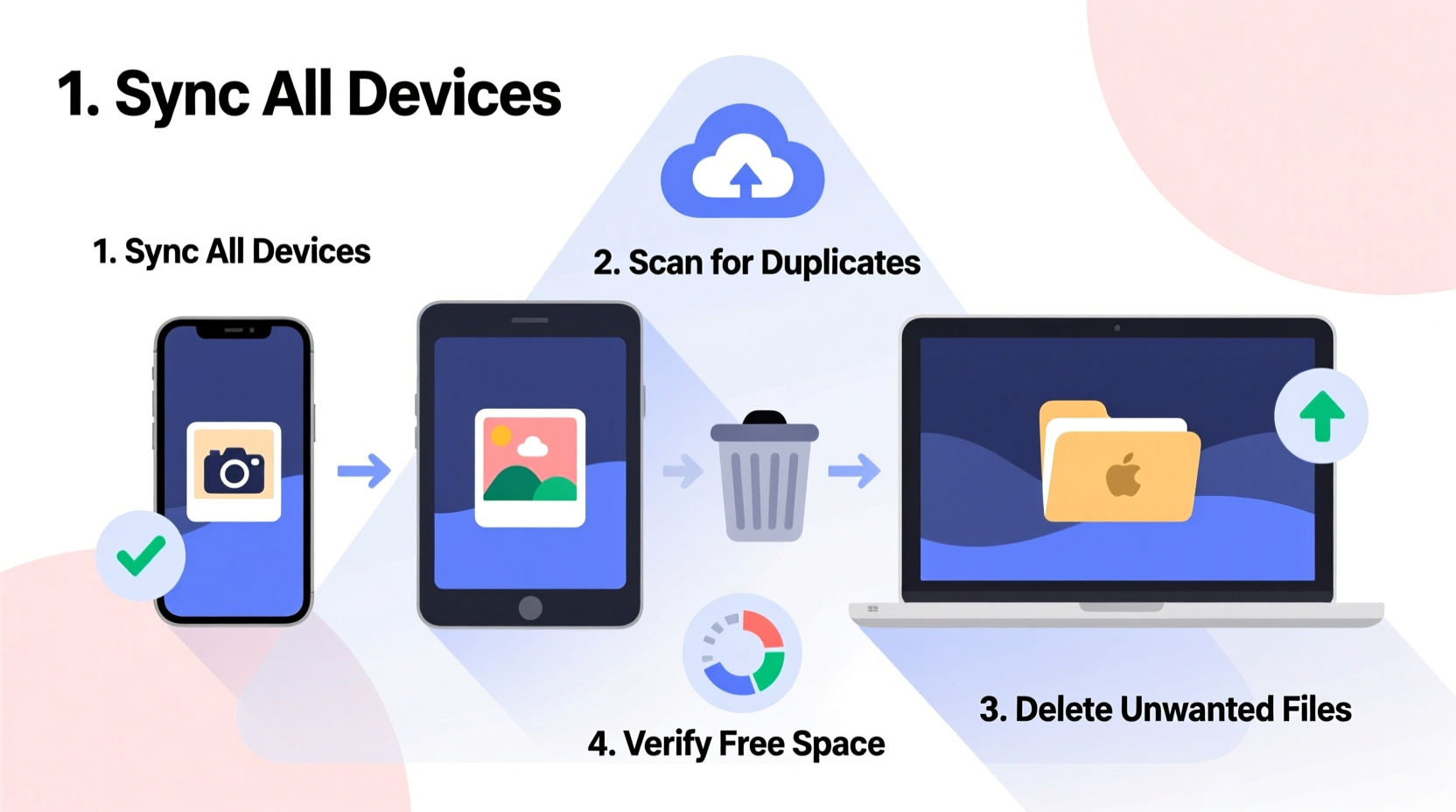
Most people underestimate how quickly digital clutter builds. A single high-resolution smartphone photo can be 3–5 MB. Take 100 photos on vacation? That’s up to 500 MB—just one trip. Multiply that by years of use, multiple devices, and automatic cloud syncing, and it's easy to see how storage fills up.
Clutter doesn't just cost money in cloud fees. It impacts device performance, makes finding specific photos frustrating, and increases the risk of losing important memories during migrations or system failures. According to a 2023 survey by Statista, over 60% of smartphone users have experienced storage issues due to unmanaged media files. Photos are the leading culprit.
“Digital hoarding isn’t just about space—it’s about accessibility. If you can’t find a photo when you need it, does it really exist?” — Dr. Lena Torres, Digital Archivist & UX Researcher
A Step-by-Step Guide to Decluttering Photos Across Devices
Decluttering digital photos isn’t a one-time cleanup; it’s a process of auditing, organizing, and maintaining. Follow this timeline-based approach to do it thoroughly without burnout.
- Week 1: Audit Your Current Storage (All Devices)
Check each device—smartphone, tablet, laptop, desktop—for photo libraries. Note approximate counts and available storage. Use built-in tools like iPhone Settings > General > iPhone Storage or Android Settings > Storage > Files to get a snapshot. - Week 2: Consolidate into One Primary Location
Pick one platform as your central hub—Google Photos, iCloud, or a local drive. Begin transferring photos from secondary devices into this location. Use wired transfers or secure cloud syncs to avoid data loss. - Week 3: Eliminate Duplicates and Low-Quality Images
Run duplicate-finding software (like Gemini Photos for Mac/iPhone or Duplicate Media Finder for Windows) to detect identical or near-identical images. Manually review folders for blurs, closed eyes, or accidental shots. - Week 4: Organize by Date, Event, or People
Create folders or albums labeled by year, trip, or occasion (e.g., “2023 – Hawaii Trip” or “Family Christmas 2022”). Use tagging if your platform supports it. Avoid vague names like “Vacation Pics.” - Ongoing: Set Monthly Maintenance Rules
Block 30 minutes monthly to review new photos. Delete immediately after import if unnecessary. Enable auto-delete for temporary caches like WhatsApp or Instagram downloads.
Do’s and Don’ts of Digital Photo Management
Even with good intentions, common mistakes can undo your progress. This table outlines key behaviors to adopt—and avoid.
| Do | Don’t |
|---|---|
| Back up photos to at least two locations (e.g., cloud + external drive) | Rely solely on one cloud service without local backup |
| Use consistent naming and folder structures | Create overlapping or redundant albums (“Beach 2022,” “Summer 2022,” “Ocean Pics”) |
| Delete screenshots and memes immediately after use | Keep every downloaded image “just in case” |
| Archive old events into yearly folders | Leave thousands of photos in a single “Camera Roll” |
| Use facial recognition features to group people automatically | Manually tag every person in every photo—let technology help |
Reclaiming Cloud Storage: Practical Strategies
Cloud storage is convenient but often expensive once you exceed free tiers. Google Photos offers 15 GB free; Apple gives the same across iCloud. Hit that limit, and upgrades start at $1/month. Here’s how to reduce your footprint without sacrificing memories.
- Compress non-essential photos: Convert older JPEGs to slightly lower resolution (e.g., 2048px wide) using tools like Adobe Express or Caesium. Most won’t notice the difference on social media or prints under 8x10”.
- Offload videos: Videos consume 10–50x more space than photos. Move long clips to an external hard drive or NAS (Network Attached Storage). Keep only highlights in the cloud.
- Clear cached media: Apps like Facebook, Messenger, and Telegram store media locally. On Android, go to Settings > Apps > [App Name] > Storage > Clear Cache. On iOS, offload unused apps via Settings > General > iPhone Storage.
- Review shared albums: Shared albums may sync to your device. Unsubscribe or disable auto-download if you’re not actively contributing.
Real Example: How Sarah Reclaimed 28 GB in One Weekend
Sarah, a freelance designer and mother of two, found her iPhone constantly warning of low storage. Her 64 GB device was 98% full, mostly from photos. She followed a focused weekend plan:
- Saturday morning: Connected her iPhone to her MacBook and used Image Capture to import all photos from the last six months. She noticed 1,200+ images in her camera roll.
- Saturday afternoon: Opened Google Photos on her laptop and ran the “Duplicates” filter. It flagged 317 near-duplicates—mostly burst mode shots and slight variations. She deleted them in batches.
- Sunday: Created folders for “Kids – 2023,” “Work Projects,” and “Travel – Portland.” Moved relevant photos, then exported the organized set to an encrypted external drive.
- Final step: Enabled “Optimize iPhone Storage” in Settings > iCloud > Photos. This reduced her device usage from 58 GB to 30 GB overnight.
The result? Her phone runs faster, she no longer pays for extra iCloud space, and family photos are easier to share. “I didn’t realize how much mental clutter came with digital clutter,” she said. “Now I actually enjoy looking through my photos instead of dreading it.”
Essential Checklist for Digital Photo Decluttering
Use this checklist to stay on track whether you're doing a full overhaul or a quarterly refresh.
- ☐ Inventory photo storage on all devices (phone, tablet, computer)
- ☐ Choose a primary storage platform (Google Photos, iCloud, etc.)
- ☐ Back up current library to external drive or second cloud service
- ☐ Run duplicate detection tool
- ☐ Delete blurry, redundant, or irrelevant photos (screenshots, receipts)
- ☐ Organize remaining photos into dated or themed albums
- ☐ Compress large videos or move them offline
- ☐ Enable optimization settings (e.g., “Optimize Storage”)
- ☐ Schedule a monthly 30-minute maintenance session
- ☐ Test backup integrity by opening a random album from the archive
Frequently Asked Questions
How do I know which photos to keep?
Ask three questions: Does this photo evoke emotion? Is it historically significant (e.g., first day of school)? Would I miss it if it were gone? If none apply, consider deleting. Also, keep only the best shot from a series—no need for five nearly identical sunset photos.
Can I delete photos from my phone after backing them up?
Yes—but only after confirming the backup is complete and accessible. Wait 48 hours after upload before deletion. Check that photos appear in your cloud library and that you can view them across devices.
What’s the safest way to store photos long-term?
Follow the 3-2-1 rule: 3 copies of your data, on 2 different media types (e.g., cloud + SSD), with 1 offsite (e.g., cloud storage). Rotate external drives every 3–5 years, as storage degrades over time.
Conclusion: Start Small, Stay Consistent
Decluttering digital photos isn’t about perfection—it’s about progress. You don’t need to sort 10,000 photos in a day. Focus on one device, one year, or even one album. Each photo you delete that doesn’t matter frees up space for ones that will. Every organized folder makes future memories easier to find and share.
Technology should serve you, not stress you. By taking control of your digital photo ecosystem, you reclaim not just gigabytes, but peace of mind. Your devices will run better, your subscriptions will cost less, and your favorite moments will be easier to relive.




 浙公网安备
33010002000092号
浙公网安备
33010002000092号 浙B2-20120091-4
Comments
No comments yet. Why don't you start the discussion?